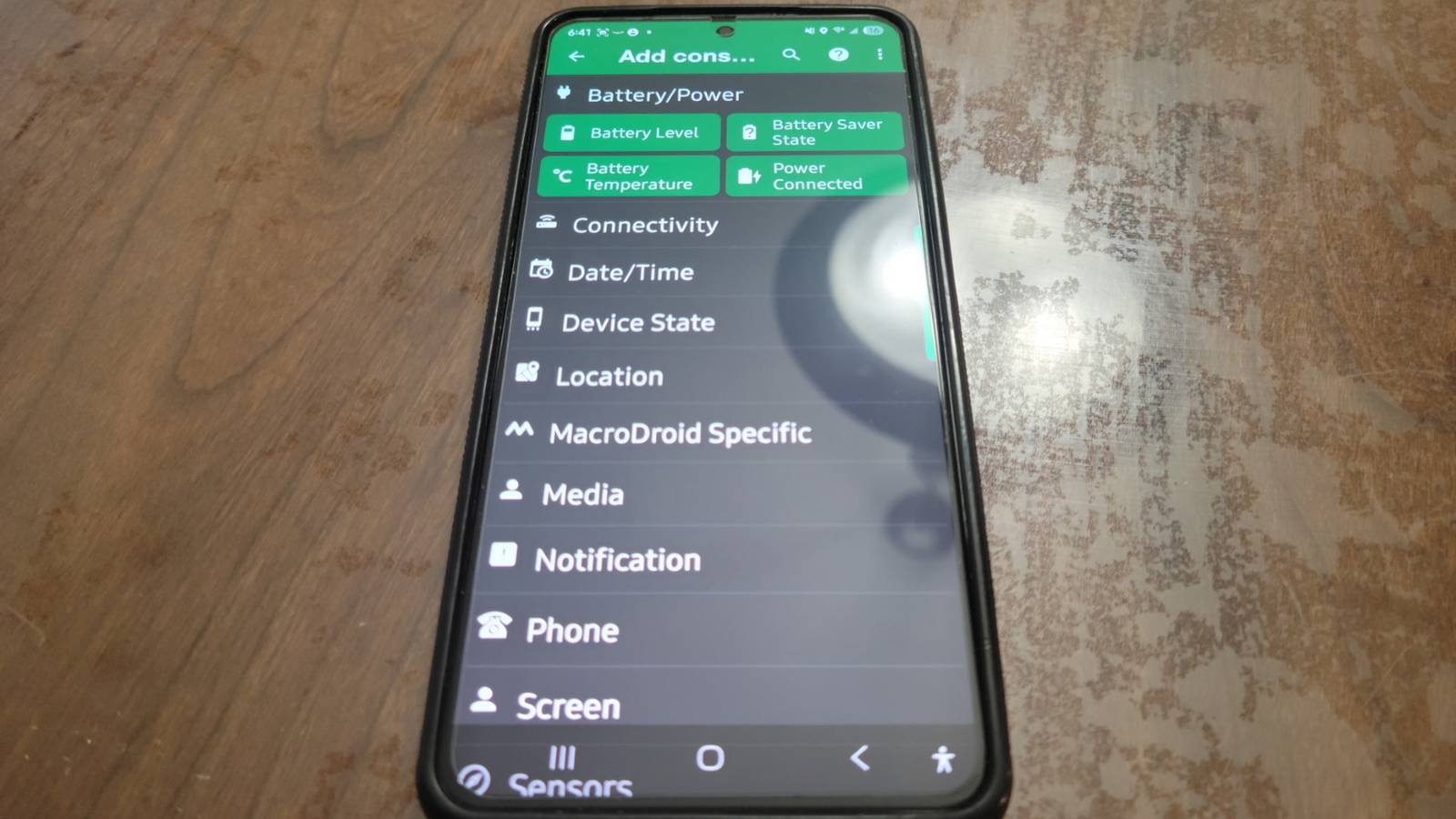
Published Aug 3, 2026, 9:00 AM EDT Aggy is a veteran writer and editor in the technology and gaming space. Having served as a Managing Editor for high-traffic digital publications, alongside being an editor and consultant for over a dozen sites. Aggy's published work spans a wide and respected array of tech and gaming outlets, including WePC, Screen Rant, How-To Geek, Android Police, PC Invasion, and Try Hard Guides. Beyond editorial work, Aggy's direct experience in the tech sphere extends to app development. Aggy has published two games under Tales and is always eager to learn and do more. He also likes working on computers and researching in his spare time. He knows about Windows, Linux, Audio, Video, and much more. Most phone automation apps want you to build routines around fixed schedules or simple triggers. That works fine, but a phone should feel a lot smarter by this point. What actually makes a phone feel smart is when it reads the situation instead of just the clock. MacroDroid can do that and other things, and there are automations that can be built around conditions that actually reflect how your day moves. Phone automations should adapt to what you're doing Standard power saving modes cut off too much Pretty much every phone owner hates watching the battery creep into the red when there's no charger in sight. Android phones have had battery-saving modes for years, and they do their job well. Once your battery dips below a certain point, the phone slams the brakes on everything to keep itself alive. That's great when you're stuck somewhere without power, but it gets old fast when you're sitting ten feet from an outlet. The moment standard power-saving kicks in, your processor gets throttled, your display drops to a choppy 60Hz, the always-on display shuts off, and apps stop doing anything useful in the background. The whole point of setting up smarter automation is to get rid of that blunt, all-or-nothing behavior, so your phone only starts rationing itself when it genuinely needs to. To set it up, open MacroDroid and create a new macro. For your trigger, add "Battery level" set to below 20%. Then, under "Constraints," add "Wi-Fi network" to your home network with the status set to "Disconnected. This is important because otherwise, the routine will start if either are true, when you need both to be true at the same time. Then under "Then," add two actions. First, turn "Power saving" on, and then turn "Bluetooth" off. Once that's saved, your phone starts behaving a lot more sensibly. When you're home with a charger nearby, it leaves everything alone, but if you're outside and your battery crosses that 20% line, the routine kicks in immediately, cuts Bluetooth, and starts conserving everything it can to squeeze as much life out of what's left as possible. You can mute your phone automatically at works Disconnecting restores your normal settings right away Credit: Jorge Aguilar / HowToGeek This macro adjusts your notification volume based on how close you are to your desk. To build the first part of the automation, open the app and set your trigger to a Bluetooth Event. From there, press Device Connected and pick your desktop or speaker from the list of paired devices. Then move down to the actions section and add a Volume Change action to drop the ringer and notification sliders to 0%, or use the Ringer Mode action to switch straight to Vibrate if you prefer. You stop having to remember to mute your phone at the start of a shift, and you stop worrying about it going off in a quiet meeting. It just handles itself. Part of what makes this work so well is Bluetooth's naturally short range. Since the signal only reaches so far, it acts as a clean boundary for your desk without burning through your battery the way GPS or constant Wi-Fi scanning would. The second you step away for lunch or head home, the connection drops and your volume comes back on, so you won't miss a call because you forgot to unmute. For when you leave your desk, you build a second macro that mirrors the first one, but this time using the Bluetooth Device Disconnected event as the trigger. The action here is another Volume Change, sliding the ringer and notifications back up to around 70%. Since Android keeps separate audio streams for things like alarms, notifications, and media, setting these sliders individually makes sure your alerts are handled correctly without accidentally muting something you actually need. Setting up car mode handles your driving app stack Putting in a little time up front saves hassle later Credit: Jorge Aguilar / HowToGeek This macro basically turns your phone into a hands-free driving setup the moment you get in the car. As soon as your phone connects to your car stereo over Bluetooth, it automatically opens YouTube Music, starts playing, maxes out the media volume, and pulls up Google Maps. When you shut the engine off and disconnect, it pauses the music and goes back to your home screen, ready for normal use. The whole thing is built inside MacroDroid using its trigger-and-action system, which sounds fancier than it is. Setting up the entry sequence is pretty straightforward. You go into the triggers section, pick Connectivity, and choose Bluetooth Event, then set it to fire when your specific car stereo connects. From there, you stack the actions in order: launch YouTube Music, send a play command to get it going automatically, push media volume to 100% or whatever sound you'd like. Make sure to adjust your media volume, not your ringer. Then open Google Maps on top of everything, so your navigation is front and center. The exit sequence is even simpler. You create a second macro using the same car stereo as the trigger, but this time set it to Bluetooth Disconnected. Then pause YouTube Music and go to the home screen as two separate actions. You'll be done after a quick setup MacroDroid's trigger-and-action system does need a bit of upfront work. The commands themselves aren't complicated, but testing them to make sure they work properly can be annoying if something goes wrong. Once that's done, though, these macros run without any input from you. That's much better than doing it manually every day. MacroDroid MacroDroid lets you make automations for your phone that follow the rules you set up.
I built 3 context-aware MacroDroid automations that actually understand my day
Full Article
Original Source
Read the full article at Howtogeek →KhanList aggregates and links to publicly available news content. We do not host full articles from third-party sources. Always verify important information with original sources.