
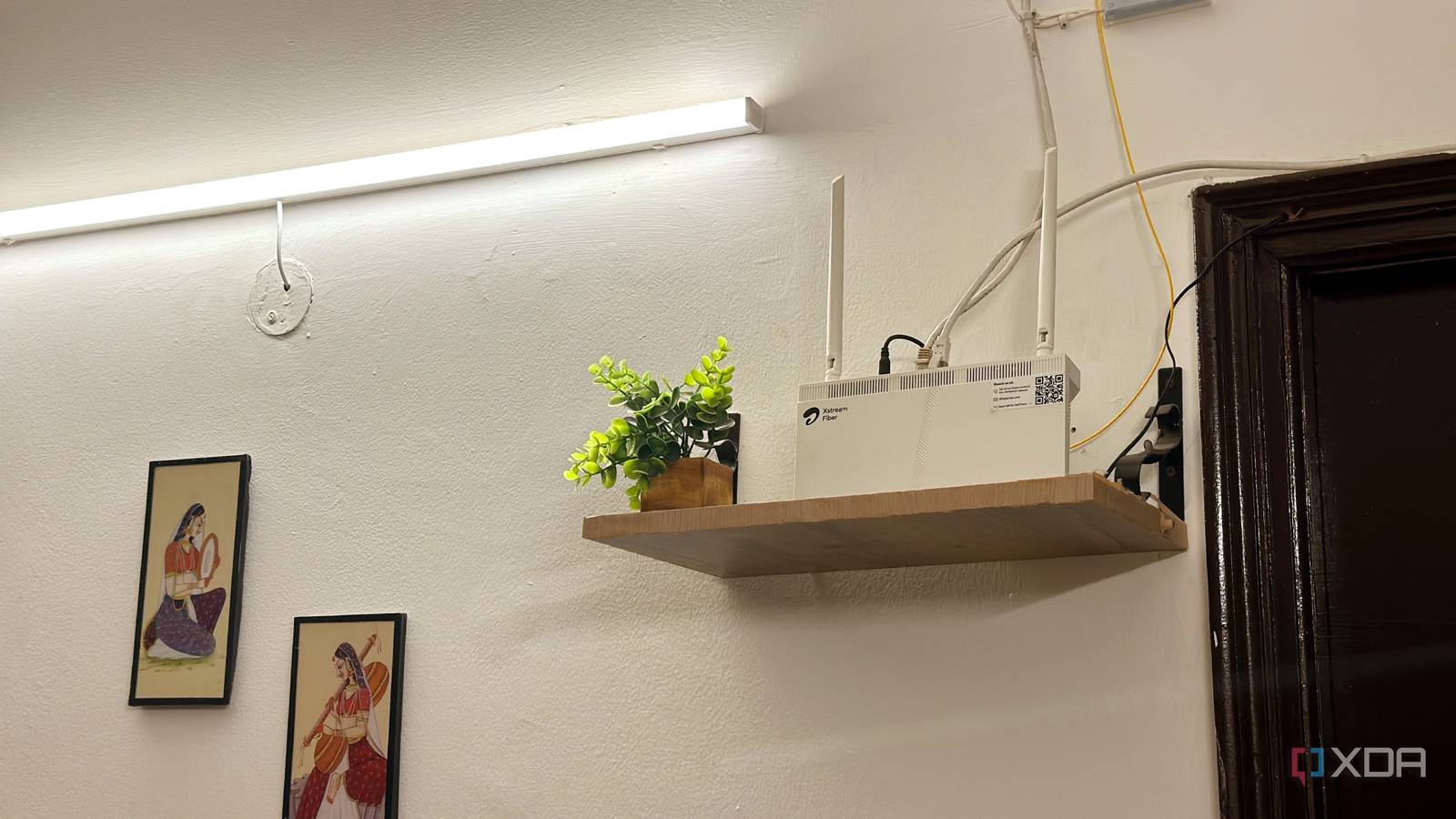
Published Aug 20, 2026, 2:30 PM EDT Abhishek is an author at XDA who covers computing. He has loved computers since he got the Lenovo G570 in 2012. Abhishek holds a master's degree in computer applications and began his writing career in 2018. He loves writing how-to articles, listicles, and informational posts on popular operating systems and web services. He closely follows the Windows Insider program and tests new Insider builds to discover upcoming experimental features and upgrades. His past work includes long-term collaborations with reputed publications like Tom's Hardware, and Windows Latest. When not writing anything, he is busy watching new episodes of One Piece or searching for something binge-worthy. A Wi-Fi router is the cornerstone of your internet connection. All the smart, network-based devices in your home, like your TV, phone, laptops, security cameras, etc., rely on it. Life becomes a mess when the wireless connection is unstable, forcing you to find ways to get everything back to normal. The main router, usually installed by the ISP, uses an Ethernet or fiber-optic cable to receive an internet connection and then distribute it. But the Wi-Fi router has a limited range, and if you want to use any devices beyond that, you have to add another wireless access point. There are other methods, like using a mesh Wi-Fi system, but the cheapest and simplest one is to just buy another router with AP and range extender mode and increase your coverage. I did the same, but merely adding one or more wireless access points doesn’t magically improve everything, and I learned it the hard way. Setting up the access point is easy But correct placement matters I bought an additional router because my main router isn’t on the first floor anymore. I recently extended the second floor to add one more room, and moved both my setup and router there. It’s installed in one corner of the new room, connected to an inverter outlet that provides uninterrupted power. There is no signal problem on the upper floor, as the old router covers it well. But the first floor now has a considerably weaker signal strength, especially in areas that aren’t directly below the upper room. There are two wireless security cameras installed on my main gate, and one inside the main hall. All three of them used to connect and pair nicely when the router was on the first floor. But after the renovation, the cameras faced poor signal issues, and I noticed stuttering and unresponsive playback. Adding the new TP-Link router was supposed to improve the signal strength and internet speed, but the results weren’t significantly different. The main reason for this issue was that I didn’t place the router exactly in the same room on the first floor. Increasing the distance reduced internet speed significantly because I didn’t factor in the backhaul, which explained why my camera’s playback didn’t improve. Wired access points are better But running a cable isn’t always possible As much as I love Ethernet for reliable internet connectivity and uncompromised speeds, it's not possible to have it in every room. In my region, walls are made of concrete, and the internal pipes only carry electrical wires in a concealed manner. It’s a slightly older house, so there’s no room to run cables to every room and manage them through a network switch. When you think of an access point, you seldom think about placement, as long as it can connect to the main router. It might work for wired access points that are physically connected to the main router via an Ethernet cable, but wireless ones need more attention. I decided to add a wireless access point because I had no other choice except to drill a hole in the roof of the first floor and run the wire directly there. Wireless access points are easy to configure, and my TP-Link router has built-in modes to pair it with the main router and then extend the signal. However, your device's signal strength to the access point doesn't always translate into the best internet performance. It only shows you how clear the communication is between the device and the router, and not the access point and the main router. Even full signal strength can result in poor internet speed if the access point doesn't receive adequate signal strength from the main router. Since the wireless signal is already diminished by internal house walls and other objects, placing the access point device too far from the main router will result in a slower internet experience. I noticed this even when playing YouTube videos on my phone while connected to the access point or trying to stream something on the TV. So, my access point was in the perfect position for all the devices on the first floor, but its distance from the main router gravely impacted its connection quality. Repositioning the router Sacrificing uninterrupted power for connection stability I placed my access point router in the front of the home because it had a vacant inverter outlet like the one on the upper floor. But that was of no use when the internet speed was inconsistent, and my mother complained a lot while watching something on her phone and TV. So, I unplugged the router from that location and brought it to the central area of the home, exactly below the upper-floor router’s location. Doing so brought a noticeable improvement in internet speed and stability. Videos played without hiccups, and the streaming apps no longer buffered. My security camera feed also became better, as there was no major problem when checking the recorded feed via the TP-Link app. Earlier, the playback section and the live view section would crash with complaints about an inconsistent internet connection. It suggested lowering the resolution for smoother playback, but even manual changes didn’t make much difference. Repositioning the access point was the best method for me because I couldn't ditch the wireless mode. Running the Ethernet cable is not a possibility for me without damaging the walls and then redoing them. So, I have to live with a slight latency and inconsistent throughput, but it's better than having full Wi-Fi bars and an abysmally slow internet. Test before settling on a location It's easy to overlook the access point placement and go by the signal strength indicator when you connect a device to it. I suggest testing a few more locations in your home and measuring the connection consistency and latency. You will notice a difference when you position the access point close to the main router in wireless mode. For wired access points, the connection will be quite stable, so you would have to spend more time deciding on a perfect spot where all the devices get seamless wireless connectivity. TP-Link Tri-Band BE19000 Wi-Fi 7 Gaming Router Powerful gaming router with Wi-Fi 7 support and a tri-band design.
I blamed my router for poor Wi-Fi until I realized where I'd placed the second one
Full Article
Original Source
Read the full article at Xda-developers →KhanList aggregates and links to publicly available news content. We do not host full articles from third-party sources. Always verify important information with original sources.