
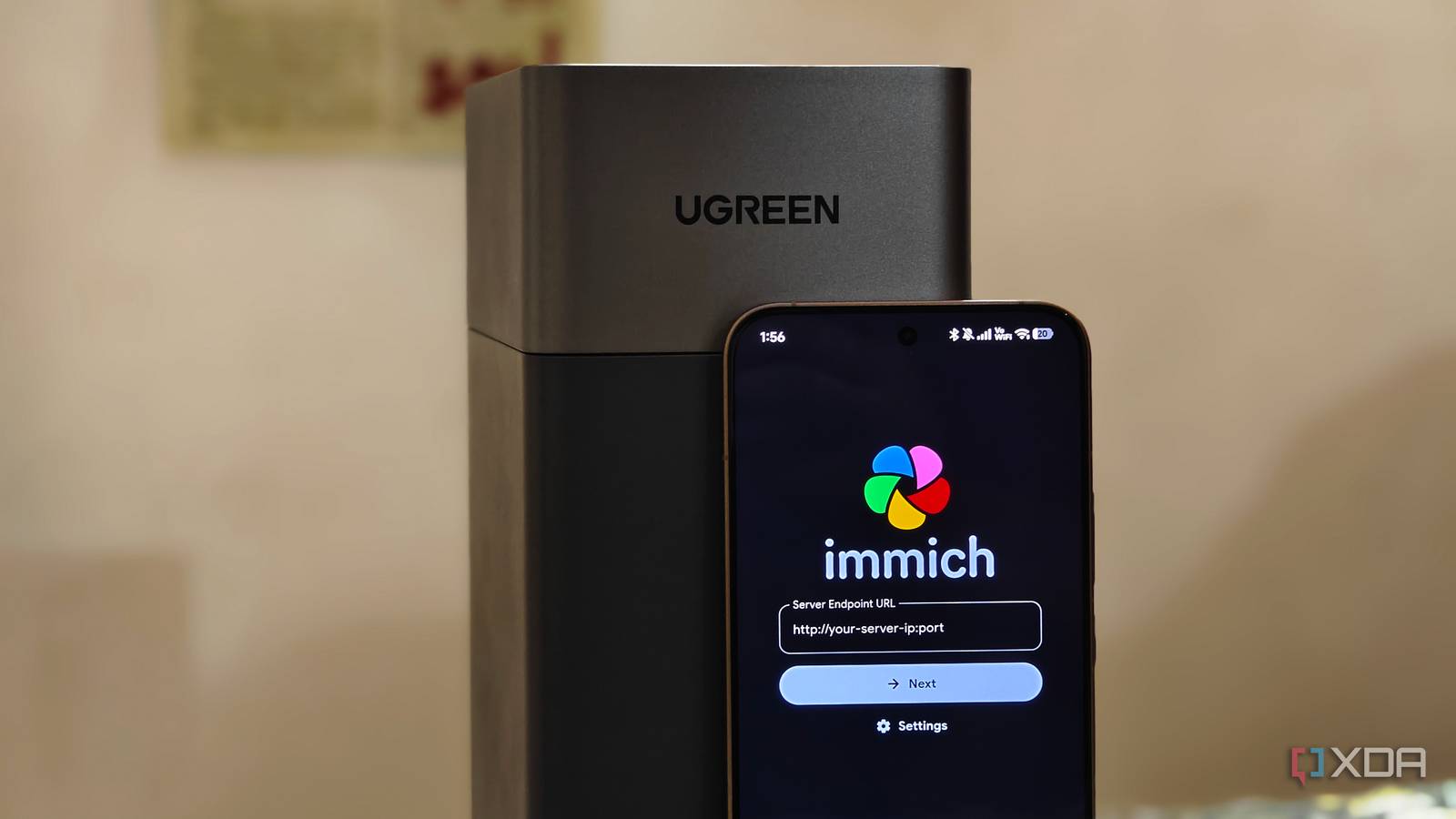
Published Jul 24, 2026, 12:30 PM EDT Anurag is an experienced journalist and author who’s been covering tech for the past 5 years, with a focus on Windows, Android, and Apple. He’s written for sites like Android Police, Neowin, Dexerto, and MakeTechEasier. Anurag’s always pumped about tech and loves getting his hands on the latest gadgets. When he's not procrastinating, you’ll probably find him catching the newest movies in theaters or scrolling through Twitter from his bed. I back up files from almost every device I own to my NAS, but none of those backups are as important as the one from my phone. It has years of photos, videos, downloads, and files that are backed up to Google Cloud. However, I want to move away from it eventually and back this up to my NAS with a secondary cheap cloud backup. My Ugreen NAS is already running throughout the day, so I want to make it responsible for my phone as well. I use Immich to automatically upload photos and videos, while Syncthing handles documents, downloads, recordings, and other accessible folders. Both tools are open source, run on my own hardware, and transfer new files whenever my phone reconnects to my home network. Immich handles all my photos and videos The interface doesn't make you miss Google Photos Photos and videos account for most of the storage on my phone, so I use Immich to handle them separately. I run Immich on my NAS through Docker and use the Android app to automatically upload selected albums. It also gives me a proper photo library with features like timeline, albums, search, and access from other devices. Before deploying Immich, you need separate locations for its database and media library. The database should ideally sit on an SSD because Immich accesses it constantly, while the photos and videos can stay in the larger storage pool. Most NAS operating systems display the absolute path for any folder under its properties, and those are the paths you need while configuring the Docker project. The official Immich package includes a Docker Compose file and an environment file. The latter only needs a few essential changes, including the database location, media location, timezone, and a secure database password. You can then import the Compose file through the Projects section of the Docker app and deploy the entire stack together. Once the containers are running, Immich becomes accessible at your NAS address on port 2283. From there, the Android app does most of the work. Enter the local server address, sign in, and select the albums you want to protect. I included the camera, screenshots, screen recordings, and WhatsApp media rather than uploading every image folder on the phone. Uploads use Wi-Fi by default, and you can restrict background transfers to periods when the phone is charging. Syncthing picks up everything else Syncthing-Fork works well on Android Immich only handles photos and videos, which leaves documents and other files stored across Android’s internal storage. Syncthing takes care of those folders by transferring them directly between the phone and NAS, without routing anything through an external server. The NAS side runs inside another Docker container. You need one folder for Syncthing’s configuration and another shared folder for the phone’s files. I created separate directories inside that shared folder for things like downloads and documents. That makes it easier to find something later. Once the container is running, Syncthing’s interface becomes available through port 8384. Set a username and password immediately because the interface can change connected devices, folders, and synchronization settings. You can then install Syncthing-Fork on Android and pair both devices using the device ID shown inside each app. Each Android folder needs to be shared separately with the NAS. Set the phone’s copy to Send Only and the corresponding NAS folder to Receive Only. This prevents Syncthing from changing files on the phone or sending NAS-side edits back to it. You'd want to exclude DCIM, Pictures, and other folders already covered by Immich. Send-only mode still passes deletions to the receiving device, so it cannot protect files by itself. If you delete a document from the phone, Syncthing will eventually remove the active NAS copy as well. Enabling staggered file versioning on the NAS solves that problem by moving deleted and replaced files into a hidden folder. You can keep those versions for a fixed period, such as 365 days, and recover anything removed accidentally. The backup happens while I sleep You don't need a very complex automation setup here This setup doesn’t need a fixed backup schedule. I use two conditions instead – the phone must be connected to my home Wi-Fi and plugged into a charger. Both become true when I go to bed, which gives Immich and Syncthing several uninterrupted hours to move everything created during the day. Immich already limits uploads to Wi-Fi by default, and its Android app can restrict background backups to periods when the phone is charging. You can also add a delay between taking a photo and uploading it, which prevents Immich from constantly reacting to every new image during the day. I selected my favorite albums, enabled charging-only background uploads, and removed Android’s battery restrictions for the app. Android decides exactly when the background worker runs, but the overnight window gives it enough time to upload the relatively small number of photos and videos created on a normal day. Syncthing-Fork follows a similar routine. Its run conditions can limit synchronization to Wi-Fi and charging, while the Sync every hour for five minutes option keeps it from running continuously. The app wakes up for a short window, checks the selected folders, transfers anything new, and then goes idle again. Five minutes is usually enough for documents, downloads, recordings, and exported backups, while larger files can continue during the next window. Make sure your backup strategy is correct It is quite tempting to get a NAS and start dumping your important data onto it, but before doing that, it is important to make sure your backup strategy is correct. The right strategy is not to have everything stored on one device. Your backup should also have a backup. Ideally, you should keep a physical backup of your NAS at a different location and store another copy in the cloud. Cloud providers usually maintain multiple copies, so even if your data is lost or one data center is damaged, another backup remains available.
I back up my phone to a NAS with Immich and Syncthing, and it's replaced Google Cloud entirely
Full Article
Original Source
Read the full article at Xda-developers →KhanList aggregates and links to publicly available news content. We do not host full articles from third-party sources. Always verify important information with original sources.