
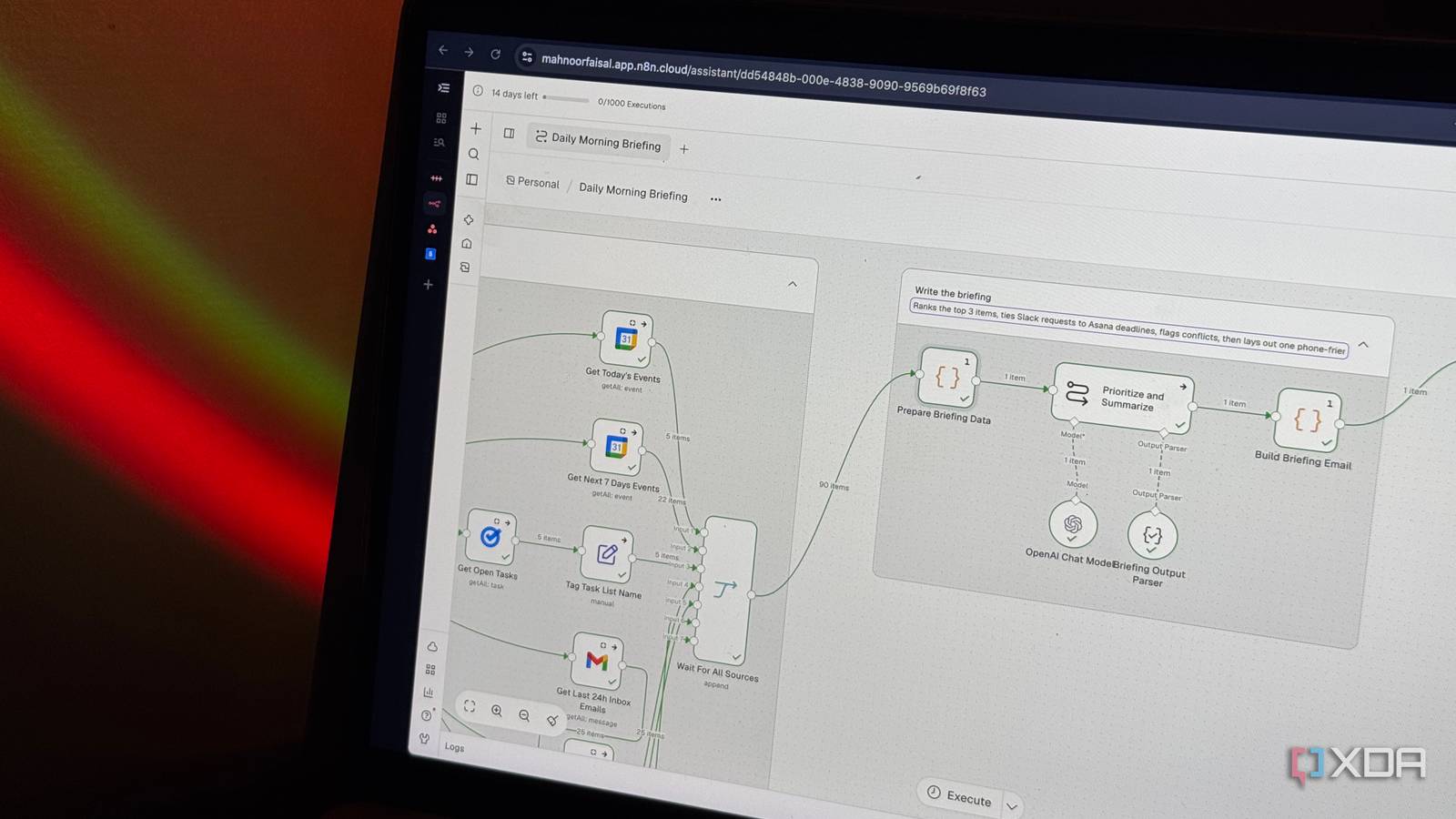
Published Nov 5, 2026, 10:30 AM EST Mahnoor Faisal is a tech journalist covering AI and productivity tools with bylines at XDA, SlashGear, MakeUseOf, Laptop Mag, and Android Police. She's been writing professionally since she was sixteen, and has since penned hundreds of articles. This includes in-depth coverage of AI tools like NotebookLM to breaking news across the AI space. Her passion for technology started when she received her first iPod Touch (4th generation) on her 8th birthday, and she's been deep in the tech world ever since. Currently pursuing a degree in computer science, Mahnoor brings both a journalist's eye and a technical foundation to her coverage of how AI is reshaping the way we work and learn. I've always been someone who likes having a routine. I might not be the greatest at sticking to one, but having a routine in place is still extremely important to me. I also like finding tools that make my routines easier to follow, which probably explains why I use so many of them just to figure out what I have going on for the day. That part of my morning usually involves jumping back and forth between Gmail, Google Calendar, Asana, Slack, Trello, and a few other apps. Ironically, it's also the part most likely to throw me off my routine. All it takes is one email to send me down a rabbit hole, and suddenly I've spent twenty minutes in my inbox and still have no idea what's on my calendar. That's exactly why I sat down and built a workflow that pulls my schedule, deadlines, and important emails into a single morning briefing that lands right in my inbox before I've even opened my eyes. One less thing to do before coffee If you haven’t used n8n before, it’s a workflow automation tool that lets you connect the apps you already use and tell them what to do and when. You build a workflow by connecting individual steps, called nodes, on a visual canvas. Each node has a job. One might check your calendar for the day’s events, for instance, while another takes those events and includes them in an email. The lines between the nodes tell n8n how to pass information from one step to the next. Now, I’ve tried a few different approaches to make my morning routine a tad bit easier. Take Huxe, an app developed by members of Google NotebookLM’s OG team. It delivered a fresh, personalized morning briefing in the form of a podcast every day. The app connected to my Gmail and Google Calendar, and since I got Asana notifications in Gmail and could see my Google Tasks in Calendar, I’d get a pretty good idea of what I had going on that day just by listening to the briefing over coffee. Huxe eventually shut down, unfortunately, and I wanted a little more control over what made it into my briefing anyway. I then built a custom tool using Claude Code that lets me ramble for a few minutes first thing in the morning and turn whatever was on my mind into a plan for the day. The catch, of course, was that I still had to remember what to ramble about in the first place. If an editor had moved a deadline overnight, I’d only know to mention it if I’d already opened Asana. So, I wanted something that could check those apps for me and put together a briefing before I even woke up. That way, even if a deadline had completely slipped my mind, it would still be waiting for me in my inbox. n8n’s AI assistant made setting this up practically effortless Turns out I didn’t need to connect the dots myself While getting started with n8n once meant figuring out how the nodes worked, which ones you needed, and in what order the steps had to happen, you can now describe what you want in plain English and let n8n’s AI assistant put the whole workflow together for you. As someone who didn’t want to spend too much time (and energy) on this task, I figured this was the perfect opportunity to test out the AI assistant. It worked incredibly well! I began by telling the assistant what I wanted to wake up to. At first, I kept things simple and stuck with three apps I already checked every morning anyway: Gmail, Google Calendar, and Google Tasks. I wanted one email at 7 AM with my schedule for the day, anything on my to-do list that was due or overdue, and any emails from the past 24 hours that needed a response. I was pretty specific about what counted as an email worth including. If I’d already opened a message but still owed someone a reply, I wanted it in the briefing. I also asked n8n to put up to three things that needed my attention at the top, with links back to the original items. At the very end, I wanted a quick look at anything important coming up in the next seven days, like a flight or a doctor’s appointment. For flights in particular, I asked it to go by the date I was actually flying. A booking confirmation could be weeks old by the time I needed the reminder. Once I was happy with that version, I went back to the assistant and asked it to pull in my editorial deadlines from Asana. I asked it to group my tasks into three categories: overdue, due today, and coming up in the next seven days. I tried adding my college Outlook inbox, too, since that’s where I’d hear about a cancelled class or a sudden assignment. Unfortunately, my college restricts access to the account, so I couldn’t connect that one. I decided to wrap things up by connecting Slack to the workflow. Since that’s where my editors usually reach me, I asked n8n to look for direct messages, mentions, and thread replies that needed my attention. I also gave it one specific instruction for anything that overlapped with Asana. If an editor asked me to rework the intro to a piece that was already on my list, I wanted that note and a link to the Slack thread right next to the assignment. That way, I could see both what was due and what my editor wanted me to change. n8n built me a nearly perfect morning briefing in minutes Good morning, you have deadlines Within minutes, the assistant had put together the entire workflow for me. I do remember running into a few issues the first time I tried to execute it, but another great part about using the assistant was that it could pinpoint which step was causing trouble and help me figure out what to change. That alone saved me from having to go through the workflow node by node to work out where I’d gone wrong. However, I did go through the workflow to see what the assistant had built. And boy, did it use a lot of nodes. For good reason, though! Even getting my to-do list took a few steps. n8n first fetched my Google Tasks lists, split them up, and pulled the open tasks from each one. Other branches checked my calendar for today’s events and the week ahead, pulled my XDA deadlines from Asana, and searched Slack for DMs, mentions, and conversations in my editorial channels. It even checked the replies in Slack threads, since an editor could ask for a revision and then follow up to say I could leave the piece as is. Gmail got two separate searches. One looked through the past 24 hours of inbox messages, while the other looked specifically for booking emails. Once a node aptly named “Wait For All Sources” had gathered the results, it was time to write the actual briefing. That’s where GPT-5.4 mini came in. I’d asked it to pick up to three things that needed my attention first, with overdue work and explicit deadlines for that day taking priority. The part I particularly liked was how it handled Slack and Asana together. If an editor asked me to rework an intro, the model was instructed to match that request to the right article and include the Slack thread alongside the assignment. If the editor gave me a different deadline from the one in Asana, the briefing was set up to flag the discrepancy. From there, one final step formatted everything into an email, and Gmail sent it to my inbox. The automation has been working incredibly well Instead of jumping between six separate apps first thing in the morning, getting distracted midway, and trying to piece everything together before I’ve even had my coffee, I now have one email waiting in my inbox as soon as my alarm rings. It brings my schedule, deadlines, and anything that needs my attention into one place. One briefing, for instance, reminded me to print my flight documents, flagged an upcoming hotel charge, and listed both legs of my flight to Miami. All three were relevant to the same trip, but the details were scattered across Google Tasks, Gmail, and Google Calendar. I could see at a glance what I needed to take care of that day, even though the flight itself was still a few days away. The Asana tasks, emails, and Slack messages in the briefings all link back to the originals, which is something I find super useful. If I need to check an assignment’s requirements or reply to an editor, I can jump straight to that task or thread from the email. By the time I open Asana or Slack, I already know exactly what I’m there to do.
I automated the most distracting part of my morning routine with one email, and it barely took any effort
Full Article
Original Source
Read the full article at Xda-developers →KhanList aggregates and links to publicly available news content. We do not host full articles from third-party sources. Always verify important information with original sources.