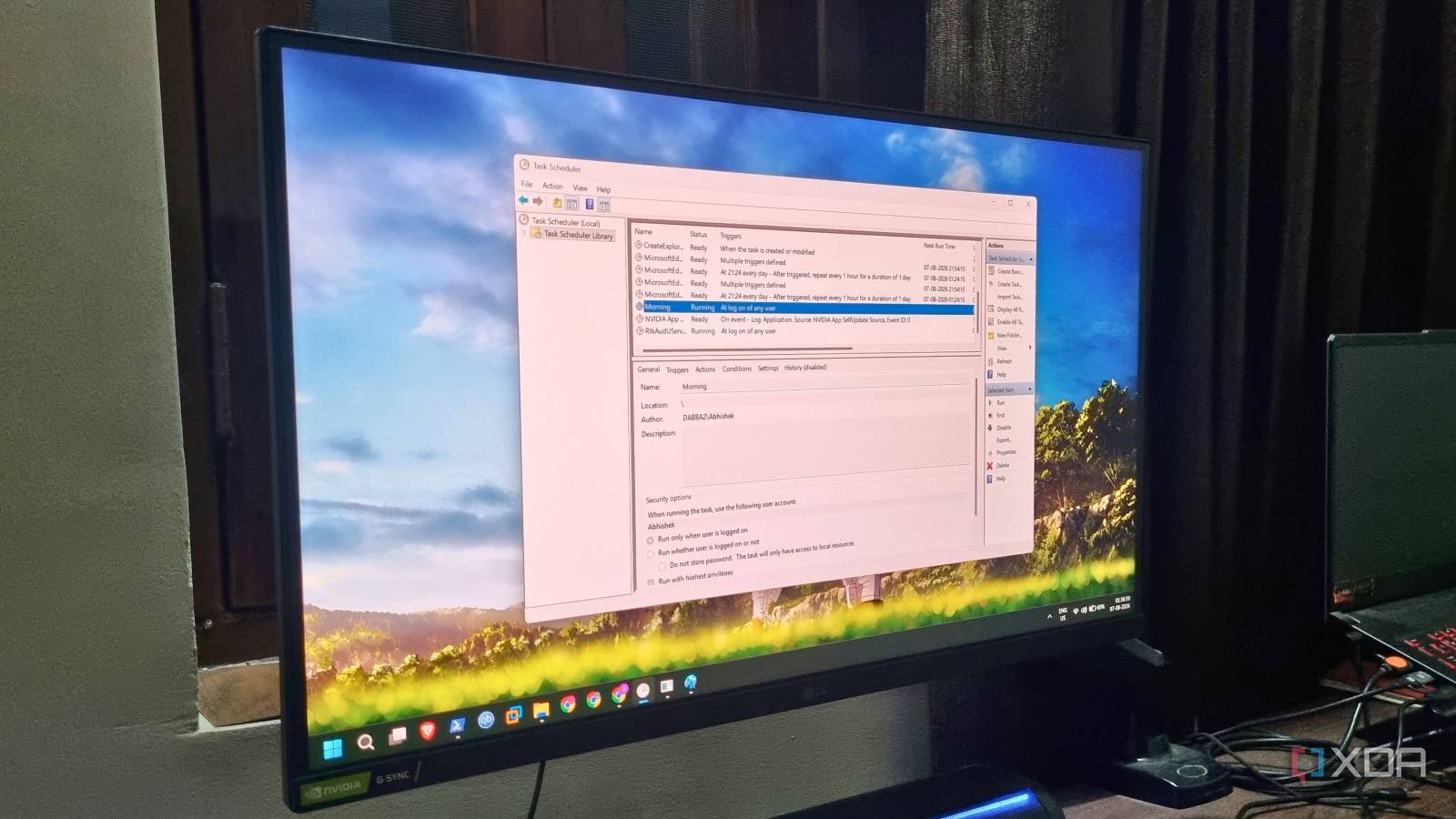
Published Aug 12, 2026, 6:00 AM EDT Abhishek is an author at XDA who covers computing. He has loved computers since he got the Lenovo G570 in 2012. Abhishek holds a master's degree in computer applications and began his writing career in 2018. He loves writing how-to articles, listicles, and informational posts on popular operating systems and web services. He closely follows the Windows Insider program and tests new Insider builds to discover upcoming experimental features and upgrades. His past work includes long-term collaborations with reputed publications like Tom's Hardware, and Windows Latest. When not writing anything, he is busy watching new episodes of One Piece or searching for something binge-worthy. My Windows laptop doubles up as a work and personal use machine. As expected, I always follow the same workflow every day: open the same apps and websites, connect to the same home server devices, and check emails. While I try to keep apps to a minimum on my system, there's still a lot of stuff to do before I can start working. Doing such repetitive tasks spoils my mood and causes unnecessary delays that are easily avoidable. After much thought, I finally decided to build a custom script to handle most of these repetitive tasks at once. Rather than jumping through hoops myself and opening (or rather wondering which ones I missed), the script does it with minimal manual intervention. Let's look at how I automated it to have a ready-to-work desktop as soon as I log in. Building the script was no longer a choice My workflow evolved from a browser window to multiple tools I'm not a huge fan of automation scripts, as most of them feel like a slightly complex way to do a simple task. Some of them are indeed useful, like the one I use for Robocopy to back up my files to an external hard disk. But that is just a single task compared to what I, and probably you, deal with on the PC every day. My workflow depends on multiple web services, including Asana, Slack, Google Docs, and a few others. I use Chrome as a primary desktop browser and need to open these tabs every time I launch it for work. Along with that, I also open several dashboard pages to monitor my self-hosted services running across multiple servers. These include accessing the web portals of Portainer, Dockhand, Beszel, and Glance, among others. But can't I just add a startup entry for Chrome and add URLs to open at launch? I can do that, but that won't accommodate other things that I want to run. I need a PowerShell instance every time I boot my PC to SSH into a laptop I use as a home server. Additionally, I need to launch a VMware machine where I run most of my Windows experiments. None of these actions can occur with the modified app startup behavior and require fine-tuning, which is only possible with a PowerShell script. Creating the PowerShell script Combining multiple app launches and actions My script handles three apps: it opens an SSH session in the PowerShell window, launches a separate Windows 11 Insider machine in VMware, and opens a specific Chrome profile with a fewessential websites. The first section of the script handles an SSH session that automatically supplies the username and the IP address of the machine I want to connect to. I added the details beforehand, and the next line opens a PowerShell window, uses these inputs in an SSH connect command, and waits for me to type the password. I prefer connecting to the machine first and then revisiting the terminal later. Then, the Chrome section specifies the browser's installation path, selects my work profile, and lists the websites I want to open automatically. Thereafter, I've added the URLs that I want to open in that Chrome profile. The last line tells PowerShell to launch Chrome and do the specified actions. Lastly, there's a VMware section to open a specific virtual machine instance. Usually, I launch the VMware GUI first, then click a machine in the list to open or resume it. But the script skips the GUI step and powers on the virtual machine directly after a quick password prompt. I've added a 15-second delay between the SSH and Chrome segments to give me time to enter the SSH password. Similarly, there's an intentional 1-minute break between Chrome and VMware to allow the browser to load all pages before spawning the login prompt in PowerShell. All that's left is to automate the script. Task Scheduler handles automation A break from manual script execution The simplest way to run this script is to open a new PowerShell window, navigate to the directory where I’ve saved it, and then run it after configuring the script execution policy to unrestricted. I can create a shortcut for it, or run it directly from the desktop after I loosen the reins on the script execution policy. But it becomes a hassle if I have to do it every time. Using Task Scheduler is a much wiser approach because I already use it to automate my Robocopy script. I can define the task and parameters once and then schedule it. Since I want to execute it at every log-on session, I’ll set the trigger to “at log on,” and the action to “start a program.” After that, I need to type powershell.exe” and then add an argument to set the execution policy to “unrestricted” when Task Scheduler attempts to run the script. -NoProfile -ExecutionPolicy Bypass -File "C:\Users\Abhishek\Downloads\a.ps1" I did a few test runs to see if the script executed correctly and didn’t encounter any errors or app conflicts. The script works with any app installed on your system and requires keyboard input to initiate the SSH connection and open the virtual machine. It starts as soon as I reach the desktop, creating a perfectly prepared arrangement of the apps I need. Less chaotic mornings The script helps me escape the morning chaos and immediately brings me into focus mode. There are more possible iterations, such as adding a separate script for non-work days when I need a different set of apps and browser profiles. Earlier, I had no delay and saw multiple windows popping up, and I didn’t have time to interact with them. You can add other apps to the script if you want, but remember to add delays to give yourself some breathing room between the two launches. You can also add more logic to the script, such as time-bound actions, even if you run the task again. PowerShell PowerShell is the open-source, .NET Core-powered, cross-platform replacement for Windows PowerShell.
I automated my entire morning with a single shell script — and my workday starts instantly now
Full Article
Original Source
Read the full article at Xda-developers →KhanList aggregates and links to publicly available news content. We do not host full articles from third-party sources. Always verify important information with original sources.