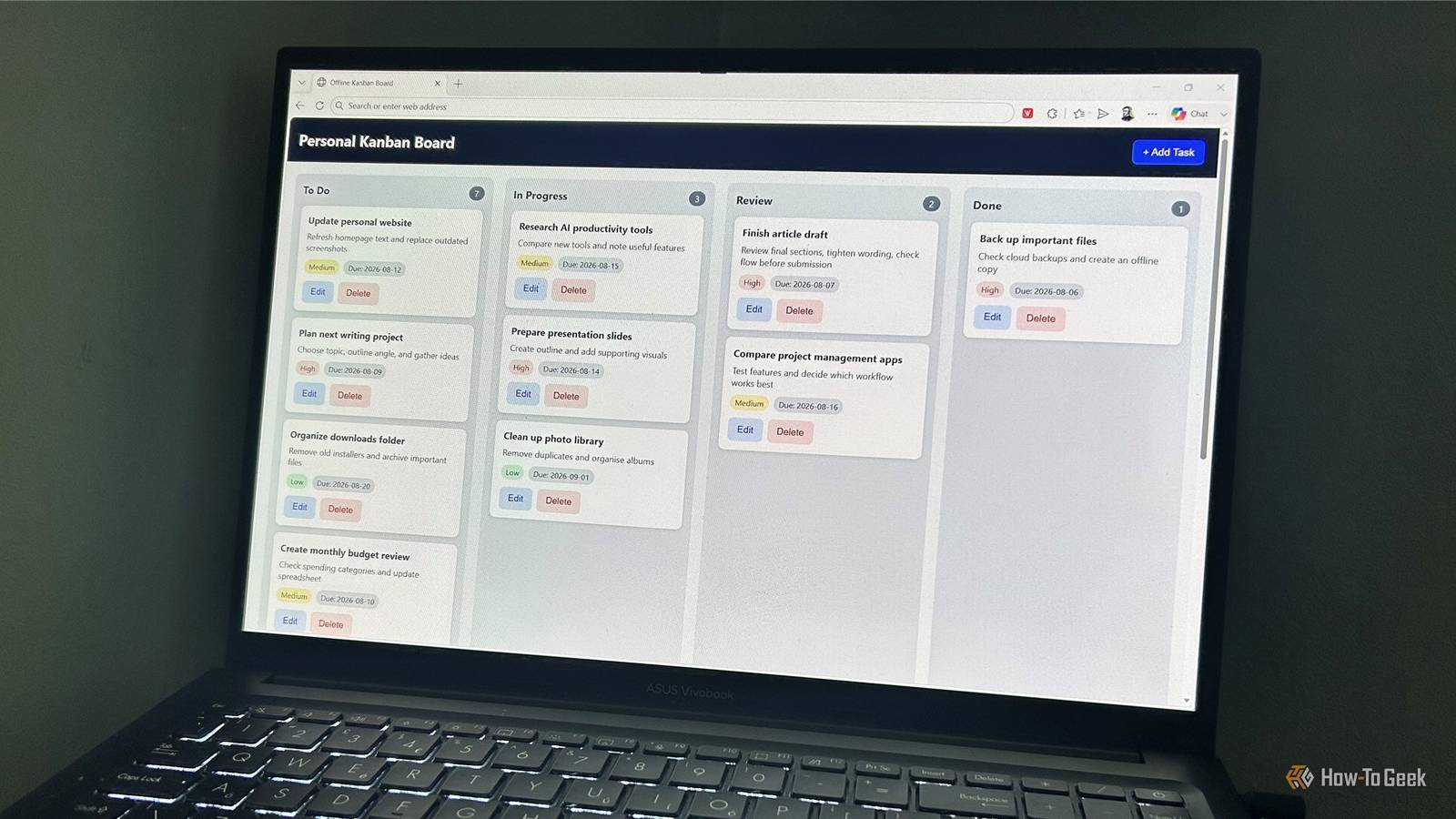
Published Aug 11, 2026, 5:00 PM EDT Tony Phillips is an experienced Microsoft Office user with a dual-honors degree in Linguistics and Hispanic Studies. Prior to starting with How-to Geek in January 2024, he worked as a document producer, data manager, and content creator for over ten years, and loves making spreadsheets and documents in his spare time. Tony is also an academic proofreader, experienced in reading, editing, and formatting over 3 million words of personal statements, resumes, reference letters, research proposals, and dissertations. Before joining How-To Geek, Tony formatted and wrote documents for legal firms, including contracts, Wills, and Powers of Attorney. Tony is obsessed with Microsoft Office! He will find any reason to create a spreadsheet, exploring ways to add complex formulas and discover new ways to make data tick. He also takes pride in producing Word documents that look the part. He has worked as a data manager in a secondary school in the UK and has years of experience in the classroom with Microsoft PowerPoint. He loves to encounter problems in Microsoft Office and use his expertise and legal-level training to find solutions. Outside of the Microsoft world, Tony is a keen dog owner and lover, football fan, astrophotographer, gardener, and golfer. There are countless project management apps out there, but many of them are packed with features I never use. So I asked Gemini, ChatGPT, and Copilot to build a Kanban board that worked offline, saved my data locally, and didn't require yet another subscription. I gave all three the same prompt and tested the results, and they all created working apps. But the one I liked most surprised me. The app I wanted was deliberately simple A lightweight tool that lived on my desktop I needed each AI to create a standalone file that I could double-click to open in my browser. Beyond wanting something that worked on my terms, I was keen to see whether the AI assistants could produce something that anybody—from beginner to pro—could actually use. The idea was similar to the board view used by tools like Trello, but without accounts, subscriptions, or unnecessary features. Specifically, it needed a Kanban board layout with four columns: To Do, In Progress, Review, and Done. Each task needed to have a title, an area for notes, a priority rating, and a due date, and I also wanted to be able to add, edit, and delete tasks, as well as drag and drop them between columns. I've included the full prompt I used at the end of this article. You can copy it, adapt it, and ask your preferred AI assistant to create your own version. Once each model produced the code, I pasted it into Notepad and saved it on my desktop as an HTML file. Then, I opened each one and compared them based on how they looked, how they worked, and whether I could actually keep using them. The differences weren't in basic functionality: all three created the kind of offline project tracker I was looking for. The interesting part was the design choices each AI made beyond the original prompt. Gemini created the cleanest interface It set a very high bar Gemini was the first AI assistant I put under the microscope, and as soon as I opened its version of the app, I knew I would happily use it. It had a refined, professional appearance with a clean layout and excellent use of space. The four columns were easy to understand, and the interface felt focused on the tasks, not the controls around them. The task cards were probably my favorite part of Gemini's version. Priority was represented by a colored strip down the left side of each card, making important tasks easy to spot without adding clutter. The "Edit" and "Delete" buttons only appeared when I hovered over a card, a nice touch that kept the board looking tidy. The task creation window was also well-designed. It included the fields I expected, with the title field clearly marked as required with an asterisk, and "Medium" selected as the default priority. Gemini also made a smart choice for handling larger numbers of tasks. When a board grew beyond the height of my screen, it adopted its own scrolling bar, rather than forcing me to move the whole window down. This meant that the rest of the interface stayed visible at all times. The only downside was that Gemini added fewer touches beyond the original brief. It created a very good Kanban board, but it didn't provide anything for me to get excited about. That said, at this stage, Gemini felt like the one to beat. ChatGPT built a bolder, more polished app It felt more like a finished product than a minimalist tool ChatGPT's version took a different design approach from Gemini. Where Gemini focused on keeping the board clean and understated, ChatGPT created something more visually prominent. The dark banner across the top made it feel like a polished app with a stronger identity and a more deliberate design language. However, it also made the interface feel a little more "in-your-face" than Gemini's cleaner approach. For some, that would be fine, but for me, it felt a bit overwhelming. The biggest difference was in the task cards. ChatGPT displayed more info by default: the "Edit" and "Delete" controls were permanently visible, and the text was bolder throughout the interface. That made the cards feel more substantial, but I preferred Gemini's stripped-back approach of keeping controls hidden until needed. Priority handling was another noticeable difference. ChatGPT used colored priority labels, which were clear enough, but Gemini's colored edge strip gave me a faster visual indication of which tasks mattered most. None of these choices made ChatGPT's version worse, though. In fact, the app felt polished. It simply had a different personality: more info upfront, stronger visual elements, and fewer hidden controls. After using both versions, I preferred Gemini's quieter interface, but ChatGPT still produced a result that felt pretty close to something a developer might have built. Copilot's version felt the most complete Small touches made it the one I'm going to use Copilot has attracted its fair share of criticism, so what it produced surprised me the most. After testing Gemini and ChatGPT, I had a good idea of what a complete AI-generated app could look like. But Copilot took that foundation and added a layer of product thinking that made it feel more finished. The biggest difference was that Copilot went beyond my instructions. It seemed to think about what a new user of its app would need to understand and rely on it by adding a subtitle explaining what the app was for, instructions on how to use it, and a permanent "Changes saved locally" message. That last detail was a small addition, but it immediately answered one of my biggest questions: could my changes actually be stored locally? Copilot also added several practical features I hadn't requested: the ability to choose which column a new task should start in, a "Clear board" button with confirmation, clicking a card to edit it instead of a separate button, and more descriptive task counts ("6 tasks" instead of just "6"). These additions felt like sensible improvements, not unnecessary, hallucinated extras. They're probably the kind of changes I would suggest after using the app for a while. It wasn't perfect, though. Copilot's extra info and guidance—while useful—took up more space, and the "Add Task" button sat below the title area rather than fitting neatly into the header like the other two. Its task cards were also closer to ChatGPT's approach, with the delete button always visible (albeit smaller) and priority shown only through a colored label. Even with those differences, though, Copilot is the version I'm going to use going forward. It felt to me like Copilot's app was the "version 2" of Gemini's and ChatGPT's. And the (surprising) winner is... The biggest surprise was that Copilot—the model I expected to be the least impressive—ended up creating the version I preferred. Gemini created the cleanest interface, and ChatGPT built a polished app, but Copilot added the small usability improvements that made it feel like something I actually want to use every day. The full prompt I used Create a single self-contained HTML file for a personal Kanban board that runs entirely offline. Requirements: Return only one complete HTML document. Do not split the code into multiple files. Include all HTML, CSS, and JavaScript in that single file. Do not use any external libraries, frameworks, CDNs, or internet resources. The board must work by simply saving the file as .html and opening it in a web browser. Features: Four columns: To Do, In Progress, Review, and Done. Add new tasks. Edit existing tasks. Delete tasks. Drag and drop tasks between columns. Each task should support a title, optional notes, a priority (Low, Medium, High), and an optional due date. Automatically save all changes using localStorage so the board is restored after closing and reopening the file. Display the number of tasks in each column. Use a clean, modern, responsive design suitable for desktop use. Code quality: Write clean, well-organized code with comments where appropriate. Ensure there are no obvious bugs or placeholder functionality. Everything should work immediately without any additional setup. Return only the HTML code inside a single code block.
I asked Gemini, ChatGPT, and Copilot to build a project management app—the winner surprised me
Full Article
Original Source
Read the full article at Howtogeek →KhanList aggregates and links to publicly available news content. We do not host full articles from third-party sources. Always verify important information with original sources.