
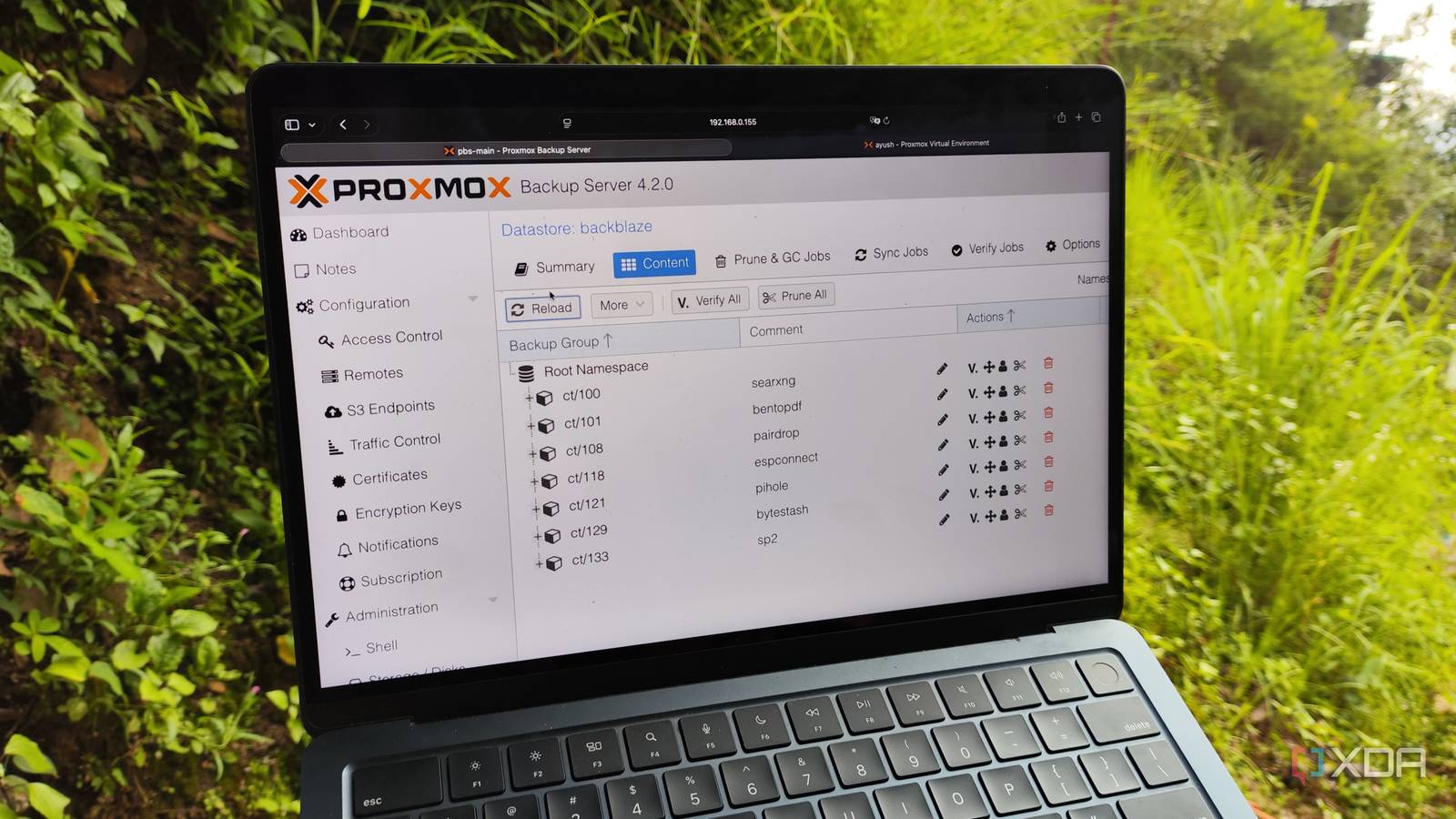
Published Jul 20, 2026, 12:30 PM EDT Ayush Pande is a PC hardware and gaming writer. When he's not working on a new article, you can find him with his head stuck inside a PC or tinkering with a server operating system. Besides computing, his interests include spending hours in long RPGs, yelling at his friends in co-op games, and practicing guitar. During my early home labbing days, I learned quite a few lessons that stuck with me throughout my tinkering journey. Creating scheduled backups is one of the most important ones, and my very first data loss event was so painful that I immediately repurposed an old system as a DIY NAS. But as my home lab and tinkering projects evolved, so too did my backup nodes, with my setup eventually culminating in a 3-2-1 snapshot pipeline consisting of two Proxmox Backup Server workstations located hundreds of miles from each other. That said, I’m also fully aware that such a setup is too overkill and pricey for the home labber, especially with the ongoing RAM apocalypse causing hardware costs to skyrocket. Fortunately, the newer versions of Proxmox Backup Server can send snapshots to S3 buckets, making offsite backups a lot more affordable (and easier to manage). Despite appearing resilient, a local-only Proxmox backup setup is far from infallible Even with Proxmox Backup Server, certain accidents can render my snapshots useless If you’re wondering why I’m so adamant about adding remote systems to my setup, it’s because maintaining a single set of backups is still vulnerable to a handful of problems. Sure, local backups can recover virtual guests when I accidentally break some LXCs or VMs instead of forcing me to build them from scratch. Tossing Proxmox Backup Server on a standalone machine is even better, as I don’t need to worry about losing the vzdump files in case anything goes wrong with my PVE host. That said, it doesn’t make my backed-up virtual guests immune to untoward events. If one of my PBS hard drives ascended to tech heaven out of nowhere, I’d lose my snapshots in an instant. Should this coincide with a broken VM or a malfunctioning LXC, I won’t be able to recover them. Likewise, if malware (specifically ransomware) struck the only backup node in my arsenal, I’d be stranded without my snapshots. That’s before you include fires, theft, and other rare accidents that can befall my setup. And if there’s one thing I’ve learned as a data hoarder, it’s that I should always prepare my backup provisions for the worst-case scenario. Adding an extra source of backups, preferably one that’s stationed far away from my home lab, eliminates this single point of failure and ensures I can still recover my virtual guests even from catastrophic failures. Adding S3 buckets is a great way to bring some redundancy to my PBS snapshots I use Backblaze buckets, but most S3-compatible platforms work just as well For folks who are new to VPS, S3 (or Simple Storage Service) platforms use buckets to house files as objects, and these can range from personal files to LXC and VM backups. The best part? Certain S3 providers have incredibly low prices, with some even providing a decent amount of free space without forcing you to spend a dime on subscription plans or add a payment method. I’ve used Backblaze for my redundant PBS snapshots, partly since it’s the platform I’m most accustomed to thanks to my Terraform and Ansible experiments, and also because it provides a generous free plan. Connecting the two was also surprisingly easy. First, I created a new bucket on Backblaze and configured an Application key with the Allow List All Buckets option enabled. Then, I switched to my Proxmox Backup Server node and copied the Endpoint IP generated by Backblaze for my bucket within the former’s S3 Endpoint tab. I also fed the KeyID and Application Key fields from Backblaze as the Access and Secret Keys respectively, and enabled the Path Style and Skip-If-None Match header options. Then, I set the Add Datastore wizard to use S3 as the Datastore type, chose the Backblaze connection as the S3 Endpoint ID, and selected the freshly-added Bucket. Just to test things out, I switched to my Proxmox VE machine, used its Datacenter section to connect to this PBS Datastore, and ran a quick snapshot task. Sure enough, my PVE machine was able to send my snapshots to PBS, which, in turn, stored them in my Backblaze bucket. But I still favor my self-hosted 3-2-1 backup pipeline for bulky virtual guests As much as I like the S3 support on Proxmox Backup Server, I have to admit that I won’t use it to replace my remote syncs. For one, I tend to avoid cloud platforms for storing any data related to dev VMs where I work with confidential code. But the real problem lies in the money aspect. I’ve got a few TBs worth of virtual guests, many of which I back up on a weekly basis (and recover a few times each month). Over time, I’d end up paying the cloud platforms significantly more compared to the cheap 3-2-1 pipeline I cobbled together from old systems. That said, I’ll plan to use this Backblaze datastore as a redundant snapshot repo for essential home lab guests where I don’t store private data. After all, there’s no such thing as too many backups. Backblaze
I added cheap offsite backups to my Proxmox home lab with S3 buckets and stopped accidents from claiming my LXCs and VMs
Full Article
Original Source
Read the full article at Xda-developers →KhanList aggregates and links to publicly available news content. We do not host full articles from third-party sources. Always verify important information with original sources.