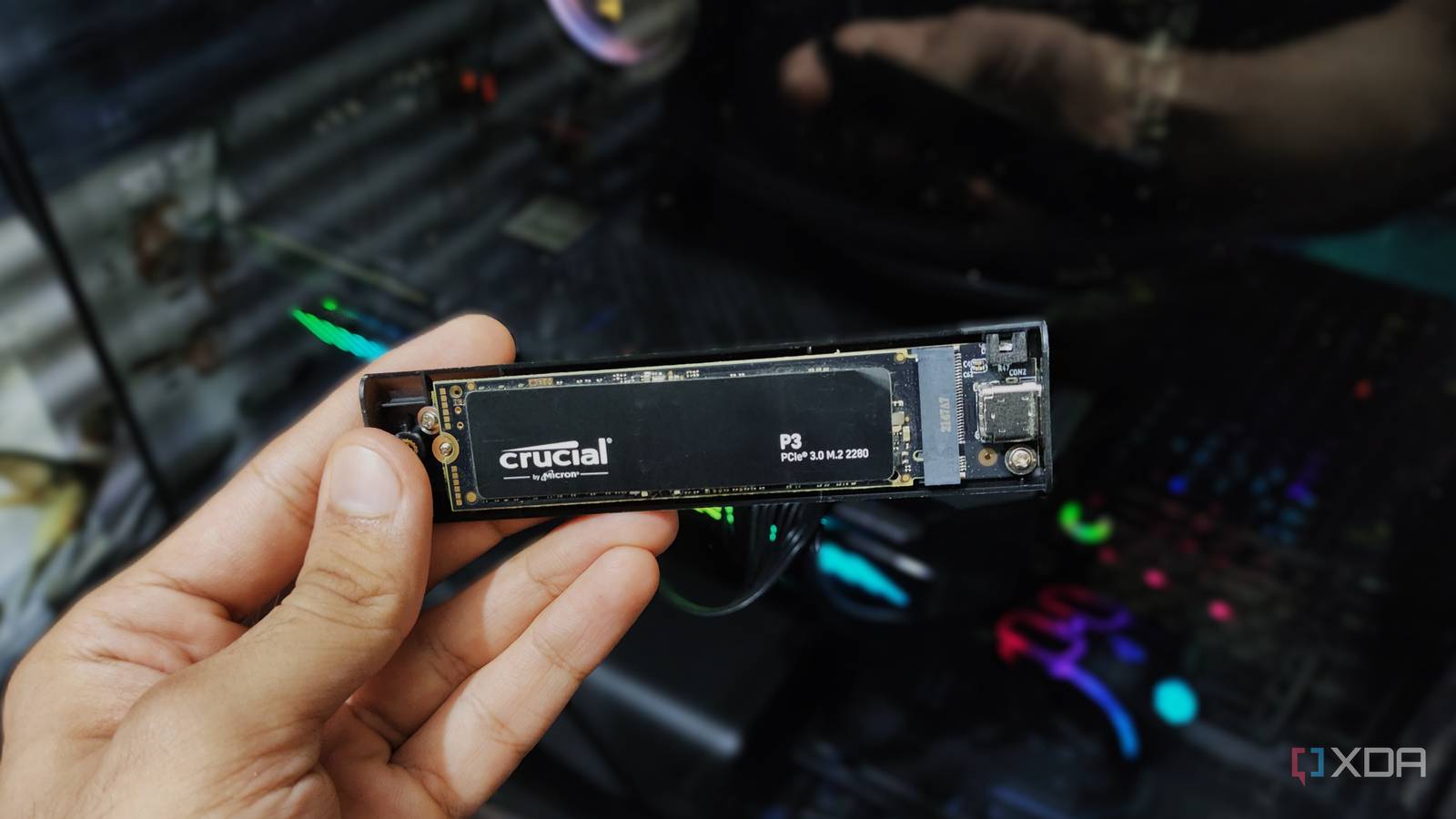
Published Jul 16, 2026, 2:30 PM EDT Based in rural Minnesota, Brian Burgess worked in IT for 10 years before finding his passion for writing about consumer technology. Brian earned his degree in computer and network technology in 2000. He held various IT positions, including help desk support, router installations for IBM, database administration, and other associate network administration roles. He's been a personal technology journalist for 18 years and has written thousands of articles about Microsoft products and services, Android, iOS, streaming, and more. He has written for notable tech sites including XDA, InformationWeek, How-To Geek, Byte, groovyPost, and others. When he is away from the keyboard, you will hear him playing guitar, working outdoors, and watching Star Trek. After installing and reinstalling apps, building the browser and file cache, and applying system updates, any OS starts to become bogged down. That is especially true for Windows on low-capacity drives. Adding RAM and an SSD to an older machine instantly improves performance. But what about adding a second SSD? Even though I have done all the maintenance steps to remove bloatware from Windows, improve boot time, and more, adding a second SSD really helped take my experience to the next level. It led to a cleaner experience where Windows search was faster, updates didn't hang, and more. Adding a second SSD speeds up my workflow An external SSD works too The first time I added a second SSD to my Windows PC, I was able to free up space on the main drive for space hogs like videos, photos, and other large files — such as large PDFs, spreadsheets, and my local FLAC collection. I kept all the essential files I frequently needed, along with the programs installed, on the main C: drive. Then I set the SSD as my data drive, which is for most everything else. For instance, I pointed my downloads to it since they can quickly eat up a lot of drive space. The most effective way to get extra performance from my Windows PCs is by installing an internal M.2 SSD on the motherboard. I'm lucky enough to have a handful of them from other computers, so adding a second one isn't an issue. But even when an extra slot isn't available, an external SSD (plugged into a USB-C or USB 3.x port) works well for keeping the OS running more cleanly. Once I tested the SSD's speed, transferred files, and fine-tuned Windows by removing bloat and making other tweaks, it felt like a new system. A cleaner workflow Less lag during search One of the most important results of my Windows PC feeling cleaner and faster was the searches. They were much faster because the built-in Windows search feature didn't have to sift through large folders. Even with large files on the second SSD, the search was more responsive than a standard external USB drive. I also had the Everything search app installed, but sometimes I forget to launch or use it. So, having native search work when I needed it was great. On its own, Windows can be a real hog of an operating system. Add large files and folders and a browser with 100 tabs open, and it starts to slow to a crawl — even if installed on an SSD. Luckily, installing a second SSD let me lighten the load on my primary OS drive, and I noticed a new breath of life on Windows. Fast access to large files When I need them Since my large files are on the second SSD I added, access to them is much faster than accessing them from an HDD, a networked location, or a shared drive. So, in addition to having the search feel fast and clean, opening large files and folders is also a better experience. Windows doesn't feel bogged down when opening what I need to access. Also, transfer speeds were faster when pulling files, so moving files to my main drive or other storage locations is a breeze. It seems like Windows doesn't struggle as much, and with the faster speeds of an SSD, it's not. Also, having faster search access allows me to find and manage tasks with files and folders on the second SSD. However, if you have a large SSD, do most of your work in the cloud, and store little locally, you might not find this route as useful as some others. Cleaner everyday use Faster boot and system updates I've optimized the boot experience on my Windows PCs and tweaked it as much as possible on countless machines. I do it using standard tips and tricks most power users know. Tweaks such as disabling startup apps, updating the BIOS, disabling services, installing lightweight open-source alternatives, and removing bloat. However, not having a large file footprint seems to be key to getting better performance from Windows. In addition to having a fast SSD for Windows and a fast SSD for data, Windows updates hang less often. I'm not getting the dreaded error messages I used to get. I still delay updates for as long as possible — especially on "Patch Tuesday" — but when I do run the OS and system updates, the experience is cleaner overall, which is something any user will appreciate. All Windows users can benefit from a second SSD You might want to say, "My gaming lag is near zero," or something else more glamorous about adding a second SSD. However, not everything needs to be done for exciting reasons. Using a subjective term like "Windows is cleaner" may seem boring, but the fact that Windows seems cleaner and faster, and that search blazes — an operating system that helps workflows — is something anyone should want.
I added a second SSD to my PC for one boring reason, and it made Windows feel cleaner overnight
Full Article
Original Source
Read the full article at Xda-developers →KhanList aggregates and links to publicly available news content. We do not host full articles from third-party sources. Always verify important information with original sources.