
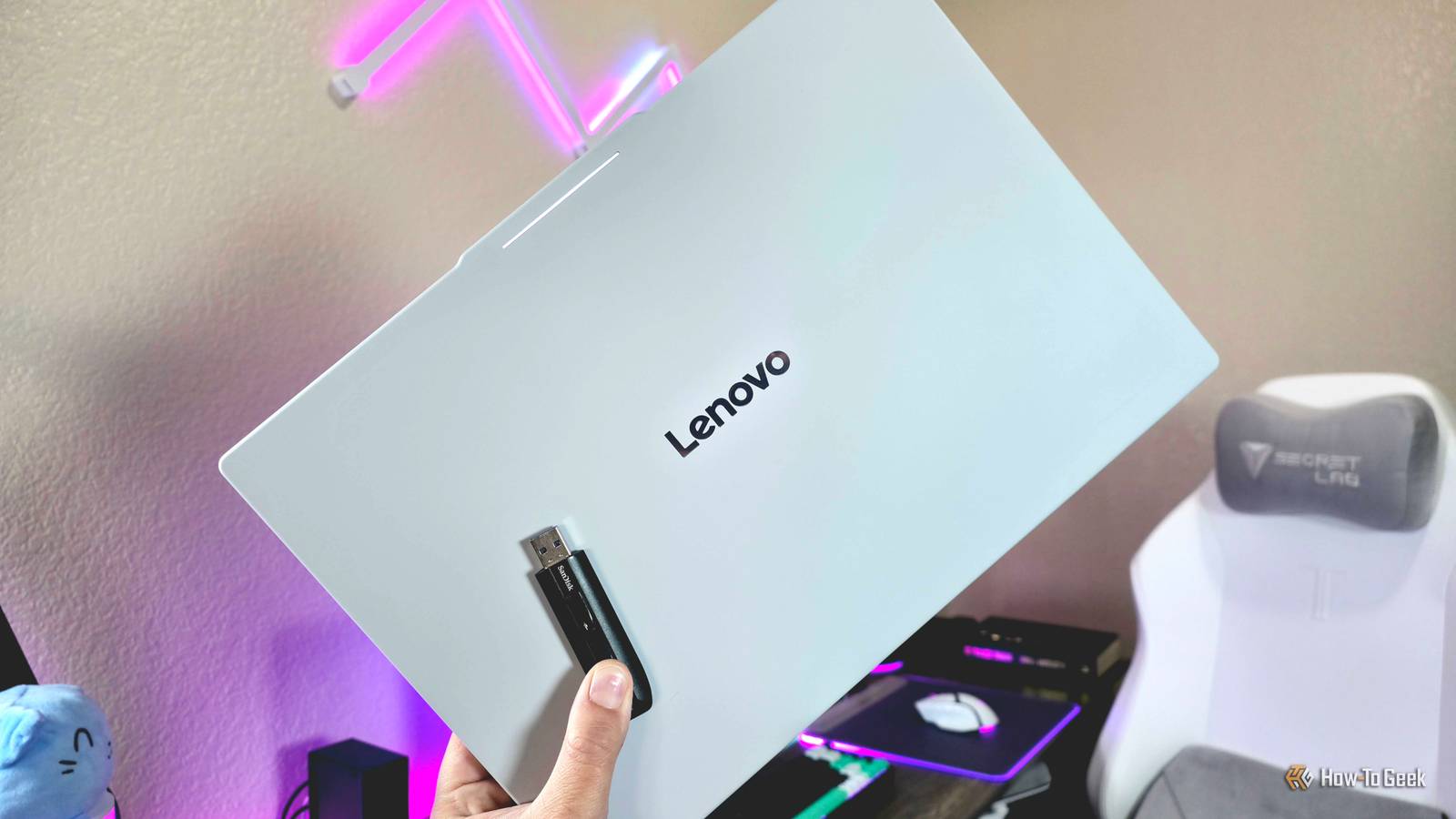
How to reinstall Googlebook OS and do a full recovery Published Oct 27, 2026, 8:00 AM EDT Zachary Boddy is a seasoned journalist with over six years of experience covering technology and video games, and is now contributing to How-To Geek. Zachary's career began at Windows Central, where their long-running, deep-rooted passion as a tech and gaming nerd fueled thousands of published articles, including reviews, guides, interviews, editorials, and so much more. When Zachary isn't writing, they're playing video games, reading books, listening to music, and spending time with their family, a very food-motivated cat and an exceptionally creative daughter. Sign in to your How-To Geek account The release of any brand-new operating system means the inevitable discovery of bugs and even device-breaking issues, and Googlebooks are no exception. It's simple to factory reset a Googlebook if you simply need a fresh start or are encountering minor problems, but in the event your Googlebook is effectively unusable, a more complete and in-depth recovery may be necessary. If you're in that boat, follow this guide to completely reinstall Googlebook OS and hopefully save your laptop. A full recovery is serious, so make sure you're fully prepared Doing a complete Googlebook recovery requires a fair bit of effort and some technical know-how, so it's best to have all your ducks in a row before attempting an OS reinstall. Before I detail exactly how to reinstall Googlebook OS, I'll go over exactly what you need, how you can prepare, and what risks there are with a recovery. First and foremost, consider if you need to reinstall Googlebook OS. Recovering your Googlebook completely and permanently erases everything stored on it, including all user accounts, data, and files, and reinstalls the entire operating system from the ground up. This process is final, and there is a risk of something going wrong halfway through the process, especially if something interrupts the reinstallation (like your Googlebook losing battery charge). At best, you'll be able to simply resume the process, but you can also end up with more time-consuming issues, like a broken or incomplete operating system. This recovery method is meant to be the last option to resolve critical issues that render your Googlebook unusable, such as corrupted system files resulting in a "Googlebook OS is missing or damaged." error message, or boot loops that make you unable to go beyond a specific screen. If you're still able to use your Googlebook and access the Settings, a less invasive and more convenient method is a factory reset, which wipes all user data on your Googlebook and returns it to the default out-of-box experience. In my Googlebook factory reset guide, I also go over how you can back up all your data before a factory reset, which may not be possible if an OS reinstallation is necessary. If you have determined that recovering your Googlebook is the only way to go, then ensure you know your Google Account and password, as you'll need to sign back into your Googlebook and set it up from scratch again. Similar to a factory reset, you'll need to charge your Googlebook at least 70% before attempting a recovery, but I especially recommend that you keep your Googlebook plugged into a compatible charger to minimize the risk of any issues. Finally, there are three things you'll need beside the Googlebook you're recovering. First, a separate computer, including a Chromebook, Windows PC, or Mac; support for using another Googlebook for this process is coming next year. Next, you need to install the Google Chrome browser on your working computer; Chromium browsers like Microsoft Edge will not work. Third, you need a USB flash drive with at least 32GB of space to create a recovery media; this process will erase all data on the USB drive, so be sure to back up your files first. Recovering your Googlebook with an OS reinstall An OS reinstall might bring your Googlebook back from the brink of death Now that everything is in place and you have what you need, there are two stages to recover a Googlebook: using another computer to create the recovery media, and using that recovery media to reinstall Googlebook OS. Let's get started with the former. On your working computer, open Google Chrome. Download the Device Recovery Utility extension from the Google Chrome web store by clicking Add to Chrome, and then Add extension on the confirmation pop-up. Insert your USB flash drive into your computer. In Google Chrome, open the Device Recovery Utility extension from the Extensions menu or toolbar (it may also be labeled as Recovery Extension Tool). On the Create a recovery media for your device page, click Get started. On the Choose device type page, click Googlebook. On the Identify your Googlebook page, select your Googlebook's manufacturer and model from the dropdown menus. If you're unsure, you can look for the product information on the original packaging or the label attached to the bottom of your Googlebook. My Googlebook is labeled Lenovo GB 15IPH12 on the bottom, so I selected Lenovo and Lenovo Googlebook 15 from the options. Click Continue on this page when you're ready. On the Insert your USB flash drive or SD card page, you'll need to select the USB drive you wish to use from the dropdown menu, double-check that you chose the correct drive, and click the Continue button to move on. On the Create a recovery image screen, you'll be given a final warning that continuing will erase all the data on your selected USB drive. Click the Create now button to confirm your choices. The Device Recovery Utility will download Googlebook OS and create your recovery media, which can take several minutes to complete. Do not remove your USB drive, exit the recovery utility, or turn off your computer during this time. You may be asked to give Google Chrome system permission when the recovery utility begins creating the recovery media after downloading Googlebook OS, so be sure to click Yes to continue. Once the recovery utility is done, you should see the Success! Your recovery media is ready screen with an option to create another recovery media. Click Done to close the tool, and then remove/eject the USB drive. As a final note, you may realize that the created recovery media no longer appears as a normal USB drive on your computer. To erase a recovery media and return your USB drive to normal, open the Device Recovery Utility extension again with the USB drive plugged into your computer, click the Settings gear icon in the top-right corner, click the Erase recovery media option, and then follow the steps. You can use this tool as many times as necessary to create or erase recovery media. Now that your recovery media is created, it's time to reinstall Googlebook OS and save your Googlebook. On the Googlebook that needs recovery, disconnect all wired accessories and peripherals (apart from the charger), including external monitors, keyboards, mice, printers, and headphones. Yes, that also includes the recovery media you created. Once everything apart from the charger is disconnected, you need to enter Recovery Mode. To do so, press and hold Esc + F2 on your keyboard; while holding Esc + F2, briefly press the Power Button once, and your Googlebook should turn off. Continue holding Esc + F2 until the screen turns back on (it'll usually be your device manufacturer's logo), and then release. You should now see the Start the recovery process screen, with various options. Using the Arrow keys and Enter to navigate, select the Use USB drive option. The next screens will walk you through the basics of creating your recovery media, but you're way ahead. Now you can insert your USB drive into your Googlebook, which will begin the recovery process. Keep your Googlebook plugged in and follow the on-screen instructions to continue. This process may take a while, but when completed your Googlebook should boot into the freshly reinstalled Googlebook OS as normal. My instructions after inserting the recovery media are vague because of an annoying quirk that affects Googlebooks and Chromebooks. Google has strict anti-rollback policies that prevent the software from being downgraded, so you may receive an Outdated recovery image screen when inserting your USB drive if your Googlebook's current software is newer than the official recovery image. Unfortunately, it seems the only path forward at this point is to simply wait until Google updates the official recovery image and then recreate your recovery media with the Device Recovery Utility tool. If your Googlebook needs some serious help, an OS reinstall could help We can discuss all day if Googlebooks are better than Chromebooks or any other computer, but none of that matters if your Googlebook frankly doesn't work. Fortunately, Google's Device Recovery Utility can be the saving grace if your trapped in infinite restarts or your computer dropped Googlebook OS somewhere along the way. It's an extreme option, but this guide walks you through everything you need to know to ensure no mistakes are made and, at the end of the day, your Googlebook comes back online.
How to to fully reinstall Googlebook OS and recover your device effectively
Full Article
Original Source
Read the full article at Howtogeek →KhanList aggregates and links to publicly available news content. We do not host full articles from third-party sources. Always verify important information with original sources.