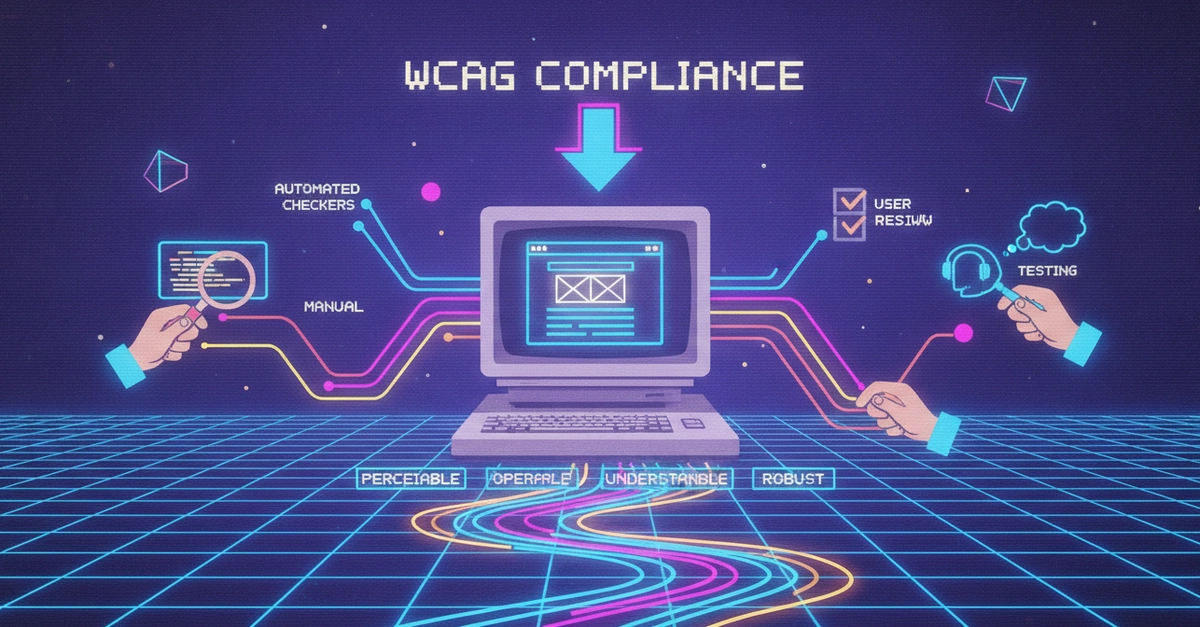
♿ How to Test Your Current Website for WCAG Compliance (Senior Frontend Guide) Testing accessibility isn't just running one tool. A proper WCAG audit includes: ✅ Automated testing ✅ Manual testing ✅ Keyboard testing ✅ Screen reader testing ✅ Real user testing Even the best automated tools only catch 30–50% of accessibility issues. Step 1: Know Which WCAG Level to Target Most organizations aim for: WCAG 2.1 AA (industry standard) Some government websites require WCAG 2.2 AA Step 2: Automated Accessibility Testing 1. Lighthouse (Chrome DevTools) Best for: Quick accessibility audit. Steps Open Website ↓ F12 ↓ Lighthouse ↓ Select Accessibility ↓ Generate Report Enter fullscreen mode Exit fullscreen mode Checks: Missing alt text Low contrast ARIA issues Form labels Heading structure Language attribute 2. axe DevTools (Highly Recommended) Install the browser extension. Checks: WCAG violations ARIA issues Form accessibility Color contrast Keyboard issues Many companies use axe during development. 3. WAVE Accessibility Tool Very beginner-friendly. Highlights directly on the webpage: Missing labels Missing headings Empty buttons Landmark issues 4. ESLint Accessibility Rules For React projects install: npm install eslint-plugin-jsx-a11y --save-dev Enter fullscreen mode Exit fullscreen mode Example: Enter fullscreen mode Exit fullscreen mode ESLint warns: Missing alt attribute Enter fullscreen mode Exit fullscreen mode before the code is merged. Step 3: Keyboard Accessibility Testing Disconnect your mouse. Can you use the website using only: Tab Shift + Tab Enter Space Arrow keys Esc Check: ✅ Can every button receive focus? ✅ Can every link be reached? ✅ Can menus open? ✅ Can modals close? ✅ Is focus always visible? Bad: Invisible focus outline Enter fullscreen mode Exit fullscreen mode Good: Blue outline around focused element Enter fullscreen mode Exit fullscreen mode Step 4: Screen Reader Testing Test using: Windows NVDA (Free) JAWS macOS VoiceOver Android TalkBack iPhone VoiceOver Check: Are buttons announced correctly? Are forms understandable? Does navigation make sense? Are images described? Is reading order correct? Step 5: Check Semantic HTML Avoid: Submit Enter fullscreen mode Exit fullscreen mode Better: Submit Enter fullscreen mode Exit fullscreen mode Native HTML is more accessible than custom elements. Step 6: Test Color Contrast Minimum contrast ratios: Text WCAG AA Normal text 4.5:1 Large text 3:1 Use tools like: Chrome DevTools axe WAVE Step 7: Verify Images Bad Enter fullscreen mode Exit fullscreen mode Good Enter fullscreen mode Exit fullscreen mode Decorative image: Enter fullscreen mode Exit fullscreen mode Step 8: Test Forms Every input needs: ✔ Label ✔ Error message ✔ Keyboard support ✔ Required field indication Good: Email Enter fullscreen mode Exit fullscreen mode Step 9: Check Heading Structure Good: H1 H2 H2 H3 H3 Enter fullscreen mode Exit fullscreen mode Bad: H1 H4 H6 Enter fullscreen mode Exit fullscreen mode Screen readers depend on heading hierarchy. Step 10: Verify ARIA Usage Use ARIA only when HTML isn't enough. Good: Enter fullscreen mode Exit fullscreen mode Bad: Enter fullscreen mode Exit fullscreen mode Use: Enter fullscreen mode Exit fullscreen mode instead. Step 11: Zoom Testing Zoom browser to: 200% 400% Check: No text overlap No clipped content Horizontal scrolling minimized Layout remains usable Step 12: Responsive Accessibility Test: Mobile Tablet Desktop Ensure: Touch targets ≥ 44×44 px Readable font sizes Proper spacing Step 13: Validate Focus Management When opening a modal: Open Modal ↓ Focus moves inside modal ↓ Tab stays inside modal ↓ Close modal ↓ Focus returns to trigger button Enter fullscreen mode Exit fullscreen mode Common interview topic. Step 14: Dynamic Content Testing For React applications: When content updates: Is focus managed correctly? Are screen readers notified? Use ARIA live regions where appropriate. Example: Item added to cart Enter fullscreen mode Exit fullscreen mode Step 15: Test Real User Flows Don't just test pages. Test: Login Registration Checkout Search Forms Navigation Error handling Accessibility issues often appear during interactions. Useful Tools Tool Purpose Lighthouse Quick accessibility audit axe DevTools Comprehensive WCAG testing WAVE Visual accessibility analysis ESLint (jsx-a11y) Catch issues during development NVDA / VoiceOver Screen reader testing Chrome DevTools Contrast, focus, accessibility tree 🚨 Common WCAG Failures ❌ Missing alt text ❌ Low color contrast ❌ Missing form labels ❌ Keyboard traps ❌ Missing focus indicators ❌ Incorrect heading order ❌ Buttons without accessible names ❌ Using instead of semantic HTML ❌ Missing lang attribute ❌ Modals without focus management 💡 Senior-Level Insight Accessibility is not a final QA task. It should be integrated into the development lifecycle: During coding: Semantic HTML, keyboard support, eslint-plugin-jsx-a11y During testing: Lighthouse, axe, WAVE Before release: Screen reader testing and manual keyboard testing In production: Include accessibility checks in CI/CD using tools like axe-core or Playwright accessibility tests 🎯 Interview Answer Q: How do you test your current website for WCAG compliance? "I use a combination of automated and manual testing. I start with Lighthouse and axe DevTools to identify common WCAG issues, use eslint-plugin-jsx-a11y during development, then manually verify keyboard navigation, focus management, semantic HTML, color contrast, forms, and heading structure. Finally, I test critical user flows with screen readers like NVDA or VoiceOver to ensure the application is accessible in real-world usage." 📌 Senior Accessibility Checklist ✅ Run Lighthouse Accessibility Audit ✅ Run axe DevTools ✅ Test with keyboard only ✅ Test with NVDA/VoiceOver ✅ Verify semantic HTML ✅ Check heading hierarchy ✅ Validate form labels and errors ✅ Test color contrast (4.5:1 minimum for normal text) ✅ Verify focus management ✅ Test at 200–400% zoom ✅ Check responsive touch targets ✅ Test dynamic content announcements ✅ Audit complete user journeys, not just individual pages This is the kind of end-to-end accessibility testing process interviewers expect from a senior frontend developer. 💡 Accessibility isn't a feature. It's a quality standard. The best frontend developers don't add accessibility at the end—they build it into every component from day one. Accessibility #A11y #WCAG #WCAG21 #WCAG22 #WebAccessibility #Frontend #FrontendDevelopment #ReactJS #JavaScript #HTML #CSS #WebDevelopment #SoftwareEngineering #UIUX #InclusiveDesign #Performance #QualityAssurance #InterviewPrep #EngineeringMindset
How to Test Your Current Website for WCAG Compliance ?
Full Article
📰 Original Source
Read full article at Dev →KhanList aggregates and links to publicly available news content. We do not host full articles from third-party sources. Always verify important information with original sources.