
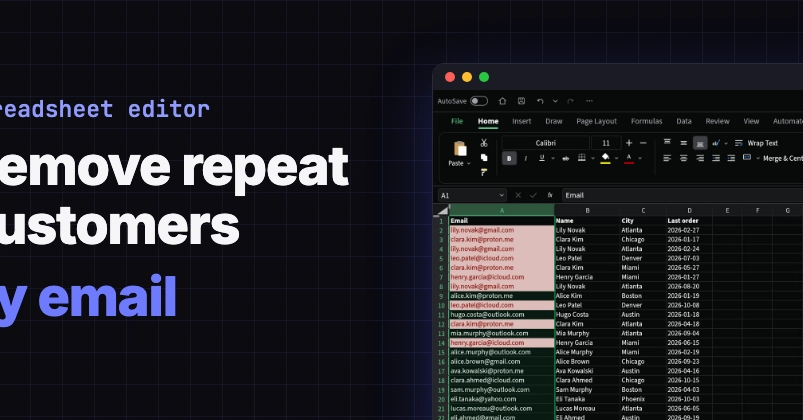
A customer list that has been fed by sign-up forms, imports and the odd copy-paste ends up with the same person on it two, three, four times. Each copy usually differs a little: another order date, a city typed after a move. Mail-merge that list and the same person gets the same email three times. Count it and your customer number is inflated. The usual "remove duplicates" button does not catch these rows on its default setting, because it only removes rows that match in every column. The fix is to tell it which column identifies a person, and the email address is the obvious one. The steps below use the Spreadsheet Editor in the osFoundry desktop app. The list is an example: 412 customers with four columns (Email, Name, City, Last order), 38 of them second or third sign-ups of someone already on the list. See the repeats first Open the list in the Spreadsheet Editor (dropping an .xlsx file onto it works) and click the header of column A, the emails. On the Home tab, open Conditional Formatting, then Highlight Cells Rules, then Duplicate Values. The rule applies straight away. Every email that appears more than once turns red, and that includes the first copy, not just the later ones. This step deletes nothing. It is a look before you cut: scroll through and check that the red rows really are the same person. Two different people sharing one family email address would show up here too, and that is the moment to decide whether they should stay separate. With column A still selected, the status bar at the bottom reads Count: 413. That is every non-empty cell in the column, so 412 customers plus the heading. Remove them by email only Click any cell inside the list, open the Data tab and click Remove Duplicates. The dialog has a "My data has headers" box, already ticked, so the heading row is never treated as data, and a field called "Columns (blank = all, e.g. A,C)". Type A. That field is the whole trick. Left blank, a row only counts as a duplicate if every column matches, and in this list none do: each repeat has its own Last order date, so a blank run removes nothing at all. With A, only the email is compared. The first row for each email stays, with its name, city and date, and every later row with the same email is deleted. Click OK. Two columns work too. "A,C" would treat the same email in a different city as a different entry, which is useful if you're cleaning a list of delivery addresses rather than people. If you'd rather keep each customer's most recent row, sort the list by Last order, newest first, before you remove duplicates, since the first row is the one that survives. Check the count Click the header of column A again and read the status bar. Count: 375, down from 413. That is 374 customers plus the heading, so the 38 repeat rows are gone and every remaining email appears once. The red highlighting is gone as well, because the Duplicate Values rule from the first step is still on the column and no value repeats any more. Leave it there: the next time someone pastes in a fresh batch of sign-ups, the repeats light up on their own. The editor works on the file on your own machine, as described on the page about osFoundry's local-first design, and the app is free from the osFoundry download page.
How to remove duplicate customers from a spreadsheet by email address
Full Article
Original Source
Read the full article at Dev →KhanList aggregates and links to publicly available news content. We do not host full articles from third-party sources. Always verify important information with original sources.