
Credit: Lucas Gouveia/How-To Geek | sdx15/Shutterstock Updated Nov 7, 2026, 8:40 AM EST Sign in to your How-To Geek account Much of the time, opening the Command Prompt as a regular user is all you need. Sometimes, though, you will need to open the Command Prompt as an administrator to run system-level commands. Whether you are repairing a corrupted Windows installation with sfc /scannow, managing disk partitions, or configuring deep network settings, you need elevated privileges. When you launch an administrative Command Prompt, Windows will trigger a User Account Control (UAC) prompt. Click Yes to proceed. Warning: Admin rights give you the power to delete or format any drive on your system. Never copy and paste commands from untrusted sources, and be extremely careful with commands like del, rd, or format. Open Command Prompt as Admin with the Start Menu You can also open an administrative Command Prompt using just the Start Menu. Click the Start button, type command, and you'll see Command Prompt listed as the main result. Right-click that result and choose "Run as administrator." When you launch the Command Prompt with admin privileges, you'll likely see a User Account Control window asking for permission to continue. Go ahead and click "Yes." Once you've got the Administrator: Command Prompt window open, you can run any command, whether it requires administrative privileges or not. If you've set up Windows Terminal on Windows 10 the window may look a little different from our screenshot. It isn't a problem, and it won't affect any commands you try to run. Run Command Prompt as Admin with the Run box If you're used to using the "Run" box to open apps, you can use that to launch Command Prompt with admin privileges. Press Windows+R to open the Run box. Type cmd into the box and then press Ctrl+Shift+Enter to run the command as an administrator. Open Command Prompt as Admin with the Power User menu Press Windows+X or right-click the Start button to open the Power User menu. In modern versions of Windows 10 and 11, this opens Windows Terminal (Admin) by default, not the classic Command Prompt. Once the terminal window opens, click the dropdown arrow (or the + icon) next to the tab bar and select Command Prompt if you want the classic interface, or Terminal for the modern experience. This ensures you are running the command with elevated privileges. You'll probably see PowerShell instead of Command Prompt unless you're using an ancient version of Windows 10. The Creators Update for Windows 10 swapped PowerShell for Command Prompt in the Power User menu, but you can switch back to Command Prompt if you want. Ideally, you should give PowerShell a try—it can do most everything Command Prompt can, and a ton of additional useful things. And with that, you have three very easy ways to run commands in the Command Prompt window as administrator.
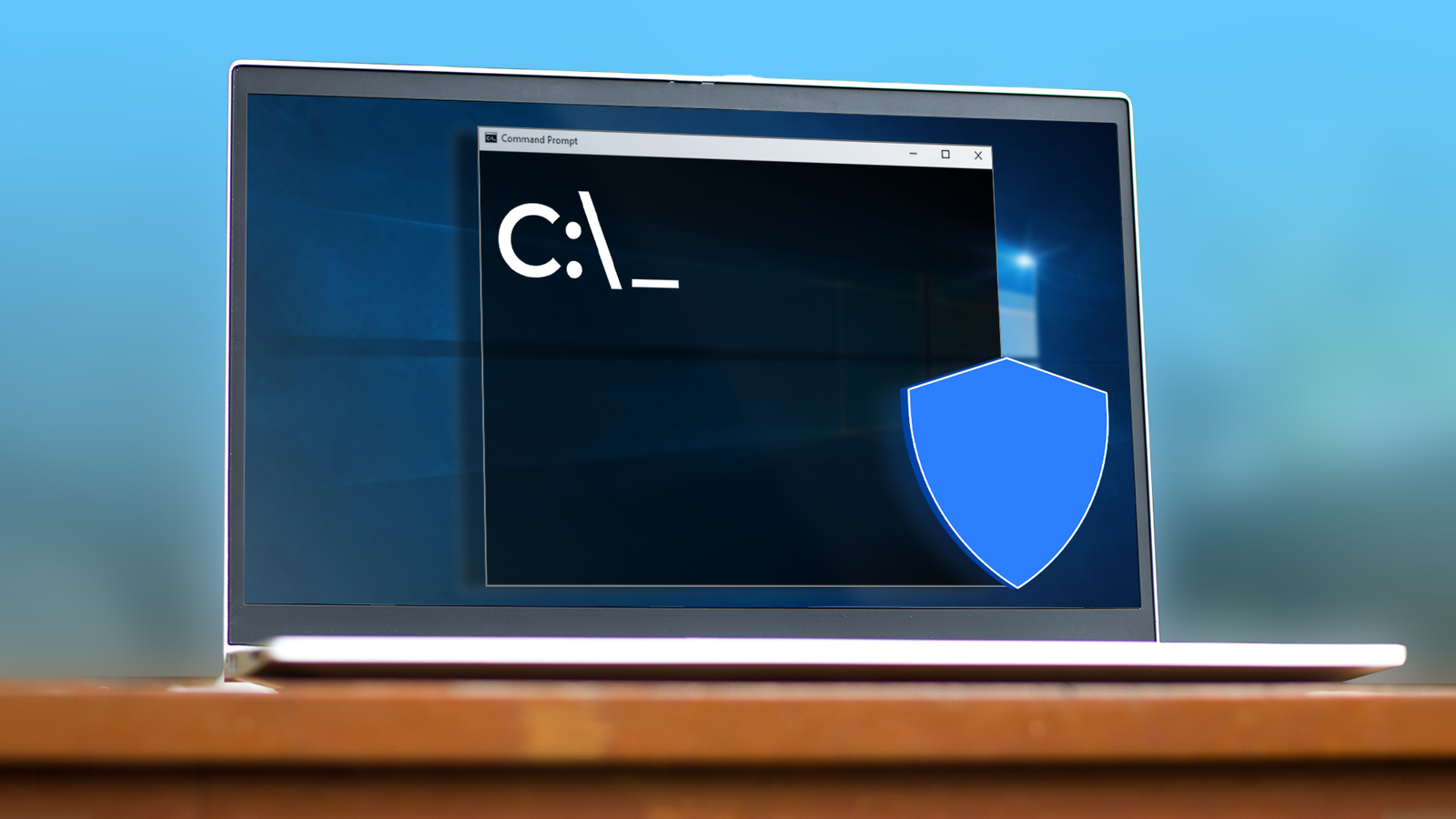
How to open the Command Prompt as administrator in Windows
Full Article
Original Source
Read the full article at Howtogeek →KhanList aggregates and links to publicly available news content. We do not host full articles from third-party sources. Always verify important information with original sources.