
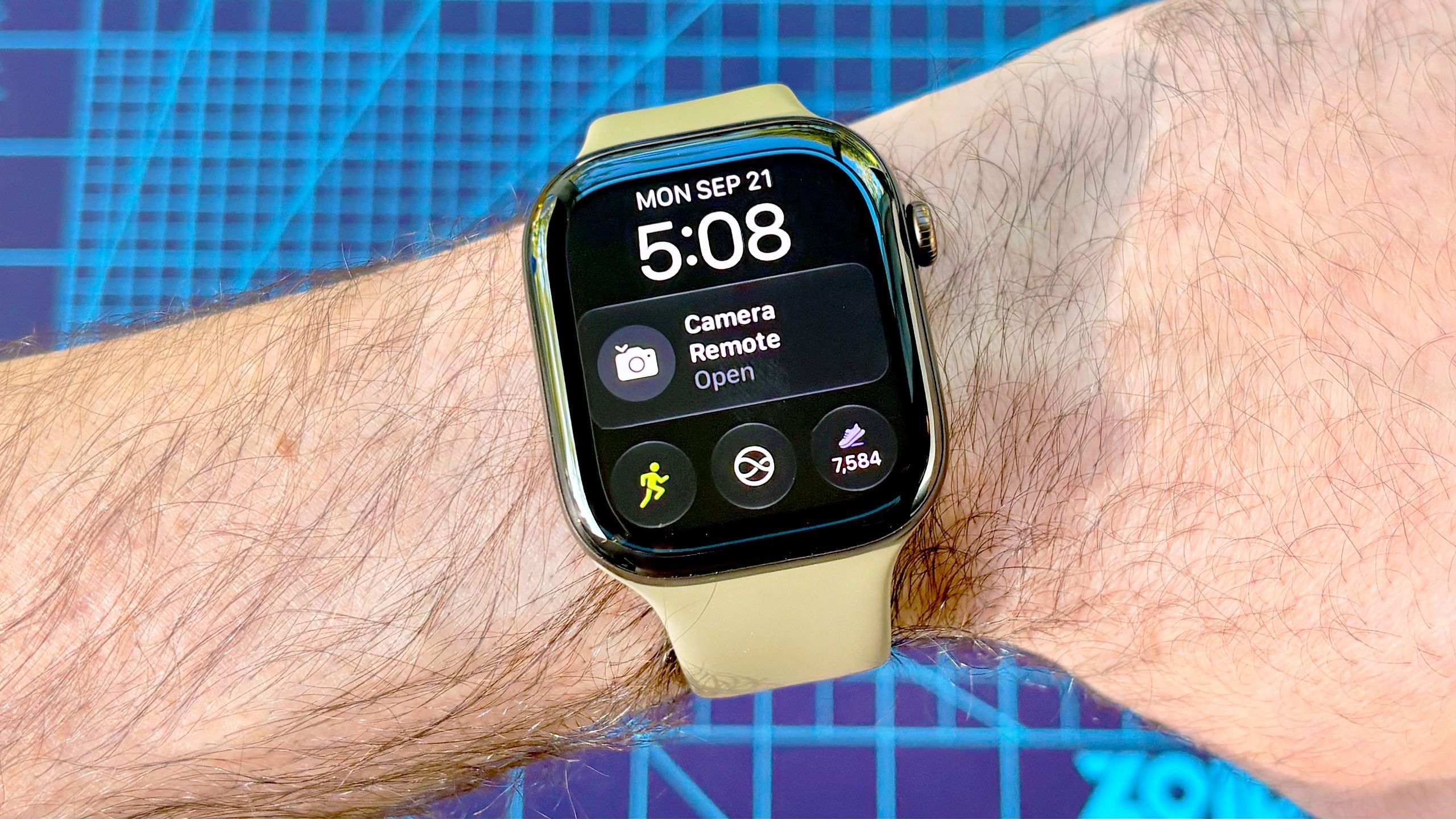
(Image credit: Dan Bracaglia/Tom's Guide) With the Apple Watch Series 12 and Apple Watch Ultra 4, users can now view their total daily step count in real time on the watch face courtesy of Apple’s powerful S11 processor.While there are a couple of different ways to add the Daily Steps widget to your watch face, below, I’ve explained my favorite way to do it: Using the new Siri Modular watch face in five quick steps.Don’t have one of the latest Apple Watch models? You can still add a step count widget to the watch face using a third-party option like the Pedometer++ app.That said, if you do have the Apple Watch Series 12 or Apple Watch Ultra 4, here’s how to unlock Apple’s step count widget in less time than it takes to walk around the block.Open the Watch app on your iPhone and tap ‘Face Gallery’ at the bottom, center of the pageSelect the category ‘New Watch Faces' or search for “Siri Modular’Select your preferred Siri Modular layout and scroll down to ‘Complications’Tap on one of the complications to change it; you’ll find the ‘Daily Steps’ widget toward the top under ‘Activity’With the ‘Daily Steps’ widget added, tap ‘Add to Watch’ to switch to the Siri Modular faceRead on to see full illustrated instructions for each step. 1. Open the Watch app on your iPhone and tap ‘Face Gallery’ at the bottom, center To add the new Daily Steps widget to your watch face, first, open the Watch app on your iPhone, then tap 'Face Gallery' at the bottom center of the screen. 2. Select the category ‘New Watch Faces' or search for “Siri Modular’ Next, search for the new Siri Modular watch face or select it from Apple's 'New Watch Faces' category. Next, choose one of the six Siri Modular styles (shown in the image above). 3. Select your preferred Siri Modular layout and scroll down to ‘Complications’ Once you've selected your preferred Siri Modular style, scroll down to the bottom of the page to 'Complications.' Now, it's time to choose which position you want your Daily Steps widget to appear in. If you want it to be the most visible, choose the top complication. 4. Tap on one of the complications to change it; you’ll find the ‘Daily Steps’ widget toward the top under ‘Activity’ Tap on the complication where you want the Daily Steps widget to appear to edit it. Next, scroll to the top of the page to the 'Activity' section and tap 'Daily Steps.' 5. With the ‘Daily Steps’ widget added, tap ‘Add to Watch’ to switch to the Siri Modular face Once back at the Siri Modular customization screen, feel free to further customize the other complication positions. When you're satisfied, tap the orange 'Add to watch' button at the top of the page. (Image credit: Dan Bracaglia/Tom's Guide)And... that's it! Your personalized Siri Modular watch face with a Daily Steps widget should now appear on your Apple Watch Series 12 or Apple Watch Ultra 4 (the only models that support this feature natively).Looking for more ways to customize your Apple Watch with the latest watchOS 27 bells and whistles? Here's how to enable the new Siri AI voice assistant on your Apple Watch. Best of all, you don't need one of the latest models – just one that supports watchOS 27.Get instant access to breaking news, the hottest reviews, great deals and helpful tips. Follow Tom's Guide on Google News and add us as a preferred source to get our up-to-date news, analysis, and reviews in your feeds. Alternatively, you can read our content on the Tom's Guide app available now for iOS and Android. More from Tom's GuideApple Watch Ultra 4 first impressions: 5 reasons to buy and 2 reasons to skip Apple’s new rugged modelApple just killed one of my favorite Apple Watch features with the launch of watchOS 27I’ve been writing about the Apple Watch for the past decade: Here’s the rumored update I’m most excited about for the Apple Watch Ultra 4 Dan Bracaglia is the Tom’s Guide editorial lead for all things smartwatches, fitness trackers and outdoor gear. With 15 years of experience as a consumer technology journalist testing everything from Oura Rings to instant cameras, Dan is deeply passionate about helping readers save money and make informed purchasing decisions. In the past year alone, Dan has assessed major product releases from the likes of Apple, Garmin, Google, Samsung, Polar and many others. An avid outdoor adventurer, Dan is based in the U.S. Pacific Northwest where he takes advantage of the beautiful surroundings every chance he gets. A lover of kayaking, hiking, swimming, biking, snowboarding and exploring, he also makes every effort to combine his day job with his passions. When not assessing the sleep tracking and heart rate accuracy of the latest tach gadgets, you can find him photographing Seattle’s vibrant underground music community.
How to add Apple's new dynamic step count widget to your Apple Watch
Full Article
Original Source
Read the full article at Tomsguide →KhanList aggregates and links to publicly available news content. We do not host full articles from third-party sources. Always verify important information with original sources.