
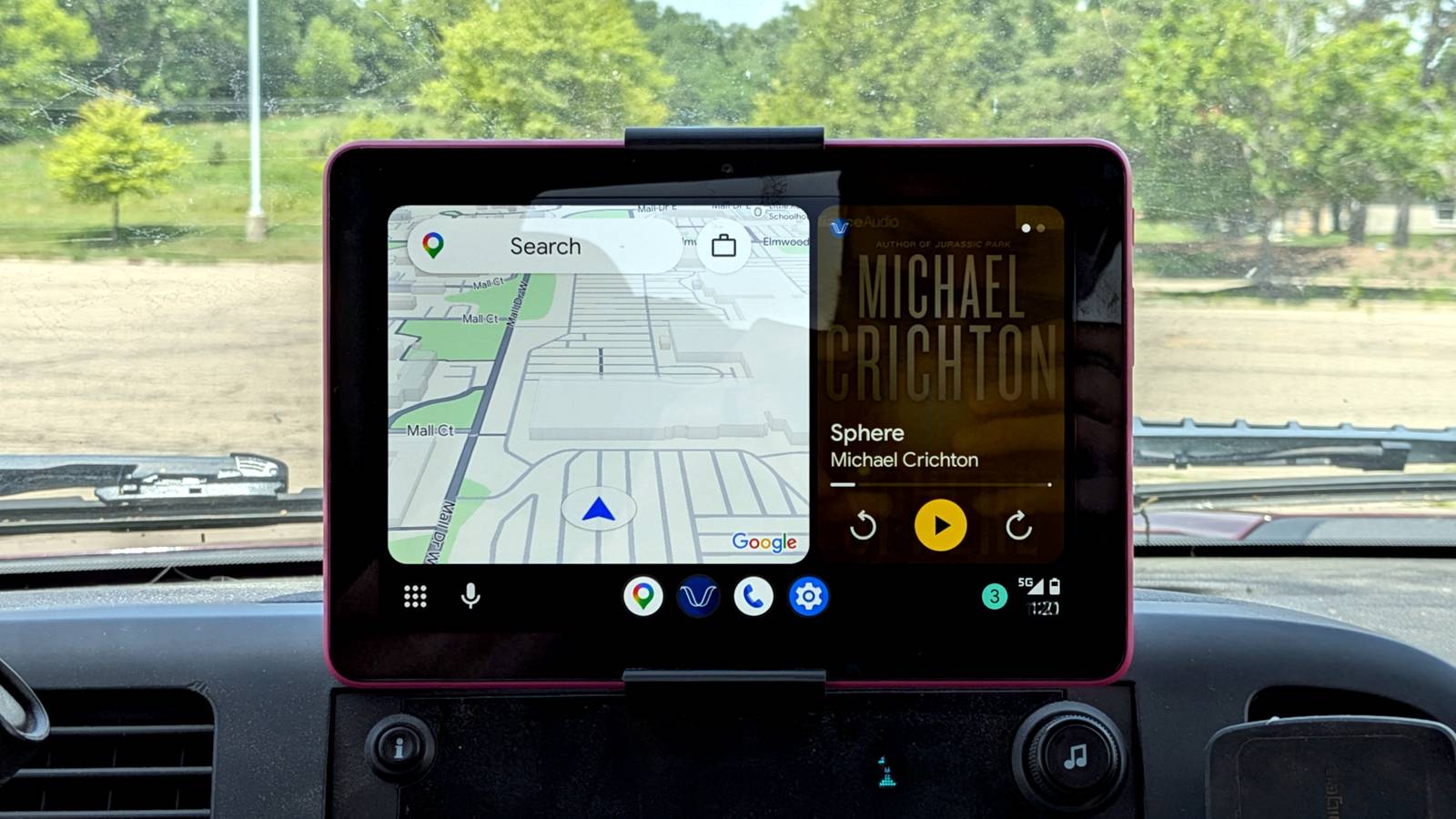
Published Sep 29, 2026, 6:30 AM EDT Joe Fedewa has been writing about technology for over a decade. Android and the rest of the Google ecosystem have been a focus for years, as well as reviewing devices, hosting podcasts, filming videos, and writing tutorials. Joe loves all things technology and is also an avid DIYer and food blogger. He has written thousands of articles, hundreds of tutorials, and dozens of reviews. Before joining How-To Geek, Joe worked at XDA-Developers as Managing Editor and covered news from the Google ecosystem. He got his start in the industry covering Windows Phone on a small blog, and later moved to Phandroid where he covered Android news, reviewed devices, wrote tutorials, created YouTube videos, and hosted a podcast. From smartphones to Bluetooth earbuds to Z-Wave switches, Joe is interested in all kinds of technology. After several years of jailbreaking and heavily modifying an iPod Touch, he moved on to his first smartphone, the HTC DROID Eris. He's been hooked ever since. Most people don't go out of their way to get Android Auto — it's simply a perk in the vehicle they decided to buy. However, not all of us drive around with big screens built into our dashboards. Thankfully, you can probably add Android Auto to devices you already own. For a long time, I assumed Android Auto required specialized equipment that was only found in cars. Then, one day, I discovered it's surprisingly easy to run the full, official version of Android Auto on any Android device — as a receiver or a self-contained unit. Android tablet as an Android Auto head unit DIY infotainment system Credit: Joe Fedewa / How-To Geek The thing that makes Android Auto so nice is the convenience of using your phone without using your phone (or even taking it out of your pocket). You get in your car, plug in your phone (or just let it connect wirelessly), and everything you need is right there on a bigger screen. You can mimic this exact same setup with any old Android tablet. The secret ingredient is an excellent app called Open Headunit (formerly Headunit Revived). It's essentially an app that emulates the software in a vehicle that is responsible for receiving wired or wireless Android Auto from your phone. This is not a knock-off or some fancy launcher — it's the genuine version of Android Auto that lives on your phone. First, download Open Headunit from the Play Store ($3.99) or the GitHub page (free) and install it on your Android tablet. If you're using an Amazon Fire Tablet, check out our guides on installing the Play Store and sideloading apps. You'll be guided through a painless "Quick Setup" process that configures the experience to match your device's specifics. After that, go into the Settings, and choose a "Connection mode." Assuming you select "WiFi," make sure to also choose "Wireless Helper" in the "Wireless Mode" section. Also, be sure to expand the "Advanced" settings and choose "WiFi Direct" for "Helper Connection Strategy." Next, grab your Android phone and install the companion "WiFi Helper" app. Select "Wi-Fi" Direct" as the "Connection Mode." Enter the device name shown at the top of the main screen in Open Headunit under "Wi-Fi Direct Device Name(s)." Tap the purple "WiFi" button on your tablet, then "Start Android Auto" on your phone. In a few seconds, the Android Auto interface will launch on the tablet. Just use your phone as the Android Auto display Skip the middleman entirely Credit: Joe Fedewa / How-To Geek I won't lie, there are some definite drawbacks to using a tablet as a car display. Do you keep it plugged in all the time? Is it safe to keep it mounted on your dashboard? A better option may be to simply cut out the middleman and use your phone itself as the Android Auto display. Google used to have an official app called "Android Auto for Phone Screens," but it was never great, and it was canceled in 2022. Thankfully, you can use the same Open Headunit app that I highlighted above on your phone. In "Self Mode," Android Auto runs directly on your phone without projecting to a secondary device. First, install Open Headunit on your phone and go through the initial "Quick Setup" process. After that, you can literally just tap "Self Mode" and watch Android Auto take over. Well, it used to be that easy. Thanks to Android Auto 17.4, you have to manually start the headunit server from the Android Auto developer menu. Open Headunit will take you there, but it's still an added step. But with that out of the way, you have the full Android Auto experience running on your phone. Pretty cool. Tips for a smooth experience To make the most of either option, you'll want to take some time to configure the settings and set up your vehicle. If you play your cards right, you can get most of this to run automatically with very little manual input. For the tablet method, pair your phone and tablet in the device's Bluetooth menu. This allows you to do two things. First, go into Open Headunit's "Auto-start settings" and choose your phone under the "Auto-start on Bluetooth" menu. Next, open Wi-Fi Helper and choose your tablet for the Bluetooth connection "Auto Start Service." Now, when the devices connect to each other, both apps automatically open. For the "Self Mode" method, open "Auto-Connect Settings" and make sure "Auto start Self-Mode" is enabled and first on the list. Then, go to the "Auto-start settings" and choose your vehicle or a Bluetooth audio dongle as the "Auto-start on Bluetooth" device. This will auto-launch the app to Self-Mode when you get into your car. Speaking of Bluetooth audio dongles, I recently discovered this "wired" model from UGREEN. I was using wireless dongles, but they eventually need to be charged, and I always heard static and weird interference. The UGREEN model gets direct power and sounds much cleaner. Just a tip. Anyway, you have options when it comes to modernizing an old vehicle. If using an Android device isn't the method you're looking for, there are also affordable dedicated add-on devices to look into.
How to add Android Auto to an old car for free using hardware you already own
Full Article
Original Source
Read the full article at Howtogeek →KhanList aggregates and links to publicly available news content. We do not host full articles from third-party sources. Always verify important information with original sources.