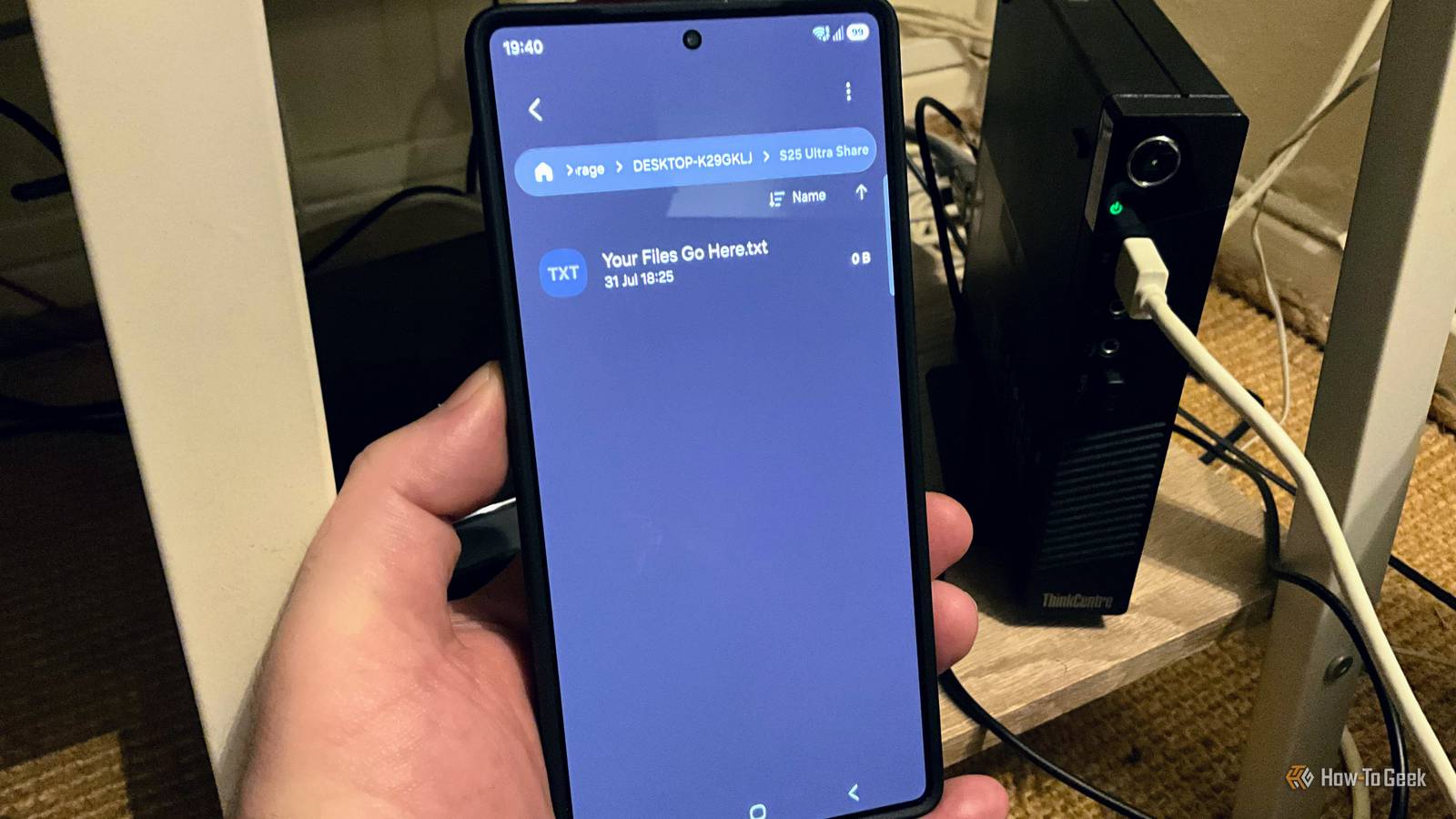
Published Aug 7, 2026, 12:30 PM EDT Sydney Butler is a technology writer with over 20 years of experience as a freelance PC technician and system builder and over a decade as a professional writer. He's worked for more than a decade in user education. On How-To Geek, he writes commerce content, guides, opinions, and specializes in editing hardware and cutting edge technology articles. Sydney started working as a freelance computer technician around the age of 13, before which he was in charge of running the computer center for his school. (He also ran LAN gaming tournaments when the teachers weren't looking!) His interests include VR, PC, Mac, gaming, 3D printing, consumer electronics, the web, and privacy. He holds a Master of Arts degree in Research Psychology with a minor in media and technology studies. His masters dissertation examined the potential for social media to spread misinformation. Outside of How-To Geek, he hosts the Online Tech Tips YouTube Channel, and writes for Online Tech Tips, Switching to Mac, and Helpdesk Geek. Sydney also writes for Expert Reviews UK. He also has bylines at 9to5Mac, 9to5Google, 9to5Toys, Tom's Hardware, MakeTechEasier, and Laptop Mag. My current phone is a Samsung Galaxy S25 Ultra with 256GB of storage. While that doesn't sound like much, thanks to a 2TB cloud Google One subscription, it's never been an issue. My photos, videos, and other files are just offloaded to the cloud. However, I don't want every file, photo, or text document to go through Google servers, or ever move across the open internet. Which gave me the idea of setting up a simple network shared folder on one of my Windows PCs that my phone can use as a place to save or retrieve files while I'm connected to Wi-Fi. I turned my Plex server into a simple NAS for my phone Luckily for me, I already have a Windows PC that's always on, has a bunch of hard drives plugged into it, and is connected to my network with an Ethernet cable. I use an old Lenovo mini PC as my Plex server, which sits idle most of the time unless we're actually streaming something from it. Even then, its plucky little dual-core i3 CPU has more than enough juice left for a network file transfer to one device. Credit: Sydney Louw Butler / How-To Geek Setting up a dedicated folder for my phone makes it easy to store files like ROMs for Android emulators, ebooks, MP3s, and documents. My Plex server has 14TB of storage, so putting a few hundred gigs aside barely moves the needle. Windows already includes everything you need If you're running Windows 11 (or older versions, but they're all end-of-life), then you have all the tools you need to create a network share. Here's how to do it: Open Windows Settings Go to Network & Internet Settings > Advanced network settings Open "Advanced sharing settings" Enable "Network discovery and File and printer sharing." Flip both toggles and close the window In Windows Explorer, create the folder you want to share or use an existing one, right-click on it and select "Properties" Select the "Sharing" tab and select "Share" Add additional users if needed, but if your own account is already listed with Read/Write permissions, click "Share" Read the confirmation dialog and choose "copy" if you want to send the link to the shared folder somewhere. The folder is now shared as a standard SMB network drive on your LAN. Copy any files you want your Android phone to access into that folder, and then we're ready to move on to the handset itself. As I said earlier, I'm using a Samsung phone, and so its default file manager is My Files. Your phone might come with a different app, but most of them should support accessing network drives. So, although the steps for different apps won't be exactly the same as these, they should be very similar. Open My Files, scroll down to the bottom, and tap "Network Storage" If this is the first time, you might be asked to complete a file update, and then activate file permissions. So do that Since we have no network shares, you can tap the "Add network storage" button, but in future you can use the plus button to add more Choose to add an SMB drive Check that you're on the local Wi-Fi, and allow the app to search for discoverable network shares. You can also use the manual button here to use the information you copied earlier from the SMB setup, but in most cases it should auto-detect Pick the correct share from the list of detected network drives Enter the username and password. The username is the one you saw when adding users to the share during setup. The password is the same one you use to log into Windows. When you're done, finalize the setup. Now you should see the contents of the shared folder. In this case, I created a text file on the computer as a demo. Since you have read and write permissions, you can delete files or copy files to this folder with ease, but do be careful! If you delete them from the computer you can't recover them! If you want to take files with you rather than access them directly from the shared drive, remember to copy them to your phone. There are a few limitations worth knowing This isn't a perfect solution, of course. Unlike using Google Drive or other commercial solutions for network storage, your Windows PC has to be on all the time. For me, since I'm using my dedicated Plex server to host the network share, that's a non-issue. However, if you're going to share a folder from your main desktop or laptop PC, it's worth wondering if the power cost is worth it. You could probably just buy a USB-C Flash drive instead. Also, unless you set up a VPN into your home network, which is a pain, you can't access this share when not connected to your local network. However, it still has plenty of uses and has the sizable advantage of being something you can set up right now for no money in less than five minutes.
How I permanently share a Windows folder with my Android phone, no extra apps required
Full Article
Original Source
Read the full article at Howtogeek →KhanList aggregates and links to publicly available news content. We do not host full articles from third-party sources. Always verify important information with original sources.