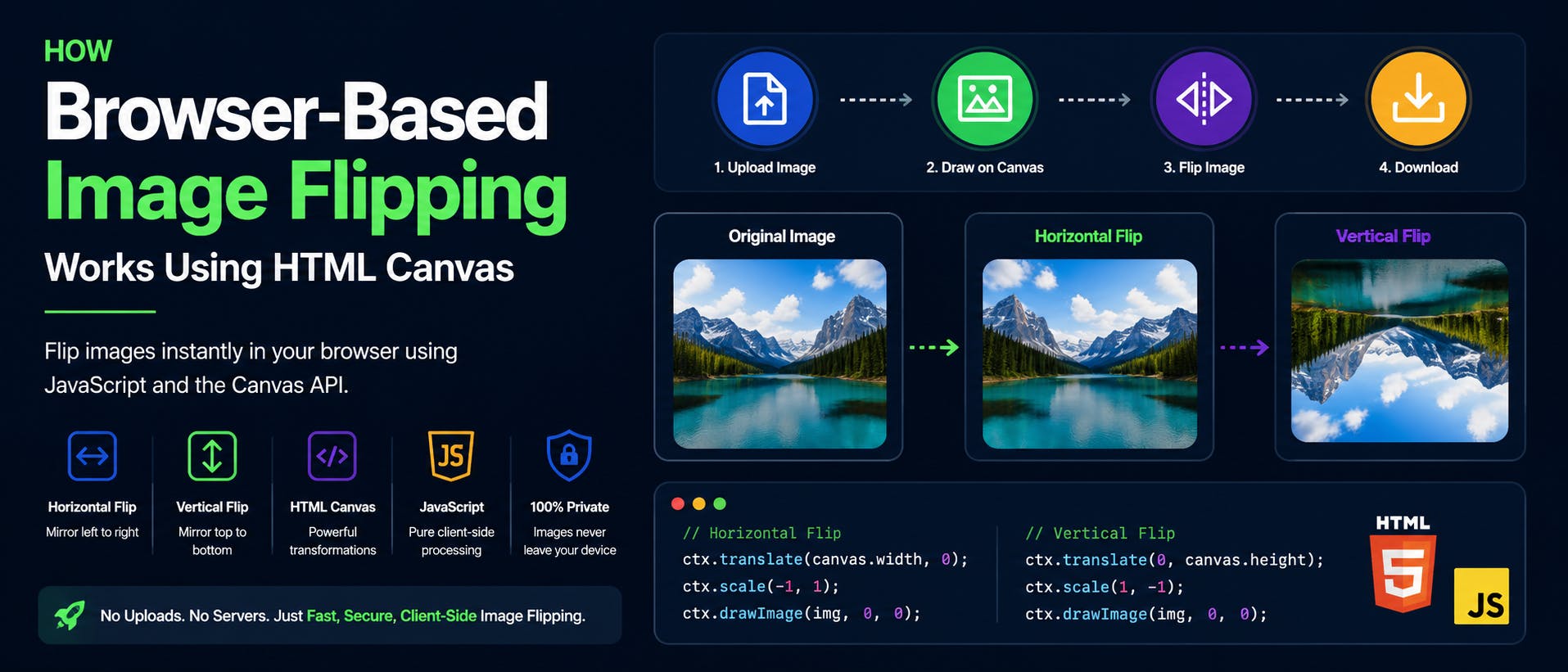
Image flipping is one of the simplest yet most useful image editing operations. Whether you're creating mirror effects, correcting scanned documents, preparing product photos, or building creative applications, flipping an image is a common requirement. Many online image editors still upload images to remote servers before performing this simple transformation. While this approach works, it introduces unnecessary upload time and raises privacy concerns. Modern browsers provide everything needed to flip images locally using HTML Canvas and JavaScript, eliminating the need to send files anywhere. This article explains how browser-based image flipping works, the Canvas APIs involved, and why client-side processing has become the preferred approach for lightweight image editing. Why Image Flipping Doesn't Need a Server Traditional web applications process images on backend servers. The workflow usually looks like this: Upload the image Wait for the upload to finish Flip the image on the server Generate a new image Download the result For large images, uploading often takes longer than the actual flip operation. Since flipping simply changes the orientation of pixels, modern browsers can perform the transformation locally without requiring a server. Keeping everything inside the browser makes the experience faster while improving user privacy. Understanding Image Flipping Unlike image rotation, flipping does not rotate pixels. Instead, it mirrors them across an axis. There are two common types of flips. Horizontal Flip A horizontal flip mirrors the image from left to right. Original ABCDEF ↓ Horizontal Flip FEDCBA This effect is commonly used for: Mirror selfies Product photography Graphic design Gaming assets Vertical Flip A vertical flip mirrors the image from top to bottom. Original A B C ↓ Vertical Flip C B A Vertical flipping is useful for: Texture editing Reflection effects Scientific imaging Special visual effects Why HTML Canvas Is Perfect for Image Flipping The HTML Canvas API provides built-in transformation methods. Instead of modifying the original image file, Canvas redraws the image using a different coordinate system. The overall process is: Read the image Create a Canvas Apply transformations Draw the image Export the result Everything happens inside the browser. No upload is required. Step 1: Reading the Image The browser first loads the selected image using the FileReader API. const input = document.getElementById("image"); input.addEventListener("change", (e) => { const file = e.target.files[0]; const reader = new FileReader(); reader.onload = function(event) { const img = new Image(); img.onload = function () { console.log("Image Loaded"); }; img.src = event.target.result; }; reader.readAsDataURL(file); }); The image remains entirely inside browser memory. Step 2: Creating the Canvas Next, create a Canvas matching the image dimensions. const canvas = document.createElement("canvas"); const ctx = canvas.getContext("2d"); canvas.width = image.width; canvas.height = image.height; Canvas becomes the drawing surface for all transformations. Step 3: Flipping Horizontally Horizontal flipping is performed using scale(). ctx.translate(canvas.width, 0); ctx.scale(-1, 1); ctx.drawImage(image, 0, 0); What's happening? scale(-1,1) reverses the X-axis. Since the coordinate system is reversed, translate() moves the origin so the image remains visible. Without translation, the image would be drawn outside the canvas. Step 4: Flipping Vertically Vertical flipping works similarly. ctx.translate(0, canvas.height); ctx.scale(1, -1); ctx.drawImage(image, 0, 0); This reverses the Y-axis while keeping the image inside the visible canvas. Understanding Canvas Transformations Canvas transformations modify the coordinate system instead of editing pixels directly. Three important transformation methods are: translate() Moves the origin. ctx.translate(100, 50); scale() Resizes or mirrors drawings. ctx.scale(-1, 1); drawImage() Draws the image after all transformations have been applied. ctx.drawImage(image, 0, 0); The browser combines these transformations before rendering the final image. Exporting the Flipped Image Once the transformation is complete, the browser generates a new downloadable image. const output = canvas.toDataURL("image/jpeg", 0.9); download.href = output; download.download = "flipped-image.jpg"; No server communication occurs. The new image is created directly inside the browser. Supporting Batch Image Flipping Modern browsers can process multiple images during the same session. A typical workflow is: Select multiple images Read each file independently Create a canvas for each image Apply horizontal or vertical flips Export each image Since processing happens locally, performance depends mostly on the user's device rather than network speed. Things Developers Should Consider Although flipping is simple, several implementation details improve the overall experience. Large Images High-resolution images consume significant browser memory. Processing images one at a time helps reduce memory usage. Preserve Transparency PNG images often contain transparent backgrounds. Canvas should preserve transparency during export when using PNG. Output Formats Supporting multiple export formats improves flexibility. Common choices include: JPEG PNG WebP Image Quality When exporting JPEG images, allow users to control compression quality. canvas.toDataURL("image/jpeg", 0.95); Higher quality creates larger files. Mobile Performance Modern mobile browsers support Canvas efficiently. However, extremely large images may require additional memory optimization. Why Client-Side Image Editing Continues to Grow Modern browsers have become powerful application platforms. Tasks that once required dedicated servers can now execute directly inside the browser. Examples include: Image compression Image resizing Image cropping Image rotation Image flipping Format conversion Watermarking This reduces server costs while providing a faster and more private experience. Final Thoughts Image flipping is a simple transformation, but it demonstrates how capable modern browsers have become. Using HTML Canvas, browsers can mirror images instantly without uploading them to a remote server. This approach offers several advantages: Faster processing Better privacy Lower infrastructure costs Instant preview Offline capability As browser APIs continue evolving, client-side image editing will become the standard approach for many everyday image processing tasks. Developers building modern web applications can take advantage of HTML Canvas to deliver fast, secure, and responsive image editing experiences entirely within the browser.
How Browser-Based Image Flipping Works Using HTML Canvas
Full Article
Original Source
Read the full article at Hackernoon →KhanList aggregates and links to publicly available news content. We do not host full articles from third-party sources. Always verify important information with original sources.