
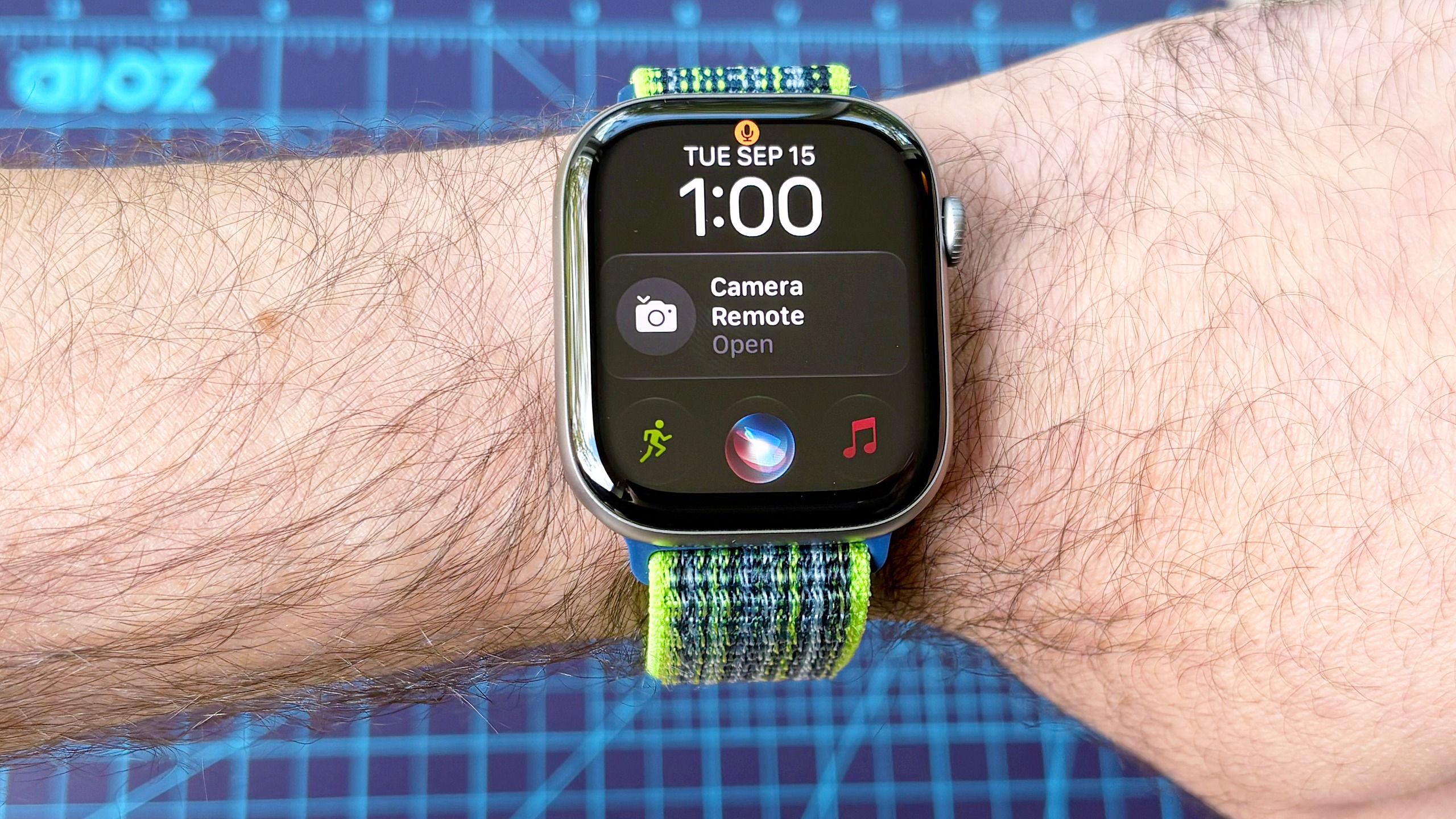
(Image credit: Dan Bracaglia/Tom's Guide) At last, an AI-powered version of Apple's Siri voice assistant is available for the Apple Watch thanks to the public release of watchOS 27, the newest Apple Watch software.In my experience so far, Siri AI is more natural in its tone, making conversing less awkward. More importantly, the feature is much better at answering complex, context-based questions with a reasonable degree of reliability.Here's how to load Siri AI on your Apple Watch and add a dedicated Siri AI widget to your watch face in seven easy steps. Plus, a list of eligible models.How to enable Siri AI on your Apple Watch Make sure your Apple Watch and iPhone are compatible with Siri AIUpdate your phone to iOS 27; update your Apple Watch to watchOS 27Turn on Siri in your phone’s settings and join the Siri beta waitlist Turn on Siri in your Apple Watch’s settings Open the Watch app on your iPhone, tap Display and Brightness > Face GalleryTap “New Watch Faces” and/or search for the “Siri Modular” faceCustomize the Siri Modular face to your liking and tap “Add to Watch” when finishedRead on to see full illustrated instructions for each step. 1. Make sure your Apple Watch and iPhone are compatible with Siri AI Before starting, first make sure both your Apple Watch and iPhone are compatible with Siri AI. For iPhones, the following models support Apple Intelligence tools: iPhone 15 Pro, iPhone 15 Pro Max, iPhone 16 series, iPhone 17 series, and iPhone 18 series.Meanwhile, the following Apple Watch models are watchOS 27-eligible with support for Siri AI: Apple Watch SE 3, Apple Watch Series 9, Apple Watch Series 10, Apple Watch Series 11, Apple Watch Series 12, Apple Watch Ultra 2, Apple Watch Ultra 3, and Apple Watch Ultra 4. 2. Update your phone to iOS 27; update your Appple Watch to watchOS 27 Once you've confirmed Siri AI support for your Apple Watch and iPhone, it's time to update your iPhone to the latest iOS 27 software and then your Apple Watch to the newest watchOS 27 platform. Need some help? Here's a detailed explainer on how to upgrade to iOS 27. Plus, here's how to upgrade to watchOS 27 in a couple of easy steps (scroll down a bit). Note: The software update process for each can take up to a few hours, so plan accordingly. 3. Turn on Siri in your phone’s settings and join the Siri beta waitlist Once both your Apple Watch and iPhone are running the latest software, head to your phone's Settings Menu, scroll down, and tap on "Siri." Next, turn on Siri if it's off, then tap on "Siri AI (Beta)," and tap "Join Waitlist." 4. Turn on Siri in your Apple Watch’s settings Next, head to your Apple Watch's setting menu and open the Siri tab and ensure that Siri is turned on. If it's not, turn Siri on. 5. Open the Watch app on your iPhone, tap Display and Brightness > Face Gallery Now it's time to install Apple's new Siri Modular watch face on your Apple Watch, which adds a dedicated shortcut to the Siri AI voice assistant for easy access. First, open the Watch app on your iPhone, scroll down, and click "Display and Brightness" followed by "Face Gallery." 6. Tap 'New Watch Faces' and/or search for the 'Siri Modular' face To find the new Siri Modular watch face you can either tap on "new Watch Faces" category (Siri Modular should be one of the top options), or search for "Siri Modular" in the search field. 7. Customize the Siri Modular face to your liking and tap 'Add to Watch' when finished Apple offers a lot of customization options for the Siri Modular face, including your choice of colors, the number of widgets, the style of the date/time, and more. Go ahead and fine-tune the Siri Modular watch face to your liking, and once you're done, tap "Add to Watch." In a matter of seconds, the new face should load. (Image credit: Dan Bracaglia/Tom's Guide)And there you have it. Siri AI is now enabled on your Apple Watch, and the Siri AI assistant app is now fixed on your watch face for easy access. Of course, you can also open Siri by double-tapping the Digital Crown or using a gesture control like wrist raise.Siri AI is still in beta, so your experience with the AI assistant might not be as smooth as the final product. Moreover, getting off the Siri AI beta waitlist can take anywhere from a few minutes or hours to several days. So, be patient. Follow Tom's Guide on Google News and add us as a preferred source to get our up-to-date news, analysis, and reviews in your feeds. Alternatively, you can read our content on the Tom's Guide app available now for iOS and Android. Get instant access to breaking news, the hottest reviews, great deals and helpful tips.More from Tom's GuideApple Watch Ultra 4 first impressions: 5 reasons to buy and 2 reasons to skip Apple’s new rugged modelWe asked 368 people what they want from the Apple Watch Ultra 4. Here’s the resounding answer (and it’s not AI)I’ve been writing about the Apple Watch for the past decade: Here’s the rumored update I’m most excited about for the Apple Watch Ultra 4 Dan Bracaglia is the Tom’s Guide editorial lead for all things smartwatches, fitness trackers and outdoor gear. With 15 years of experience as a consumer technology journalist testing everything from Oura Rings to instant cameras, Dan is deeply passionate about helping readers save money and make informed purchasing decisions. In the past year alone, Dan has assessed major product releases from the likes of Apple, Garmin, Google, Samsung, Polar and many others. An avid outdoor adventurer, Dan is based in the U.S. Pacific Northwest where he takes advantage of the beautiful surroundings every chance he gets. A lover of kayaking, hiking, swimming, biking, snowboarding and exploring, he also makes every effort to combine his day job with his passions. When not assessing the sleep tracking and heart rate accuracy of the latest tach gadgets, you can find him photographing Seattle’s vibrant underground music community.
Here's how to enable the new Siri AI on your Apple Watch
Full Article
Original Source
Read the full article at Tomsguide →KhanList aggregates and links to publicly available news content. We do not host full articles from third-party sources. Always verify important information with original sources.