
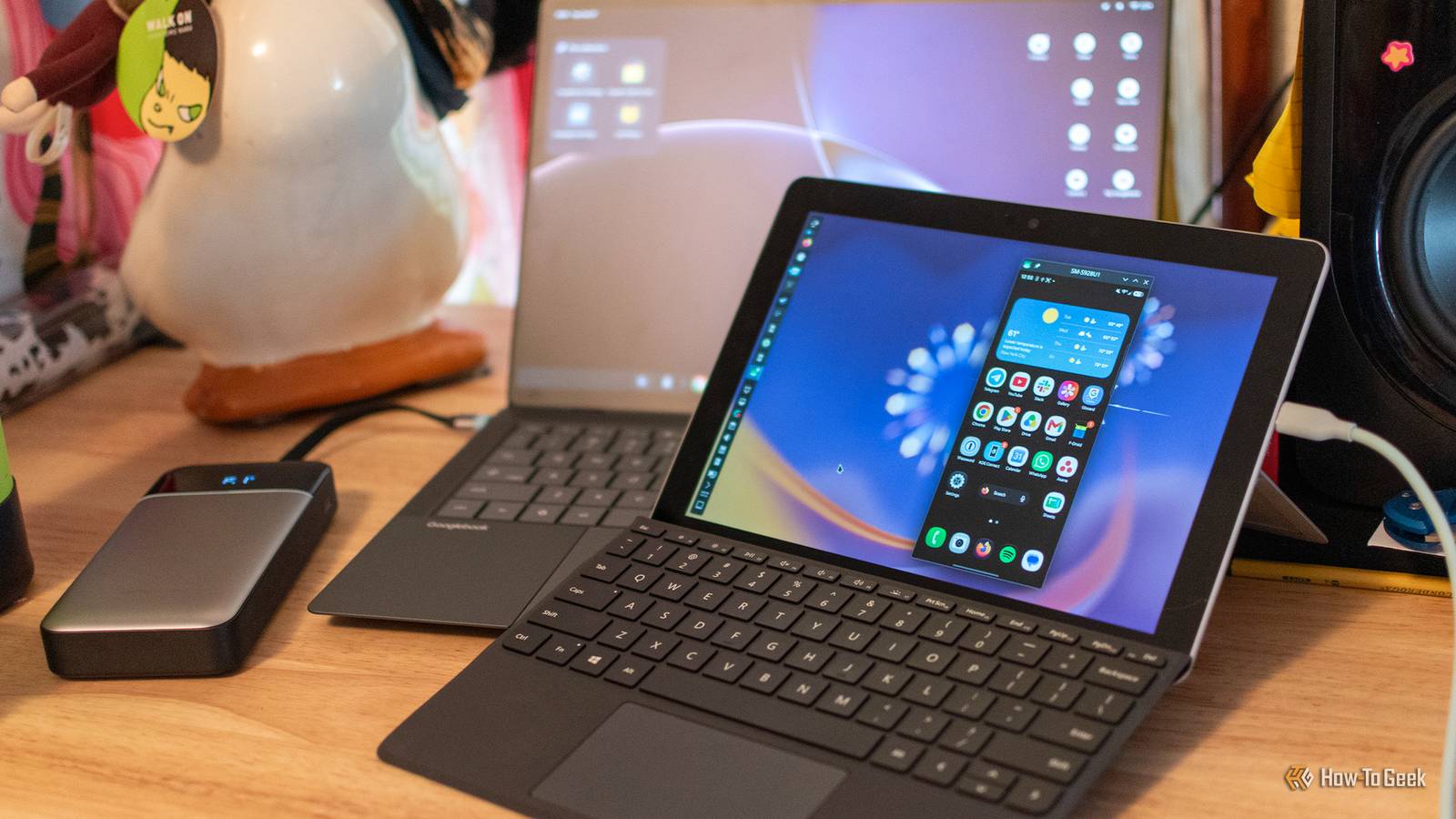
Published Oct 28, 2026, 4:00 PM EDT Andrew Heinzman is a seasoned tech writer with over half a decade of experience. He specializes in delivering insightful tech news and detailed product reviews, particularly focusing on audio and video technology, as well as computers and smartphones. His journey in tech writing includes a two-year stint as the News Editor at Review Geek, the former sister site of How-To Geek. Throughout his career, Andrew has consistently provided readers with valuable insights and up-to-date information on the latest developments in the tech world, earning recognition for his clarity, depth, and relevance. In his free time, Andrew likes to explore music and read books, just as he did when earning his bachelor's degree in English literature. Googlebook's clumsy launch made me wish that I wasn't a product reviewer. I had to spend two weeks using a laptop with what felt like an unfinished operating system (cue the world's smallest violin), and throughout the entire process, I just kept thinking how nice it would be if Google had taken all of its biggest Googlebook features and slapped them on a mainline Linux distro instead of trying to reinvent the wheel. Anyways, I tried to replicate these features on an old Surface Go that I bought for about $60 and loaded up with CachyOS, mainly because I thought it would be funny to do so, but also to demonstrate that you don't need to drop $800+ on a Googlebook to get some of its key functionality. KDE Connect for Android smartphone integration It's more feature-rich than the Googlebook's Phone Hub If you've never tried KDE Connect, go install it now. Not only does it enable texting from your Linux, Windows, or macOS desktop, but it lets you sync Android notifications to your PC, transfer files between your devices, and sync your clipboards. You can even use KDE Connect to control your PC from your phone, which feels like witchcraft, although it's arguably the least useful of these features. Best of all, KDE Connect operates within your local Wi-Fi network, so it doesn't rely on external Google servers to sync your clipboard or notifications. You aren't restricted in which devices you connect, either. I've got several Android phones at my desk, plus an iPhone and Mac, and I can connect them all to my Linux laptop at once through KDE Connect if I want to. GooglebookOS treats basic Android phone integration as a major selling point, which feels a bit odd to me, as KDE Connect and similar tools (including the official Microsoft Phone Link utility) have been around for years. Plus, the Googlebook's Android integration is fairly broken at launch. I couldn't get basic features like Quick Share file transfers working at all when I reviewed the ASUS Googlebook 14. Though I will admit that the KDE Connect interface is kind of ugly. The good news is that Google Messages is available on the web, so I can just access it through my Linux laptop's browser if I want a prettier texting experience. There are also some file transfer tools with more attractive frontends than KDE Connect, such as Packet. Phone mirroring with scrcpy I couldn't even get this working on Googlebook One of Googlebook's headline features—screen mirroring—didn't really work for myself, my colleagues, or too many other people at launch. It might still be kind of busted when this article goes live, for all I know. Anyways, setting up Android phone mirroring in Linux took all but five minutes and worked without a hitch, all I had to do was install scrcpy, connect my Android phone to the laptop with a USB cable (after enabling USB debugging in Android's developer settings), and punch the scrcpy command into my terminal. Not only does scrcpy mirror your Android phone's screen to your Linux desktop, but it lets you interact with the screen using your mouse and keyboard, just like how Googlebook phone mirroring is supposed to work. You can even use autoadb to automatically fire up scrcpy when you connect your phone to your PC, but I didn't bother, as I actually prefer the manual startup behavior. To be honest, I was pretty delighted to see this working on my pathetic little Surface Go, which uses a Pentium 4415Y processor. But scrcpy's wireless mode, which you can trigger through the scrcpy --tcpip command (run the command while your phone is plugged in, then unplug it) didn't seem to be particularly fond of my Surface Go's Wi-Fi capabilities, and setting up wireless mirroring without a USB cable is somewhat cumbersome, so I guess scrcpy loses points there. Is smartphone mirroring actually useful? To be perfectly honest, I haven't found any use for it beyond watching TikToks while reading emails on my Mac. But screen mirroring is a landmark Googlebook feature that didn't work for me or my colleagues at launch, so I had to replicate it in Linux out of spite. I can install a Magic Pointer clone, but I don't need to Why bother when I can just drag a screenshot into a chat window? Some of the Googlebook's Gemini integrations feel a bit lazy or clunky, but Magic Pointer is surprisingly polished. It's a desktop-based take on Android's "Circle to Search" feature: wiggle your cursor and highlight something on screen to show it to Gemini. The AI will explain what you're looking at or provide suggestions without pulling up a full chat window. I managed to find some tools that loosely replicate Magic Pointer functionality. The best looking option is AIPointer, a tool that lets you select an area on your screen and send it to your LLM of choice. You can even use AIPointer to instantly send up to five files to an LLM, which sounds pretty handy to me. The problem is that AIPointer and similar tools require an API key. And after spending a few weeks with a Googlebook, I've come to the conclusion that I don't use Magic Pointer enough to justify paying for it. So, I've come up with a free solution—I can just take a screenshot and drag it into a ChatGPT or Claude window. If I need to ask an LLM about something on my screen, then it's probably going to require a conversation with some back-and-forth anyway, so it's not like I'm "wasting time" by opening a full chat. This solution does lack some of Magic Pointer's automation features, such as the ability to add a date to your calendar by wiggling your cursor and pointing at it. But there are browser extensions like Text to Google Calendar that offer similar functionality, so I'm not too stressed about it. I can run Android apps in Linux, it just kinda sucks Let's not count this one toward my tally Googlebook OS is built on Android's desktop interface, so naturally, it runs Android apps. It's a neat idea at a conceptual level, and it's something that's got a lot of potential if developers put their best foot forward, but it's pretty clunky at launch. A lot of apps simply aren't available on the Googlebook Play Store, while others aren't optimized for the desktop at all. Plus, essential apps like Chrome currently lack key features that have been supported on Linux, Windows, and macOS for years. Anyway, I tried replicating this functionality with Waydroid, which is a containerized utility that lets you run a full Android operating system on your PC. It even lets you go into multi-window mode so that each app is treated like a standalone window on your desktop. But I quickly gave up on trying to replicate this Googlebook feature because it just isn't worth it on my poor, weak little Surface Go. There are visual bugs that I don't feel like putting in the effort to fix, and the performance is just generally rough. Nevermind the tedium of grabbing apps and setting up networking, which are just too time consuming, seeing as I'll probably never open Waydroid on my Surface Go again. This is an area where the Googlebook obviously has a huge leg up. Whether Android apps are actually worth running on desktop is a matter of opinion, of course. Rambler managed to escape me, too My favorite Googlebook feature, which is also available on Pixel 11, is the Rambler speech-to-text processor. I'll admit that this feature is somewhat niche, but it's the best speech-to-text tool I've used to date. There are plenty of tools that accomplish Rambler-like functionality, most of which are based on OpenAI's Whisper model (which works offline and doesn't require API credits). Unfortunately, my poor Surface Go's Pentium 4415Y processor is way too weak for this level of realtime transcription. I gave the OpenWhispr and Handy frontends a go just to see what would happen, and my Surface Go threw up an overheating screen. Oops! I can probably get around this issue by using a text-to-speech tool on my Android phone, copying the output to its clipboard, and syncing the clipboard to my Surface Go through KDE Connect. But there's not much utility in that outside of long-form writing since it's a bit tedious.
Here's how I replicated 3 of the Googlebook's best features on a $60 Linux laptop
Full Article
Original Source
Read the full article at Howtogeek →KhanList aggregates and links to publicly available news content. We do not host full articles from third-party sources. Always verify important information with original sources.