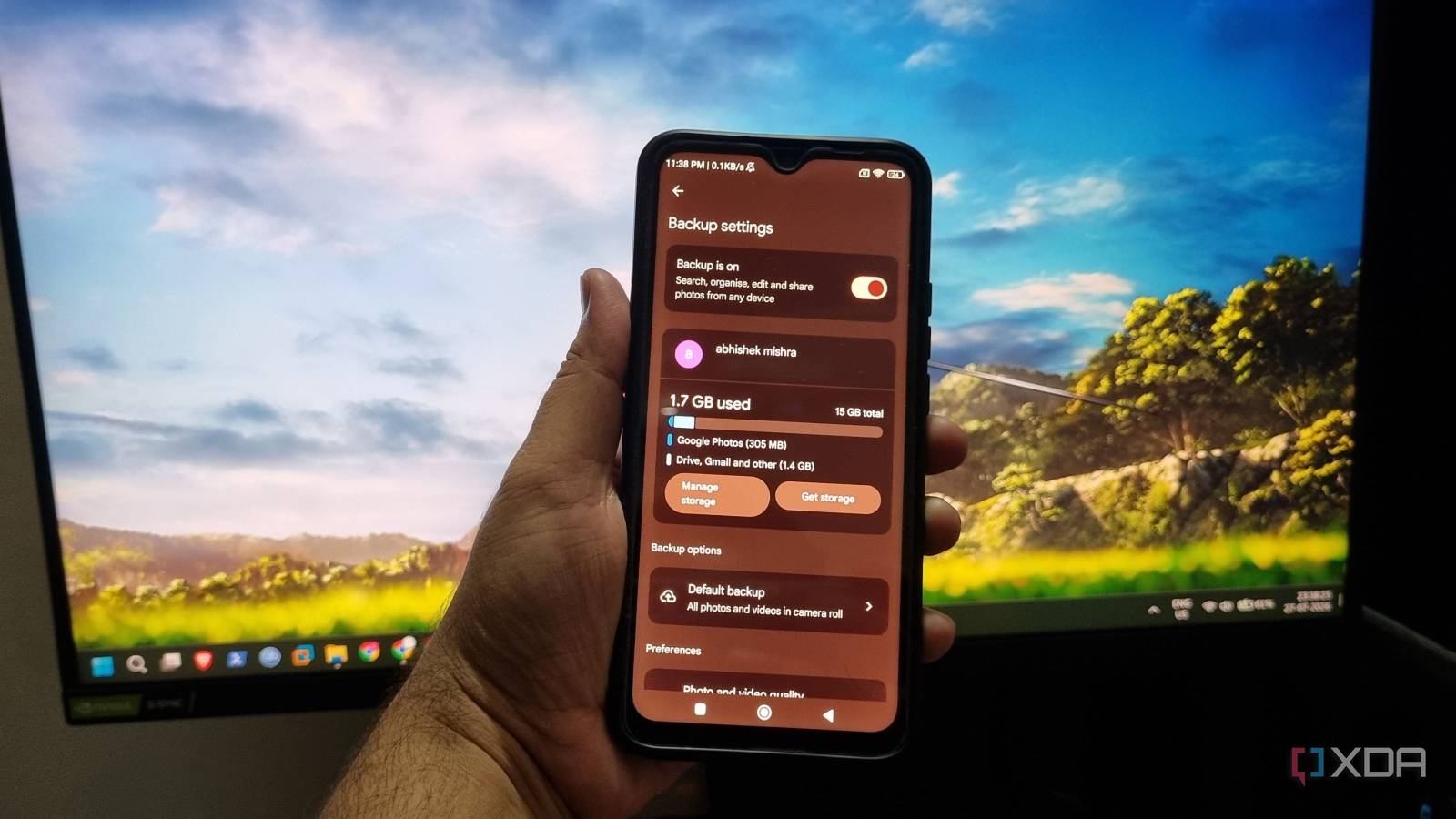
Published Jul 31, 2026, 7:30 AM EDT Abhishek is an author at XDA who covers computing. He has loved computers since he got the Lenovo G570 in 2012. Abhishek holds a master's degree in computer applications and began his writing career in 2018. He loves writing how-to articles, listicles, and informational posts on popular operating systems and web services. He closely follows the Windows Insider program and tests new Insider builds to discover upcoming experimental features and upgrades. His past work includes long-term collaborations with reputed publications like Tom's Hardware, and Windows Latest. When not writing anything, he is busy watching new episodes of One Piece or searching for something binge-worthy. Google recently updated its policies about the items that contribute to its free cloud storage tier. Previously, Android backup data, which usually contains app data and device data (SMS, call history, phone settings), didn't count towards Google's free storage limit. But now, these items will count toward your total cloud storage space, thereby reducing it slightly. Google estimates that, despite this policy change, your average storage usage for Android backup files will be only about 40MB, which isn't a huge deal compared to other items. But such policy changes make you rethink what items you actually want on your free, limited Google Drive cloud storage plan. I'll discuss all the file types you can purge or move out of cloud storage to free up space for crucial items. Google One Storage Manager can be of immense help Removing large files and media Unlike other cloud storage services, your 15GB cloud storage is shared by numerous Google services. So, your Drive backups, Photos backup, and slowly compounding email data are all assimilated under one roof. That means sorting out all these individual items on your own, if it weren’t for the Google One Storage Manager. You can save a lot of time with this tool, as it shows useful file cleanup suggestions along with a cleanup by service option if you’re interested in that too. To access the tool, open Settings and navigate to Google -> All services -> Backup. Tap on Manage storage to launch the Google One Storage Manager. Since there are a bunch of options here, let’s go with the obvious ones first. Large Drive files should be your priority, as they mostly contain files you uploaded a long time ago, shared, and never bothered to look back at. I had some tutorial videos that I shared with my friend and then forgot to put them in the trash. They’ve been eating up a significant portion of my Drive storage because I forgot they were still there. Google is experimenting with 5GB free cloud storage space for new accounts instead of the old 15GB space in some regions. A few Reddit threads mention that it's possible to get 10GB more by linking the phone number to an email account. Tap on the Review option to open the dedicated page, which shows a sorted list of all such files. You can choose to delete all or keep a few, depending upon your storage needs. Check the bin section as well to instantly remove options you no longer need. Next up on the list is Large photos and videos, which is another silent space devourer. I capture a lot of videos (1–5 min) on my phone, and very few of them are actually useful. While I practice regular device cleanup, some of those shaky, useless videos end up in the Photos library. This option can help me find those large video files and purge them from the storage. Wipe email data and attachments Another pesky, unnoticeable waste of space I am guilty of being bombarded with promotional and PR emails that eat a significant portion of my Google account storage. It’s one of those items you see, instantly swipe the notification, and never actually think about it. Over time, these tiny attachment files bundled in thousands of emails can shrink down the available free storage of your free account. There are two ways to deal with this email menace. The first option is via the Google One Account Manager page, where you can use the "emails with large attachments" option to find and delete such entries. It's a long and arduous process, especially if you're like me and don't delete such emails regularly. Another way to narrow down such attachments is through the Gmail app. If the Google One Account manager doesn't launch, you can use search filters to find emails with large attachments. To do so, tap the search bar in the Gmail app, then select attachment. Type larger:10MB (you can pick whatever size) and press search to sort all such attachments. You'll still have to do a lot of manual selection and then delete the emails, as I explained in the previous method. Removing slides, documents, and PDFs Unavailable in Google One Account Manager Work documents, especially PDFs and slide files, that are overly media-heavy can take up a lot of storage space. These documents keep piling up as the project moves forward, and if you don’t remove them from the drive, the 15GB limited storage will fill up fast. I mostly work with Docs and Sheets, but have to deal with these as well. Unfortunately, there’s no way to find the biggest culprits using Google One Storage Manager. It suggests opening your Drive app or website and then removing the ones you don’t need again. There’s also no way to sort these files by size in the Drive app, which makes it even more cumbersome to remove. You can adopt a proactive approach in the future to avoid such hectic mass deletion. Managing WhatsApp backup Excluding folders and more WhatsApp is my most-used personal/professional app and is the source of most of the images and short clips on my phone. I don’t mind backing up my chat to the Google account, but backing up media files is a sheer waste of precious cloud storage space. It’s better to move these files to an external hard drive and manually upload the important ones to it. Other than that, most of them are disposable media files that shouldn’t stay in the phone storage for long. If you back up other media folders to Google Photos or Drive, it's best to exclude them and reserve the cloud storage for important files only. You can also use Google Photos' cleanup suggestions to weed out duplicate, blurry, and unusable images and videos. There's also a provision to convert images to Storage Saver mode to conserve space. Reclaim storage space Google is generous with its 15GB of free storage, while other competitors just stick to 5GB. But even that can feel less if you don’t manage your backup and media upload strategy. It’s best to find the bigger files and move them to a local backup solution. Other than that, keep purging trash, emptying bins, and manually removing files after they’ve served their purpose. You can either upgrade to a Google One storage plan or build a local NAS with a backup strategy to save your files. Google Drive is one of the best cloud storage services out there in 2023. It can be used by anyone with a Google account, and it also comes with 15GB of free storage to get started.
Google's new storage policy forced me to audit my Drive, and I found these 4 hidden space hogs
Full Article
Original Source
Read the full article at Xda-developers →KhanList aggregates and links to publicly available news content. We do not host full articles from third-party sources. Always verify important information with original sources.