
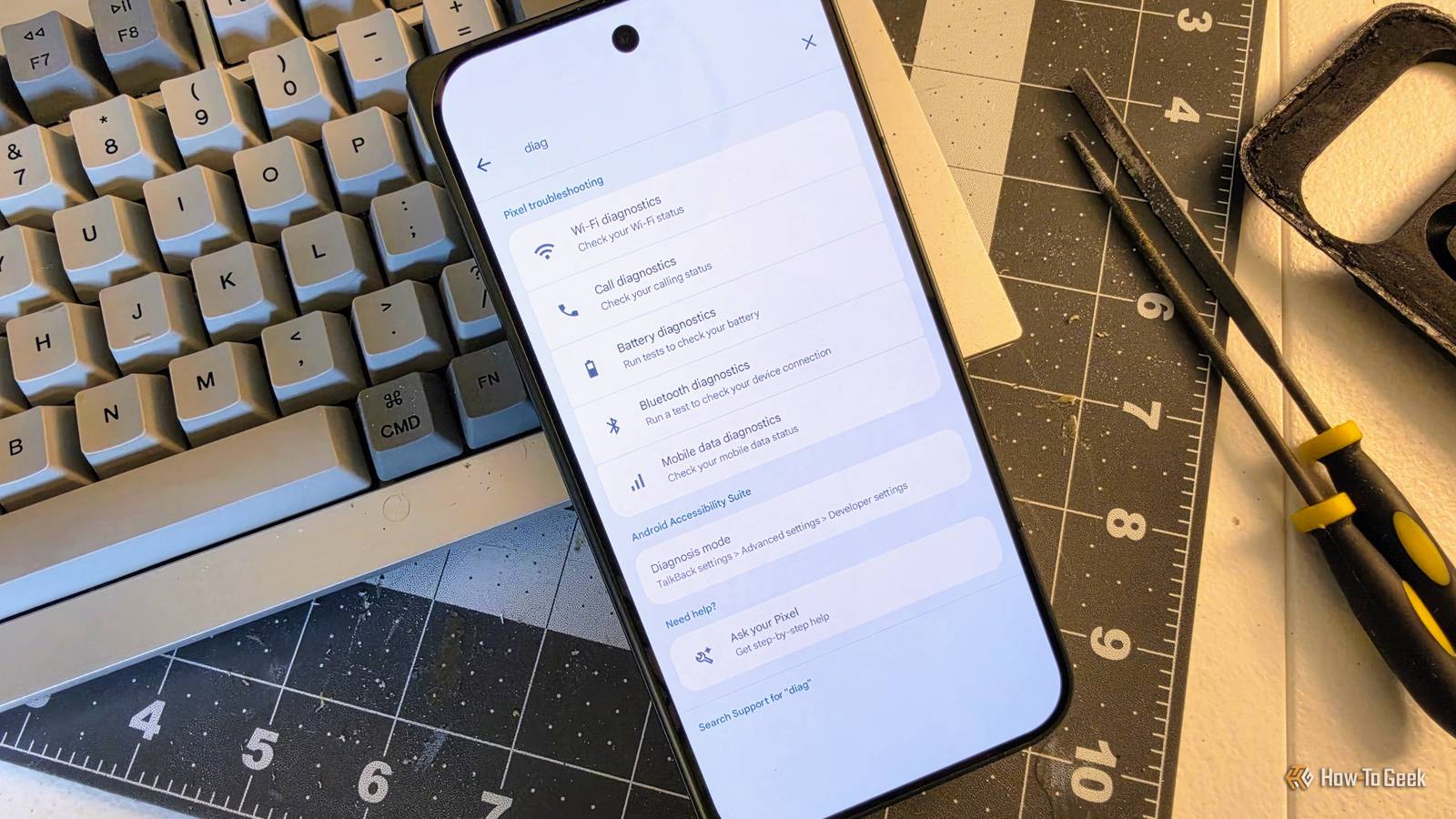
Published Aug 26, 2026, 8:45 AM EDT Joe Fedewa has been writing about technology for over a decade. Android and the rest of the Google ecosystem have been a focus for years, as well as reviewing devices, hosting podcasts, filming videos, and writing tutorials. Joe loves all things technology and is also an avid DIYer and food blogger. He has written thousands of articles, hundreds of tutorials, and dozens of reviews. Before joining How-To Geek, Joe worked at XDA-Developers as Managing Editor and covered news from the Google ecosystem. He got his start in the industry covering Windows Phone on a small blog, and later moved to Phandroid where he covered Android news, reviewed devices, wrote tutorials, created YouTube videos, and hosted a podcast. From smartphones to Bluetooth earbuds to Z-Wave switches, Joe is interested in all kinds of technology. After several years of jailbreaking and heavily modifying an iPod Touch, he moved on to his first smartphone, the HTC DROID Eris. He's been hooked ever since. Google Pixel phones are not exactly renowned for having a huge selection of features—the downside to minimalism. That’s why I was recently surprised to find a suite of diagnostic tools in the settings. These tools can be helpful for troubleshooting and determining the health of your device. The diagnostic tools are included as part of a mysterious “Pixel Troubleshooting” app. It can’t be opened like a normal app, and the diagnostic tools within it are spread around in various sections in the settings. The easiest way I’ve found to find them is to simply search by name. Let’s take a look at what they can do. Battery diagnostics Keep tabs on your battery health Opening the battery diagnostics section greets you with a question: What do you need help with? There are four options: Battery draining too quickly, Phone is very warm, Issue with charging, and Other issue. The first one displays your phone’s battery health and suggests a few ways to save extra battery. It also includes a shortcut to the Battery usage page. The next section gives you a precise read-out of your phone’s current temperature. The last two sections aren’t as informational—just tips and links to support articles. Bluetooth diagnostics Why isn’t my headset working? Bluetooth issues can be particularly frustrating. Most of the time, it works as it should, but then every once in a while—doing nothing differently—you’ll have issues. The Bluetooth diagnostics section helps you troubleshoot specific devices. When you open the section, your currently connected devices will appear. Tapping a device will bring you to a screen with potential problems, depending on the type of device. Things like “Can’t play media audio” or “Can’t make or receive calls.” Selecting a problem will run a quick Bluetooth connection test, give you some additional tests to run—like a fake phone call, and provide tips and support shortcuts. Call diagnostics The fix for broken calls Even if phone calls aren’t the most common thing we do on phones anymore, it is important to be able to receive them. If you’re having trouble connecting or hearing people on the other end, the call diagnostics tool can help. This tool checks your carrier settings, reboots your Pixel phone’s modem, and then places a test call. After the call, you’ll get a read-out with issues and a call quality report. It may even change some settings on your behalf to improve your calls, but you can tap “More details” if you want to undo anything. Mobile data diagnostics Check in on your carrier The mobile data diagnostic tool is specifically for checking the speed and performance of your carrier’s network. It runs a basic speed test, spitting out the download and upload speed in Mbps. Google also displays the result on a scale from “Email” to “4K video” to illustrate how fast or slow your network is at the current location. Should any issues appear during the test, you’ll see some possible next steps. Wi-Fi diagnostics Is your home network running at top speed? The Wi-Fi diagnostics tool is essentially the exact same as the mobile data diagnostics tool, but it’s specifically for Wi-Fi networks. It’s a simple way to run speed tests without downloading an app for it. You can see the download and upload speed in Mbps, as well as a visual scale to show what your network speeds are capable of. If any issues are detected, you get shortcuts to possible tips and solutions. It’s nice to be surprised sometimes Admittedly, these tools are not as comprehensive as you might find on a Samsung Galaxy phone or third-party app. However, it’s pretty cool that they’ve been quietly built into the Pixel software. The network tools, in particular, seem especially helpful—one less app to download. Hopefully, you never need these tools, but they’re available if you do.
Google Pixel phones have built-in diagnostic tools that nobody talks about
Full Article
Original Source
Read the full article at Howtogeek →KhanList aggregates and links to publicly available news content. We do not host full articles from third-party sources. Always verify important information with original sources.