
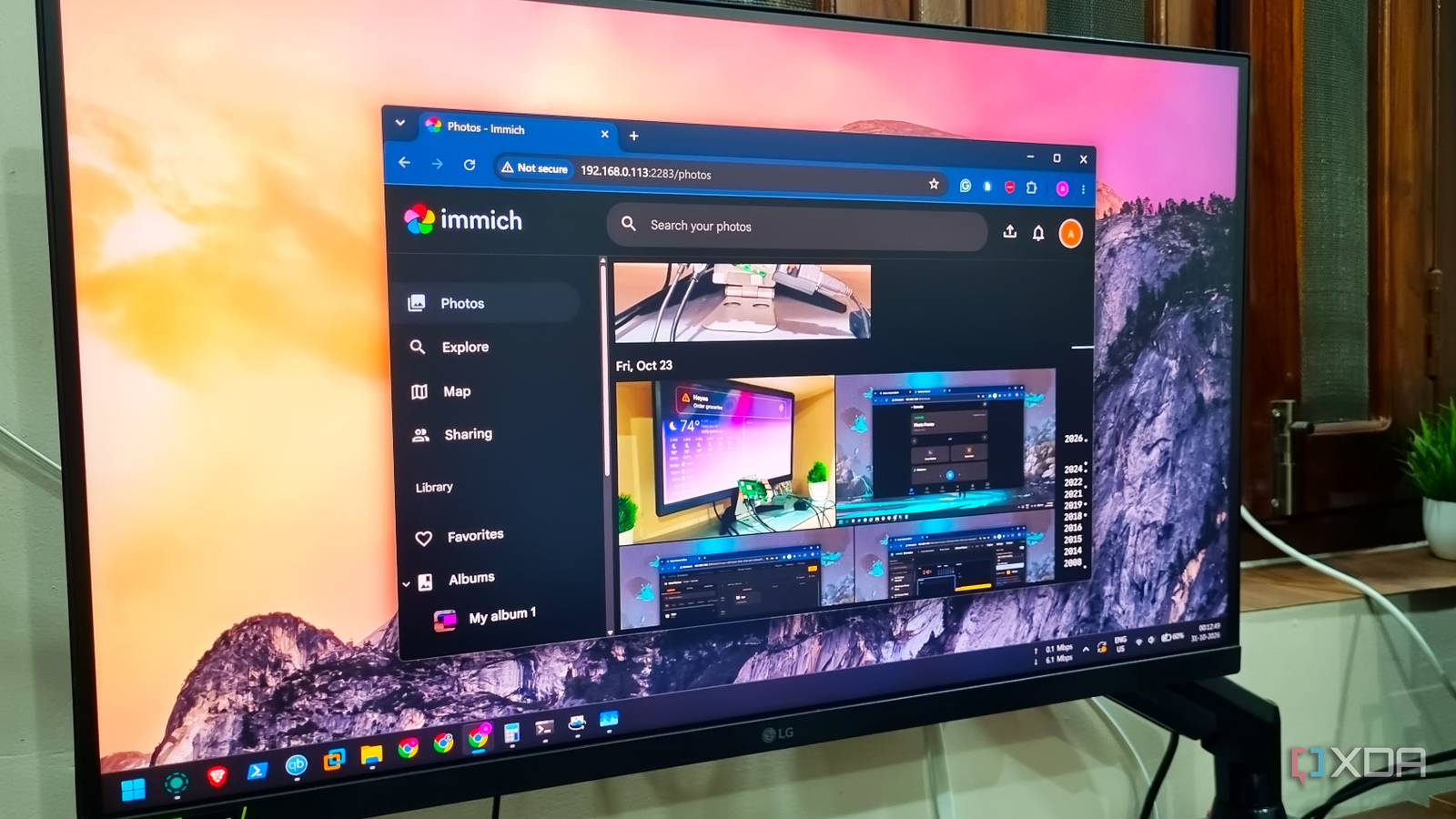
Published Nov 1, 2026, 7:00 PM EST Abhishek is an author at XDA who covers computing. He has loved computers since he got the Lenovo G570 in 2012. Abhishek holds a master's degree in computer applications and began his writing career in 2018. He loves writing how-to articles, listicles, and informational posts on popular operating systems and web services. He closely follows the Windows Insider program and tests new Insider builds to discover upcoming experimental features and upgrades. His past work includes long-term collaborations with reputed publications like Tom's Hardware, and Windows Latest. When not writing anything, he is busy watching new episodes of One Piece or searching for something binge-worthy. Google's recent policy change to Google Drive for desktop infuriated a lot of users. The new policy prevents Drive from uploading images to the Photos library. It was a good feature, but Google no longer wants to pursue it. So, it forces a lot of Drive for desktop users to switch to a new strategy because the direct automated integration won’t work. The limited free storage capacity wasn't working for me anyway. SoI put my faith in Immich, a Google Photos replacement that stores and serves my photos and videos locally. This project is not as complicated as you expect, but it needs an average computer with 4GB or more of memory. Let's explore how I built this server and set up my Windows PC to sync images to it. Choosing the right system Underpowered hardware won't work While it's exciting to build home servers on low-end systems, Immich is a tool that's not suitable for most entry-level hardware. You certainly cannot use a Raspberry Pi Zero 2 W that has only 512MB of memory. Similarly, even the 1GB memory configuration SBCs like the Raspberry Pi 4 Model B cannot completely handle all of Immich’s features. I recently bought a thin client, HP t620, and equipped it with a used 8GB DDR3 memory stick and a new 128GB M.2 SATA SSD. The storage is pretty fast for a home server, and I deployed DietPi on it because it feels more liberating than Ubuntu Server. I can sing praises about DietPi's features all day, but for now, the most crucial aspect is its memory usage. I used the non-desktop version, and it needs about 250MB of memory to run all the operating system's processes and services. Despite having an old and slow quad-core processor, my thin client can run Immich without any problem. It has ample memory so that the tool never falls short, and this whole setup costs nearly $50. Even SBCs that have a 4GB memory configuration, like the Raspberry Pi 5, can run Immich and all its features without stuttering. The next step was deploying the stack, which includes the image server and other necessary components. Using Docker for Immich stack Easy to maintain I prefer to use Docker on every server that I build, and it makes both management and cleanup convenient. Even my Raspberry Pi Zero 2W server uses Docker, and I suggest you do the same. I created the necessary directories, tweaked the compose file to my needs, and deployed the Immich container. The web portal was live, and now I needed to feed the necessary folders to it. Uploading images to the Immich server is pretty straightforward. You can use the upload button, browse the directories, select all the items in it, and click OK. Immich server stores these images and runs jobs like OCR, metadata building, thumbnail generation, and more in the background. You now have a second copy of the images on your Windows PC, stored and organized on a home server. Whenever you need the images from the Immich server, you can type the host's URL and port number and access the library. All the devices on your home network, including smartphones, can access it. You can even use the Immich phone app for a better experience that looks and feels better than the clunky web browser UI. But there's one big problem. Immich's web server is accessible via a web browser, but you need to feed images to it every time you have something new. This feels like a mundane task and requires you to consciously upload new images from your preferred folders to the server. The process should automatically upload all new files to the server in one direction. There are two ways to solve this problem, and both of them work well for syncing the folders to the server. Configuring automatic folder sync Managing server availability Immich's CLI tool used the first method to enable uploads and sync for a particular folder. Immich supports API keys, and I had to generate a new key while granting the necessary privileges to the user. The next step is to run a simple login command to connect to the server using the API key: immich login http://serveriP:2283/api YOUR_API_KEY Then, I tested with a small folder, and the uploads and sync worked as they should. A small caveat with this approach is that you need to create a Task Scheduler task to create the complete sync experience. immich upload --recursive --watch "PATH" The watch flag keeps checking for new files in the background, and you need to have a PowerShell window open for it. Creating a task that runs after you log in makes the process simpler without opening a PowerShell window every time. There's also a community-maintained app for immich dektop sync. The app is very simple and needs just your server IP and API key to access and manage uploads. You can configure it to start at boot, and then it can sync new folder items to the server. The app is a much simpler option to set up folder sync, but I need to test it more to cement my trust in it. So, the local image server needed a slight post-deployment tinkering to get the folder upload and sync experience to a popular tool like Google Drive. I'm happy with the small home server setup, and it only syncs my work screenshots, downloads, and a family image folder. Ditch Google's ecosystem My one-way photo backup server is a cheap, more private solution to any paid cloud storage service. The thin client stores images from my special folders while keeping the original copy on the Windows PC. My phone does the same, and for uninterrupted access, I’ve connected the thin client and router to a home inverter outlet. They stay alive even during power outages, and Tailscale lets me access the library even when I’m outside the home network. Immich OS iOS, Android, web Key highlights Self-hosted Immich is a self-hosted photo and video backup solution.
Google Drive stopped sending my folders to Google Photos, so I built a photo backup server that doesn't need Google at all
Full Article
Original Source
Read the full article at Xda-developers →KhanList aggregates and links to publicly available news content. We do not host full articles from third-party sources. Always verify important information with original sources.