
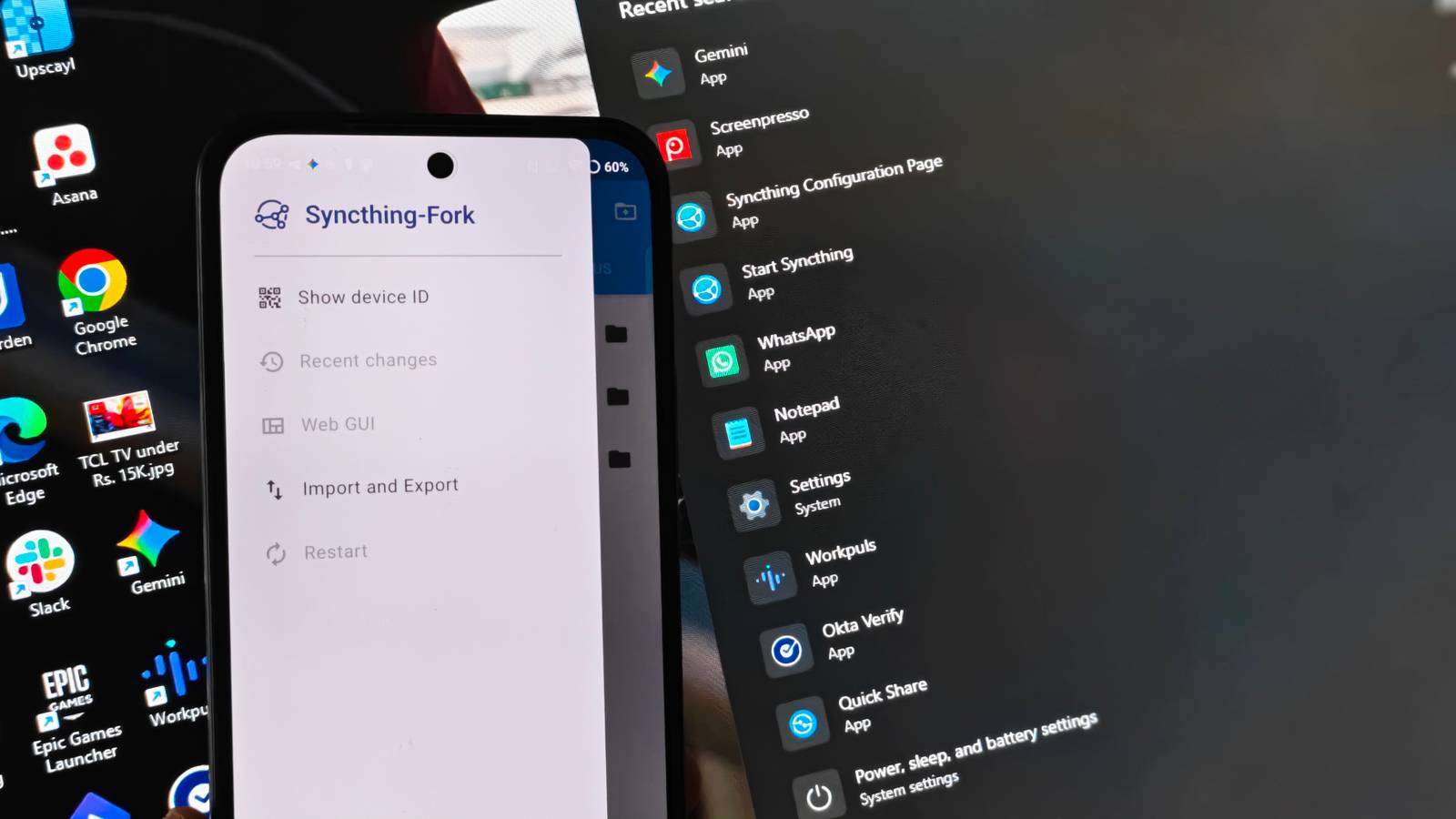
Published Nov 7, 2026, 12:31 PM EST Vishwamoorthy's interest in tech started early, as a school student, watching Pixel 2 XL camera review videos and being awestruck by what a phone camera with excellent software could do. That curiosity stuck with him: since 2022, he's published over 1,500 articles covering smartphones, Android, and consumer tech news at FoneArena, one of India's leading tech publications. Lately, he's obsessed with how AI is reshaping the business world, the deals, the products, the quiet feature rollouts nobody notices until they're everywhere. Reading and writing about tech is what keeps him going; doomscrolling is what keeps him honest. The Google backup ecosystem is undeniably convenient, as long as you are willing to pay for a Google One subscription. The default 15GB isn't enough for most purposes. I was tired of manually selecting and sending batches of pictures via Quick Share to free up space on my phone, and I didn't want to pay a monthly subscription fee to secure my growing media library. I needed a solution that offered the automated convenience of Google Photos but with uncompromising control of local storage. I replaced my cloud reliance with Syncthing, a free open-source file synchronization tool that moves data directly between my devices over my local network. After configuring a direct link between my smartphone and my Windows PC (Syncthing is also available for macOS), my backup anxiety vanished. Getting the right apps: Syncthing-Fork and the Windows installer Setting up Syncthing on your smartphone and PC Syncthing operates entirely peer-to-peer, meaning your files never touch a third-party server. However, before you can link your devices, you need to ensure you install the right client on your smartphone and Windows PC. The official Syncthing Android app was largely abandoned on the Play Store in early 2024. But there's an app called Syncthing-Fork from the Play Store or F-Droid. As the name suggests, it's a forked version of the original app; rest assured, you don't need to worry about privacy as everything happens in your local environment. For the Windows host machine, the best experience comes from the open-source Syncthing Windows Setup (maintained by Bill Stewart on GitHub), which you can download from their official site. Unlike basic command-line wrappers, this utility installs Syncthing as a native Windows background service. Once both apps are installed, connecting them is as simple as opening the Syncthing Web GUI (actual app name to type on Windows search: Syncthing Configuration Page) on your PC, navigating to Actions, then Show ID, and scanning the resulting QR code with the Syncthing-Fork app on your phone. Setting up seamless phone-to-PC transfers Automatic backups locally When setting up my backup, I discovered a quirk with Android's Scoped Storage privacy restrictions. If you attempt to push a folder from your Windows PC to your Android device, Android often triggers permission errors that gray out the folder acceptance button, stalling the transfer at 0 B/s. I experienced this bug when I tried to sync the Movies folder on my PC with my smartphone. As soon as I added my phone to share a folder with the PC, I received a notification asking me to accept the shared folder in my Android's storage. However, when I opened it and selected a desired storage location, I couldn't complete the process. Meanwhile, the Web GUI client on my PC displayed the error: “The remote device has not accepted sharing this folder.” After two or three attempts, I managed to add a new folder on my Android phone and allow the client to use it for syncing. This was due to Android's Scoped Storage privacy restrictions. However, once the initial setup was complete, the process became seamless and ran in the background. Initiating the transfer in the opposite direction, from my phone to my PC, was entirely seamless. I pointed the Syncthing-Fork app directly to my phone's camera directory and shared it with my PC. The results were immediate. To test the file sync speed, I initiated a sync of my massive 7.17 GiB photo folder, and it achieved a sustained transfer rate of nearly 8 MB/s on my Windows machine. Protecting your files from accidental deletion Configuring one-way syncs so your PC doesn't wipe your phone's gallery By default, Syncthing sets up a two-way synchronization by enabling the Send & Receive option. But crucially, if you delete a file on your PC to save hard drive space, Syncthing will instantly delete the original file on your phone as well. To avoid this, you would need to configure a one-way pipeline. On your phone, tap your shared folder in Syncthing-Fork, navigate to the Folder Type setting, and change it from Send & Receive to Send Only. Next, open the Syncthing Web GUI on your PC, click on the shared folder, select Edit, remain on the General tab, and change the Folder Type to Receive Only. If you skip this step, simply organizing or deleting photos on your Windows desktop will permanently erase them from your Android device's camera roll. Preventing battery drain during background syncs Configuring Syncthing to sync only when your devices are charging The biggest fear with continuous background synchronization is battery drain. Especially when constant changes happen in an active folder, having your phone scan for file changes while your laptop runs on battery power is a recipe for a dead device. Fortunately, Syncthing's granular Run Conditions menu solves this problem. I configured the Android app to operate exclusively under strict parameters by navigating to Settings and then opening the Run Conditions menu. I toggled on Run only on Wi-Fi and, under Battery's Run when the device is powered by option, selected AC Power (when charging). The same logic applies to the host machine. During the Windows installation process, the setup utility includes a brilliant option to run the background service only while your laptop is plugged into AC power. During the day, when I'm working on my PC, I put my smartphone on charge. During that time, both devices work in harmony to back up and save my files safely. You can also set Run Conditions on your smartphone to AC and battery power if you're not concerned about your phone's battery life and want syncing to happen while you're working on a PC with your smartphone right beside you, even when it isn't charging. You can also specify sync conditions for individual folders. Tap a folder and select Custom sync conditions to restrict large media folders to charging-only or Wi-Fi-only sync while allowing smaller document folders to sync continuously. A simpler way to back up your smartphone without cloud storage Moving away from Google's default backup system requires a brief initial setup, but the long-term payoff is massive. I no longer have to worry about hitting a storage limit that could prevent my Gmail service from working. This is a handy alternative for me, as I like to regularly back up my smartphone's camera roll to my PC for an additional layer of security.
Google backups are convenient, but this free open-source tool gives me real control
Full Article
Original Source
Read the full article at Howtogeek →KhanList aggregates and links to publicly available news content. We do not host full articles from third-party sources. Always verify important information with original sources.