
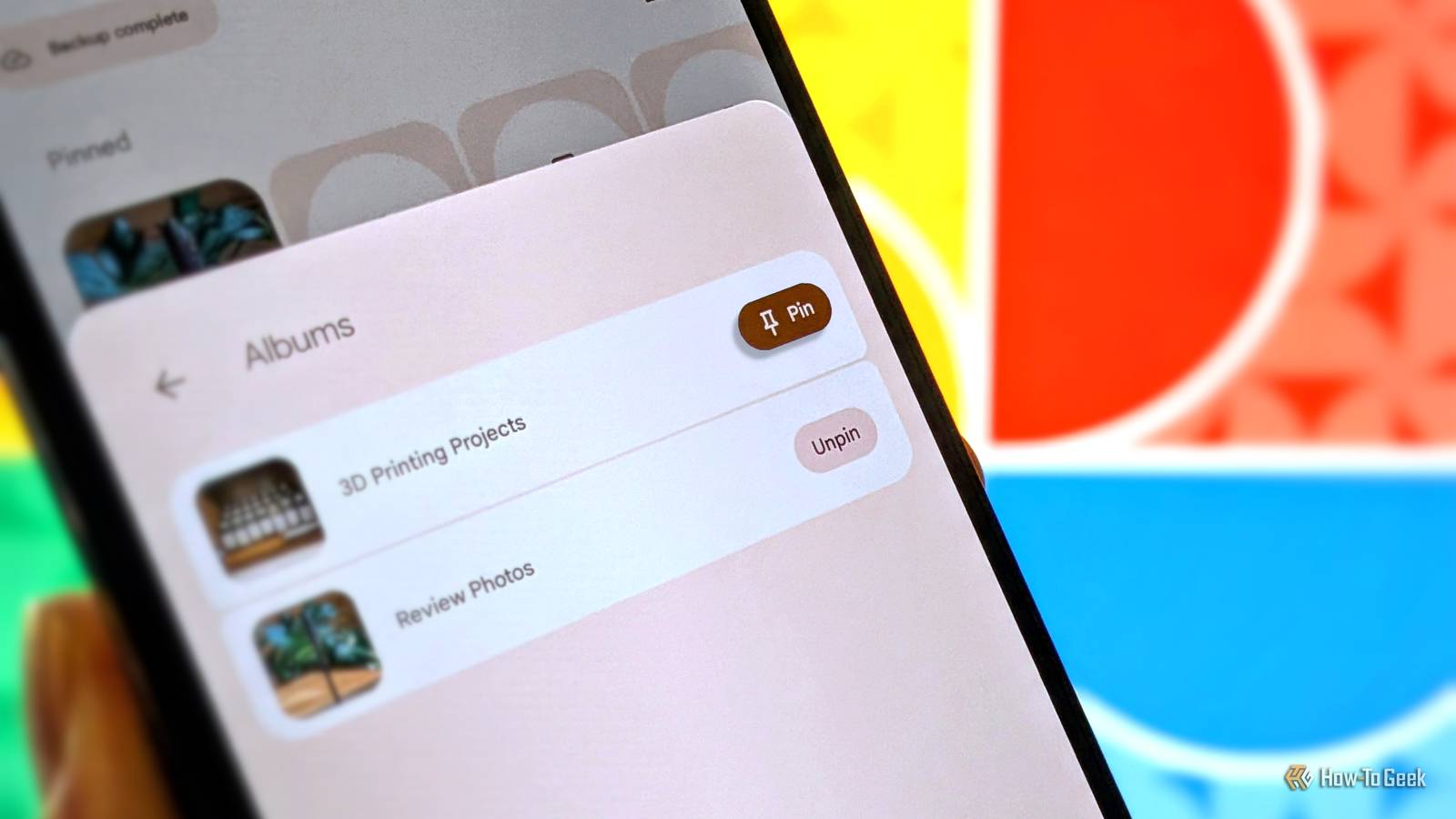
Published Nov 3, 2026, 12:42 PM EST Joe Fedewa has been writing about technology for over a decade. Android and the rest of the Google ecosystem have been a focus for years, as well as reviewing devices, hosting podcasts, filming videos, and writing tutorials. Joe loves all things technology and is also an avid DIYer and food blogger. He has written thousands of articles, hundreds of tutorials, and dozens of reviews. Before joining How-To Geek, Joe worked at XDA-Developers as Managing Editor and covered news from the Google ecosystem. He got his start in the industry covering Windows Phone on a small blog, and later moved to Phandroid where he covered Android news, reviewed devices, wrote tutorials, created YouTube videos, and hosted a podcast. From smartphones to Bluetooth earbuds to Z-Wave switches, Joe is interested in all kinds of technology. After several years of jailbreaking and heavily modifying an iPod Touch, he moved on to his first smartphone, the HTC DROID Eris. He's been hooked ever since. Sign in to your How-To Geek account For those of us who are devout users of Google Photos, the "Collections" page is a mess. It contains albums, on-device folders, people from photos, and more — and they're always moving around. Thankfully, a new feature brings some much-needed order to the chaos. Keep your favorites at the top Pinning to the rescue The most recent version of Google Photos for Android and iPhone includes a new "Pin" feature. It simply allows you to select albums, on-device folders, people, places, documents, or any other collection to keep in the top "Pinned" section. To do this, open Google Photos and switch over to the "Collections" tab. You'll see the "Pinned" section at the top with some default selections. You can press and hold pretty much anything on this page to bring up a "Pin" or "Unpin" option. The other option is to tap "Edit" in the Pinned section. From here, you can reorder and remove pins, as well as look through all of your albums, folders, people, etc., for more things to pin. This might actually be the easier way to do it. I should mention that there are probably more things that can be pinned than you realize. The "Other Collections" section includes Favorites, Screenshots, Moments, Videos, Stickers, Archive, Locked, Trash, and even a "Recently Added" folder. It's pretty cool. Personally, I often find myself scrolling through albums looking for the same ones over and over again. For some reason, they're never quite where I expect them to be. Now, I can pin my most-used albums and my favorite people, making it so much easier to navigate the "Collections" tab. Google has redesigned this page several times over the years, but this is by far the best.
Good to Know: You can pin Google Photos albums, folders, and people for easy access
Full Article
Original Source
Read the full article at Howtogeek →KhanList aggregates and links to publicly available news content. We do not host full articles from third-party sources. Always verify important information with original sources.