
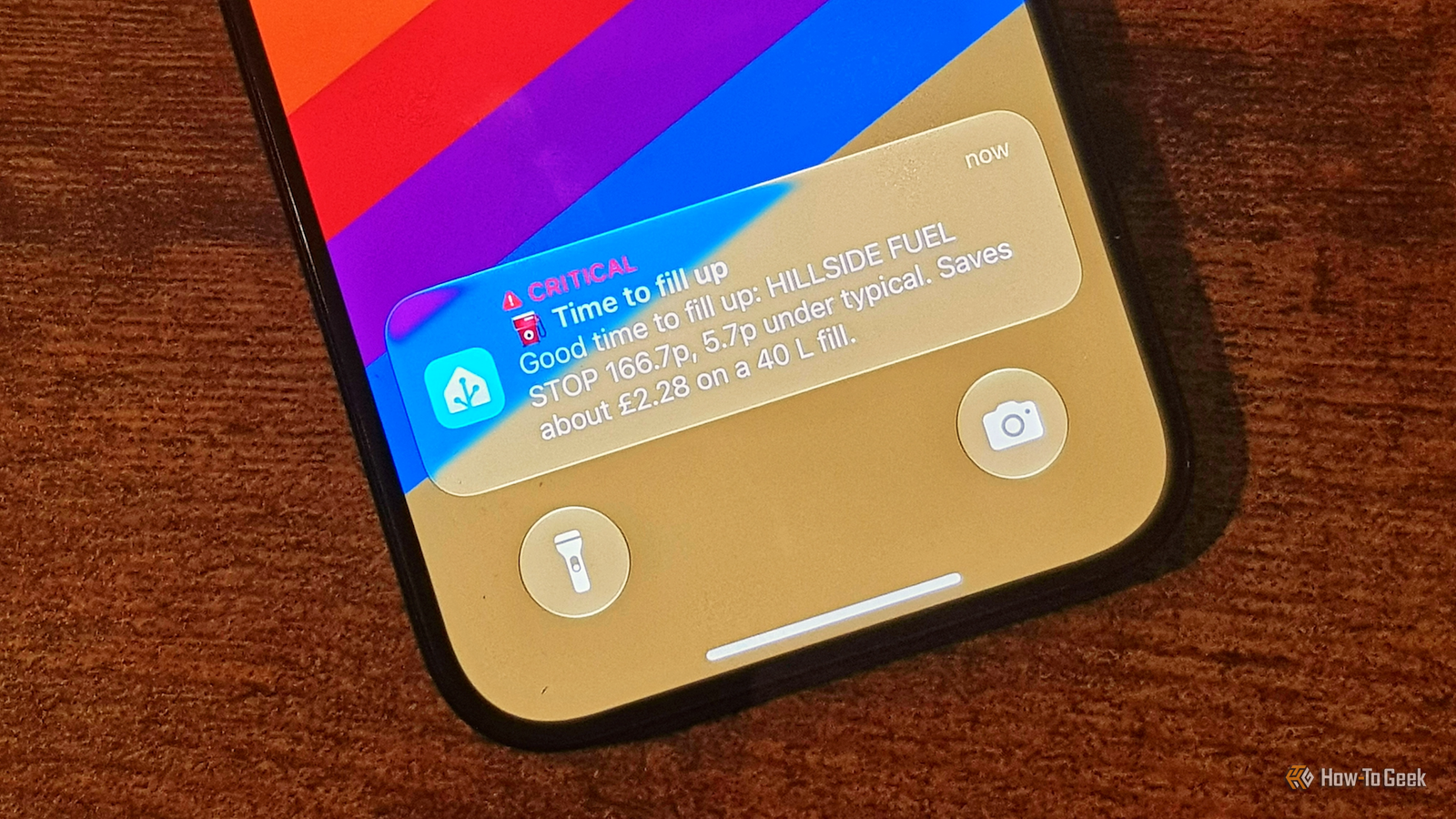
Published Nov 8, 2026, 6:00 AM EST Adam has a degree in Engineering and has a life-long interest in technology. He has been writing for over a decade for various print and online publications, with a focus on consumer tech. He joined How-To Geek in 2024 while working at Pocket-lint. As well as being a long-term fan of Apple products, he also has a strong interest in smart home tech, running a Home Assistant server at home to automate all his smart home devices. He believes that the ideal smart home should work with minimal interaction from the user, with automations running as if by magic rather than requiring you to push buttons on a control panel. You can find more of his work on Muck Rack. The cost of living right now is crazy, and gas prices are going through the roof, despite what certain people might try to tell you. Putting gas in my car has never been so expensive, so I decided to use my smart home to track gas prices and alert me when it's a good time to fill up. Current gas prices are available online The data you need is out there The good news is that there is plenty of data available if you need to know the current gas prices. In the US, GasBuddy is a popular, if unofficial, source that can provide data about gas prices. I'm in the UK, and the government recently forced gas stations to publish their prices. There's a free API you can use to access this data via the Fuel Finder Developer Portal. Regardless of where you get your data, you should be able to find a source that can provide gas prices that are updated reasonably regularly. This is all the information you need to build a system to get your smart home to tell you when to fill up. Getting current fuel prices into Home Assistant There's an integration for that Whatever idea you have for a Home Assistant project, it's highly likely that someone has not only already had the same idea but has also created an integration to make it happen. That's exactly the case with my gas price alert system. In the US, a custom GasBuddy integration can pull data from GasBuddy into Home Assistant so that you can use it for gas price alerts and automations. It covers the US and Canada, and you can search by home location or ZIP code. In the US, you can even specify things such as how you want to pay, brand discounts such as Walmart membership savings, and there's a GPS lookup that can check prices close to your phone's location. In the UK, I'm using a similar integration called UK Fuel Finder that can access the government gas price data through the API. You need an account set up and an API key that you can enter into the integration, and it's then able to find gas prices around your specific location or around the location of your phone, within a range that you set. You can also select which type of fuel you use so that you don't get results that aren't applicable. Integrations need history to know if a price is good It can take some time, or you can cheat Having the current gas prices in your area is useful. You can use Home Assistant to determine the cheapest gas within your set radius. The problem is that the current prices alone aren't enough to tell you if it's a good time to fill up or not; for that, you need some historical data. I wanted my automation to store gas price data to determine a 14-day average. If the gas price drops significantly below this average, then it's a good time to fill up, but if it's significantly higher, it might be worth holding out a little longer. The obvious problem is that I'd need to use the integration for 14 days before I'd have enough data for a 14-day average. I decided to cheat a little so that I could start using the setup right away. I found a site that provided a downloadable price history from the same source that the integration uses. I was then able to write that price history into Home Assistant's history, which is what the automation uses to calculate the 14-day average. By doing so, I ended up with an accurate 14-day average without having to wait two weeks to get it. I now get fuel alerts that I can't miss My phone grabs my attention during the daytime With the integration set up and the data history in place, I was ready to start using my gas price tracker. The first thing I did was to build a dedicated fuel dashboard that shows the key information. This includes the current cheapest gas price, the typical price, the current savings, and how the price compares to the 14-day average. The dashboard also has a chart showing the price trend as well as a settings section that lets me change settings for the alerts or disable alerts completely. It's a useful way to see the current state of play at a glance, but it's something I have to check, rather than my smart home telling me when to fill up. That's why I also created an automation that sends a critical notification to my phone when the cheapest gas price passes a set threshold. Currently, I get an alert when the cheapest gas is 5p/L or more lower than the median local price, or if the cheapest price is 3p/L lower than the current 14-day average, but I can change these values as necessary. There's also a third situation which can send an alert. If the price of the cheapest gas rises by more than 2p/L over 24 hours, it indicates the prices are on their way up, so I get an alert telling me it might be worth filling up. If I tap on any of these alerts, it opens Apple Maps on my phone with navigation directions from my location to the station selling the cheapest gas. My gas price system is helping me keep costs down While my smart home can tell me when it's the best time to fill up, it can't control the price of gas. Even when I buy the cheapest gas around, I'm still paying far more than this time last year. All I can do is try to keep the costs down as much as possible and pray for the prices to drop back to normal levels again.
Gas prices are a nightmare, so my smart home now tells me when to fill up
Full Article
Original Source
Read the full article at Howtogeek →KhanList aggregates and links to publicly available news content. We do not host full articles from third-party sources. Always verify important information with original sources.