
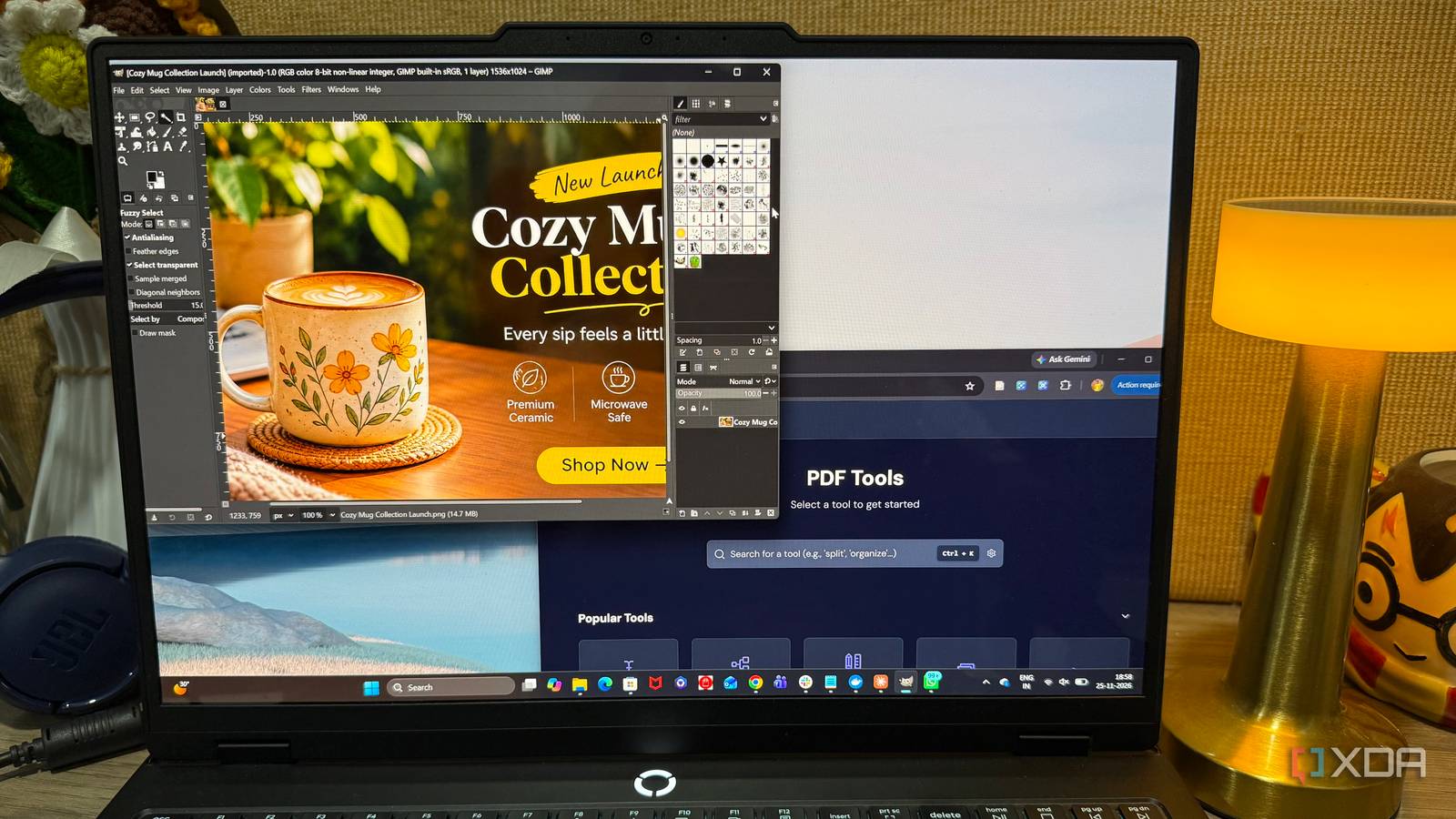
Published Nov 28, 2026, 12:30 PM EST Beginning his professional journey in the tech industry in 2018, Yash spent over three years as a Software Engineer. After that, he shifted his focus to empowering readers through informative and engaging content on his tech blog – DiGiTAL BiRYANi. He has also published tech articles for MakeTechEasier. He loves to explore new tech gadgets and platforms. When he is not writing, you’ll find him exploring food. He is known as Digital Chef Yash among his readers because of his love for Technology and Food. Adobe's creative apps have been useful, but I've started questioning how much of my work actually requires them. I don't need expensive software for every image edit, vector graphic, or PDF adjustment. Over time, I began looking for free, open-source alternatives that could handle these tasks without disrupting my workflow. The results have been better than I expected. I've managed to move several everyday tasks away from Adobe, although one application has proved considerably harder to replace. GIMP Photoshop isn't worth a subscription for my everyday image editing GIMP has become my go-to alternative for image editing without paying for Photoshop. Most of my regular work involves preparing blog graphics, resizing images, adjusting colors, and making occasional edits. GIMP handles all of these without making the process unnecessarily complicated. The interface takes some getting used to, especially if you're coming from Photoshop, but finding the tools for common editing tasks isn't particularly difficult. Layer masks, selection tools, brushes, filters, and blend modes provide plenty of control for more detailed edits. Its plugin support is another welcome addition, allowing users to extend the editor with tools that aren't included by default. I also haven't run into major problems handling common image formats such as JPEG, PNG, GIF, and TIFF. There's one small difference worth knowing before switching: GIMP saves editable projects in its native XCF format. This preserves layers and other editing information, while finished images can be exported as PNG or JPEG. It's a minor adjustment, but one worth remembering if you're used to keeping all your editable projects in Photoshop's PSD format. GNU Image Manipulation Program (GIMP) The GNU Image Manipulation Program (GIMP) is an open source, free image editor with support for multiple operating systems. Inkscape Illustrator's vector design capabilities don't have to cost a fortune For vector graphics, Inkscape has taken over the work that would otherwise send me to Adobe Illustrator. I've found it handy for working with SVG illustrations, editing icons, and putting together graphics that need to remain sharp at different sizes. Since vector artwork is based on paths and shapes rather than a fixed grid of pixels, resizing it doesn't introduce the blurriness you'd get with raster images. The Bézier tool is one feature worth getting familiar with. Along with node editing, path operations, gradients, and text controls, it gives me enough flexibility to create and modify detailed artwork. I also find editing existing SVG files convenient, especially when a small adjustment doesn't justify opening another design application. Inkscape uses SVG as its native format and supports exporting artwork to PNG and PDF, among other formats. It can also import Adobe Illustrator files, but based on my experience, complicated designs don't always survive the transition perfectly. Gradient meshes and certain transparency effects, for example, have compatibility limitations. While these issues may not affect occasional edits, complex projects can require some extra adjustments. Even so, Inkscape has been more than capable of handling the vector work I regularly do. Inkscape Inkscape is a vector graphics editor available on Windows, macOS, and Linux. BentoPDF I stopped paying for PDF tools I barely used Most PDF tasks don't require a full-fledged document editor, and BentoPDF makes that particularly clear. It's a free, open-source PDF toolkit that runs directly in the browser, bringing dozens of utilities together in one place. Merging documents, splitting pages, compressing files, rotating PDFs, and converting documents are all available without installing another desktop application. The privacy aspect is what makes it especially appealing. BentoPDF processes supported operations locally in the browser using WebAssembly, so documents don't need to be uploaded to an external server. That's reassuring when handling files containing personal or sensitive information. The toolkit also includes options for adding watermarks, page numbers, annotations, signatures, and even OCR. Another thing worth appreciating is that there's no account registration or complicated setup required to use the hosted version. Just open the website and choose the operation you need. Its interface makes the available tools easy to find without navigating through multiple menus. For the PDF tasks I handle regularly, Acrobat is no longer something I need to pay for. BentoPDF BentoPDF provides fast, private, and free PDF tools. It processes files locally in your browser, ensuring privacy as your documents never reach their servers. It requires no account, offers all tools for free, and is built for speed. The one I can't replace: Lightroom I tried two open-source alternatives, but Lightroom still fits my workflow better Lightroom is the one Adobe application I haven't managed to leave behind completely. I tried moving my photography workflow to darktable and RawTherapee, and both turned out to be capable alternatives. darktable offers a complete photography workflow with RAW development and image organization, while RawTherapee provides detailed control over RAW processing. However, getting accustomed to their interfaces and editing processes has been harder than I expected after years of using Lightroom. The biggest difference is how Lightroom brings everything together. It isn't just about adjusting exposure, colors, highlights, or shadows. Its photo organization, presets, batch editing, and non-destructive editing make managing a large collection of images much easier. I also find it difficult to change an editing routine I've become so familiar with. Moving to another application means learning a different way of handling tasks I can already do comfortably in Lightroom. That's not to say darktable or RawTherapee are lacking. Both are excellent open-source projects, and someone starting fresh might find either one perfectly suitable. I'm still spending time with darktable and trying to make its editing process feel more natural. It's taking some effort, but I haven't given up on the switch just yet. Lightroom remains the one Adobe application I'm still working to replace. Adobe Lightroom Adobe Lightroom is Adobe's flagship photo-editing software. My Adobe-free workflow is still a work in progress These alternatives have already removed several paid applications from my regular workflow without compromising my productivity. I still have some adjusting to do before I can completely move away from Lightroom, but that doesn't change how much of my creative work I can now handle without Adobe. I'm happy with the direction my software setup is taking, and I'll keep exploring open-source tools as I find more opportunities to simplify my workflow.
Free open-source apps now cover everything I used to pay Adobe for, except one thing I still can't replace
Full Article
Original Source
Read the full article at Xda-developers →KhanList aggregates and links to publicly available news content. We do not host full articles from third-party sources. Always verify important information with original sources.