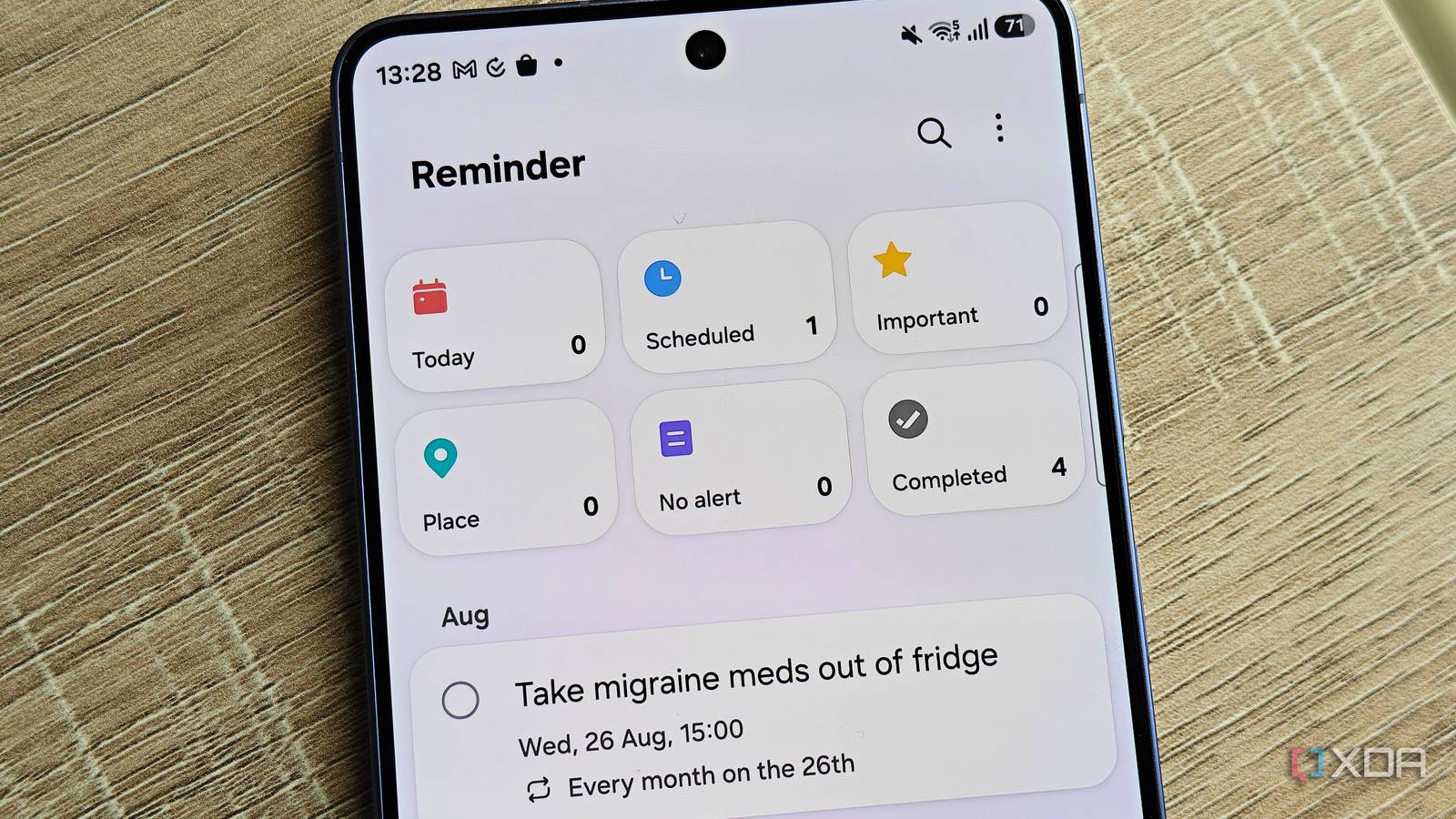
Published Aug 3, 2026, 5:00 PM EDT Megan is a Software Writer at XDA Developers who has been writing about consumer technology since 2016. With a postgraduate degree in New Media journalism, she has always been passionate about diving deep into topics and writing about them in a way that makes them easier to understand for everyday consumers. She runs her own blog called Tech Valkyrie and has contributed to Tom's Guide and Android Authority. She also worked at MakeUseOf as a Lead Editor. In her spare time she plays video games and geeks out about the latest tech. When it comes to reminder and task management apps, it feels like I've tried everything out there, from mainstream options to open-source gems. I often struggle with the complexity of app UIs, or the lack of flexibility the apps provide. But I recently revisited Samsung's Reminder app while setting up some recurring tasks, and its seamless experience reminded me why it's still my favorite among these tools. Samsung's Reminder app is the most user-friendly task and reminders app I've used The power is in its simplicity Sometimes the main difficulty in getting started with new task and reminder apps is learning all their features and how they work. I'm not unfamiliar with the phenomenon of using an app for months or years and only later realizing it could do something specific all along. One of the ways Samsung's Reminder gets around this is by putting certain reminder categories front and center. At the top of the app, you'll find Today, Scheduled, Important, Place, No alert, and Completed cards. These categories immediately introduce you to different types of reminders: those scheduled for specific dates, those not tied to any date, and those linked to specific places. These tabs also make it easy to navigate between different views, allowing you to prioritize your most immediate tasks, those on the back burner, or the most important ones you need to get to. I wish more apps made it this easy to view and create tasks, as it would go a long way toward me actually sticking with them. Rather, I often end up overwhelmed by countless menus and sub-items and end up ditching most of the task apps I try. I even recently set up some reminders on my boyfriend's Galaxy smartphone to help him out. I hadn't used the app in a while, since my daily driver isn't a Samsung device. But I was able to reacquaint myself with its features within a few minutes. I set a reminder for when he arrives at work to put his insulin in the fridge, since he sometimes forgets. I then also set a 5pm reminder for him to get his insulin from the fridge when he's about to go home. This encouraged me to set up some recurring reminders on my S23 Ultra, even though I use it as a secondary device. I just enjoy the Reminder experience that much. Templates help you figure out where to start Finding the app's features doesn't feel like a treasure hunt If the categories aren't enough to make you feel comfortable with all the possibilities for your tasks and reminders, Samsung also provides a few templates when you first open the app. This is something Samsung does well in other apps, including its Modes and Routines app, which helps users get acquainted with what they can do in that software. These templates make it easy to figure out what you can do with reminders, and since they don't appear under your Today view, they also don't create unnecessary clutter that other apps sometimes do when using demo tasks. For example, some of the suggested reminders in my app are a workout schedule, a pickup reminder, and a monthly payment reminder. These are designed to get you acquainted with location-based tasks, repeating tasks, and tasks with custom schedules. But even when you create a task from scratch, the Reminder UI is great at giving you comprehensive controls without overwhelming you. You get clear icons to add sub-tasks, a date and time (with the option to repeat), a location, media items, and a category. Create persistent reminders that keep you on track For the procrastinators in the room Another strength of Samsung's Reminder app is that it lets you adjust how persistent your reminders are. As a chronic procrastinator, I find snooze features helpful, as they allow me to get a reminder to repeat if it pops up at an inconvenient time. This snooze period is customizable up to one hour, so you can adapt it according to your schedule. However, I do wish it allowed longer delays when a reminder really catches you off guard. When it comes to persistence, Reminder takes it a bit further. Not only can you snooze reminders, but there are also more ways to make them more tenacious. You can enable early alerts, which trigger before a reminder or task is actually due. You can also adjust the alert level to Light, Medium, or Strong. A strong alert includes a full-screen alert and a long sound, while a light alert is just a notification and a short sound. In terms of repetition, you can also get a reminder to repeat frequently. This would be best for reminders of tasks that really occur frequently, or when you're building a new habit. You can set tasks to repeat every few minutes and hours. For example, if you need reminders to drink more water, you can get the task to repeat every hour. The only additional scheduling feature I wish it had was the ability to repeat and schedule a task based on its completion date. This is something you can do in apps like Super Productivity and Donetick. I wish I could get Samsung's Reminder app on every device The biggest drawback to the Reminder app is that it's only available on Samsung Galaxy devices. But since Samsung is the world's largest Android smartphone brand, plenty of people can benefit from it. I do wish more companies took direction from Samsung's app, because I think it has something really special here. It allows you to accomplish powerful tasks and reminder workflows while remaining accessible to less tech-savvy users.
Forget Google Tasks, this Samsung Galaxy app makes reminders seamless
Full Article
Original Source
Read the full article at Xda-developers →KhanList aggregates and links to publicly available news content. We do not host full articles from third-party sources. Always verify important information with original sources.