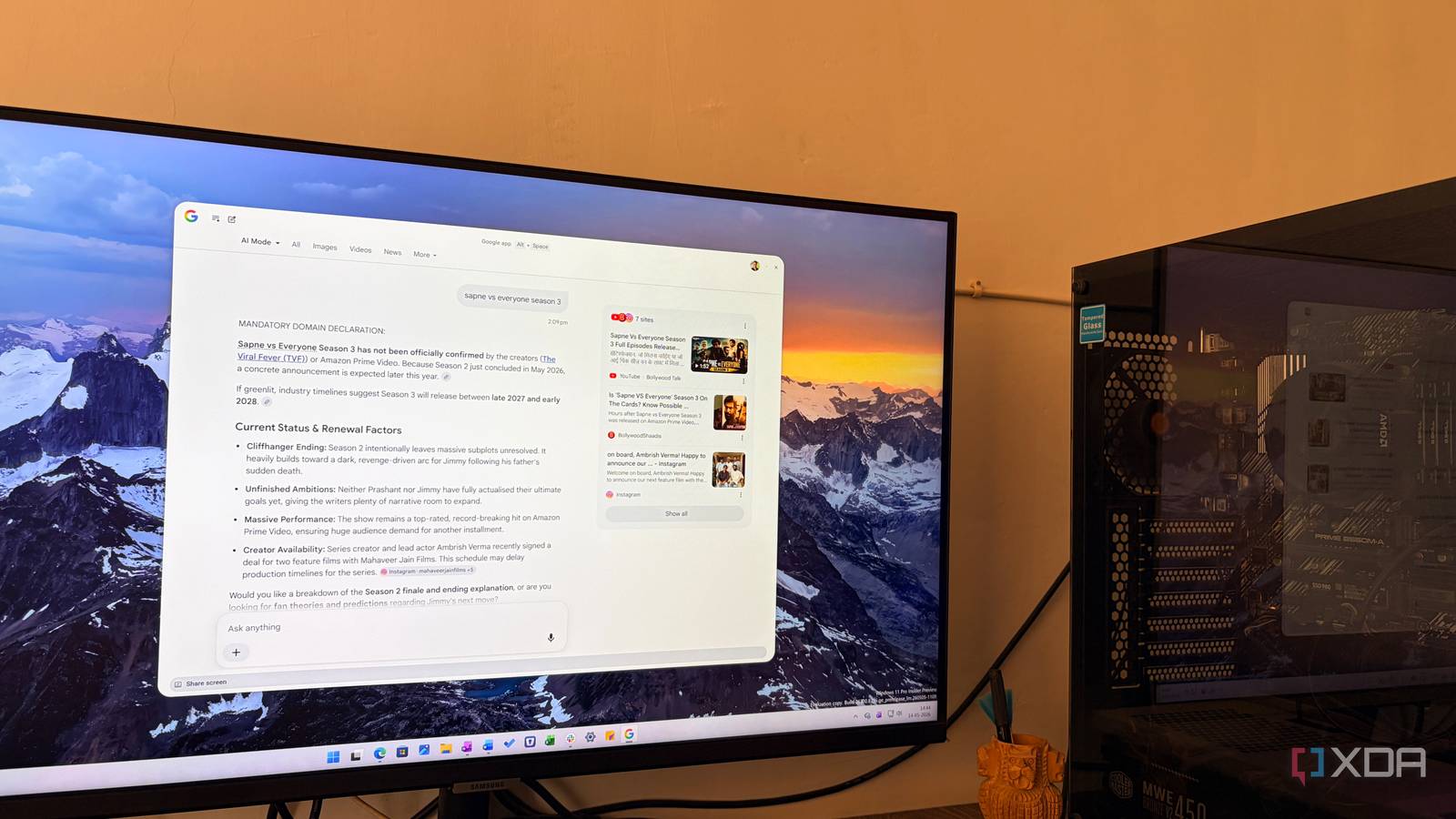
Published May 15, 2026, 1:00 PM EDT Parth, a seasoned tech writer, wields the keyboard (or pen) with finesse to unravel the intricacies of both Windows and Mac operating systems. He has covered evergreen content on mobile devices and computers for multiple publications over the last six years. You can find his work on AndroidPolice, GuidingTech and TechWiser. Whether it’s demystifying system updates, deciphering error codes, or exploring hidden features, Parth’s prose guides readers through the binary maze. When not immersed in tech jargon, you’ll find him sipping chai, pondering the next software review, and occasionally indulging in a friendly debate about mechanical keyboards. When it comes to web browsing on Windows, most users stick with Microsoft Edge or prefer a third-party alternative like Chrome or Firefox. But as web browsers become bloated with AI companions, shopping sidebars, and endless tabs, a more streamlined alternative has been hiding in plain sight. By switching to Google’s native application on Windows, I have found a way to bypass the traditional browser experience entirely. Here is why I finally ditched the traditional browser and how this native shift has changed the way I navigate the web. Related 4 reasons I use web apps over Windows apps I'd rather skip downloading another app if I can The bloat of the ‘Everything’ browser The minimalist shift I have spent the better part of a decade living inside a browser, and I’m tired of it. I have reached a breaking point where Chrome and Edge are no longer just tools for viewing websites; they have transformed into bloated, resource-heavy operating systems that try to do everything. Every time I open a traditional browser lately, I feel like I’m walking into a digital junkyard. There are sidebar icons for shopping discounts I didn’t ask for, aggressive AI companions fighting for my attention in the corner, and a tab bar that has become a mess of articles I will never actually read. Every browser update added another layer of interface friction between me and the work I actually need to get done. The ‘Everything Browser’ was supposed to be the ultimate convenience, where I have one window for email, documents, research, and entertainment. But instead, it’s become a massive memory hog that hijacks my system’s RAM. When my browser feels more cluttered than my physical desk, something is fundamentally broken. That’s why I started looking for lightweight alternatives and came across a recently launched Google app on Windows. What is the Google app on Windows? Let’s go through the basics At first, I thought the Google app was just a web shortcut for the Google search engine. But after living with it for a while, I have realized it’s a completely different beast. It feels so different from the traditional browser experience. The biggest shift for me is the interface — or rather, the lack of one. A traditional browser like Chrome or Edge is a container. You open it, see a search bar, a bookmark bar, and an infinite graveyard of tabs. The Google app feels like a native extension of Windows. Instead of clicking an icon on my taskbar and waiting for a window to load, I hit Alt + Space. A sleek, minimalist search bar just floats over whatever I’m doing — whether I’m in a Word document or editing a photo. Now, instead of dealing with a clunky Start Menu for my casual web queries, I simply fire up the Google app because it’s faster and actually understands the context of what I’m looking for (and not some random files or app on the computer). A traditional browser is built to keep you inside the browser. The Google app for Windows focuses on getting you the information first. It’s a neat utility that stays hidden until I need it. Related I stopped carrying a laptop after trying Android's desktop mode Discover how Android's desktop mode transforms your smartphone into a powerful, portable computing device. Google app is packed with features Don’t dismiss it due to its lightweight nature The Google app is more than just a window for Gemini-powered web queries. Thanks to a native Nano Banana integration, I no longer have to hunt for an image generation site or open a heavy editor for quick visuals. I can just hit my shortcut and tell the app to ‘Generate an image of a futuristic workspace in Surat.’ Seconds later, I have a high-quality visual ready to drag into a presentation. Another neat feature is the ability to upload files. I can drag a text-heavy PDF file or a screenshot to the Google app, and start asking relevant questions. I will ask, "Summarize the key takeaways from this report," or "Find the discrepancy in these figures." While the AI Overviews are great for a quick snapshot of info, the AI Mode in the desktop is where the heavy lifting happens. It’s not just giving me a summary; it’s a conversational partner. I can ask follow-up questions, pivot the topic, and it remembers the context of our entire session. In short, the Google app has stopped being a way to ‘find the web’ and has become the way I interact with my PC. Whether I’m creating, analyzing, or troubleshooting, it’s the bridge between my local files and the world’s information. Lightweight and fast By moving away from the tab-heavy culture of Chrome and Edge, I broke the cycle of endless distractions. If you find yourself constantly overwhelmed by browser bloat or tired of Microsoft and Google’s overlapping features, I highly recommend giving this native workflow a shot. Of course, if you have a heavy workflow that requires dozens of tabs open at the same time, you need a proper solution like Chrome or Edge to do the job. But for casual queries, you can simply fire up the Google app and fly through the answers. Google Google app is a native lightweight browser on Windows.
Forget Chrome and Microsoft Edge, I use Google’s native app on Windows to browse the web
Full Article
Original Source
Read the full article at Xda-developers →KhanList aggregates and links to publicly available news content. We do not host full articles from third-party sources. Always verify important information with original sources.