
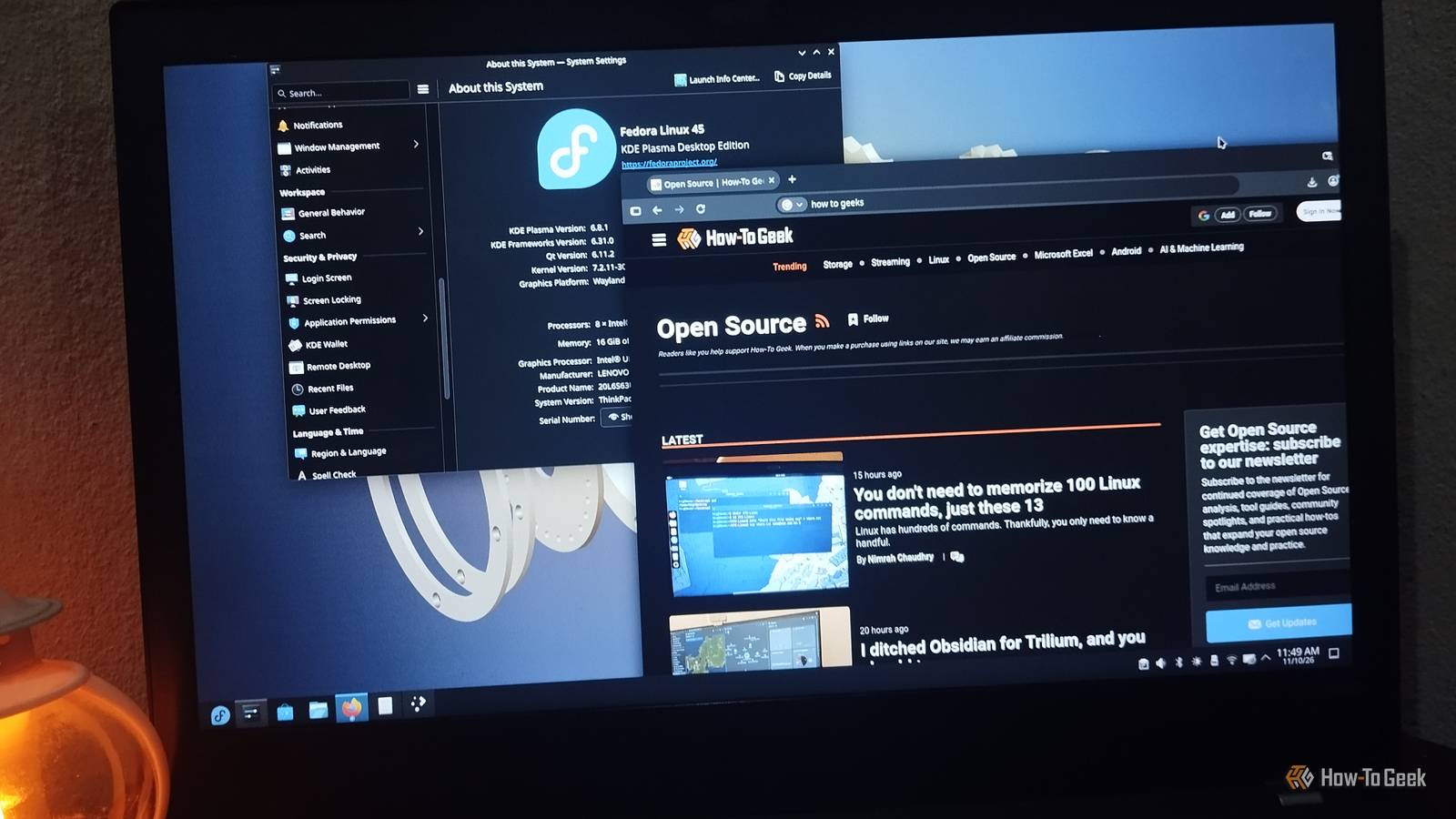
Fedora is already a solid Linux distro, but a fresh installation doesn't have to be your final setup. A few small tweaks can make it more convenient, unlock additional software, and give you better control over your system. I explored Fedora 45's KDE edition and found eight tweaks worth trying. None is particularly complicated, and you can apply them at your own pace. I'd recommend trying a few together to really notice the difference. So, buckle up, open Konsole, connect to the internet, and plug in your charger. Unless mentioned otherwise, every command runs there. Make DNF5 downloads faster Raise DNF5's download limit Fedora 45 uses DNF5 as its package manager, which downloads only three packages at a time by default. Raising the limit to 10 can make installing multiple packages more efficient. The setting lives in a plain-text configuration file, so there's nothing to install. You can add the required line with a single command: echo 'max_parallel_downloads=10' | sudo tee -a /etc/dnf/dnf.conf I verified the setting with grep, then ran sudo dnf5 makecache to confirm that DNF could refresh its package metadata successfully. This doesn't guarantee downloads will be ten times faster, since your connection and repository speeds still matter. However, it lets DNF fetch more packages concurrently, making better use of a fast connection. Unlock Flathub in Fedora Get access to a much bigger Flatpak library Fedora includes its own Flatpak repository, but it doesn't enable Flathub by default. Since Flathub is one of the biggest sources of desktop Linux apps, adding it gives you a much wider selection. You can open Discover, head to Settings, and check whether Flathub is already listed under sources. If it isn't, run the following commands to add the repository and confirm that it was added successfully: sudo flatpak remote-add --if-not-exists flathub https://dl.flathub.org/repo/flathub.flatpakrepo flatpak remotes --show-details Once it's set up, you can search for Flathub apps through Discover or install them directly from the terminal. Give Fedora access to more multimedia formats Fedora's default repositories don't include every multimedia codec, partly because of licensing and distribution restrictions. That's where RPM Fusion comes in. It provides additional software and codecs that Fedora doesn't ship by default, making it one of the first repositories I'd enable on a fresh installation. To get started, enable RPM Fusion's Free and Nonfree repositories: sudo dnf5 install \ https://mirrors.rpmfusion.org/free/fedora/rpmfusion-free-release-$(rpm -E %fedora).noarch.rpm \ https://mirrors.rpmfusion.org/nonfree/fedora/rpmfusion-nonfree-release-$(rpm -E %fedora).noarch.rpm Once they're enabled, verify that both RPM Fusion repositories are available, then replace Fedora's limited FFmpeg package with the full version: dnf5 repolist --enabled | grep -i rpmfusion sudo dnf5 swap ffmpeg-free ffmpeg --allowerasing Next, install the multimedia group: sudo dnf5 group install multimedia --setopt=install_weak_deps=False --exclude=PackageKit-gstreamer-plugin I ran both commands on my Fedora 45 installation and verified that the additional packages were installed. This brings in components such as GStreamer plugins and VLC's freeworld plugins, improving multimedia support across compatible applications. It's a small setup step that can save you from running into unnecessary codec headaches later. Change your laptop's power profile Pick a profile that suits what you're doing Your laptop doesn't need to run at full performance all the time, especially when you're just browsing the web or working on documents. Fedora 45 KDE makes it easy to switch between power profiles without having to fiddle with terminal commands. My installation initially used the Balanced profile. To see what else was available, I ran this (though you don't have to do this unless you're extra like me): tuned-adm active tuned-adm list I found several options, including Power Saver, Balanced, and performance-oriented profiles. You can switch between them using KDE's Power and Battery widget in the system tray. If you're using Fedora on a laptop, it's worth exploring these options. You can prioritize battery savings when you're away from a charger and choose a different profile when you need more performance. Check for firmware updates Give your hardware a quick checkup Most of us remember to install software updates, but firmware updates are just as worth checking. They can address hardware bugs, improve compatibility, and sometimes fix security issues. Fedora includes fwupd, which checks for firmware updates for supported devices. Start by checking which devices it detects and whether any firmware updates are available: sudo fwupdmgr get-devices sudo fwupdmgr get-updates These commands only check for information. They don't install updates or change anything. If nothing shows up, that's normal, because not every device is supported. Many manufacturers, Lenovo and Dell among them, publish updates through the Linux Vendor Firmware Service, which is what fwupd talks to. When updates do appear, run fwupdmgr update with the charger plugged in. Explore KDE Plasma 6.8 Give your desktop a makeover and unlock useful features KDE recently celebrated its 30th birthday with the release of Plasma 6.8, bringing another round of improvements to its desktop environment. If you're using Fedora's KDE edition, it's a good time to explore what's new and make the desktop your own. Start by changing your wallpaper, experimenting with colors, adjusting fonts and icons, and setting up virtual desktops to suit your workflow. You can also explore useful tools such as System Monitor to keep an eye on resource usage. Plasma 6.8 adds a light and dark mode toggle to the system tray, so you no longer have to dig through Global Themes. Press Meta + W to open Overview, then use the mouse wheel or Page Up and Page Down to switch between virtual desktops. You can even set up separate desktops for each monitor. The Digital Clock widget now supports multiple time zones, and apps using the newer Background Apps system appear in the system tray. There's also a built-in microphone volume test to check your audio before a video call. Take some time to explore Plasma's settings and features. Let your GPU work Check Intel hardware video decoding If your laptop has Intel integrated graphics, there's another useful thing worth checking. Hardware video decoding lets your GPU handle supported video formats instead of making your CPU do all the work. Fedora's VA-API utilities can help you check which decoding profiles your graphics driver supports. Run: vainfo I tested this on Intel UHD Graphics 620. The Intel iHD driver initialized successfully, and VA-API reported support for MPEG-2, VP8, and VP9 decoding profiles. However, H.264 and HEVC weren't listed in my results. Your results will depend on your GPU generation and driver, so don't assume every format is supported. Upgrade your terminal Install a few CLI essentials Fedora's repositories include several utilities that make every day tasks a little easier. You can install four of my picks together: sudo dnf5 install fastfetch btop bat ripgrep btop is a gorgeous system monitor, fastfetch prints your system info (handy for screenshots), bat is cat with syntax highlighting, and ripgrep searches through files absurdly fast. Run fastfetch once, then try not to smile. A little setup goes a long way Fedora 45 is perfectly usable without changing any of these settings, but a few minutes of setup can make everyday use more convenient. I'd prioritize Flathub, RPM Fusion, and the power profile on a laptop, then explore the other tweaks as needed.
Fedora 45 is out, and these are the first settings I'd tweak
Full Article
Original Source
Read the full article at Howtogeek →KhanList aggregates and links to publicly available news content. We do not host full articles from third-party sources. Always verify important information with original sources.