
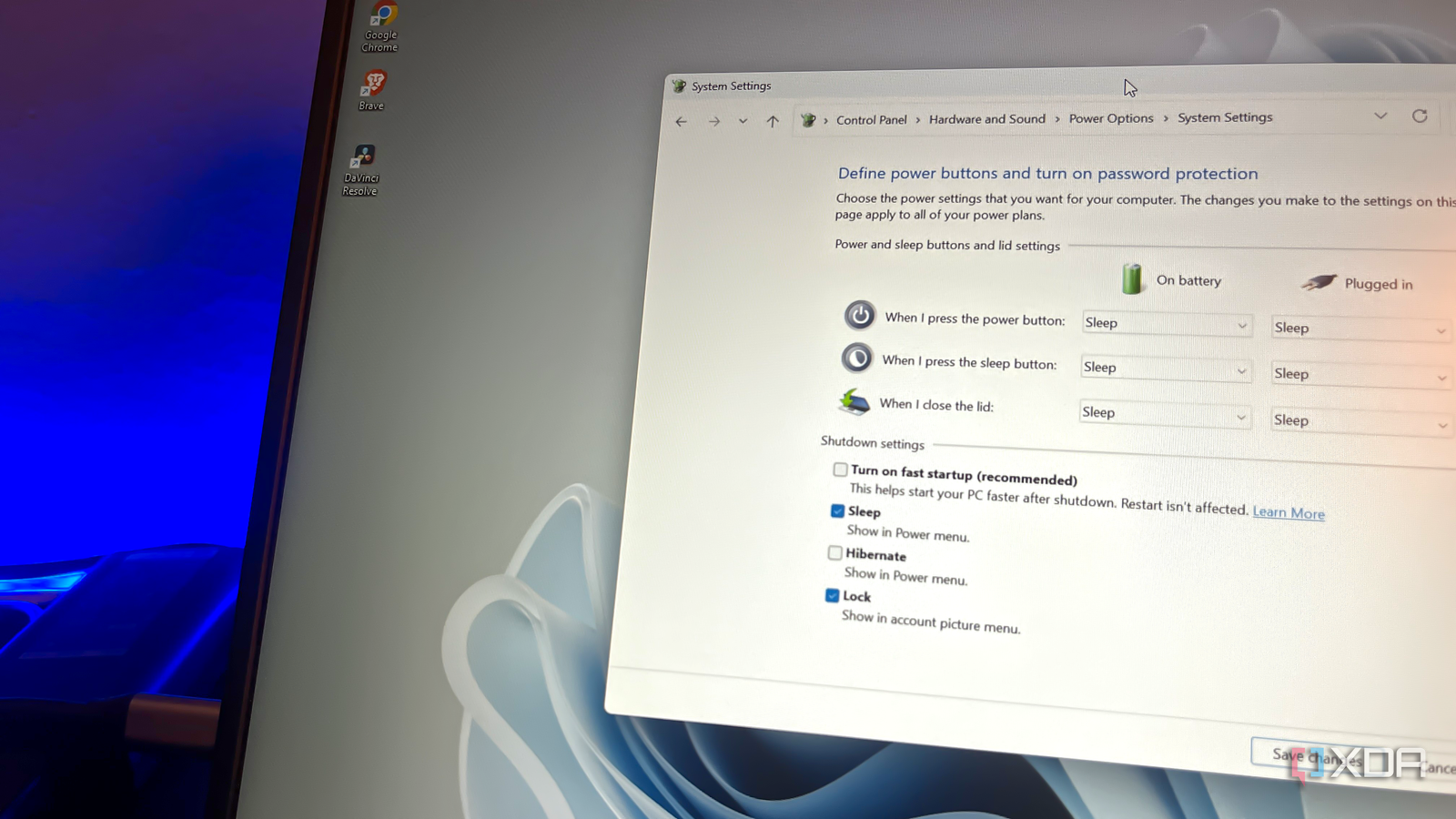
Published Oct 8, 2026, 7:30 AM EDT With over five years of experience in the tech industry, Kazim excels at simplifying complex topics, making them accessible to tech enthusiasts and general readers alike. He has extensively covered the Windows ecosystem, from Windows 7 to Windows 11. When he’s not writing, you’ll find Kazim planning weekend getaways or diving into tech verticals beyond his expertise. Windows has improved a lot over the years, both in performance and stability. You don't get as many errors as you used to, and better memory management makes the whole experience feel more streamlined. But it's not the perfect operating system. There are things you still need to change on a new Windows install, from removing bloatware to reconfiguring default settings. And one such default setting I disable on every Windows PC is Fast Startup. Fast Startup has been a part of the operating system since Windows 8, and while it helped at the time, the feature no longer feels relevant and can sometimes even be counterproductive. It's often the underlying cause behind weird bugs and errors. If you look through Windows troubleshooting guides online, you'll often find that disabling Fast Startup is among the suggested solutions. And there's a good reason for it. Fast Startup improves boot time But at the expense of system stability Fast Startup, as the name suggests, is a Windows feature designed to speed up your computer's boot time. It works much like the hibernation feature, but instead of saving the entire session to the drive, Fast Startup only saves the kernel session and loaded drivers to the hiberfil.sys file. This way, when you turn on the computer, it boots faster because it doesn't have to load the kernel session and drivers from scratch. Since it can save you a few seconds every time you turn on the PC, Windows enables the feature by default. But there's a problem! With Fast Startup enabled, your PC doesn't truly shut down, and it hasn't done so in years. It just reloads the previous state, and if that's buggy, the issue carries over to the next session. That's why you often see people suggesting restarting the PC as a troubleshooting step rather than shutting it down and turning it back on. Because Fast Startup doesn't apply to restarts. That's not it; there are other problems, too. For example, sometimes driver or Windows updates that require a true restart fail to install when Fast Startup is enabled. Even Microsoft, in a support article for Windows 10, notes that Fast Startup could be why users have trouble installing updates. Apart from that, on dual-boot systems, say when running Linux alongside Windows, Fast Startup can cause a wide array of problems, from network issues to data corruption. You may also notice your laptop automatically waking up from sleep. More importantly, your PC needs a full shutdown every once in a while. This power cycles the components, which is essential, and Windows boots in a fresh state without carrying over any bugs from the previous session. That's why you should disable Fast Startup, especially if you're experiencing these bugs. Disabling Fast Startup is easy And you are generally better off without it You can easily disable Fast Startup in Windows 11 and Windows 10. The steps are the same on both iterations, since the feature is still accessible through the Control Panel and hasn't been moved to the Settings app. To turn off Fast Startup, launch the Control Panel, go into System and Security, click Change what the power buttons do under Power Options, then Change settings that are currently unavailable, uncheck Turn on fast startup, and finally click on Save changes. That's it. And if you ever decide to re-enable the feature, the steps are the same, but you will need to check the Fast Startup option instead. Some may still benefit from Fast Startup Though it's not as relevant anymore So far, we have discussed the downsides of Fast Startup, but the feature still serves (or served) a purpose. Otherwise, Microsoft wouldn't have added Fast Startup and enabled it by default. Keep in mind that Fast Startup was introduced when PCs still primarily had HDDs. Since those drives weren't as fast, the feature helped reduce boot time. But as SSDs became mainstream, Fast Startup lost its relevance. SSDs are already fast enough, and the feature doesn't make that big a difference to boot time anymore. You can still save a few seconds during boot, but the weird bugs and issues it introduces simply make it a bad deal for most users. However, if you aren't facing any problems and your computer still has an HDD, you can leave Fast Startup turned on. In that case, you can periodically use the shutdown /s /f /t 0 command to completely shut down the system. That gives your computer a fresh start any time you want. I should have disabled it sooner Fast Startup is a clear example of how Windows defaults aren't always the best choice, at least not for the vast majority of users. It may work for a smaller set, but most people are better off without it. I've found Fast Startup to be the cause of issues on my Windows laptops on countless occasions. Earlier, I used to temporarily disable the feature and then re-enable it once the problem disappeared. But now that both my laptops feature SSDs and are fast enough, I see no point in leaving it turned on. And believe me, I have faced far fewer issues since then.
Fast Startup is the first setting I turn off on every Windows PC, and it's fixed more weird bugs than I expected
Full Article
Original Source
Read the full article at Xda-developers →KhanList aggregates and links to publicly available news content. We do not host full articles from third-party sources. Always verify important information with original sources.