
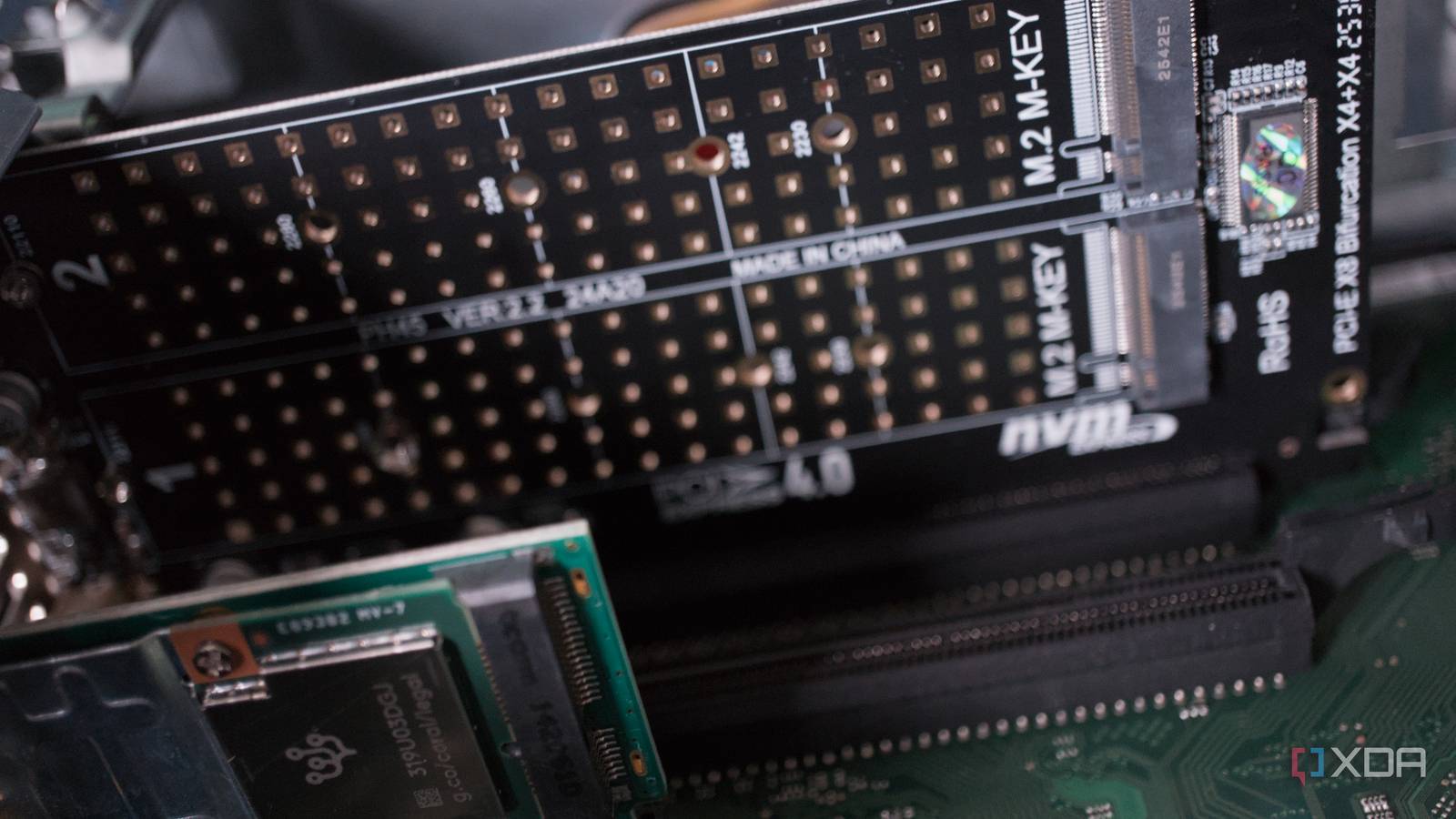
Published Sep 22, 2026, 2:30 PM EDT Richard is the PC Hardware Lead at XDA and has been covering the technology industry for almost two decades. He's been building PCs since young, and when not creating content, you can often find him inside a chassis somewhere. SSD caching for network-attached storage (NAS) is like an old wives' tale at this point. Many still stand behind it, touting all the good this one component change can do to the overall performance of the system. The fact of the matter is, you could go and install a super-fast NVMe drive inside your NAS, and it could make virtually no difference to your NAS performance. The crux of the issue is this advice is technically sound if your applications and use of the NAS warrant speedy caching, but there's a good chance you don't meet this criterion. I don't, because of the price of SSDs and my NAS workload. What is SSD caching? And how could it help your NAS? SSD caching is precisely as the name implies. The NAS can use NVMe M.2 SSDs to store frequently accessed data that can be quickly retrieved on request. Instead of relying on accessing the same data on hard drives with slower throughput and mechanical moving parts, an SSD can quickly handle the request. That sounds like a win-win, so why wouldn't everyone want to use SSD caching? It's all down to the workload and the type of load placed on the NAS and its internal storage. If you run virtual machines (VMs) and Linux containers (LXCs) or apps through Docker, there's a good chance that you have high levels of random input/output (IOPS). This is where making the move to an SSD cache can make the most difference. It's far better equipped than mechanical drives to handle that IOPS workload, running even the heavier VMs and LXCs without breaking much of a sweat. But caching can also be good for active databases where apps constantly make tiny read and write requests to storage. Then there's the office environment. A NAS at home like mine won't see heavy usage. Sure, we'll stream a 4K movie every now and then and maybe stream some music while backing up some devices, but the NAS is never really put under strain. The hard drives have plenty of bandwidth to spare, and there's no bottleneck to speak of. But if your NAS is in an office or your home frequently has multiple people concurrently accessing data and files stored on the system, SSD caching can provide a performance boost. Why SSD caching doesn't make sense for me And it likely won't make a difference for you Have you seen the price of storage today? RAM is incredibly expensive, but so too are hard drives and SSDs. It's just not cost-effective for me to spend more than $100 on a drive to handle caching. It won't increase the capacity of our network storage, and you'll need to spend much more than $100 if you want an SSD that's actually rated for caching. Most consumer-grade NVMe drives aren't. Like normal HDDs, you can use them inside a NAS for caching, but it's not recommended. Even with the cost of RAM, it's often cheaper to simply increase the amount of RAM than add SSD caching. And that's another thing some may overlook. Adding SSD caching to a NAS that hasn't hit RAM capacity may also be wasteful, since caching on the SSD may not have the desired effect. More RAM could be more easily taken advantage of. It's always better to maximize CPU caching, then RAM, and finally other means should you require even more data to be stored for quick access. It's fairly obvious, but most SSDs aren't designed for running as cache drives, not unless they're specifically built for the job. Consumer-grade storage drives, those that you often find inside desktop and laptop PCs, aren't up to the job. SSD caching is incredibly resource-intensive. The SSD has to constantly flush the cache in the background and endure heavy write cycles, both of which can rapidly degrade the endurance, potentially causing premature drive failure. It's all in the workload Streaming a single 4K movie or copying across a large backup file from another system is a sequential operation. Hard drives are built specifically for this, and they handle it seriously well. Tasks such as this won't be sped up at all through adding an SSD cache because the data is only read once. Take that 4K movie example. You likely won't load that same file again, so it's wasted in cache since no future requests will be made for some time. Many entry-level and older NAS enclosures have a 1 Gbps network connection, which is often matched by maximum throughput of consumer LANs. This caps data transfers at just north of 100 MB/s (give or take 115 MB/s). Modern SATA hard drives can exceed the practical throughput of a 1 GbE connection during large sequential transfers. An SSD cache won't magically make the LAN run faster. If the hard drives inside the NAS are encountering a LAN bottleneck, the SSD will hit the same wall. Don't upgrade a bottleneck you don't have SSD caching is useful, but only when the workload calls for it SSD caching isn't snake oil, and I'm not suggesting nobody should use it. But throwing faster storage at a system won't accomplish much if the hard drives aren't holding it back. My workloads simply don't generate enough random I/O or repeatedly access enough hot data for an SSD cache to make a noticeable difference. I don't use the NAS as a home server. It's sat there collecting and serving data, which almost entirely removed SSD caching from the equation. Before buying an NVMe drive for your NAS, I'd check what is actually limiting performance. I found our 1GbE network connections causing issues while copying large files since many of the devices on the LAN could operate at higher speeds. Upgrading the network made a far greater difference with the introduction of a 10 Gb bus and 2.5 GbE switch nodes. Equally, more RAM may be money better spent if your NAS is frequently running out of memory. Caching solves a specific problem. When that problem exists, it can be a fantastic upgrade. When it doesn't, you've simply installed an expensive SSD that spends most of its time waiting for something useful to do.
Everyone told me SSD caching would fix my NAS, but it fixed absolutely nothing
Full Article
Original Source
Read the full article at Xda-developers →KhanList aggregates and links to publicly available news content. We do not host full articles from third-party sources. Always verify important information with original sources.