
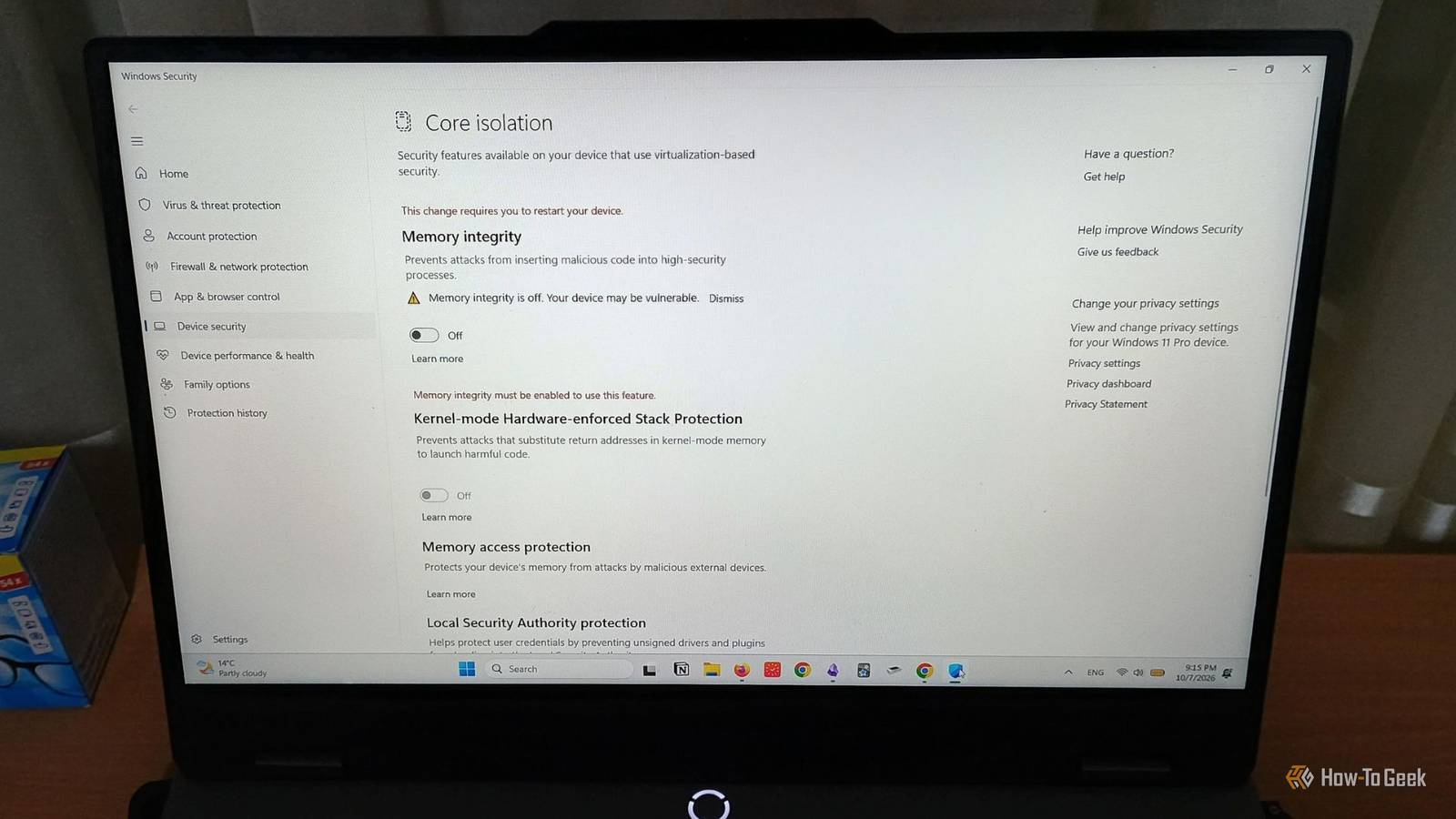
Published Oct 9, 2026, 8:00 AM EDT Diana's interest in technology spans many years. Her favorite areas include consumer software, everything Windows-related, VPNs, and graphic design tools. She's always on the lookout for tools and features that make tasks easier, boost creativity, and improve everyday life. When she finds something interesting, chances are she'll have something to say about it. If you're using Windows 11, you've probably seen the recent backlash over Memory integrity. The alarmist voices say Windows is forcing this feature on everyone, and people are paying for it with loss of performance, driver incompatibilities, and games refusing to work. I was ready to check my settings and quickly disable it, but it turns out some key details are missing from these stories. It's true Microsoft enables Memory integrity by default, but only on certain PCs, and it's not exactly forced on you. Like other settings affecting performance, you can disable it. It's also true that it may affect compatibility and performance, especially on lower-end computers. At the same time, it adds a layer of protection to one of Windows' most important parts. Before you decide to turn it off, it's worth thinking about how serious these risks are and how much Memory integrity does, in fact, interfere with performance. Why is everyone disabling Memory integrity? Security patches that make you pay in FPS Credit: Patrick Campanale / How-To Geek Memory Integrity, also known as Hypervisor-protected Code Integrity (HVCI), is a security feature that has been available in Windows for years, but it is now being auto-enabled on some Windows PCs. Turns out this is causing performance problems for some people. Historically, disabling Windows Memory integrity used to be one of the most popular workarounds for bad FPS among gamers. It turns out that this very demographic is the most affected now by this auto-enablement. These days, HVCI can cause compatibility and performance problems. It can block drivers that don't meet its security standards, such as drivers without a valid digital signature. This added protection also comes with a security overhead that may slow certain tasks, especially on lower-end PCs. It's not hard to see why people are turning it off. The thing is, even though Windows already comes with plenty of other security features built in, what Memory integrity brings is something other features don't cover in the same way. Memory integrity is protecting Windows' core from malware Preventing attackers from getting too much control To put it simply, Memory integrity's purpose is to prevent malware from messing with a part of Windows that has high-level permissions: the Windows kernel. The kernel has more control over your computer than a regular app. It manages things like memory and hardware, which is why malware accessing it can do more damage than malware running with normal app-level permissions. If malware can operate at this level, it can change security settings and tamper with parts of Windows that regular apps cannot access. For example, an attacker could potentially disable your antivirus and then deploy a ransomware attack. Without security getting in the way, it's going to be easier for attackers to steal or encrypt your data. Credit: Microsoft With Memory integrity enabled, when an app or driver requires kernel-level access, there is an extra layer of verification. It uses virtualization to isolate Windows' Code Integrity process from the rest of the system. This makes it harder for malware to exploit vulnerabilities in apps and drivers to gain more control over your computer. While these types of attacks aren't the most common and don't target just about anybody, I wouldn't go as far as to say that you're better off without protection. The point of Memory integrity is to add another barrier against attacks that can be especially dangerous. Should you disable Memory integrity? The hidden costs of trading security for performance The vulnerabilities that Memory integrity protects against are mainly related to malicious code trying to gain access to the Windows kernel. This can happen by exploiting vulnerabilities in legitimate drivers, known as Bring Your Own Vulnerable Driver (BYOVD). These attacks aren't exactly common, but they're not completely theoretical either. Last year, Microsoft flagged a vulnerable version of WinRing0, a legitimate kernel-level driver used by various overclocking and monitoring apps, as well as RGB programs, including OpenRGB and older versions of MSI Afterburner. If exploited, these vulnerabilities could give attackers kernel-level privileges. When disabling makes sense Even though I'd say Memory integrity brings solid security improvements, having a noticeably worse experience because of it may not be the way to go. According to Microsoft’s documentation, it will automatically enable Memory Integrity on machines that meet certain requirements: Processors: Intel 8th generation, AMD Zen 2, Qualcomm Snapdragon 8180 or newer RAM: 8GB Storage: SSD with 64GB These requirements are mainly used by Microsoft to decide where to enable the feature by default. Older hardware might still be able to run Memory Integrity without a big impact. At the same time, people report problems on eligible devices. So the best thing to do is to try it out yourself. See how it goes, and if the performance is seriously affected, turning it off may be worth the trade-off if you practice good digital hygiene. If you want to disable it, here's how: Open Windows Security > Device Security > Core isolation > Core isolation details > Toggle off Memory integrity > Restart your device for changes to apply. And if it's only affecting your gaming or certain apps, you can re-enable it when you stop using them. Keep it on unless it gets in your way The recent discussion around this security feature is legitimate, but it's also been blown out of proportion. If everything works fine and you barely see a performance difference, there’s little reason to give up the extra layer of security. If you decide to disable it, try to pay attention to how you use your computer and what you install on it. Keep your drivers up to date, remove old software you don't use, and only download apps from reputable sources.
Everyone is turning off Windows Memory integrity: here's why you shouldn't
Full Article
Original Source
Read the full article at Howtogeek →KhanList aggregates and links to publicly available news content. We do not host full articles from third-party sources. Always verify important information with original sources.