
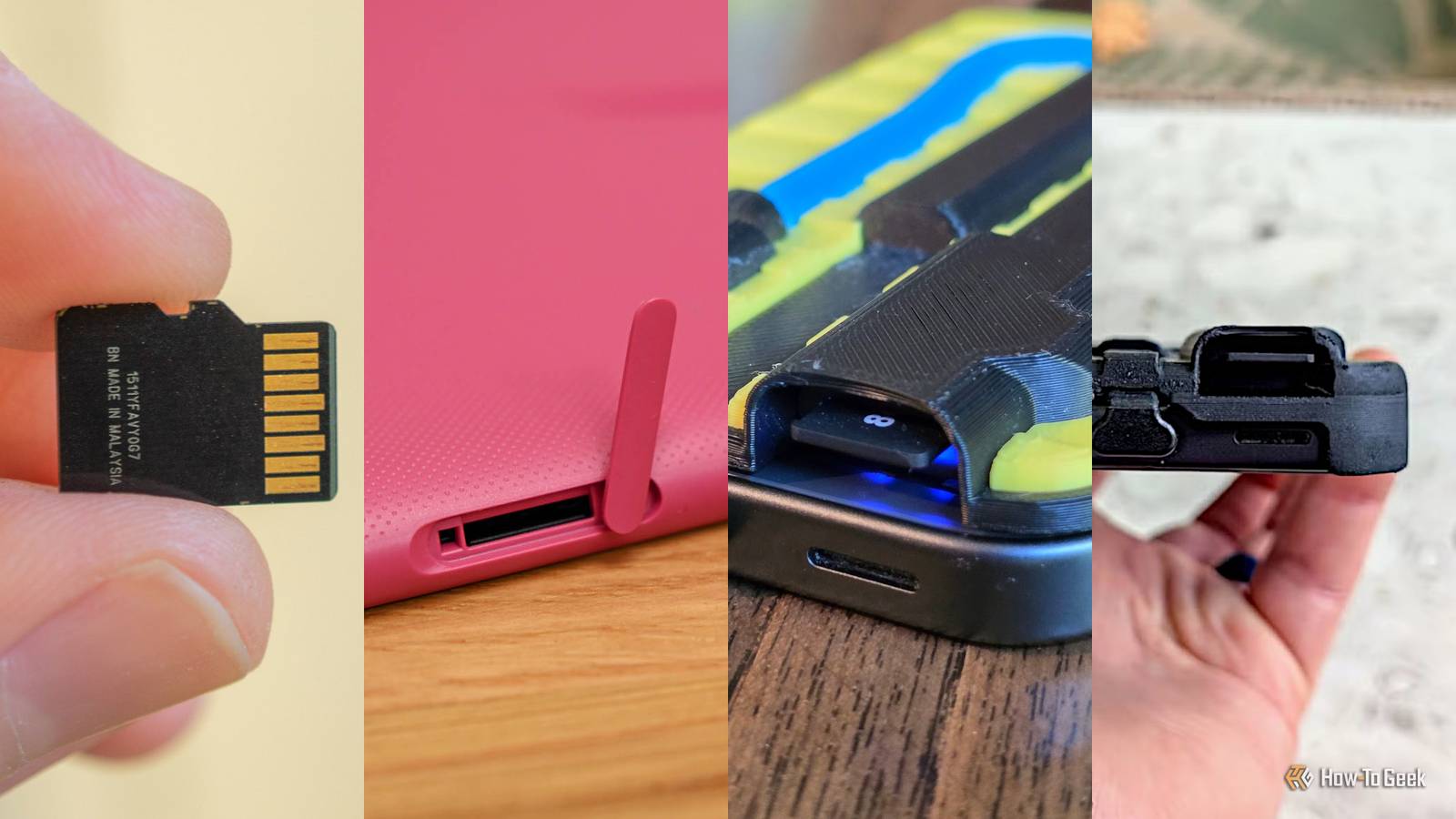
Published Sep 12, 2026, 6:30 AM EDT Joe Fedewa has been writing about technology for over a decade. Android and the rest of the Google ecosystem have been a focus for years, as well as reviewing devices, hosting podcasts, filming videos, and writing tutorials. Joe loves all things technology and is also an avid DIYer and food blogger. He has written thousands of articles, hundreds of tutorials, and dozens of reviews. Before joining How-To Geek, Joe worked at XDA-Developers as Managing Editor and covered news from the Google ecosystem. He got his start in the industry covering Windows Phone on a small blog, and later moved to Phandroid where he covered Android news, reviewed devices, wrote tutorials, created YouTube videos, and hosted a podcast. From smartphones to Bluetooth earbuds to Z-Wave switches, Joe is interested in all kinds of technology. After several years of jailbreaking and heavily modifying an iPod Touch, he moved on to his first smartphone, the HTC DROID Eris. He's been hooked ever since. For the most part, Android phones aren’t made with microSD card slots anymore. That doesn’t mean you can’t still use one with your phone. There are a handful of ways to do this — some good, some extremely awkward. Let’s go over them. 4 USB-C microSD card reader Only for the occasional media transfer Credit: Joe Fedewa / How-To Geek USB-C ports in Android phones are typically used for charging and maybe audio, but not much else. We don’t think of the USB port in a phone the same way that we might think of it in a computer. However, it’s entirely possible to use an SD card —micro or full size — just like you would use a flash drive. There are plenty of USB-C card readers available online. You can find super compact microSD adapters as well as models that include a full-size slot as well. Simply plug it into your phone and transfer media to or from the card. Of course, this is not a permanent option. You’re not going to keep an awkward dongle sticking out of your phone all the time. However, it’s a handy option for occasionally moving large files and freeing up space on your phone. 3 Magnetic SD card reader A more elegant temporary solution Credit: Ulanzi / Amazon A step up from a USB card reader is a magnetic card reader. In this case, the magnetic connection is purely for portability — it doesn’t enable any sort of wireless communication between the card and phone. Transferring data still happens through a physical connection to the USB-C port. That portability is the main benefit of this option. While you’re probably still not going to keep a thick hockey puck on the back of your phone, it’s certainly less awkward than the dongle. There’s also less stress on the USB port. Like the USB card readers, these come with micro and full-size slots as well. The only downside is that you need a phone or case with magnets built in. 2 Case with integrated microSD card slot A DIY option with fewer trade-offs Credit: Joe Fedewa / How-To Geek What’s the one thing that the two previous options have in common? You can’t use the USB port for anything else while the card reader is plugged in. Not many of these accessories include a second USB port to allow for charging, and even when they do, they still have the problem of bulkiness. This was the problem I set out to solve. My first attempt was similar to a magnetic card reader, but much more low-profile. However, my second attempt had more promise. It was a full phone case with an integrated microSD card slot and an extra USB-C port for charging. The case is slim enough that it can be on your phone at all times. Of course, there are some obvious concerns with something like this. The microSD card doesn’t have protection against water or theft. It was a cool proof-of-concept, though, and I think it’s a genuinely good idea that a company should steal. 1 Built-in microSD card slot You can’t beat a classic Surprise, surprise — the best option is a built-in microSD card slot. Every time I write about how most Android phones don’t have expandable storage anymore, people are quick to point out phones that still do. The feature isn’t extinct, but it is endangered. Samsung still sells a few Galaxy phones in the U.S. with microSD card slots. Most recently, the Galaxy A27 5G launched in July. The Galaxy A36 and Galaxy A55 are two other options. Motorola also offers several phones in the U.S. with microSD card slots: the Moto G Power, Moto G Play, Moto G, and Moto G Stylus. It’s truly unfortunate that the Android phone market has evolved in such a way that the “best” phones no longer have features like expandable storage and headphone jacks. There’s nothing more “Pro” or “Ultra” than having the ability to add an extra TB to your phone. Maybe, with the rising cost of storage, we’ll get back there one day. Galaxy A27 5G
Every way to add an SD card to your Android phone, ranked
Full Article
Original Source
Read the full article at Howtogeek →KhanList aggregates and links to publicly available news content. We do not host full articles from third-party sources. Always verify important information with original sources.