
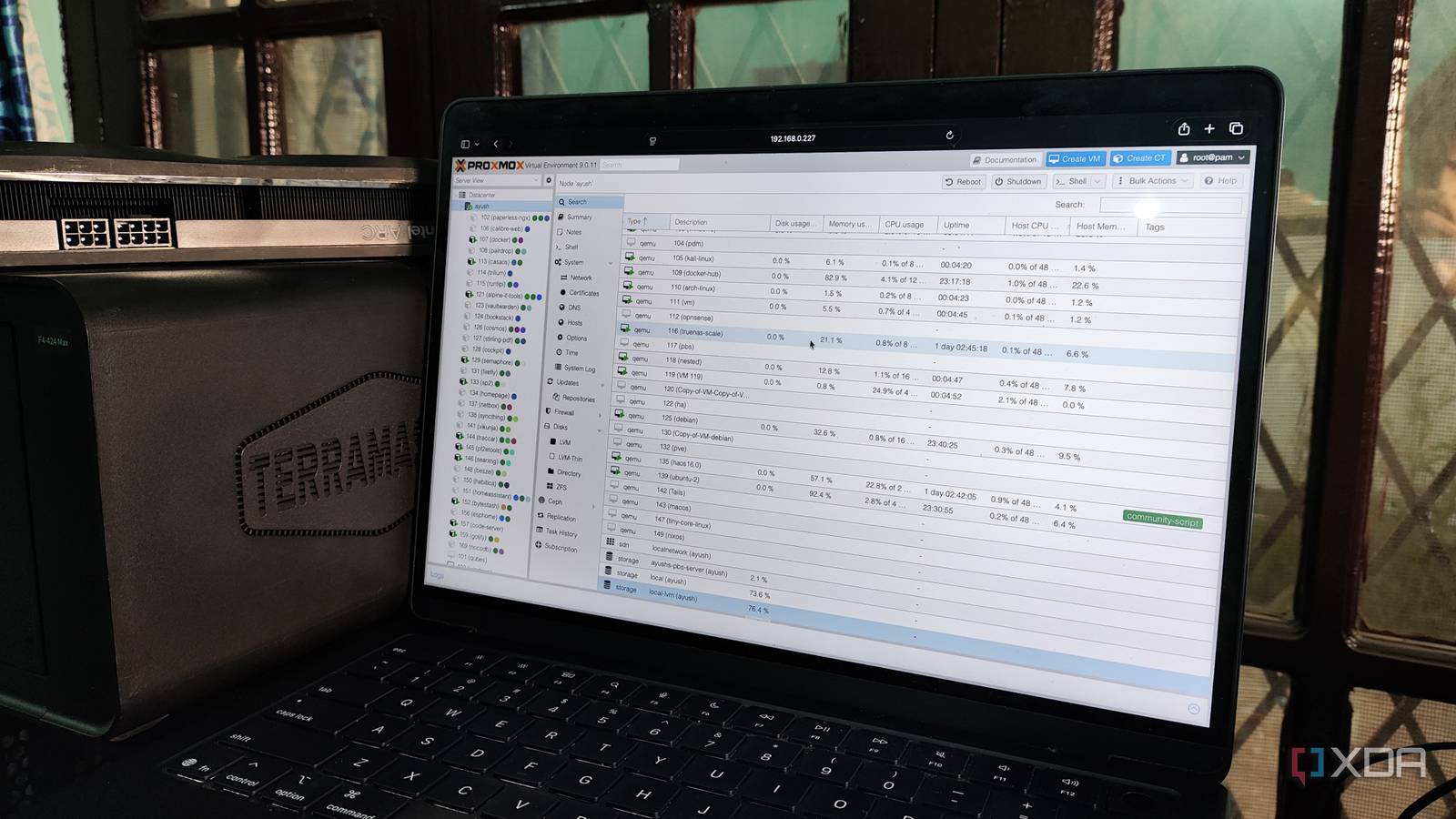
Published Sep 8, 2026, 8:00 PM EDT Ayush Pande is a PC hardware and gaming writer. When he's not working on a new article, you can find him with his head stuck inside a PC or tinkering with a server operating system. Besides computing, his interests include spending hours in long RPGs, yelling at his friends in co-op games, and practicing guitar. As much as I adore Proxmox, the virtualization platform’s default settings leave a lot to be desired. For one, barebones PVE servers have the enterprise-tier update repository enabled by default, which causes problems if I try to install new packages without connecting a paid license to the Proxmox hosts. As such, switching it to its community variant is something I have to do practically every time I’m done installing Proxmox VE on a new machine. However, this problem with the default settings doesn’t just apply to the Proxmox host, as virtual guests have some quirky options that I almost always change before I deploy them. Take the default CPU type, for example. If I were to try spinning up a new virtual guest, it automatically defaults to x86-64-v2-AES, which isn’t all that terrible for simple VMs. But when I’m trying to run bulky virtual machines, I almost always tweak this setting. The x86-64-v2-AES CPU type makes sense from a compatibility standpoint In fact, that’s what you’d want to use in a mixed cluster Well, if I were being extremely pedantic here, I’d say that Proxmox has two CPU types it defaults to when you create a new virtual machine. There’s good ol’ x86-64-v2-AES, which many tinkerers (including yours truly) are familiar with from the web UI, and kvm64, an extremely outdated standard that’s only the default option for CLI commands such as qm create. I’ll briefly touch up on kvm64, since the CLI nature of this default setting isn’t something most home labbers would use for everyday tasks. If you’re trying to run terminal-based automation pipelines, it’s a good idea to add instructions to switch the type of CPU from kvm64, as it’s not only a massive performance hog, but its lack of support for newer processor flags makes it infamous for causing compatibility issues on modern distributions. However, the default x86-64-v2-AES setting isn’t a terrible option for new Proxmox users. Unlike kvm64, it's compatible with most operating systems out there, including everything from Qubes OS, Talos, and other quirky Linux distros to full-on Windows 11 and FreeBSD environments. It’s also the recommended option for high-availability clusters built with different hardware combinations. Switching the CPU type to models with minimal virtualization layers can cause compatibility issues when a virtual machine moves to another node with an entirely distinct processor architecture compared to its former host. In fact, I’ve left the CPU type as x86-64-v2-AES for every VM in a ZFS replication cluster, and I’ve yet to run into compatibility issues even though one of the systems has an embedded Intel N100 processor while the other is an outdated gaming system featuring a Ryzen 5 1600. All that said, I’d definitely swap the default CPU types on standalone PVE nodes… That said, setting it to host is always better for bulky virtual machines You can even set it as the default CPU type on Proxmox 9.2 Although x86-64-v2-AES isn’t as unoptimized for modern distros as kvm64, it’s not really something I’d use for bulky virtual machines responsible for handling Windows 11 dev environments, Pop_OS! gaming setups, and other resource-intensive projects where I want to squeeze out every last drop of performance. As such, switching to the host CPU type makes more sense in standalone Proxmox workstations, as this mode passes all the instructions and flags present inside the processor to the VM. That way, it manages to avoid the extra virtualization layers that my CPU would otherwise have to emulate with x86-64-v2-AES. Personally, the responsiveness on my Windows 11, NixOS, and other VMs running on GUI-laden operating systems has only gotten better by relying on the host option, which is why I’ve set it as the default CPU template on powerful nodes. However, there are still other situations where I had to ditch x86-64-v2-AES, host, and kvm64. For example, my Hackintosh VMs don’t mesh well with them, and instead need the right CPU mode corresponding to the macOS version I want to run on them. I’ve also heard of folks running into slowdowns with the host CPU mode on specific versions of Windows 11, where certain flags cause it to aggressively run OS-level mitigation protocols and increase memory read latency. I haven’t encountered this problem on my gaming VM or dev environments yet, but it’s still worth swapping between host and x86-64-v2-AES if you run into performance issues on a Windows 11 VM. Changing the CPU type isn’t the only way to boost VM performance Besides this tweak, there are a couple of other quick tips that can make your Proxmox VMs more responsive. For example, changing the Graphics card option (within the Display setting) from Default to SPICE massively reduces latency issues on most GUI virtual machines. Plus, the SPICE display also lets you increase its display resolution without causing any visual artifacts that you might encounter with the Default setting. For folks on high-availability setups, I recommend enabling the new dynamic load balancer for HA operations, as it monitors the resource consumption metrics and shifts virtual guests around the cluster accordingly to prevent excessive processing load on a single node. Proxmox Proxmox is an open-source platform built on Debian Linux designed for server virtualization.
Every VM you have in Proxmox is pretending to run on an older CPU, and one dropdown fixes it
Full Article
Original Source
Read the full article at Xda-developers →KhanList aggregates and links to publicly available news content. We do not host full articles from third-party sources. Always verify important information with original sources.