
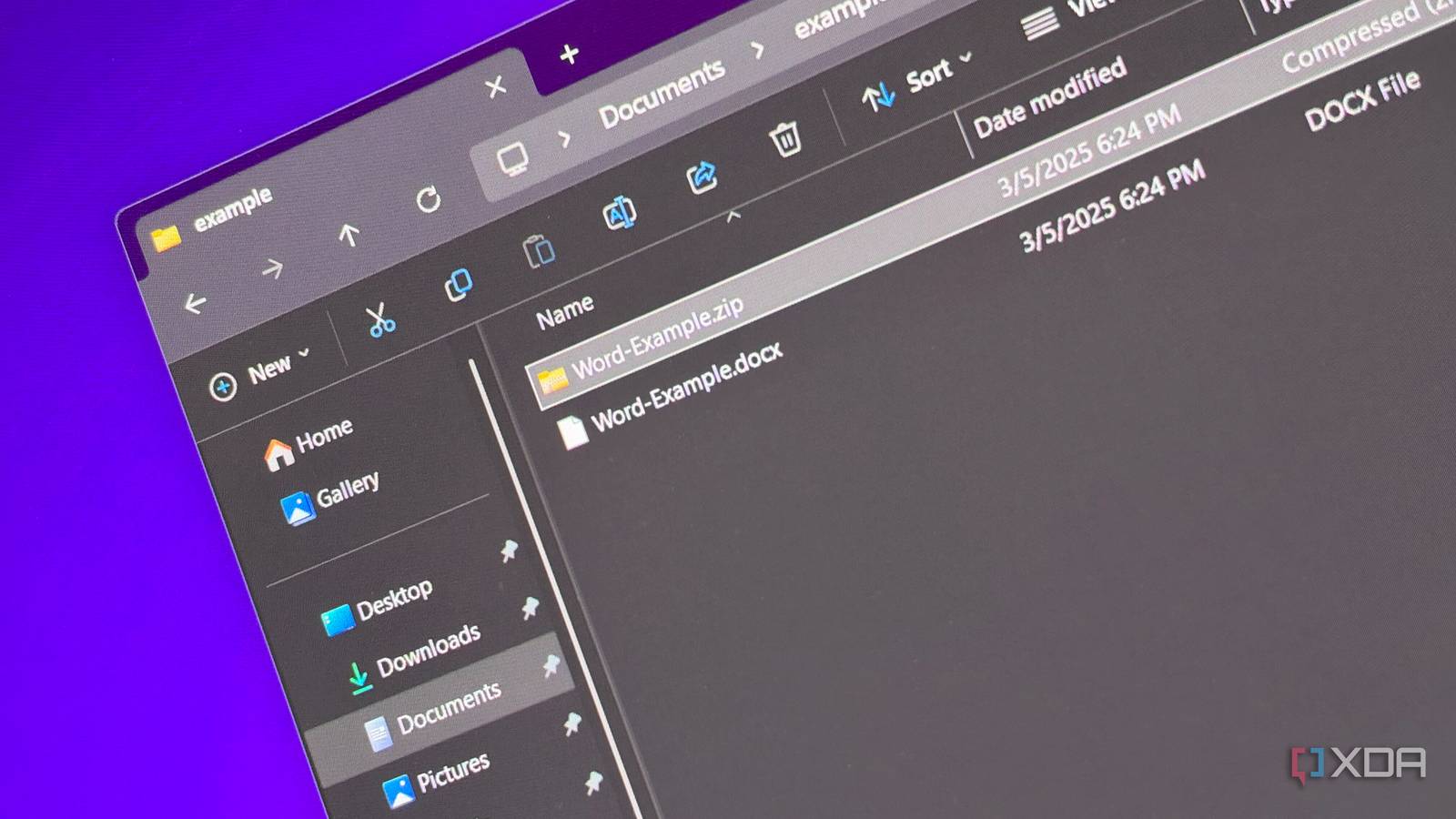
Published Nov 14, 2026, 6:00 AM EST His love of PCs and their components was born out of trying to squeeze every ounce of performance out of the family computer. Tinkering with his own build at age 10 turned into building PCs for friends and family, fostering a passion that would ultimately take shape as a career path. Besides being the first call for tech support for those close to him, Ty is a computer science student, with his focus being cloud computing and networking. He also competed in semi-pro Counter-Strike for 8 years, making him intimately familiar with everything to do with peripherals. If I were to create a Windows error tier list, I think Microsoft Word telling you it can't open a document would be among my least favorites to see. It's final and to-the-point, but it doesn't give you the full picture of what's actually going on. A .docx file, the kind created by Word, isn't a fragile black-box of data, but a cleverly labeled ZIP archive full of plain-text files. There are corrupted documents that are truly a lost cause, but most of them are simply a folder with a bad apple inside. What's actually inside a .docx file You can open it in something besides Word Since Office 2007, Word has saved documents in a format called Office Open XML. Unlike the old binary .doc format, a .docx is a collection of XML files and any media you’ve added, bundled into one ZIP archive and given a different extension. You can see this yourself by opening them up as a .zip. With file name extensions enabled, you can find a .docx, make a copy, rename it to end in .zip instead of .docx, and then it opens like any other compressed folder. Inside you'll see a bunch of folders along with an XML file named [Content_Types] which tells Word what each part is. The "_rels" folders map to how the parts connect inside, but probably the most relevant folder is fittingly called "word". In it, document.xml holds every word you typed, styles.xml holds your formatting, and a media subfolder holds your images. If you switch to the details view, you’ll notice every file inside claims it was last modified in December 1899, which happens to predate the modern processor, not just Microsoft Word. Word doesn’t record real timestamps for the files it packs into a .docx, and File Explorer fills that empty field with an odd default date. The dates that actually matter, like when the document was created and who last edited it, are stored in the docProps folder. If you're going to do this to a document you actually care about, be sure to always work on a copy. By working on a duplicate there's no way to make things worse on the original copy. When Word doesn't open it, your words are likely still fine There's usually no problem with your actual text The classic Word error is simply a refusal to open a file, and often times that's due to a small piece of malformed XML. Usually this is a tag that was opened and never closed because of a mid-save crash, and XML is pretty strict about that kind of thing. If anything gets cut off, it's enough for Word to just reject the entire file, even if everything else is fully intact. Before dismissing that error, click Details. Word will often tell you exactly where the problem is, with a location like Part: /word/document.xml, Line: x, Column: xxxx, where the Line and Column numbers point to a specific point in that file. From there, you can perform the same copy and rename to .zip operation, then drag the document.xml file into a web browser. The browser should report the same kind of error, but still open the document's contents up to the point where it breaks, which should give you a decent idea of where to look. From there, you have a couple of options. If the problem is super obvious, like a clear missing closing tag, you can fix that in an IDE like VS Code. Unfortunately, Word stores the entire file on one giant line, so this is where knowing what column becomes important. You can try to jump straight to it if you press Ctrl+G and type the line and column, like 2:48213, though I wasn't able to do this myself. Alternatively, you can Ctrl+F for the last bit of text the browser managed to display, and then that should bring you to where the missing tag needs to go. The second option is a bit crude but if you have no other choice, you can just copy the text out of the XML and paste it into a fresh document. It’s tedious for a long document, and you’ll lose the formatting, but you’ll have your words back. Rescuing a file that got cut off A little less likely, but it's still possible Now, what if your file gets truncated somehow? A download didn't properly finish or a sync gone awry. ZIP archives keep their table of contents called the central directory, and it's located at the very end of the file. If you lose the end, you lose the index that tells most programs where each file inside begins, and that's a problem. File Explorer will typically give up at this point and call the compressed folder invalid, but other archive apps are a bit more forgiving. If you open the renamed copy in something like 7-Zip and extract it, it’ll complain about an unexpected end of data, but it can still pull out the parts that arrived intact. That works because each file inside a ZIP also carries its own local header, so the index isn’t the only way to find it. Whether this saves you depends on what got cut off. If document.xml survived, so did your text, and you should be able to extract it using the methods we've gone over previously. If there's no document.xml, you're out of luck. You might not need to do this manually In Word, if you go to File > Open > Browse, select the damaged file, click the arrow next to the Open button, and choose Open and Repair. If that fails, the same dialog’s file type dropdown includes Recover Text from Any File, which salvages raw text at the cost of formatting. Better yet, if you saved the document in OneDrive, version history may let you roll back to a copy from before the damage. The ZIP method is what you reach for when all of that comes up empty.
Every .docx file is secretly a ZIP folder, and knowing that has rescued more than one of my documents
Full Article
Original Source
Read the full article at Xda-developers →KhanList aggregates and links to publicly available news content. We do not host full articles from third-party sources. Always verify important information with original sources.