
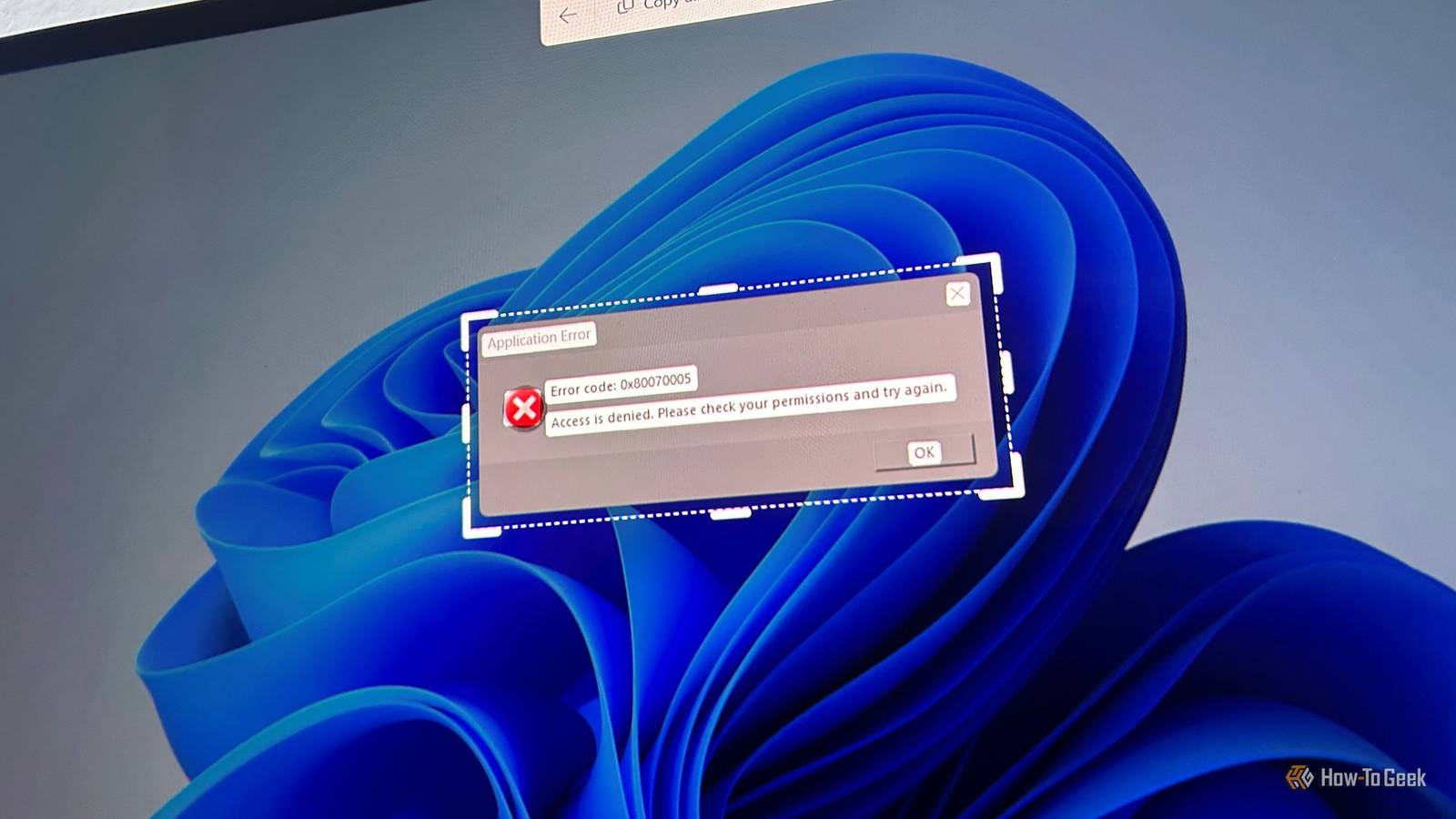
Published Oct 17, 2026, 8:00 AM EDT Tony Phillips is an experienced Microsoft Office user with a dual-honors degree in Linguistics and Hispanic Studies. Prior to starting with How-to Geek in January 2024, he worked as a document producer, data manager, and content creator for over ten years, and loves making spreadsheets and documents in his spare time. Tony is also an academic proofreader, experienced in reading, editing, and formatting over 3 million words of personal statements, resumes, reference letters, research proposals, and dissertations. Before joining How-To Geek, Tony formatted and wrote documents for legal firms, including contracts, Wills, and Powers of Attorney. Tony is obsessed with Microsoft Office! He will find any reason to create a spreadsheet, exploring ways to add complex formulas and discover new ways to make data tick. He also takes pride in producing Word documents that look the part. He has worked as a data manager in a secondary school in the UK and has years of experience in the classroom with Microsoft PowerPoint. He loves to encounter problems in Microsoft Office and use his expertise and legal-level training to find solutions. Outside of the Microsoft world, Tony is a keen dog owner and lover, football fan, astrophotographer, gardener, and golfer. There's nothing quite like getting an error message on your Windows PC, only to discover that you can't always copy the text to find out what went wrong. I used to resort to typing the message into a search engine until my sister showed me a keyboard shortcut I've used for troubleshooting ever since. Windows has a better way to copy unselectable text No more typing out error messages When an app displays an error message that won't let you select and copy its text, you might type the message into a search engine by hand, carefully copying a long error code or unfamiliar technical wording. Sometimes, you can click a message box's title bar, press Ctrl+C to copy its contents, then paste them into a search engine. But this only works with certain types of pop-ups. Thankfully, Windows has another way to extract text directly from your screen without having to guess whether Ctrl+C will work: Text Extractor. Microsoft previously offered a similar tool through PowerToys, but in 2025, Microsoft integrated the feature into Windows 11's built-in Snipping Tool—possibly because it realized how useful it is in scenarios like this. The technology behind it is called optical character recognition (OCR). It identifies letters and numbers in an image and converts them into text you can copy and paste. Windows can use OCR to extract the wording from an error dialog just as easily as it can from other text displayed on your screen. Copy error messages without typing them out Let Windows do the hard work The next time an error message appears, leave it open and press Win+Shift+T. Your cursor changes, allowing you to drag a rectangle around the text you want to capture. Include the error code and any explanatory wording that might help you find a solution. Once you've selected the area, Snipping Tool opens its Text Actions interface, where you can extract the text. Click Copy all text to put the extracted wording on your clipboard. You can then paste it into a search engine, a support forum, or the software developer's website to find a solution. A quick privacy reminder: Be careful not to paste license keys, credentials, or other sensitive info into public forums or AI chatbot sessions. The tool has a few quirks worth knowing about. First, make sure your selection is large enough to capture the text. If you select an area that's too small, the tool won't work. It's better to capture a little more than you need and remove the unwanted text afterward. Second, the tool works with rectangular selections, so you can't precisely exclude nearby info. If the error dialog contains buttons, headings, or other text you don't need, simply delete those bits after pasting. I generally leave the native tool's settings alone, although the option to remove line breaks can be handy when you're preparing a multiline error message for a search engine. One final tip: check the extracted text before searching. OCR can occasionally misread characters, and a single incorrect digit in an error code can send you down the wrong troubleshooting path. In my experience, though, OCR is usually pretty reliable. Don't confuse this with Win+T: That shortcut activates the Windows taskbar and lets you cycle through pinned apps. If you've already pressed Win+T, Win+Shift+T moves through those taskbar items in reverse order. Press Win+Shift+T on its own to launch text extraction. Error messages aren't the only things worth capturing Grab other troubleshooting clues, too Since my sister introduced me to this shortcut, I've found plenty of other occasions to use it. Error messages are the obvious example, but the same trick comes in handy whenever an app displays text you can't select and copy. For example, if a dialog box contains an option whose meaning isn't clear, you can capture its wording and search for an explanation before deciding what to do. This is particularly useful when you're navigating unfamiliar software and don't want to change a setting without understanding its purpose. You can also use text extraction to capture error codes and diagnostic info displayed in a command window. Rather than painstakingly typing a long string of characters, select the relevant area and copy the extracted text into a support request or use it to search for info online. PowerToys is still a useful alternative Try this if the native shortcut isn't available If the native Snipping Tool text extraction feature isn't available on your Windows 11 PC, you can still use Microsoft's PowerToys utility instead. PowerToys includes its own Text Extractor tool, which offers similar functionality and uses Win+Shift+T as its default activation shortcut. Once you've installed PowerToys and enabled Text Extractor, you can select text from your screen just as you would with the native tool. The interface differs slightly, with options to change the preferred language and format the extracted text as a single line or a table. Interestingly, PowerToys itself recommends using Snipping Tool instead of its own Text Extractor module. If the native feature works on your PC, there's little reason to install or enable an additional utility just for this task. Save yourself the typing Being able to extract an error message instead of typing it out makes troubleshooting that little bit easier. Once you've got the hang of Win+Shift+T, there are plenty of other ways to use it, from copying text from scanned documents to grabbing information from images and videos.
Error messages are notoriously difficult to copy and paste, but this quick Windows trick makes it easy
Full Article
Original Source
Read the full article at Howtogeek →KhanList aggregates and links to publicly available news content. We do not host full articles from third-party sources. Always verify important information with original sources.