
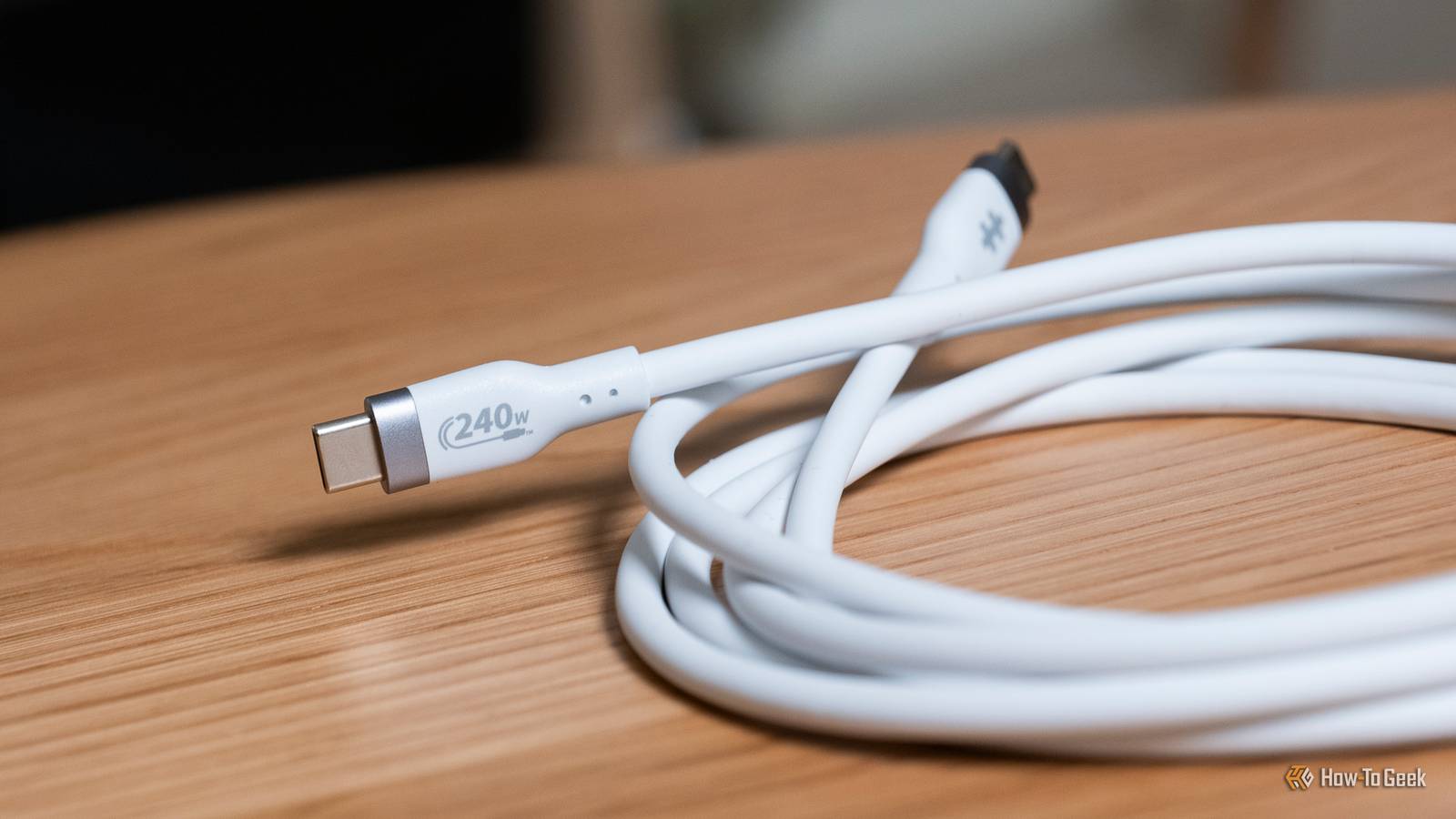
Published Sep 29, 2026, 6:00 AM EDT Patrick Campanale has been in the tech space for well over a decade, specializing in PC/gaming news and reviews, as well as maker-focused products to build small businesses. With a start in technology back in 2010 surrounding the Palm/webOS ecosystem, Patrick spent his formative years developing mobile applications as well as blogging for various publications, eventually leading to starting his own website in 2014. After running a technology blog for a few years, he stepped out of that role and into the world of high-end custom PC manufacturing and building, with a focus on YouTube video production and overclocking. Then, in 2017, Patrick joined the 9to5Toys team as an editor/writer/reviewer with over 14,000 articles being published during his time there, ranging from deals and roundups to in-depth reviews on the latest technology, video games, 3D printers, and more. In his free time, Patrick loves to create projects from wood using various robots and methods, including leveraging the technologies of CNCs and lasers. If Patrick isn't working on a computer or playing video games, he's likely in his 2-car garage workshop creating something unique. In addition to all this, Patrick is also the media director at his local church where he feels God has called him to serve, and he loves every minute of it. I love USB-C, but I also hate USB-C. We're in a weird relationship. But one label is the most frustrating of all — wattage. You see, it's entirely possible to have a USB-C cable that charges your device at 240W, but only moves data at 480Mb/s, so here's what you should look for instead. Wattage is only indicative of a single performance metric Apple's cables can carry up to 240W, but only transmit data at 480Mb/s When I got my first USB-C MacBook Pro back in 2016, I expected a lot from the included cable. It was an 87W USB-C charger, and the MacBook Pro had four Thunderbolt 3 ports on it. So, in my mind, the cable would be good for everything the laptop could do. Granted, this was an unproven time a decade ago when USB-C was still in its infancy. However, I was sorely mistaken about that. While the cable could carry 87W of power, it could only move data at 480Mb/s. That's USB 2.0 speeds. Today, you can buy a USB-C cable from Apple that's capable of 240W charging speeds, but it still only has USB 2.0 speeds. This was my first introduction to the mess that USB-C cables are, and I realized wattage only indicates charging performance, not speed. The problem is, 10 years later, that's still the case. I actually have a 240W-capable cable plugged into my MacBook Pro right now, but it can still only move data at 480Mb/s. Not every cable has to be marked with what data speeds it supports I've made the mistake myself Most USB-C cables are marked with how much charging power they can transmit. This actually makes sense, because for every device, charging speed matters. There are actually more USB 2.0 devices out there than you might think. Most manufacturers choose to only mark a cable with the charging speed because it's the only metric that matters to most people. It's cheap to make a slow cable that charges fast, at least, when compared to a fast-charging cable with fast transfer rates. For example, the iPhone 17 and the latest iPad are only USB 2.0. Most headphones are USB 2.0; often, wired mice are USB 2.0; a lot of tech is still USB 2.0. Manufacturers are building to the lowest common denominator because they can. While the latest Samsung Galaxy S26 series and Pixel 11 both feature USB 3.2 USB-C ports on them, when was the last time you plugged your phone into a computer to transfer a file? Since the majority of use cases for USB cables are just for charging, that's what most manufacturers produce. Always check for explicit specs and don't assume anything If a cable doesn't specify its speeds, expect it to be USB 2 Something I've learned over the years is to expect all USB-C cables to be USB 2.0 unless otherwise specified. If I'm purchasing a cable that I'll only use for charging, then I don't even worry about what USB data transfer rate it has. Often, I won't check it, and that has actually bitten me before, as some cables are charging only with no data transfer capabilities. However, if I need something that gives me a very specific data transfer rate, I always seek out that cable specifically. If I need a Thunderbolt cable, I look for the lightning bolt. USB4, I look for the logo. USB 3/3.1/3.2 is a bit more difficult. The USB cables for those speeds often have no differentiating markers on them physically, so it's all about the listing to make sure it works properly for your needs. I really need to go through my cable drawer and clear out a bunch of cables I just simply don't need anymore. But whenever I need a cable with a specific speed, I always plug in the device I want and then check to see what speed it can give. In macOS, I normally do that by going to System Information, then clicking on USB under the Hardware dropdown. This will tell me what USB devices are plugged in and what speed they are. Often, I'll find a cable is just 5Gb/s when I need 10Gb/s, for instance. On Windows, you can do the same thing in Device Manager by looking under the Universal Serial Bus controllers section. This is a bit more difficult to read than the System Information panel on macOS, but it definitely gives you what's needed to determine what speed your device is connected at. USB-C was supposed to be the solution, but it became a bigger problem I was so happy when USB-C was introduced. It was supposed to be the solution to all our USB problems. Faster charging, faster data transfers, reversible connection—it had it all. The problem is, the USB-IF (USB Implementers Forum), the nonprofit organization that creates and sets the USB standards, has not made things easy to understand. USB 3.2 isn't any faster than USB 3.0 — at least, not inherently. USB 3.2 can be 5Gb/s, 10Gb/s, or 20Gb/s. Oh, but USB 3.2 can also be USB 3.2 Gen 1 or Gen 2, or even Gen 2x2. Likewise, USB 2 is still very prevalent in devices because it's simply extremely cheap to implement. And while the USB-IF does require cables that receive the USB-IF certification to display charging and data transfer rates, some manufacturers choose not to get their cables certified, which means they don't have to print these specs on the cable.
Don’t judge a USB-C cable by its wattage alone—here's what to look for instead
Full Article
Original Source
Read the full article at Howtogeek →KhanList aggregates and links to publicly available news content. We do not host full articles from third-party sources. Always verify important information with original sources.