
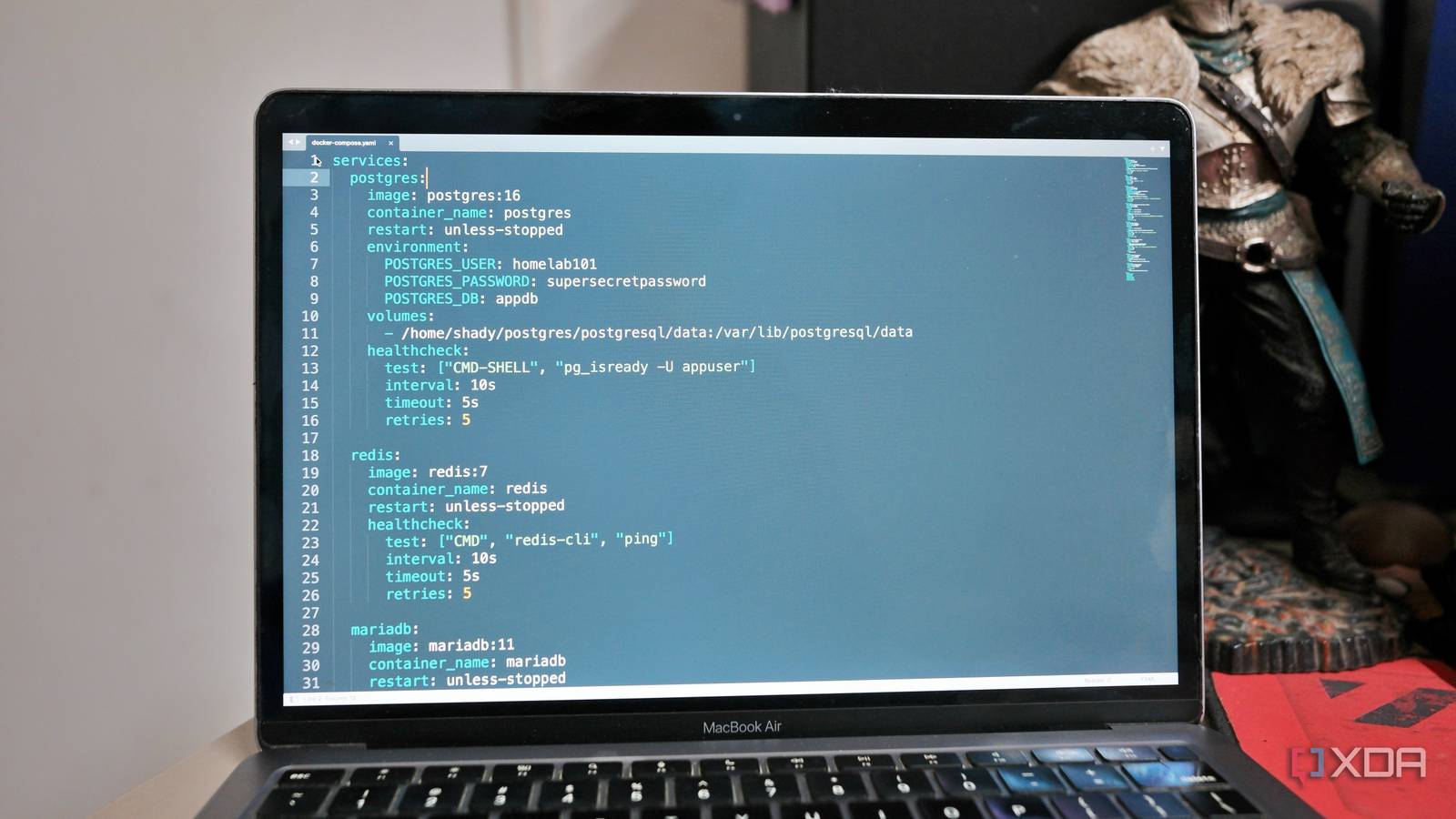
Published Sep 23, 2026, 11:00 AM EDT Samir Makwana is a technology journalist and editor from India since past 18 years and his work appears on MakeUseOf, HowToGeek, GSMArena, BGR, GuidingTech, The Inquisitr, TechInAsia, TechWiser, and others. He has written news, features, and gadget reviews for national technology media publications. His passion is to help people with their technology problems and gadget purchases. For that, he has worked for some of the biggest international technology publications, covering news, explainers, how-to guides, listicles, and product-buying guides. He has worked as an editor and managed teams since 2015. His expertise broadly covers computers, smartphones, game consoles, headphones, smart home products, browsers, and apps. Docker Compose made it easy to spin up my whole self-hosted stack with one file and one command. But what it didn’t do was tell me whether any of those containers were actually working or had crashed. I’d only find out something was broken when the web app became inaccessible or I saw database connection errors. By then, I’d already lost time chasing the problem. Adding a handful of extra lines to my compose file helped me change that. I no longer have to wait to run into issues since Docker tells me when something’s off. A running container stack isn’t always a working one I found broken containers only when I went looking for them The only way I knew something was wrong with a container was when I experienced the issue myself. And when I did, I’d open a terminal window, run docker ps command, and see a table of containers that were marked as Up. I’d assume all was fine. But then I’d reload the web app, clear the cache, and still get nothing. No error, just a blank page. Half of the time, the container itself was running just fine. The actual problem was buried somewhere else. The main service had locked up, or the app lost its connection to the database. As far as Docker was concerned, nothing was wrong. I followed the same fix: restart the container and get on with my day. But what actually got me was the lack of clarity about what went wrong until I ran into the problem myself. It caught me off guard, and I went to use the same app that had quietly stopped responding an hour earlier. Health checks tell Docker what working means A single block to report every container’s status individually Playing detective across a bunch of containers can get tiring fast. And I wanted to build my home lab, not troubleshoot it forever. I started adding the health check block into my compose files. With that block, Docker runs the command on schedule to report whether the container is healthy or unhealthy. Docker marks it as unhealthy if the command fails or times out. The only catch with health checks is that Docker runs the command inside the container itself. So I had to make sure the image actually had curl or wget installed. Databases needed a different set of tools: Postgres uses pg_isready, and Redis uses redis-cli ping to report their health status. I really found the start_period parameter helpful the hard way, all thanks to containers like Nextcloud and Immich. For containers that take a while to boot, Docker was flagging them as unhealthy before they’d even finished starting. By adding a grace period to the health check routine, Docker stopped marking them unhealthy prematurely. That’s where a restart policy comes in, but it only goes so far. Adding restart policies only covered crashes Fixing problems for anything that’s supposed to run 24/7 For the services running round the clock, this gap in Docker’s reporting actually matters. For example, Netdata is only useful for monitoring my network if it’s actually running. Same goes for my media server’s availability. I’d rather have Docker raise a flag and send me a notification than have someone in my house tell me Jellyfin is unreachable. I used the restart policy, but it only kicks in when a container exits. So if the web app is non-responsive, the container is still deemed alive. Since the process is running, Docker does nothing regardless of the health check. The restart policy made me look closely at how Docker handles a container that is frozen but still reported as running. The default unless-stopped option works for most things. To make Docker restart an actually unhealthy container, I use another helper container called autoheal. It watches container status and acts on it. I point Uptime Kuma at my services and get a notification the moment something flips. Uptime Kuma Key highlights Open-source monitor Uptime Kuma is a lightweight, easy-to-use monitoring tool that offers multiple ways to keep you up-to-date about the status of your self-hosted services Making apps start after other components are ready Setting resource limits helps manage the physical resources Dealing with containers that have separate database components is trickier than I expected. Earlier, the web app started without waiting for the database to be ready. That caused several containers to fail on boot. My Docker Compose file would spin up the database part first and wouldn’t wait for it to accept connections. That often left me confused with errors about failure to connect or crashing. With a simple condition called service_healthy, the app container waits until Postgres actually reports healthy before it attempts to start. That alone saved me several confusing troubleshooting sessions. For heavy containers that run all the time, setting resource limits allows me to accommodate other containers and experiments comfortably. Just like Portainer and other management interfaces offer sliders, I can set the CPU and memory usage limits for each container. Setting resource limits also keeps components from getting unnecessarily stressed, especially by heavy containers that run 24/7. Start with health checks and build everything around them When I started with Docker Compose, I skipped health checks to get containers running faster. That was a wrong call. Once a container knows its own health, everything else falls into place. Docker Compose respects the startup order, restart policies, and hands off status to external monitoring tools like Uptime Kuma. A few lines in the compose file do all of that heavy lifting. If you’re already organizing your Compose files or keeping secrets out of your config, health checks belong to the same sitting. Add those health check blocks first, and the rest of the stack behaves the way you expect. Docker Docker Desktop is a one-click-install application for your Mac, Linux, or Windows environment that lets you build, share, and run containerized applications and microservices. It provides a straightforward GUI (Graphical User Interface) that lets you manage your containers, applications, and images directly from your machine. Docker Desktop reduces the time spent on complex setups so you can focus on writing code. It takes care of port mappings, file system concerns, and other default settings, and is regularly updated with bug fixes and security updates.
Docker containers can fail without crashing, and this one setting catches them before your users do
Full Article
Original Source
Read the full article at Xda-developers →KhanList aggregates and links to publicly available news content. We do not host full articles from third-party sources. Always verify important information with original sources.