
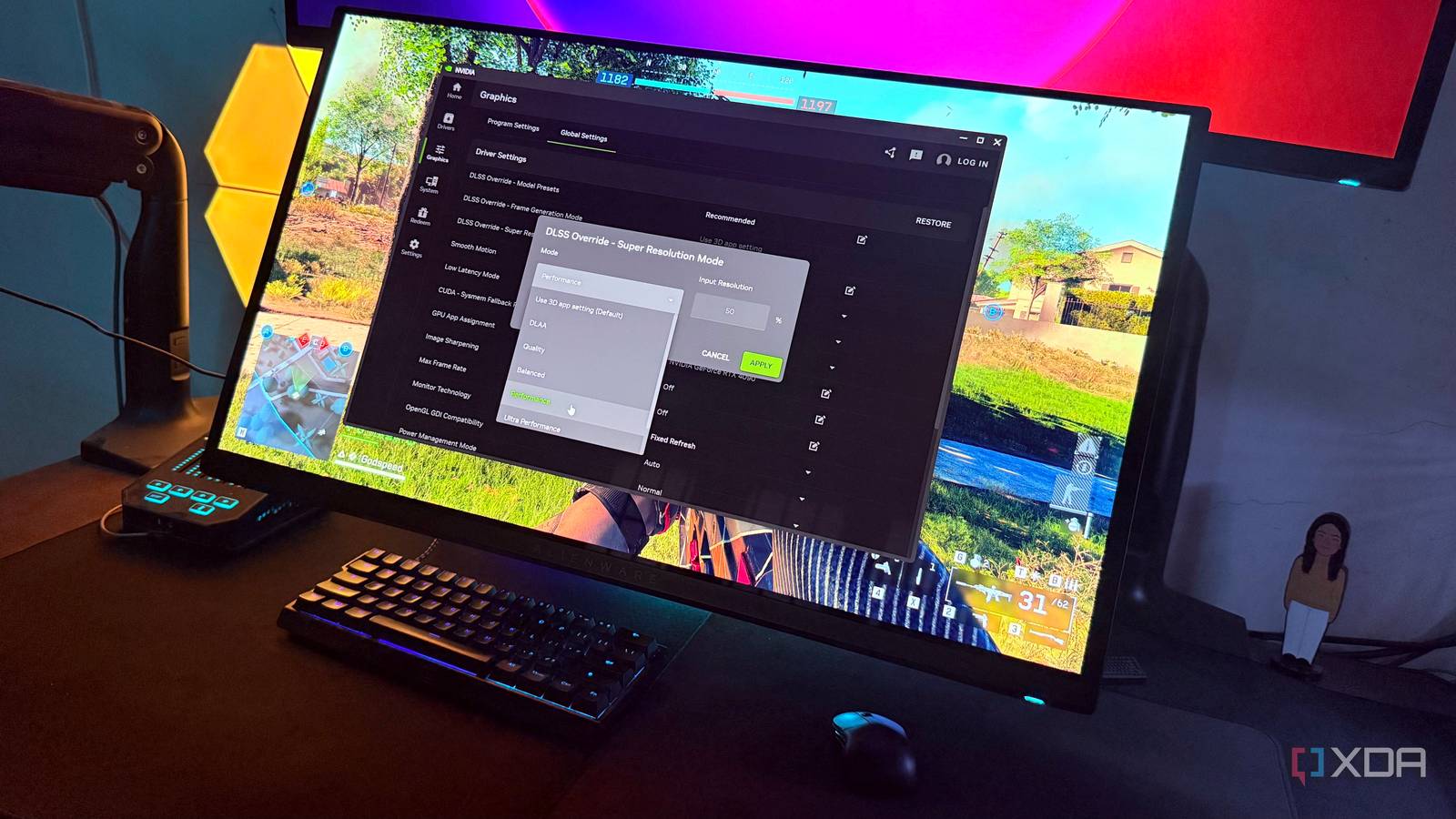
Published Sep 7, 2026, 8:00 AM EDT Hamlin has been in the tech field for over nine years. Since 2017, his work has appeared on MakeUseOf, Android Police, OSXDaily, Beebom, and more. He served as the Senior Editor at Valnet's MakeUseOf for over two years before joining XDA. He uses a high-end gaming rig for desktop use and a MacBook for traveling, but dislikes some of the quirks of macOS. You're more likely to catch him at the gym or on a flight than anywhere else. It's no secret that DLSS has come a long way in recent years. Not too long ago, enabling DLSS, even in Quality mode, could make the image look like someone smeared Vaseline across my screen. Ever since Nvidia released DLSS 4 last year, though, I have become way more comfortable using it because the upscaled image looks almost as good as native 4K. And earlier this year, Nvidia took things further with DLSS 4.5 by introducing two new presets for Performance and Ultra Performance modes. Right now, Quality mode still uses DLSS 4's first-gen transformer model by default, while Performance mode gets the newer Preset M that Nvidia introduced alongside DLSS 4.5. It only took me a couple of minutes to notice the extra sharpness and motion stability, and I finally feel like Performance mode is worth using from an image-quality standpoint. Still, I would rather stick to Quality or Balanced because Performance mode introduces a completely different problem that's inherent to how upscaling works. The problem is Performance mode's render resolution Lower render resolution makes games more CPU-bound It doesn't really matter how much Nvidia improves image quality with future versions of DLSS because my main problem with Performance mode has nothing to do with how it looks anymore. It's all about the render scale Performance mode uses: 50%. This means that at 4K, the internal render resolution is 1080p, which takes a significant amount of load off the GPU. Sure, that's the whole point of using DLSS in the first place, but there's only so much you can do before your CPU starts bottlenecking your GPU. Remember that 1080p is the resolution reviewers use for CPU benchmarks. They pair it with flagship GPUs specifically to minimize GPU bottlenecks and widen the gap between CPUs. It's fine if a game is too demanding at 4K with ray tracing, but if you're already getting decent numbers, dropping the render resolution to chase higher frame rates is less likely to give you the uplift you're expecting. That said, I mainly game on my 1440p OLED, where Performance mode's render resolution is 720p. So you can see why it's a no-go for me. My CPU/GPU pairing makes matters worse The better your GPU, the faster your CPU needs to be Of course, how quickly you run into a CPU bottleneck depends a lot on your hardware configuration. But for me, that's the biggest problem right now. I have an RTX 4090 paired with a Ryzen 7 5800X3D, which was one of the fastest CPUs available when Nvidia launched this card in 2022. Still, it's not fast enough to keep up with my GPU at 1080p, let alone 720p, unless I'm playing a demanding ray-traced title like Cyberpunk 2077 or Assassin's Creed: Shadows. On my 1440p monitor, even DLSS Quality shifts the bottleneck to the CPU in fast-paced games like Battlefield 6 and Call of Duty: Warzone because the render resolution is 960p. So I know for a fact that Performance mode is barely going to move my frame rate. To make the 720p render resolution remotely viable, I'd need something much faster, like the 9850X3D. Even then, you're not going to completely rule out CPU bottlenecks, especially if you have it paired with a flagship GPU like the RTX 4090 or 5090. Performance mode makes more sense for 4K upscaling Especially if you have a mid-range GPU, but I still mostly game at 1440p If you have a mid-range GPU like the RTX 5070 Ti or even an entry-level one like the 5060 Ti, I'd say Performance mode is actually your best bet. These GPUs aren't powerful enough for native 4K gaming, so using DLSS is a no-brainer. Performance mode takes more load off your card, so as long as you have a decently fast CPU like the 7700X3D or a 9700X, you won't run into the same problem I did with my RTX 4090 and 5800X3D. You're far more likely to be impressed by how close it looks to native 4K. But that doesn't really change my stance on this mode because I still use my 1440p/360Hz OLED for AAA games. My 4K monitor is an LCD, so I don't really feel like switching to it just to use Performance mode without running into a CPU bottleneck. I'd rather stick to Quality and keep my GPU usage reasonably high. And if there's still some CPU bottleneck, I'd switch to DLAA and use that extra headroom to eliminate TAA blur and get the best image quality possible. I now use DLSS 4.5's new presets with Quality mode On the bright side, I don't have to use Performance mode to take advantage of DLSS 4.5's new presets. The Nvidia App lets me override the model presets while still selecting Quality mode in-game. I now use Preset L, which Nvidia recommends for Ultra Performance, with Quality mode. This way, I still get the image quality improvements from the second-generation transformer model without making my CPU bottleneck worse with Performance mode's lower render resolution. Yes, these newer presets tax my GPU more, but I don't mind that at all at 1440p. For you, though, that image quality improvement might be all you need to game at 4K with your mid-range GPU.
DLSS 4.5 made Performance mode look better, but my CPU can't handle what comes next
Full Article
Original Source
Read the full article at Xda-developers →KhanList aggregates and links to publicly available news content. We do not host full articles from third-party sources. Always verify important information with original sources.