
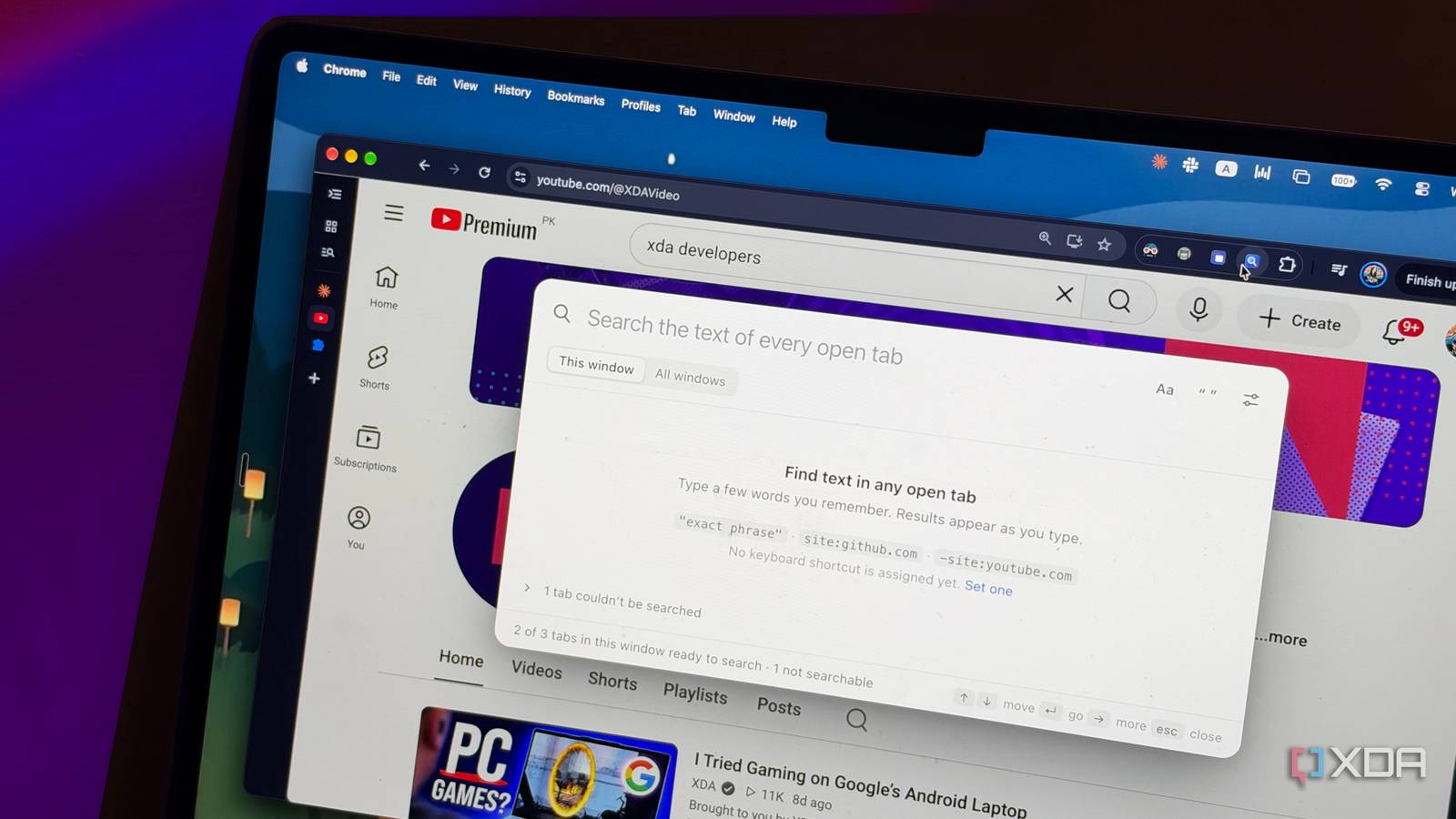
Published Nov 19, 2026, 6:00 AM EST Mahnoor Faisal is a tech journalist covering AI and productivity tools with bylines at XDA, SlashGear, MakeUseOf, Laptop Mag, and Android Police. She's been writing professionally since she was sixteen, and has since penned hundreds of articles. This includes in-depth coverage of AI tools like NotebookLM to breaking news across the AI space. Her passion for technology started when she received her first iPod Touch (4th generation) on her 8th birthday, and she's been deep in the tech world ever since. Currently pursuing a degree in computer science, Mahnoor brings both a journalist's eye and a technical foundation to her coverage of how AI is reshaping the way we work and learn. One of the very first programming courses I ever took focused on building Chrome extensions. I've always enjoyed experimenting with Chrome extensions more than installing desktop apps, since they let me add little features to the browser I already spend most of my day in. Though I don't remember all that much from the course I took back then, I do remember the frustration of not being able to bring the many ideas I had to life. It largely came down to two things: a lack of time and limited coding experience. I knew exactly what I wanted an extension to do, but figuring out how to actually make it work the way I imagined was a different story entirely. With AI coding tools like Claude Code now in the picture, it's a very different experience. I recently used it to build an extension I've wanted to for years, and it took me a single evening. Searching through dozens of open tabs can be a nightmare Cmd+F is great until you don’t know which tab to search I'm sure Ctrl/Cmd + F is a keyboard shortcut you constantly use. In the rare case that you aren't familiar with it, it lets you search for a specific word or phrase on the webpage you're currently viewing. It's incredibly useful when you're trying to find a particular piece of information buried in a lengthy webpage or document. However, there's one limitation that's always bothered me, and I doubt I'm the only one! The shortcut only works on the tab you're currently on. For instance, say you're on XDA's website reading an article and searching for Claude Code. Here, you'll see every instance of the phrase highlighted on that particular webpage. Now, let's tweak the same scenario a bit. What if you remember reading something about Claude Code in another article you had open, but can't pinpoint which one? You know you have the exact article open in your current tabs, but with dozens of them open, finding it isn't exactly easy. Your only option is to switch between tabs and use Cmd+F on each one until you eventually land on the right article. As a journalist, this is a problem I know all too well. Unlike the Claude Code example, though, I'm usually juggling dozens of tabs containing research material, articles, documentation, and sources for different pieces I'm working on. I'll remember coming across a particular statistic, quote, or piece of information somewhere, but have absolutely no recollection of which tab I found it in. I've always wished there were a way to search through the actual contents of all my open tabs at once, without having to go through them individually. Essentially, I wanted a universal Cmd+F for my entire browser. While such a Chrome extension may certainly exist, I could never really find one that fit my workflow perfectly. So, I did exactly what anyone with a subscription to an AI tool would do: I attempted to vibe-code it myself. Fable 5.2 one-shotted the Chrome extension I'd wanted for years One prompt later, I had my very own Chrome extension I opened Claude Code on the web, switched to Auto mode, set the model to Fable 5.2, and gave it fairly detailed instructions on exactly what I was looking for. I wanted an extension that would let me search through the actual contents of every tab I had open, rather than just the tab titles or URLs. I wanted it to work like a universal Cmd+F for my browser, with a Spotlight-inspired search interface that would appear directly on top of whatever webpage I was viewing. I've uploaded the Chrome extension Claude Code built for me to a GitHub repository. If you'd like to try it out yourself, you can find it here! I also had a few specific features in mind. For instance, I wanted the extension to show me snippets of text containing my search term, let me jump directly to the exact paragraph where it appeared, and highlight the matching text. I also asked for filters to narrow searches down to specific websites, tab groups, or browser windows, along with support for exact phrases, case-sensitive searches, and search history. I also wanted the entire thing to work locally, without requiring an API key, backend, or AI model. I gave Claude Code that single prompt, and it got straight to work. It began by building the extension's core search engine, followed by the interface, icons, and tests. It also ran into a few issues along the way, including some failing browser tests and a bug that caused text entered into one of the filters to disappear. Fortunately, it identified and fixed these issues itself without me having to step in. Find Everywhere has made my workflow a whole lot easier The best extensions solve the smallest annoyances By the time Claude Code was done building, I had a fully functional Chrome extension called Find Everywhere that I could begin testing immediately. Claude had taken the additional step of testing the extension itself, too, running 25 browser checks and 13 unit tests, all of which passed. It also tested how the extension performed with 40 tabs open, each containing 250,000 characters of text, and reported that it could scan their contents in roughly 0.7 seconds. I've been using the extension for a few days now, many times with over 40 tabs open, and it's been super impressive. For instance, I had a Google document with 271 pages open, along with a bunch of other work-related tabs. I decided to search for something towards the middle of the lengthy document, and the extension accurately found what I was looking for within seconds. Yes, I could've done this by heading to the Google Doc and hitting Cmd + F, but that would've required me to know exactly which tab contained the information I was looking for in the first place. That's the whole point of Find Everywhere! I don't need to remember which tab I read something in, or waste time switching between dozens of tabs trying to find it. I can just search for the phrase once and let the extension figure out where it is. One feature I particularly appreciate is how Find Everywhere displays its search results. Instead of simply listing the tabs containing my search term, it shows me exactly how many times the term appears in each tab. I can then expand the results to see every individual occurrence, along with a snippet of the surrounding text. The matching term is highlighted in each snippet, too! For instance, when I searched for "prompt" with 19 tabs open, the extension found 21 matches across five tabs. One of those tabs contained four matches, while another had three, and I could see each one individually without having to open the actual webpage. Clicking on a specific match would then take me straight to that part of the page, rather than just opening the tab and leaving me to find it myself. The only tabs the extension doesn't search through are Chrome's internal pages, such as the Extensions tab and the New Tab page, because Chrome restricts extensions from accessing their contents. The extension also lets me search either the current window or across all Chrome windows, and I have the option to hide specific websites from my search results altogether. I've done countless experiments with Claude Code, and this is by far one of the most useful things I've built with it. It's not the most complicated or groundbreaking project, but it's something that solves a problem I've dealt with for years and makes my everyday workflow significantly easier.
Ctrl+F only searches one tab, so I used Claude Code to build an extension that searches them all
Full Article
Original Source
Read the full article at Xda-developers →KhanList aggregates and links to publicly available news content. We do not host full articles from third-party sources. Always verify important information with original sources.