
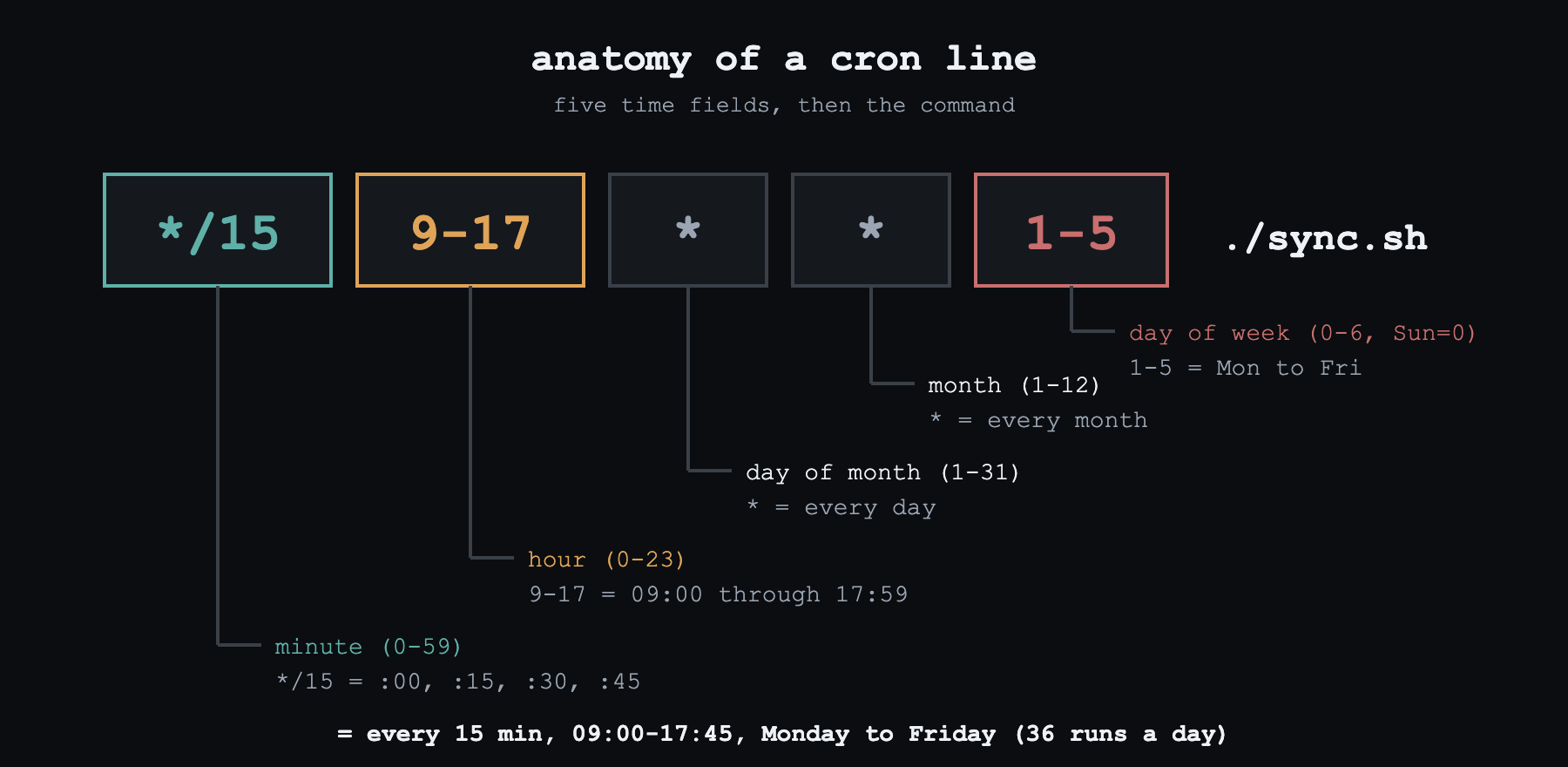
Every backend has a few jobs nobody looks at. The nightly backup. The 9 AM report. The script that deletes old files. Each one is a single line of cron. They work fine for months. Then one day you find out the backup hasn't run since March. Nobody noticed. This post is about that one line: what it means, where to run it, and how to hear about it when it stops. What cron actually is cron - a program that runs in the background on Unix machines. It starts commands on a schedule. Each scheduled command is a cron job. All the jobs live in one file, the crontab (cron table). You edit it with crontab -e. the name comes from Chronos, the Greek word for time Think of it as an alarm clock. But instead of ringing, it runs a program. Cron is old. It first shipped in 1979. Most Linux machines today still run a version based on Paul Vixie's rewrite from 1987. In 2025 the syntax finally got a real written standard, OCPS 1.0. GitHub Actions, Kubernetes, and AWS all use the same kind of line, with small changes. One thing to know first: cron has no memory. Every minute it wakes up. It checks each line: "should this run right now?" It runs the ones that match. Then it goes back to sleep. It doesn't know what it ran yesterday. If the machine was off at 02:00, the 02:00 job just doesn't happen. Nothing runs it later. (For laptops that sleep a lot, use anacron instead.) Remember this. Most of the tips below exist because of it. How to read a cron line read left to right: minute, hour, day of month, month, day of week, then the command Each field is a filter. Cron checks all five every minute. If all five say yes, the job runs. You only need four symbols for almost everything: Symbol Means Example * every value * in hour = every hour , a list 1,15 = the 1st and the 15th - a range 1-5 = Monday to Friday / a step */15 = 0, 15, 30, 45 There are also shortcuts, like @daily (same as 0 0 * * *) and @hourly. But not every tool supports them. GitHub Actions doesn't. Write all five fields and it works everywhere. Two examples, read slowly */15 9-17 * * 1-5 - every 15 minutes, starting at 9 AM, Monday to Friday. The trap: 9-17 means "any minute where the hour is 9 to 17". So the whole 17th hour counts. The last run is at 17:45, not 17:00. That's 36 runs a day. Want to stop at exactly 17:00? Use 9-16, then add one more line: 0 17 * * 1-5. next runs from Mon 2026-10-05: 09:00, 09:15, 09:30 ... 17:45 (checked with croniter) 0 3 1,15 * 5 - you'd read it as "03:00 on the 1st and 15th, but only if it's Friday". Wrong. If both day fields are set (neither one is *), cron uses OR, not AND. So it runs on the 1st, on the 15th, and every Friday. In October 2026 that's the 1st, 2nd, 9th, 15th, 16th, 23rd, and 30th. Seven runs in one month. You probably expected zero. the oldest cron surprise, and it's in the rules on purpose Not sure what a line does? Paste it into crontab.guru. Or print the next few run times with a library: croniter in Python, cron-parser in Node. Do this before you deploy. Where to run it: GitHub Actions You don't need a server for this. Add a workflow file to .github/workflows/ with a schedule trigger: on: schedule: - cron: '30 5 * * 1-5' # always quote: a value starting with * breaks YAML timezone: "America/New_York" # optional, default is UTC workflow_dispatch: # lets you run it by hand too jobs: report: runs-on: ubuntu-latest steps: - uses: actions/checkout@v4 - run: ./scripts/daily-report.sh Enter fullscreen mode Exit fullscreen mode What people learn the hard way: It runs in UTC by default. The timezone key is optional and fairly new. Every 5 minutes is the fastest you can go. Runs can be late, or dropped. This happens when GitHub is busy. The top of every hour is the busiest time. So use minute 17, not minute 0. Only the default branch counts. A schedule on your feature branch never runs. Public repos with no activity for 60 days get their schedules turned off. Good for anything that's fine a few minutes late. Bad for anything that must run on time. Where to run it: Docker You can put normal cron in a container. It will start. But it fails in three ways, and none of them show an error: Your job can't see env vars. Cron starts each job with an almost empty env. You set DATABASE_URL on the container, but the job never gets it. Your logs are empty. Cron sends job output to email or syslog, not to stdout. So docker logs shows nothing, even when the job fails. Stopping the container can break data. In a container, cron is often the main process (PID 1). When Docker stops the container, cron doesn't wait for jobs to finish. A job can get killed halfway through writing a file. Most people fix this with supercronic. It's a cron made for containers: FROM debian:bookworm-slim # install supercronic binary (see its README for the pinned URL + checksum) COPY crontab /app/crontab CMD ["supercronic", "/app/crontab"] Enter fullscreen mode Exit fullscreen mode It gives every job the container's env vars. It writes job output to the container log. It shuts down cleanly on SIGTERM. And it won't start a job again while the last run is still going. Add supercronic -test crontab to your CI. It catches a broken line before you deploy. Don't want to change your images? Try ofelia. It reads schedules from Docker labels. It can run a command inside a container that's already running (job-exec). Or it can start a new container for each run (job-run). Where to run it: Kubernetes Kubernetes has cron built in. It's called a CronJob. It doesn't run your code by itself. It's a template. Each time the schedule fires, it creates a new Job. Each Job starts one or more Pods. CronJob → one Job per run → Pods, with retries inside each Job apiVersion: batch/v1 kind: CronJob metadata: name: nightly-backup # max 52 characters spec: schedule: "17 2 * * *" timeZone: "Europe/Kyiv" # GA since v1.27 concurrencyPolicy: Forbid # never two at once startingDeadlineSeconds: 600 # too late by 10 min? skip it successfulJobsHistoryLimit: 3 failedJobsHistoryLimit: 3 jobTemplate: spec: backoffLimit: 2 # default is 6 retries activeDeadlineSeconds: 3600 # kill it after an hour ttlSecondsAfterFinished: 86400 template: spec: restartPolicy: Never containers: - name: backup image: myorg/backup:1.4.2 args: ["--target", "s3://backups"] Enter fullscreen mode Exit fullscreen mode The most important field is concurrencyPolicy. It answers one question: the next run is due, but the last one isn't done yet. What now? Allow piles up, Forbid skips, Replace kills. Choose on purpose. The default is Allow. Two more things from the docs. First, without timeZone, the schedule uses the time zone of the cluster's controller. Not yours. Second, Kubernetes says a CronJob can create two Jobs for one run. Or none at all. So, in their words, your jobs "should be idempotent." To test it now, start one run by hand: kubectl create job --from=cronjob/nightly-backup test-run. On AWS, use EventBridge Scheduler. Its cron has six fields (a year at the end), and one day field must be ?. A normal crontab line gets rejected. Best practices Idempotent - running it twice gives the same result as running it once. "Set today's total to X" is idempotent. "Add today's sales to the total" is not. Run that twice and your revenue doubles. the one rule that makes every other failure harmless Make every job idempotent. Then retries, double runs, and manual reruns can't hurt you. Stop overlaps. On a normal server, use flock: */5 * * * * flock -n /run/lock/sync.lock /usr/local/bin/sync.sh. If the lock is taken, the new run just exits. Set a time limit. Use timeout 2h ./job.sh, or activeDeadlineSeconds in Kubernetes. Without it, one stuck job blocks every run after it. Use UTC. Local time has daylight saving. In spring, a 02:30 job can get skipped. In autumn, it can run twice. It depends on your cron version. If you must use local time, don't schedule between 01:00 and 03:00. Don't use minute 0. Everyone does. Spread your jobs out. Or add a small random delay, so a hundred servers don't hit one database at the same second. Use full paths and set your env. Cron's PATH is tiny (/usr/bin:/bin). Its shell is /bin/sh, not bash. "It works in my terminal" means nothing here. Escape %. In a crontab, % means a new line. So date +%F breaks without an error. Write date +\%F. Log to somewhere you'll read. Use >> /var/log/job.log 2>&1, or stdout in a container. But a log is not an alert. Nobody reads the log of a job that never started. Keep crontabs in git. Someone typed a line into crontab -e on a server in 2021? Nobody will ever find it. Treat jobs like prod services. Wire up the same APM and error tracking as your app: Sentry, New Relic, Rollbar. Ship logs, traces, and metrics like duration and memory. Then a slow or failing job shows up on the same dashboards as your API. Know when it didn't run That last problem is the big one. When a job crashes, you see an error. When it never runs, you see nothing. Maybe the server was down. Maybe cron was off. Maybe someone deleted the line. There's no error to catch. So flip it around: alert on silence. a dead man's switch: silence is the alarm Here's how it works. The job sends a ping to a monitor when it's done. The monitor knows the schedule. If no ping comes by the expected time (plus a little extra time), you get an alert. It's one curl at the end of the job: 0 2 * * * /opt/backup.sh && curl -fsS -m 10 --retry 5 -o /dev/null https://hc-ping.com/ Enter fullscreen mode Exit fullscreen mode 3 services that do this for you Service Free plan Why pick it Healthchecks.io 20 checks Open source (BSD). You can self-host it. Knows cron syntax and time zones. Has /start and /fail pings. Can send the exit code with /$?. Cronitor 5 monitors Its CLI reads your crontab and wraps each line for you (cronitor exec). Also tracks how long each run takes. Sentry Crons 1 monitor Already on Sentry? Missed or slow runs show up as issues, right next to that job's errors. Prices change, so check first. For a side project, free Healthchecks.io is enough. Team already on Sentry? Keep alerts there. What to actually do Read each line out loud before you deploy it. Print the next five runs. Use the platform you already have. GitHub Actions if late is okay. supercronic in Docker. A CronJob with Forbid and a deadline in Kubernetes. Make each job safe to run twice. Then add that one curl. It tells you when a job didn't run at all, and that's the failure you'd never see on your own. Useful links crontab(5) man page - the official syntax reference crontab.guru - paste a line, read it in plain English GitHub Docs: schedule event - limits and delays Kubernetes: CronJob - every field explained supercronic - cron for containers Healthchecks.io: how Debian cron handles DST - the full daylight saving story Elsewhere GitHub · LinkedIn · Dev.to · Substack · 4thwithme.dev/blog May the --force be with you. See you next week.
Cron jobs: the tiny line that runs half your backend
Full Article
Original Source
Read the full article at Dev →KhanList aggregates and links to publicly available news content. We do not host full articles from third-party sources. Always verify important information with original sources.