
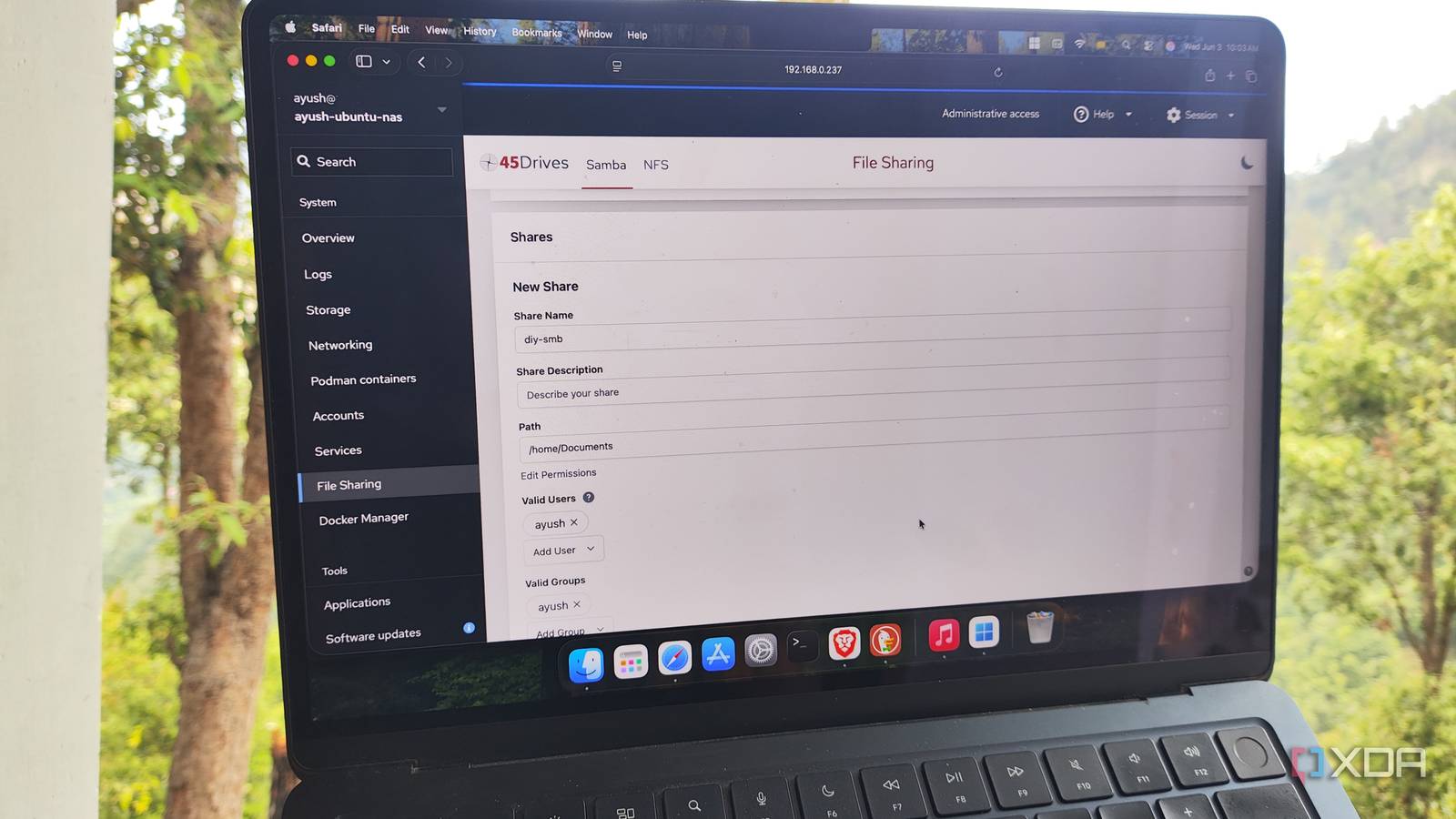
Published Sep 20, 2026, 6:00 PM EDT Ayush Pande is a PC hardware and gaming writer. When he's not working on a new article, you can find him with his head stuck inside a PC or tinkering with a server operating system. Besides computing, his interests include spending hours in long RPGs, yelling at his friends in co-op games, and practicing guitar. I’ve been repurposing old systems into server workstations for a while, and managing resource consumption is by far one of the biggest hurdles when dealing with cheap dinosaur rigs. Linux distros are pretty neat for reviving Windows machines from the bygone era, but desktop environments tend to siphon a lot of CPU and memory resources that I’d otherwise like to allocate to my virtualized apps. In contrast, CLI distributions don’t have too much processing overhead, but managing everything from a terminal interface can get a bit frustrating. That’s where Cockpit comes into the equation, as it lets me tinker with all the aspects of my headless servers without forcing me to give up on the easy-to-access nature of a management frontend. It also packs all the essential management tools for my server nodes Debian’s CLI variant and Ubuntu Server are typically my first choice for revitalizing old systems into standalone Docker/Podman-powered container-hosting setups, but managing them with terminal command alone would be far too tedious. On standalone rigs, I often have package updates to contend with, server logs to sort through, account privileges to fine-tune, and a bunch of other tedious tasks to look into. That’s before you include all the storage pools, NFS mounts, and I/O devices that I often configure on these old systems. Sure, I could SSH into every machine, but doing so gets annoying when you’ve got multiple nodes with their own accounts, drives, and network shares. A desktop environment can definitely help manage these aspects, but even the most lightweight ones out there can take away precious resources from my server projects. Cockpit, however, solves my server management conundrum with its minimalist web interface. Besides capturing detailed hardware specs of my servers, it records the CPU consumption, memory usage, storage allocation, and network speed statistics of the entire system. Likewise, it pulls all the system logs and categorizes them in different security and risk levels, so I can stay on top of kernel panics, broken storage, and other critical issues without getting overwhelmed by out-of-date package alerts. Cockpit also ships with different Storage settings, and I can even create RAID devices, edit partition tables, and configure NFS shares. The same applies to network options, as Cockpit can tweak the bond, bridge, and VLAN settings for all interfaces alongside their IPV4, IPv6, and MTU settings. I don’t usually mess around with the user accounts beyond adding a new local user, but everytime I end up encountering privilege issues with non-root accounts, I can tweak a bunch of permission settings on Cockpit. As for package updates, Cockpit has a dedicated tab where I can check out the latest releases of all my apps and install the ones I want to update. For the not-so-rare instances when things go catastrophically wrong and a web UI can’t help with troubleshooting, the terminal section within Cockpit lets me execute as many commands as I need. Since I can add multiple nodes to the same Cockpit UI, I can use a centralized interface to manage practically every server rig in my home lab. And that’s the base version of Cockpit… Cockpit’s plugins increase its utility multifold With the right plugins, Cockpit becomes powerful enough to control minimal NAS servers So far, I’ve only highlighted the options available in a barebones Cockpit instance. However, this web management UI can be customized with a bunch of plugins. For example, when I wanted to create a barebones NAS setup, the cockpit-file-sharing plugin from 45Drives helped me add Samba, iSCSI, and S3 storage management tools to Cockpit, while cockpit-navigator brought a full-on file browser to this control interface. For extremely low-power systems that can only run containerized services, cockpit-podman is my go-to plugin, but I’ve also relied on the now-deprecated Docker plugin before I moved to Dockhand. The cockpit-machines plugin deserves some love as well. Sure, I prefer Proxmox’s web UI to control my virtual machines ever since I laid my hands on the virtualization platform, but cockpit-machines includes all the VM management options I could ask for. The best part? Cockpit is extremely lightweight Despite all its features, Cockpit barely consumes any resources. The static pages barely need any CPU or memory investment to run, and even with historical metrics enabled, Cockpit’s footprint on the distro’s boot drive is fairly minimal. Essentially, Cockpit provides similar accessibility features as typical desktop environments while draining a fraction of the resources hogged by their GUI elements. Cockpit Cockpit is a web-based graphical user interface to manage Linux-based servers and computers, like Raspberry Pi. You can monitor system health statistics, manage services, and even remote access with it.
Cockpit gave my headless server a face without giving it an entire desktop environment
Full Article
Original Source
Read the full article at Xda-developers →KhanList aggregates and links to publicly available news content. We do not host full articles from third-party sources. Always verify important information with original sources.