
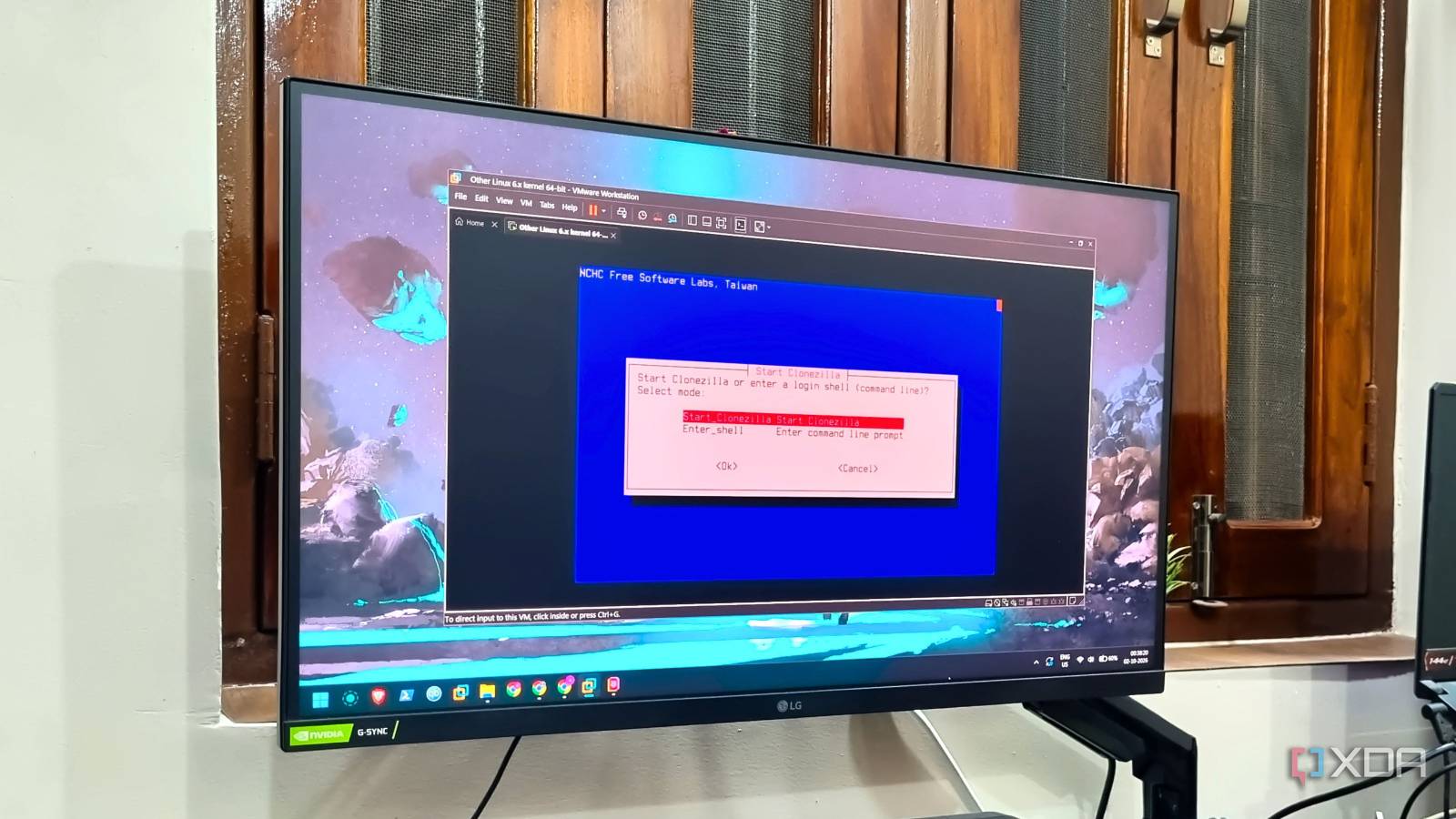
Published Oct 4, 2026, 9:00 AM EDT Abhishek is an author at XDA who covers computing. He has loved computers since he got the Lenovo G570 in 2012. Abhishek holds a master's degree in computer applications and began his writing career in 2018. He loves writing how-to articles, listicles, and informational posts on popular operating systems and web services. He closely follows the Windows Insider program and tests new Insider builds to discover upcoming experimental features and upgrades. His past work includes long-term collaborations with reputed publications like Tom's Hardware, and Windows Latest. When not writing anything, he is busy watching new episodes of One Piece or searching for something binge-worthy. Tools that used to be great are now either abandoned or have a better alternative. Disk copying or cloning isn't a new thing. I've been cloning disks for quite a while, and Clonezilla is my unchanged preference. It's a simple tool that's miles better than copying a bunch of folders or complete drives to another one. You can also use it to create manual backups or move data to a different drive if the PC doesn't boot. Clonezilla tries to cover every possible angle where you may need disk cloning. It also has a myriad of options, using which you can customize the system image or backup creation. Let's explore why it's my go-to tool for anything disk-related. Disk cloning and system images are essential Multiple systems benefit from them I have multiple systems, and some run Windows while others run Linux. I don’t create system images of my main system that often. But that’s not the case for other systems and virtual machines in my home. I use an old laptop as a home server/experimentation device and frequently swap distros on it. However, I prefer keeping MX Linux on it as the main distro because it has all my necessary tools and Docker setups. If I don’t create a system image backup with Clonezilla, I would have to reinstall MX Linux every time I finish a new experiment. That’s an uphill battle that requires me to first set up the OS, configure the system, and install packages. It’s a total waste of time, but a Clonezilla system image makes the job easy. I can just use the tool’s interface to restore the system image to the laptop’s hard drive. It saves me the hassle of interacting with the OS install menus, settings, and other options. The same is applicable to one of my Windows 11 Insider machines. Sometimes updates don’t go as planned, or a customization tool wrecks the system, making it completely unusable. In such scenarios, I can revert to the original system state by using the system image created with the tool. Another use case is when you want to replace a very old storage disk with a high risk of malfunction. S.M.A.R.T score checkups of any tool can tell you about the drive's condition, and you can use Clonezilla to either restore a system image or perform direct disk-to-disk cloning on the new drive. I used this option to upgrade to an SSD on one of my old laptops. It had Zorin OS installed, and I wanted to skip the OS install and move everything to the new storage drive. Old but still reliable Boots from a USB drive Plenty of disk-copy, backup, or cloning tools can run from a working system. But very few offer the option to run at boot. Clonezilla is one of those utilities that runs from a USB drive and can even run when your Windows or Linux installation goes blank. I've dealt with my fair share of unbootable OS after a disastrous registry tweak or experimenting with apps. Its image backups have saved me every time. Even if there's something to salvage from the existing install, I have done it with the tool's live ISO. The tool isn't flashy by today's standards. In contrast, even Ventoy’s boot menu looks better than Clonezilla's interface. I maintain a dedicated Ventoy drive with ten special tools, and Clonezilla is one of them. The best part of Ventoy is that you don't need to create a bootable USB drive every time you need a tool or OS installation. Simply copying the ISO file to the Ventoy drive does the trick. If you're curious as to why Clonezilla cannot run as an app, it's due to its design philosophy. The tool cannot work on live partitions, which means it can only clone drives before the OS boots. Pre-included checks with diverse cloning options Covering all bases Clonezilla might not look visually appealing like a modern tool. But it includes every check needed for a foolproof system image or disk-to-disk backup. The whiptail menu design might look intimidating at first, but I still find it beginner-friendly. If you’ve ever used something like DiskPart on Windows, which is purely CLI, you’ll understand the problem. Whiptail menus make the overall navigation very easy, and you only need to use the keyboard buttons to create or restore a backup. The tool detects whether an external drive is connected to the system or not and suggests checking and repairing the file system before mounting. Sometimes the cloning or system image creation job fails because of inherent issues. Clonezilla can do a post-job check to ensure that the created image is usable for recovery. You can apply encryption to the images, but I highly doubt that you’ll do that for a home machine. Clonezilla can create and save the log file of the job on the USB drive. The advanced mode grants you a little more liberty, but I prefer the beginner mode. One more thing I love about the tool is that it compresses system images, so you end up with a much smaller file than the original. It’s great for space conservation, especially when you save multiple system images of one or more machines on an external disk. Don’t ignore Clonezilla Every good backup and imaging tool adds a paid tier or subscription model after some time. However, Clonezilla remains free and a reliable option for millions of PC users whose OS lacks a dedicated tool for the job. It’s very difficult to end up with a bad system image because the tool imposes multiple checks beforehand. You can use it to create system images and migrate disks. It’s also a perfect addition to your rescue USB and extremely beneficial for both Windows and Linux systems. Sadly, Clonezilla only works on x86 systems, so you can’t use it to create image backups for SBCs like Raspberry Pi. Clonezilla Clonezilla is a tool designed for backing up and cloning disks and partitions. It's a standalone bootable tool that can back up and restore various operating systems.
Clonezilla is over 20 years old, and it's still the best free way to clone a drive
Full Article
Original Source
Read the full article at Xda-developers →KhanList aggregates and links to publicly available news content. We do not host full articles from third-party sources. Always verify important information with original sources.