
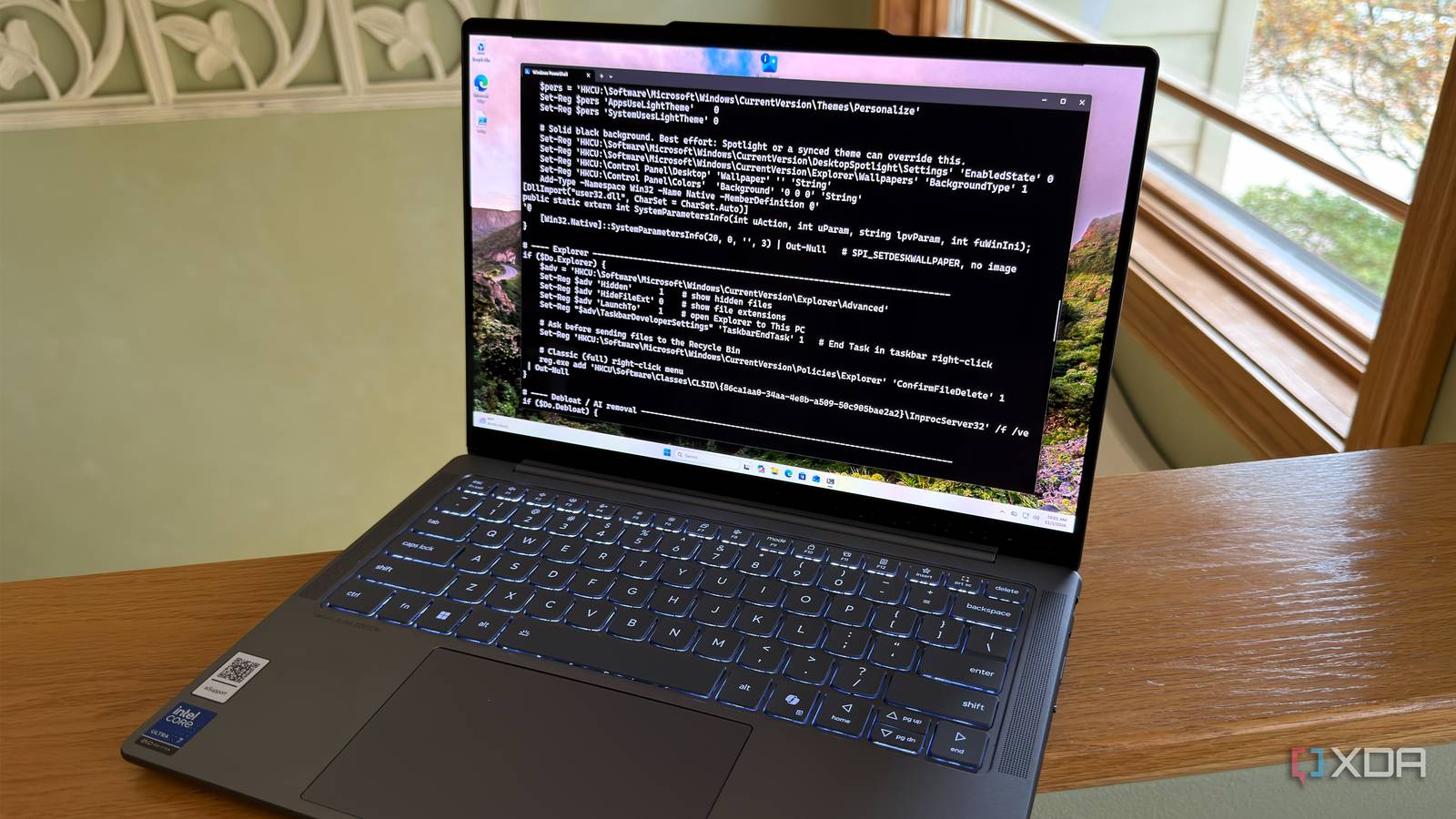
Published Nov 5, 2026, 5:00 PM EST Korbin is a Linux system administrator who spends most of his time in a terminal figuring out how things actually work. Over the last decade he's written hundreds of articles about Linux configuration, troubleshooting weird problems, and using open-source tools in the real world. He also works a lot with Windows systems and networking, especially in mixed environments where things don't always behave the way the documentation says they should. Writing things down is how he makes sense of it all and hopefully saves someone else a few hours. Every time I install a fresh copy of Windows, I go through pretty much the same ritual. First, I install a browser (I like Brave) because I don't want to use anything Microsoft shoves in my face. Next, I download a slew of everyday applications, toggle off all the annoying settings Windows enables by default, and remove the remaining bloat. I've always known that a setup script would be the best answer to automating this. But that means chasing down a bunch of PowerShell commands, winget app IDs, and registry edits, then compiling it all into a script. It sounded like tedious work, so it stayed low on my to-do list. Then, I decided to let Claude Code tackle the job for me. Now I have a PowerShell script that sets up a new Windows install just the way I like it in only a few minutes, and I no longer have to remember all the little settings I'd ordinarily tweak. Finding the right commands is the worst part But Claude Code made that look easy I didn't add much preamble to my prompt to Claude. I just opened the window and started listing the settings and features I like in a newly installed Windows system. The list was split into the apps I normally install, the Explorer tweaks I make every time, the features I always disable, and a request for a nicer-looking terminal. Claude returned a single PowerShell script divided into sections, which makes it easy to comment out any part I decide not to use. It also checks before making changes, so running it more than once won't hurt anything. A summary at the end gives a breakdown of everything it did. The scripting itself isn't that big of a deal. The part of this that I never had the patience for was researching what to include inside the script. Claude checked online to get the right package IDs for winget and to find out which registry values needed to be set. Some things could be changed with a simple PowerShell command, so it collected that info too. The only part of the script that's not straightforward is the WSL install. That step requires a reboot, then the script uses a RunOnce entry to pick up where it left off. Everything the script does to Windows App installs, WSL, and numerous tweaks Apps get installed before anything else is done. Winget installs the common stuff I use almost every day, like Notepad++, Brave web browser, 7-Zip, VLC, Everything (file search), VS Code, PowerToys, and about a dozen more things. That's achieved with a simple loop: $apps = 'Notepad++.Notepad++','7zip.7zip','VideoLAN.VLC','BraveSoftware.BraveBrowser' foreach ($id in $apps) { winget install -e --id $id --silent --accept-package-agreements --accept-source-agreements } The -e flag makes the winget search strict about matching the exact package ID I typed. That's important because I want to ensure that I'm getting the official app and not something similar. The other few flags minimize the prompts I receive during installation. Next up is what essentially amounts to a handful of registry edits. That's the typical way that various settings are toggled on or off in Windows. I have it doing things like turning on dark mode system-wide, showing hidden files and known file extensions, opening Explorer to This PC by default, and confirming before sending a file to the Recycle Bin. One command per registry value does the trick, but Claude also uses variables for parts that repeat: $adv = 'HKCU:\Software\Microsoft\Windows\CurrentVersion\Explorer\Advanced' Set-ItemProperty $adv Hidden 1; Set-ItemProperty $adv HideFileExt 0; Set-ItemProperty $adv LaunchTo 1 The next part of the script is the debloat section. It removes all the things about Windows that annoy me, including but not limited to: Copilot, Recall, Bing results in Start menu, widgets, and Start menu recommendations. After that, the script wraps up with a few terminal settings and installing WSL. After rebooting, Ubuntu opens so I can finish setting that up myself, since it's the only part that requires my input. Be careful about what you let AI change Don't blindly run a dozen registry edits without checking Keep in mind that editing the wrong registry keys or executing unknown PowerShell commands can have disastrous results. Treat the PowerShell script Claude spits out the same way you treat scripts you find on Windows forums: with an abundance of caution. A new update could also render some commands in the script obsolete, so check the logs after the script runs. Since PowerShell scripts are written in plain text, it's easy to check the commands against online documentation. I had Claude Code cite its sources for everything it wrote, which made double-checking its work trivial. If you're on Pro, using Windows Sandbox to test out the script first would be the best way to verify that it works as intended. One script does my whole setup I'd always wanted a script like this, and handing off the task to Claude Code is what finally got it built. Without it, it'd likely be sitting perpetually on my to-do list. If you want to streamline your setup process, consider Claude Code a good partner to help you get it done.
Claude Code wrote the Windows setup script I kept putting off, and my fresh installs now finish in 20 minutes
Full Article
Original Source
Read the full article at Xda-developers →KhanList aggregates and links to publicly available news content. We do not host full articles from third-party sources. Always verify important information with original sources.