
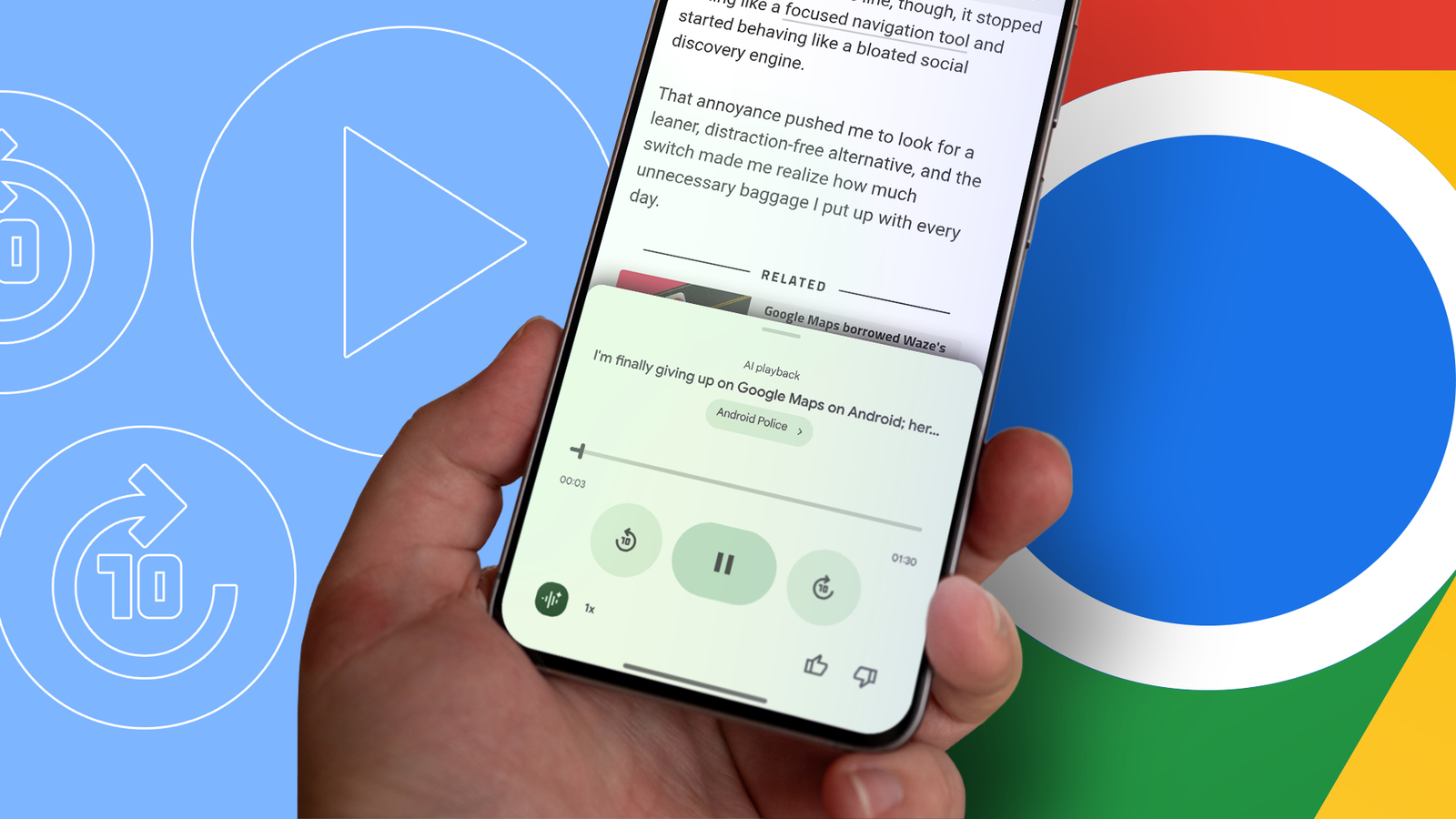
Published Sep 4, 2026, 6:00 AM EDT I cover Android with a focus on productivity, automation, and Google’s ecosystem, including Gemini and everyday apps. With a background in engineering and software development, I tend to go beyond surface-level tips and focus on how features fit into real workflows. Before joining AP, I wrote for tech publications such as Gizbot in 2023 and iJunkie (formerly known as iPhoneHacks) from 2021 to 2022. I read a lot in Chrome on my phone, but getting through a long article can start to feel like work. After a while, my eyes want a break even when I still want to know what's on the page. Chrome has a simple feature that changed how I handle longer reads. I can keep up with an article without spending all that time staring at my screen, and I wish I'd started using it sooner. I found a simple way to stop staring at the screen Here's a better way to consume long articles Chrome for Android has a feature that can turn a web page into something I can listen to instead of read. On a supported article, you can tap Chrome's three-dot menu icon and select Listen to this page. Chrome brings up a playback bar and starts reading the page. I didn't need to install another app or copy the article somewhere else. It was built into Chrome, which is probably why I'd overlooked it for so long. Listen to this page is currently available in Chrome on Android. It isn't available on every web page, so the option may not appear in Chrome's three-dot menu for unsupported pages. I can choose how I want to listen to the article Either have Chrome read it or let AI handle it The Listen to this page feature offers two ways to consume an article. Standard playback reads every word on the page, while AI playback turns the content into a podcast-like conversation between AI voices. Standard playback is the better choice when I want to hear the article exactly as it was written. AI playback is more interesting when I don't necessarily need every sentence. Instead of reading the article back to me, it generates a conversation based on the page. It feels like listening to a short podcast about what I'm reading, which makes longer articles easier to get through when I'm not looking at the screen. I can switch between the two modes from the playback controls. After the player is open, I tap it and select the waveform icon in the lower-left corner. I prefer Standard playback for detailed pieces when I don't want to miss anything. However, for long features or articles where I want to grasp the main points while multitasking, I'll switch to AI playback. Customize how Chrome reads the article Fine-tune the listening experience When playback is running, I can play or pause the audio, jump 10 seconds backward or forward, and change the playback speed by tapping the speed control. All those controls are available while I'm listening, whether I'm using Standard playback or AI playback. If I'm using Standard playback, there's another set of options tucked behind the three-dot menu icon in the playback bar. I tap Voice to choose a different voice. I can also turn Highlight text & auto scroll on or off. When enabled, Chrome highlights the text as it's being read and moves down the page automatically, which is useful when I'm still looking at the screen and following along. I can put my phone down without stopping the article You can walk away from the screen and keep listening This is probably my favorite part of Listen to this page, because I don't have to keep the article open in front of me the entire time. After playback starts, I can switch to another tab and continue browsing while the audio keeps going. I can even lock my phone and keep listening, which means the screen doesn't have to stay on because I want to finish an article. If I'm reading a 15- or 20-minute article, I don't have to spend all of that time looking at my phone. I can start the article, put the phone down, and carry on with my chores while Chrome handles the reading. I've used it when I'm walking around the house, getting ready, or doing something that doesn't require my attention. Long articles don't feel like such a chore anymore I still prefer reading some articles, especially when they rely on images, charts, or other visual details. But for long pieces where I mainly want to understand what is being said, having Chrome read them to me gives me another option. Now, I have started using the Listen to this page option instead of procrastinating on long articles. I can give my eyes a break without putting off the rest of my reading.
Chrome's hidden audio feature finally helped me clear my reading backlog
Full Article
Original Source
Read the full article at Androidpolice →KhanList aggregates and links to publicly available news content. We do not host full articles from third-party sources. Always verify important information with original sources.