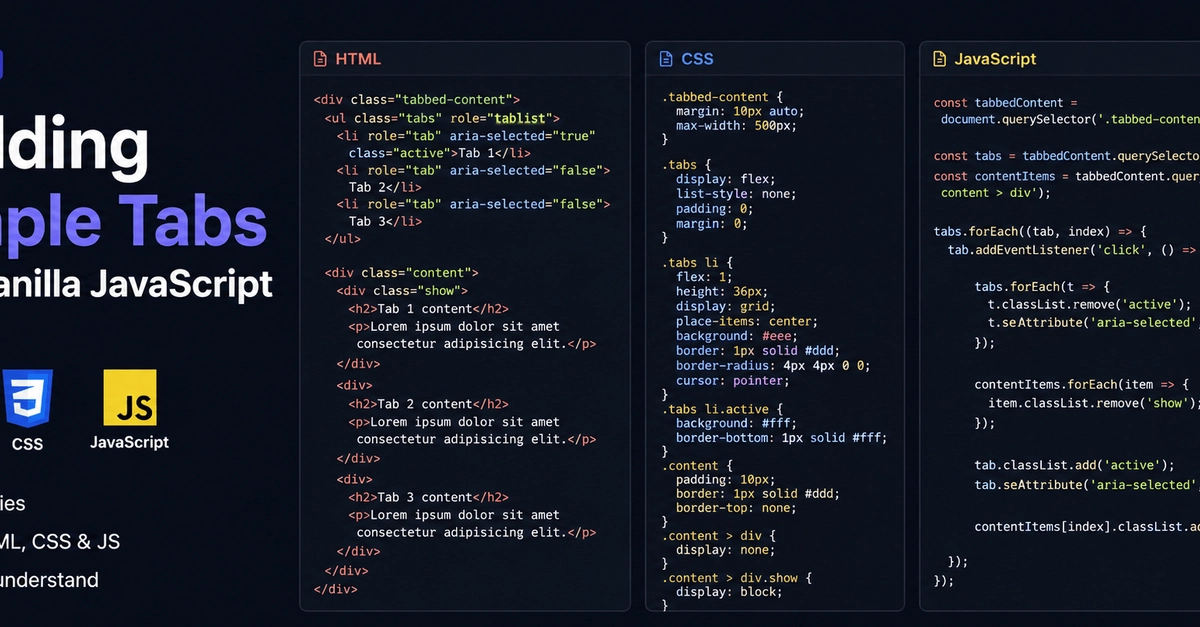
Tabs are one of those UI patterns you see everywhere — dashboards, settings pages, pricing sections, docs, etc. In this post, we’ll build a fully working tab system using only HTML, CSS, and JavaScript. HTML Structure The HTML Structure is minimalistic: Tab 1 Tab 2 Tab 3 Tab 1 content Lorem ipsum dolor sit amet consectetur adipisicing elit. Tab 2 content Lorem ipsum dolor sit amet consectetur adipisicing elit. Tab 3 content Lorem ipsum dolor sit amet consectetur adipisicing elit. Enter fullscreen mode Exit fullscreen mode As you can see, on page load, the first tab has the class name active, and the first panel has the class name show. The aria-selected attribute helps with accessibility. The CSS Styling .tabbed-content { margin: 10px auto; max-width: 500px; } .tabs { display: flex; } .tabs li { flex: 1; border: 1px solid #ddd; border-radius: 4px 4px 0 0; background: #eee; cursor: pointer; height: 36px; display: flex; flex-direction: column; justify-content: center; align-items: center; } .tabs li.active { border-bottom: 1px solid #fff; background: #fff; } .content { padding: 10px; border: 1px solid #ddd; border-top: none; } .content > div { display: none; } .content > div.show { display: block; } .content h2 { font-size: 18px; margin-bottom: 10px; } .content p { font-size: 14px; } Enter fullscreen mode Exit fullscreen mode The JavaScript Logic const tabbedContent = document.querySelector('.tabbed-content'); const tabs = tabbedContent.querySelectorAll('.tabs li'); const contentItems = tabbedContent.querySelectorAll('.content > div'); tabs.forEach((tab, index) => { tab.addEventListener('click', () => { // Reset all tabs tabs.forEach((t) => { t.classList.remove('active'); t.setAttribute('aria-selected', 'false'); }); // Hide all content contentItems.forEach((item) => { item.classList.remove('show'); }); // Activate clicked tab tab.classList.add('active'); tab.setAttribute('aria-selected', 'true'); // Show matching content contentItems[index].classList.add('show'); }); }); Enter fullscreen mode Exit fullscreen mode How It Works We match Tab 1 to Content 1, Tab 2 to Content 2, and Tab 3 to Content 3 by using index: tabs.forEach((tab, index) => {}). So when a tab is clicked, we show the corresponding panel with contentItems[index].classList.add('show'). Before activating a new tab, we always reset everything using: tabs.forEach(t => { t.classList.remove('active'); }); contentItems.forEach(item => { item.classList.remove('show'); }); Enter fullscreen mode Exit fullscreen mode This ensures only one tab is active and only one panel is displayed at a time. Conclusion In conclusion, each tab controls one content panel, and everything else is just state management. No frameworks needed. No extra abstractions. Just clean DOM manipulation and a clear mental model.
Building Simple Tabs with Vanilla JavaScript
Full Article
Original Source
Read the full article at Dev →KhanList aggregates and links to publicly available news content. We do not host full articles from third-party sources. Always verify important information with original sources.