
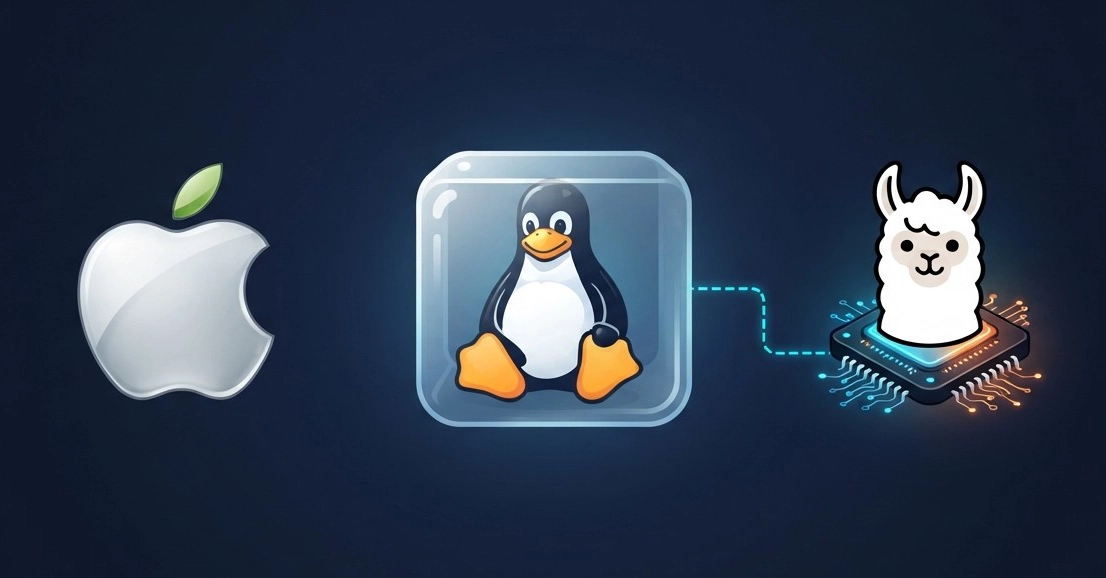
This article walks through building a Debian 13 machine under Apple's container CLI on an Apple silicon Mac, and then wiring that machine to a local LLM running on the Mac's own GPU. The VM is where your app lives. The Mac is where the model thinks. A Linux VM under container gets virtual CPUs and virtual devices and no Metal access, so running a model inside it wastes the one piece of hardware that makes a Mac good at this. The split that works is the obvious one once you see it: customize your app in a real Debian box, run it with container machine run, and have it call Ollama on macOS over the VM network. Getting there has two halves, and the first one fails silently. container machine create debian:13 succeeds. The machine is created. It just never boots, and nothing on the command line tells you why. The official debian:13 image has no /sbin/init, so a machine made from it stays stopped forever. A small Dockerfile adding systemd-sysv fixes it, and two more lines stop every machine from sharing one machine-id. The VM reaches the Mac at 192.168.64.1, with no port forwarding and no hostname to look up. Ollama must listen on 0.0.0.0, and brew services restart silently undoes that. From inside Debian, gemma4:e2b answered at 45.2 tok/s, loaded 100% on the GPU. Gemma 4 thinks before it answers, so a small token limit returns an empty reply that looks like success. https://github.com/xbill9/apple-container-debian-tips The Machine Everything below was run on 2026-09-13: Mac VM Hardware Apple M3, 8 GB 2 CPUs, 2 GB OS macOS 27.0 (26A428) Debian GNU/Linux 13 (trixie) Kernel Darwin Linux 6.18.35 aarch64 Runtime container 1.4.1 systemd, running LLM Ollama 0.33.3 on Metal calls http://192.168.64.1:8000 8 GB is the constraint that shapes every choice here. One model, one 2 GB machine, and the image builder stopped when it is not building. At This Point You Should Have An Apple silicon Mac on macOS 26 or newer. container does not run on anything else. A real Terminal window for the two steps that need a TTY. Homebrew, for Ollama. About 1.4 GB of disk for a Debian machine image, plus the model. Steps 0 through 5 build the VM. Steps 6 through 9 add the model. The two halves are independent, and Step 7 tests the Mac on its own before a VM is involved, which is what makes a failure in Step 9 easy to place. Containers and Machines Are Not the Same Thing This distinction caused the most confusion, so it goes first. container runs Linux in two ways: Container Machine What runs one program from the image a whole booted Linux system (systemd) Disk throwaway persistent Your Mac home folder not mounted mounted at /Users/ You are root your own Mac user (uid 501) Official debian:13 works? yes, as-is no A container is fine for running one command. A machine is what you want for an app you keep customizing — packages you installed yesterday are still there, your source tree is already mounted, and services start under systemd like they would on any Debian server. And container is not Docker. There is no Docker Desktop, no dockerd and no containerd process. Each container and each machine runs in its own lightweight VM, managed by Apple's own launchd agents. The images, though, are ordinary OCI images, so Docker Hub works. Step 0 — Install container and a Kernel Download the signed .pkg from https://github.com/apple/container/releases and verify it: pkgutil --check-signature container-1.4.1-installer-signed.pkg # Developer ID Installer: Apple Inc. - Containerization (UPBK2H6LZM) # Notarization: trusted by the Apple notary service Enter fullscreen mode Exit fullscreen mode sudo installer needs a real TTY, so either run it in a Terminal window or use the GUI installer: open container-1.4.1-installer-signed.pkg Enter fullscreen mode Exit fullscreen mode Then start the services. container system start stops to ask about downloading a Linux kernel, and a script cannot answer that prompt, so set the kernel explicitly: container system start container system kernel set --recommended container system status # status running # client.version 1.4.1 # server.version 1.4.1 Enter fullscreen mode Exit fullscreen mode That pulls the Kata Containers kernel. Without it, nothing runs. Step 1 — Watch the Official Image Fail to Boot This step exists because the failure is invisible. Pull the image and look for an init: container image pull docker.io/library/debian:13 container run --rm debian:13 sh -c 'ls -l /sbin/init; command -v ps ip less sudo; echo done' Enter fullscreen mode Exit fullscreen mode ls: cannot access '/sbin/init': No such file or directory done Enter fullscreen mode Exit fullscreen mode No init, and no ps, ip, less or sudo either. A container never boots, so its image does not need an init. A machine boots a kernel, and Apple's /sbin.machine/init ends with a hard-coded exec /sbin/init. Try it anyway and the logs say so: container machine create debian:13 --name debian13-vm # creates, but never boots container machine logs debian13-vm # /sbin.machine/init: 74: exec: /sbin/init: not found container machine delete debian13-vm Enter fullscreen mode Exit fullscreen mode container machine logs is the first place to look when a machine will not boot. Apple's own docs use alpine:3.22 because BusyBox happens to provide /sbin/init. Step 2 — Build a Debian Image That Has an Init In an empty directory, create Dockerfile: FROM debian:13 ENV DEBIAN_FRONTEND=noninteractive RUN apt-get update \ && apt-get install -y --no-install-recommends \ systemd-sysv dbus sudo ca-certificates procps less iproute2 iputils-ping curl \ && rm -rf /var/lib/apt/lists/* RUN systemctl mask systemd-modules-load.service RUN : > /etc/machine-id && rm -f /var/lib/dbus/machine-id CMD ["/sbin/init"] Enter fullscreen mode Exit fullscreen mode Every line is there because something broke without it: Line Why systemd-sysv Provides /sbin/init, the one hard requirement procps less iproute2 iputils-ping curl ca-certificates The basic tools the official image leaves out. curl is how the VM will call the model. sudo First boot already gives your Mac user passwordless sudo; only the package is missing dbus The system message bus that systemd services use systemctl mask systemd-modules-load.service Apple's kernel has no loadable modules, so this unit always fails and systemd reports degraded : > /etc/machine-id && rm -f /var/lib/dbus/machine-id Installing dbus writes a machine ID into the image. Without this line every machine from the image shares one ID CMD ["/sbin/init"] Ignored by machines, but marks this as a machine image The machine-id line is the one I found the hard way. Every machine I created had the same ID, across separately built images and even from a snapshot whose /etc/machine-id was emptied — because systemd copies dbus's build-time copy into an empty /etc/machine-id at boot. Emptying one file is not enough. Remove the other. Build it. The builder holds 2 CPUs and 2 GB while it runs, and container build starts it but never stops it: container builder start container build -t debian13-machine . container builder stop Enter fullscreen mode Exit fullscreen mode The build took about 10 seconds. debconf: ... Readline lines only mean there is no terminal. Step 3 — Check the Image Before You Commit to It This is the check I skipped the first time: container run --rm debian13-machine sh -c 'ls -l /sbin/init; wc -c ../lib/systemd/systemd 0 ls: cannot access '/var/lib/dbus/machine-id': No such file or directory Enter fullscreen mode Exit fullscreen mode You want /sbin/init present, a 0-byte machine-id, and no dbus copy. Check with ls, not readlink -f — readlink -f /sbin/init prints a path even when the file is missing. Step 4 — Create the Machine, and Wait for It container machine create debian13-machine --name dev-vm --cpus 2 --memory 2G Enter fullscreen mode Exit fullscreen mode create returns in about a second, before the VM has booted. A command sent straight away fails with an error that points in completely the wrong direction: Error: The operation couldn’t be completed. Operation not supported on socket Enter fullscreen mode Exit fullscreen mode That is not a socket problem and not a TTY problem. It is a machine that has not finished booting. Poll until it answers — 13 seconds here: until container machine run -n dev-vm --root -- true 2>/dev/null; do sleep 2; done Enter fullscreen mode Exit fullscreen mode Then give systemd a few more seconds. systemctl is-system-running says initializing for a while after first boot. Step 5 — Check It Is Really Running container machine run -n dev-vm -- '. /etc/os-release; echo "$PRETTY_NAME"; uname -srm; systemctl is-system-running; id; sudo -n id -u; nproc' Enter fullscreen mode Exit fullscreen mode Debian GNU/Linux 13 (trixie) Linux 6.18.35 aarch64 running uid=501(xbill) gid=20(dialout) groups=20(dialout) 0 2 Enter fullscreen mode Exit fullscreen mode ✅ running, not degraded or initializing: systemd is fully up. ✅ id: you are your Mac user, created in the VM on first boot. ✅ sudo -n id -u printed 0: passwordless sudo works. ✅ Your Mac home folder is mounted at /Users/. Pass a command as one quoted argument. machine run joins its arguments with spaces and re-parses them with /bin/bash -c inside the VM, so your host-side quoting is lost: container machine run -n mkdm-test-vm --root -- echo '$0' 'a b' # /bin/bash a b ($0 expanded in the VM, spaces collapsed) Enter fullscreen mode Exit fullscreen mode So -- sh -c '...' silently runs the wrong command and prints nothing. The snippet is already run by bash; hand it over whole. Step 6 — Customize It Like a Real Box This is the part a container cannot do. Anything you install lives on the machine's own disk: container machine run -n dev-vm --root -- 'apt-get update && apt-get install -y --no-install-recommends git vim-tiny' Enter fullscreen mode Exit fullscreen mode And it survives a restart: container machine stop dev-vm # takes about 10 s container machine run -n dev-vm -- 'git --version' # boots it again # git version 2.47.3 Enter fullscreen mode Exit fullscreen mode After a restart, machine run answers before systemd does — systemctl said Failed to connect to system scope bus for the first few seconds. Wait before using it. Deleting the machine deletes these changes. To keep them, add the packages to the Dockerfile and rebuild, or snapshot the machine into an image. Interactive shells need a real Terminal window; from scripts and agent tools they fail with the same "not supported" error as Step 4: container machine run -n dev-vm # shell as you container machine run -n dev-vm --root # shell as root Enter fullscreen mode Exit fullscreen mode The short way Steps 2 through 5 are what bin/mkdebian-machine in the repo does, including the /sbin/init check, the boot poll, and stopping the builder if it was stopped before. A --setup script runs inside the new machine as root: bin/mkdebian-machine new -t debian13-machine -m dev-vm -p sudo bin/mkdebian-machine new -m dev-vm -p "git vim" --setup ./setup-dev.sh Enter fullscreen mode Exit fullscreen mode -p packages are baked into the image. --setup changes only that machine. bin/mkdebian-machine publish dev-vm snapshots a hand-customized machine into an image and scrubs your user, SSH host keys and logs first. Why the Model Does Not Run in the VM A VM gets no GPU. Linux inside container sees virtual CPUs and virtual devices and has no Metal access. A model running there runs on CPU, in the 2 GB you gave the machine. So the model runs on macOS, where Ollama uses the M3 GPU, and the VM calls it over the VM network: dev-vm 192.168.64.x (changes on restart) │ default route + DNS → 192.168.64.1 ▼ vmenet0 ─ bridge100 on the Mac 192.168.64.1 ← the Mac itself on the VM network │ Ollama *:8000 → Metal GPU Enter fullscreen mode Exit fullscreen mode 192.168.64.1 is the Mac's address on bridge100. It is the VM's gateway and DNS server, and it did not change across VM restarts. The VM's own address did. There is no host.docker.internal or host.container.internal. Use the IP. There is no port forwarding. The VM connects straight to the Mac, which only works because Ollama listens on all interfaces. On 127.0.0.1 the VM cannot reach it. Step 7 — Point Ollama at the VM Network Install Ollama and a model that fits in 8 GB: brew install ollama brew services start ollama OLLAMA_HOST=127.0.0.1:8000 ollama pull gemma4:e2b Enter fullscreen mode Exit fullscreen mode Ollama runs as a Homebrew launchd service. This Mac's plist had already been customized to port 8000 with OLLAMA_KV_CACHE_TYPE=q4_0 and OLLAMA_FLASH_ATTENTION=1, so only the host changes. Homebrew's own default is 127.0.0.1:11434; set port 8000 too, or adjust the URLs below. P=~/Library/LaunchAgents/homebrew.mxcl.ollama.plist cp -p "$P" "$P.bak-$(date +%Y%m%d%H%M%S)" /usr/libexec/PlistBuddy -c 'Set :EnvironmentVariables:OLLAMA_HOST 0.0.0.0:8000' "$P" # restart so launchd rereads the plist launchctl bootout gui/$(id -u)/homebrew.mxcl.ollama launchctl bootstrap gui/$(id -u) "$P" lsof -nP -iTCP:8000 -sTCP:LISTEN # ollama *:8000 Enter fullscreen mode Exit fullscreen mode Do not use brew services restart ollama. It regenerates the plist from the formula, which sets only OLLAMA_FLASH_ATTENTION=1 and OLLAMA_KV_CACHE_TYPE=q8_0. That silently puts OLLAMA_HOST back to localhost — and the VM stops reaching the model with no change on the VM side at all. This setup is open on purpose. With 0.0.0.0 and the macOS application firewall off, Ollama was also reachable from the Wi-Fi network. For a demo on a home network that is the point. Anywhere else, it is the first thing to change. Step 8 — Test the Mac Side First bin/test-mac-ollama checks Ollama on the Mac without a VM involved: the listener, localhost and 192.168.64.1, the plist, the native, streaming and OpenAI-compatible APIs, and GPU placement. It unloads the models on exit and exits 0 only when every check passes. bin/test-mac-ollama Enter fullscreen mode Exit fullscreen mode == 1. listener on port 8000 ollama *:8000 PASS ollama listens on all interfaces, so VMs can reach it == 2. HTTP on http://127.0.0.1:8000 PASS Ollama 0.33.3 answers on http://127.0.0.1:8000 == 3. VM-facing address 192.168.64.1 PASS Ollama answers on http://192.168.64.1:8000 (bridge100), the address VMs use == 4. launchd config info OLLAMA_HOST in plist: 0.0.0.0:8000 == 5. models PASS gemma4:e2b is installed == 6. native API 23 tokens @ 43.6 tok/s, load 5.7 s PASS gemma4:e2b answered through /api/generate == 7. streaming PASS streaming delivers incremental chunks == 8. OpenAI-compatible API PASS /v1/chat/completions returned text == 9. GPU PASS gemma4:e2b loaded 100% on the GPU (1.6 GB) == 10. second model: gemma4:e2b-it-qat 33 tokens @ 43.3 tok/s, load 7.5 s PASS gemma4:e2b-it-qat answered through /api/generate PASS gemma4:e2b-it-qat loaded 100% on the GPU (3.3 GB) 10 passed, 0 failed Ollama works on the Mac. Next: bin/test-vm-ollama Enter fullscreen mode Exit fullscreen mode The order is the point. If this passes and the VM test fails, the problem is the VM or the network path, not Ollama. Its check 3 is skipped until a container or machine has created bridge100, which is one more reason to build the VM first. Step 9 — Call the Model From the VM Now from inside Debian. These runs used my long-lived machine, debian13-vm, built from the same kind of image; substitute dev-vm. The native API: container machine run -n debian13-vm -- 'curl -s http://192.168.64.1:8000/api/generate -d "{\"model\":\"gemma4:e2b\",\"prompt\":\"Say hello from a Debian VM in five words.\",\"stream\":false,\"think\":false}"' # "response":"Hello from Debian VM." Enter fullscreen mode Exit fullscreen mode And the OpenAI-compatible API, with base URL http://192.168.64.1:8000/v1: container machine run -n debian13-vm -- 'curl -s http://192.168.64.1:8000/v1/chat/completions -H "Content-Type: application/json" -d "{\"model\":\"gemma4:e2b\",\"messages\":[{\"role\":\"user\",\"content\":\"Name one Debian release codename.\"}],\"reasoning_effort\":\"none\"}"' # "content":"One Debian release codename is **Bookworm**." Enter fullscreen mode Exit fullscreen mode That second endpoint is the whole argument. Anything in the VM that speaks the OpenAI API — your app, your agent, your test harness — takes http://192.168.64.1:8000/v1 as its base URL and gets a model on the Mac GPU. The app is customized and run in Debian. The inference never touches the VM's 2 GB. Step 10 — Prove the Round Trip bin/test-vm-ollama runs the whole path from inside a machine, then asks the Mac's /api/ps where the model actually loaded. It needs curl in the machine and jq on the Mac: bin/test-vm-ollama # debian13-vm, gemma4:e2b + gemma4:e2b-it-qat bin/test-vm-ollama -n dev-vm -m gemma4:e2b --no-qat Enter fullscreen mode Exit fullscreen mode == 1. network path PASS VM reaches http://192.168.64.1:8000 (connect 0.002372 s, Ollama 0.33.3) == 2. models gemma4:e2b-it-qat gemma4:e2b gemma4:e4b PASS gemma4:e2b is listed == 3. native API reply: Debian is a free and open-source operating system that forms the basis for many other Linux distributions. 22 tokens @ 45.2 tok/s, load 5.4 s PASS gemma4:e2b answered through /api/generate == 4. streaming 14 chunks: 1, 2, 3, 4, 5 PASS streaming delivers incremental chunks == 5. OpenAI-compatible API PASS /v1/chat/completions returned text == 6. GPU (asked from the Mac) PASS gemma4:e2b loaded 100% on the GPU (1.6 GB) == 7. second model: gemma4:e2b-it-qat 35 tokens @ 38.9 tok/s, load 12.4 s PASS gemma4:e2b-it-qat answered through /api/generate PASS gemma4:e2b-it-qat loaded 100% on the GPU (3.3 GB) 8 passed, 0 failed Enter fullscreen mode Exit fullscreen mode The VM hop costs almost nothing. Connect time was 2 ms. gemma4:e2b generated at 45.2 tok/s through the VM against 43.6 tok/s from the Mac itself — single runs each, so that is run-to-run variation, not the VM being faster. Generation here is limited by the M3's memory, not by the network between Debian and macOS. The GPU check reads size_vram / size from /api/ps, the same numbers ollama ps prints as 100% GPU. A wrong URL fails at step 1 and exits 1; a missing machine or missing curl exits 2. An Empty Reply Means Gemma 4 Was Still Thinking Gemma 4 is a reasoning model. With a small token limit, the whole budget goes to hidden reasoning and the answer comes back empty — with an HTTP 200 and valid JSON: Request Result native, num_predict: 40 ❌ "response":"", done_reason: length OpenAI, max_tokens: 20 ❌ "content":"", finish_reason: length; message.reasoning starts Thinking Process: native, "think": false ✅ Hello from Debian VM. in 6 tokens OpenAI, "reasoning_effort": "none" ✅ an answer in 11 tokens OpenAI, no limit ⚠️ Bookworm, but 159 tokens, mostly reasoning Check finish_reason in your app, not just the status code. Turn thinking off for quick answers, or leave room for the reasoning. Which Model Fits in 8 GB Model Quantization Loaded Speed 🥇 gemma4:e2b Q4_K_M 1.7 GB ~44 tok/s 🥈 gemma4:e2b-it-qat Q4_0, QAT (Google) 3.6 GB ~38–44 tok/s — gemma4:e4b Q4_K_M not run 9.6 GB on disk, more than this Mac's RAM gemma4:e2b is the comfortable choice. The QAT build is better quality at 4 bits, but free memory dropped to 6% with a machine running. When you are done, unload it rather than leaving 3.6 GB pinned: curl -s http://127.0.0.1:8000/api/generate -d '{"model":"gemma4:e2b-it-qat","keep_alive":0}' Enter fullscreen mode Exit fullscreen mode Where the Split Pays Off The app side is a real Debian server. systemd, apt, sudo, a persistent disk, and your Mac source tree already mounted. Customize it, snapshot it with mkdebian-machine publish, and hand the image to someone else. The model side is the Mac at full speed. Metal, unified memory, no GPU passthrough to configure — because there is none to configure. The seam is one URL. http://192.168.64.1:8000/v1 is an OpenAI-compatible endpoint. Point the same app at a different Ollama or llama.cpp server with --url and nothing in the VM changes. The VM does the work that needs Linux. The Mac does the work that needs the GPU, and neither side pretends to be the other. When Something Goes Wrong Symptom Cause Fix Machine stays stopped; logs show exec: /sbin/init: not found Plain debian:13, no init Step 2 Operation not supported on socket / by device Machine still booting, or an interactive shell with no TTY Step 4 poll; pass a command systemctl is-system-running → degraded systemd-modules-load.service failed Mask it (Step 2) Two machines share /etc/machine-id Image carries /var/lib/dbus/machine-id Last RUN line of Step 2 A quoted command prints nothing Arguments joined and re-parsed by bash One quoted argument Plugin 'container-images' not found Typed container images ls container image ls VM gets no HTTP 200 from 192.168.64.1:8000 Ollama back on localhost, often after brew services restart Step 7, then bin/test-mac-ollama Reply is empty, finish_reason: length Gemma 4 spent the budget thinking think: false / reasoning_effort: "none" Cheat Sheet # 0. install, start, kernel container system start container system kernel set --recommended # 1. the official image cannot boot as a machine container run --rm debian:13 sh -c 'ls -l /sbin/init' # 2. build a Debian image with an init (Dockerfile above) container builder start container build -t debian13-machine . container builder stop # 3. check it container run --rm debian13-machine sh -c 'ls -l /sbin/init; wc -c /dev/null; do sleep 2; done # 5. check it container machine run -n dev-vm -- 'systemctl is-system-running; id; sudo -n id -u' # 6. customize it container machine run -n dev-vm --root -- 'apt-get update && apt-get install -y git' # 2-5, the short way bin/mkdebian-machine new -t debian13-machine -m dev-vm -p sudo # 7. Ollama on all interfaces, restarted with launchctl /usr/libexec/PlistBuddy -c 'Set :EnvironmentVariables:OLLAMA_HOST 0.0.0.0:8000' ~/Library/LaunchAgents/homebrew.mxcl.ollama.plist launchctl bootout gui/$(id -u)/homebrew.mxcl.ollama launchctl bootstrap gui/$(id -u) ~/Library/LaunchAgents/homebrew.mxcl.ollama.plist # 8. the Mac on its own bin/test-mac-ollama # 9. the model from the VM container machine run -n dev-vm -- 'curl -s http://192.168.64.1:8000/v1/models' # 10. the whole round trip bin/test-vm-ollama -n dev-vm # clean up container machine stop dev-vm container machine delete dev-vm container image rm debian13-machine Enter fullscreen mode Exit fullscreen mode Summary The goal of this article was to get a persistent Debian 13 machine running under Apple's container CLI, and then let apps inside it use a local LLM on the Mac's GPU. The key to the solution was splitting the two: build an image the machine can actually boot, and leave the model on macOS where Metal is, reached over the VM network at 192.168.64.1. The results were: 🟢 The official debian:13 image cannot boot as a machine; adding systemd-sysv plus a machine-id scrub gives Debian 13 with systemd running, your Mac user and passwordless sudo 🟢 Packages installed in the machine survived a restart 🟢 From the VM, gemma4:e2b answered through the native, streaming and OpenAI-compatible APIs at 45.2 tok/s, loaded 100% on the GPU 🟢 bin/test-mac-ollama reported 10 passed, 0 failed and bin/test-vm-ollama reported 8 passed, 0 failed ⚠️ brew services restart ollama silently reverts Ollama to localhost, and the VM loses the model ⚠️ Gemma 4 returns an empty answer with a small token limit unless thinking is turned off Scope: one Apple M3 Mac with 8 GB on macOS 27.0 (26A428), container 1.4.1, a Debian 13 machine with 2 CPUs and 2 GB, Ollama 0.33.3 with OLLAMA_KV_CACHE_TYPE=q4_0 and flash attention on. Each throughput figure is a single run from the test scripts on 2026-09-13, and the model replies vary from run to run. The strategy for running a customized Debian machine on Apple container with a local LLM on the Mac GPU was validated with an incremental step by step approach. References apple-container-debian-tips | GitHub apple/container | GitHub Ollama Gemma 4 on Ollama
Build in the VM, Think on the Mac GPU: Debian 13 on Apple container With a Local Gemma 4
Full Article
Original Source
Read the full article at Dev →KhanList aggregates and links to publicly available news content. We do not host full articles from third-party sources. Always verify important information with original sources.