
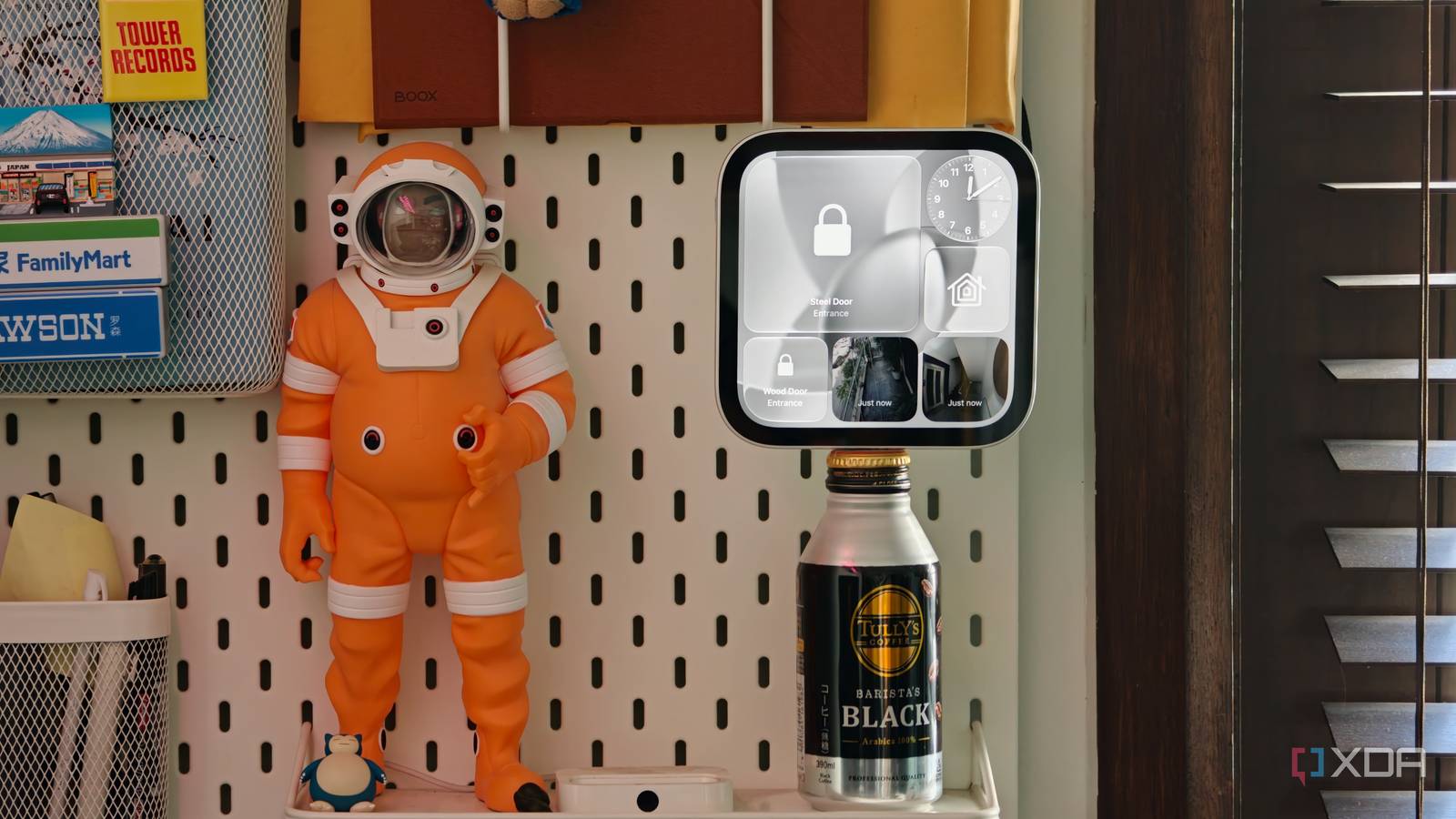
Published Nov 24, 2026, 10:00 AM EST Dhruv Bhutani has been writing about consumer technology since 2008, offering deep insights into the personal technology landscape through features and opinion pieces. He writes for XDA-Developers, where he focuses on topics like productivity, networking, self-hosting, and more. Over the years, his work has also appeared in leading publications such as Android Police, Android Authority, CNET, PCMag, and more. Outside of his professional work, Dhruv is an avid fan of horror media spanning films and literature, enjoys fitness activities, collects vinyl records, and plays the guitar. I've been using an Android tablet as a wall-mounted smart home dashboard for my Home Assistant setup for years, but I'll be honest, the experience has been less than ideal. Between worrying about keeping the battery plugged in around the clock and configuring the interface to look like something I'd actually want in my living room, getting it to work well requires way more effort than it should. Nor is it exactly plug-and-play. I need third-party apps, custom launchers, and plenty of tinkering to turn an ordinary tablet into something that feels like a dedicated smart home control panel. Having played around with the all-new, frankly long-awaited Apple HomeView for the last week, I can confirmit offers a much cleaner alternative to solve that exact same problem. The smart display is purpose-built for permanent placement, should you opt for the wall-mounted version. It has a dedicated interface for home controls, and it doesn't have a built-in battery to worry about. But more importantly, pairing it with Home Assistant unlocks a whole new level of functionality. I've been testing it with Home Assistant's HomeKit Bridge integration, which allows me to bring practically every device from my existing smart home setup into Apple's Home app and control them directly from the wall. Add to that all the other Apple goodness, and the result is a dashboard that combines the flexibility of Home Assistant with the stunning focus on hardware design and software polish that comes with Apple hardware. Home Assistant and HomeKit make a surprisingly good combination I can choose exactly which devices show up on my HomeView One of the reasons I use Home Assistant as the backbone of my smart home is that it doesn't tie me to any single smart home ecosystem. I have Philips Hue lights, Zigbee relays, Dyson fans, WiiM streamers, and plenty of other devices connected to my smart home. The downside of using Home Assistant is that the out-of-the-box interface is far from user-friendly. Nor is it designed for the living room. That's where Home Assistant's HomeKit Bridge integration steps in. It allows me to bridge the gap between Home Assistant and Apple's Home ecosystem by translating the instructions between them. Let's be real: I'm not about to replace every one of the dozens of smart home devices in my home with HomeKit-compatible ones. This integration exposes basically any supported Home Assistant entity as a HomeKit accessory. I can then add the bridge to Apple's Home app and access those devices just like I would any native HomeKit accessory. The setup is exceptionally simple. Just install the HomeKit Bridge integration through Home Assistant, choose which entities you want to expose, and pair the bridge with the Home app on your iPhone. That's it. Home Assistant handles the underlying device management, and HomeKit gives you the interface. More importantly, you can choose exactly which devices appear in HomeKit. You don't really need every sensor or automation exposed on your dashboard. In fact, you can restrict the bridge to just the devices you want to control, keeping the interface compact. I've got just under 90 different smart home devices, so being able to choose exactly which ones show up on the screen is essential. The other big advantage is how HomeKit communicates with accessories. HomeKit is designed from the ground up for local control, which means compatible devices can communicate with smart home devices without needing internet connectivity. And while that's true for HomeKit accessories, it's equally true when working via the HomeKit Bridge. You can't say that about the Google Nest Hub or Amazon Echo devices, which make it painful, or just don't allow Home Assistant entities to show, and don't really work offline either. Similarly, I'd already got my Ubiquiti security cameras integrated through Homebridge to bring up doorbell notifications on my Apple TV. Signing into my Apple account instantly brought these up on the HomeView as well. It's all surprisingly seamless. The Apple HomeView makes wall-mounted smart home dashboards practical Repurposing a tablet comes with too many compromises So what about the hardware? Repurposing an old Android tablet or iPad as a smart home dashboard is widely considered an acceptable solution. I've done it as well. But despite my attempts to build a 3D-printed enclosure and clean wall mounting, a few problems with the setup are immediately apparent once you start using it. A Crestron wall display it ain't. Yes, I'm aware Sonoff and Shelly have tried to build Home Assistant-geared wall displays, but those are usually woefully underpowered Android tablets anyway. Then there's the fact that consumer tablets really aren't designed to remain plugged in around the clock. Between battery degradation and charging management, there's a constant fear of the long-term impact on the hardware. Plus, unless you get into 3D printing a specific enclosure, installing a wall-mounted tablet isn't easy either. Trust me, I looked into wall-mounting options for my iPad, and the options that actually looked right in my living room cost hundreds of dollars. Not worth it. The Apple HomeView addresses much of that by being designed for permanent placement. The wall-mounted model, and for that matter, the desktop model, don't have an internal battery, so there are no charging cycles to manage or battery to worry about. With the wall-mounted version, even the charging approach is modular, which means giving you a choice of standard AC in-wall connectivity, USB-based power, and a Power over Ethernet option planned for the future. Put together, it gives you a surprisingly clean install compared to attaching a tablet to the wall. I particularly like this approach for hallways, the living room and even my bedroom. A wall-mounted dashboard is useful only when accessible, and it lets me check the status of my lights, adjust my thermostat, and switch off devices without constantly reaching for my phone. All that is enough to convince me, but there are other parts of the HomeView that make it a lot more interesting as a dedicated control panel. It doesn't just limit you to smart home controls. The built-in Safari browser has proven to be more useful than I expected it to be. I've used it to pull up YouTube and quick Google searches. Then there's Siri AI, which, even if not the most capable, serves in a pinch to control smart home devices via voice commands and for quick searches. You can even turn it into an ambient photo frame if you so choose. Then there's the entertainment potential. HomeView supports both AirPlay and music playback. While you can jury-rig a setup that does something similar with Music Assistant, trust me, as someone who uses both, having a proper built-in setup is way more seamless. I've been using the HomeView to listen to podcasts while doing chores around the house using the same app as I'd use on my phone. Something I can't really do with my Home Assistant dashboard. Finally, the Apple HomeView also supports extended iPhone applications. These aren't full-blown apps, but are more akin to CarPlay apps. It won't quite turn your HomeView into a dedicated tablet, but there's some additional functionality to be found. Having access to my favorite Radio Paradise and SomaFM apps has certainly been useful. Apple HomeView is the smart home dashboard I've been trying to build myself Going in, I was pretty skeptical of Apple's first foray into the smart display world. Is it the most revolutionary product on the market? Not really. But as an enthusiast, I feel Apple has hit a home run by tapping into a market that no other smart display maker is really aiming for. Home Assistant gives me the flexibility to connect and automate practically every part of my smart home, but by itself, it doesn't really have the most convenient way to interact with it. HomeView fills that gap. By integrating Apple's HomeKit ecosystem with Home Assistant's Bridge integration, I get the best of both worlds with little to no sacrifices. For a permanently mounted smart home dashboard, the Apple HomeView solves almost every pain point I've come across and is an easy recommendation if you want a no-nonsense, well-polished, premium-looking approach to the problem. HomeView Dimensions (exterior) 5.73 × 5.38–6.82 × 3.78–5.13-inches (14.55 × 13.67–17.32 × 9.60–13.03cm) Weight 2.10lb (952g) Colors Silver, Starlight, Rose, Pink, and Space Gray Display 7-inch Liquid Retina IPS LCD 1088 x 1088 pixel resolution and 500 nits CPU A18 Camera 12-megapixel f/2.4 Center Stage camera The Apple HomeView gives you a choice of wall-mounted and desktop smart displays that bring smart home controls, entertainment, apps and Siri into a dedicated home dashboard.
Apple's HomeView finally makes a wall-mounted smart home dashboard worth having
Full Article
Original Source
Read the full article at Xda-developers →KhanList aggregates and links to publicly available news content. We do not host full articles from third-party sources. Always verify important information with original sources.