
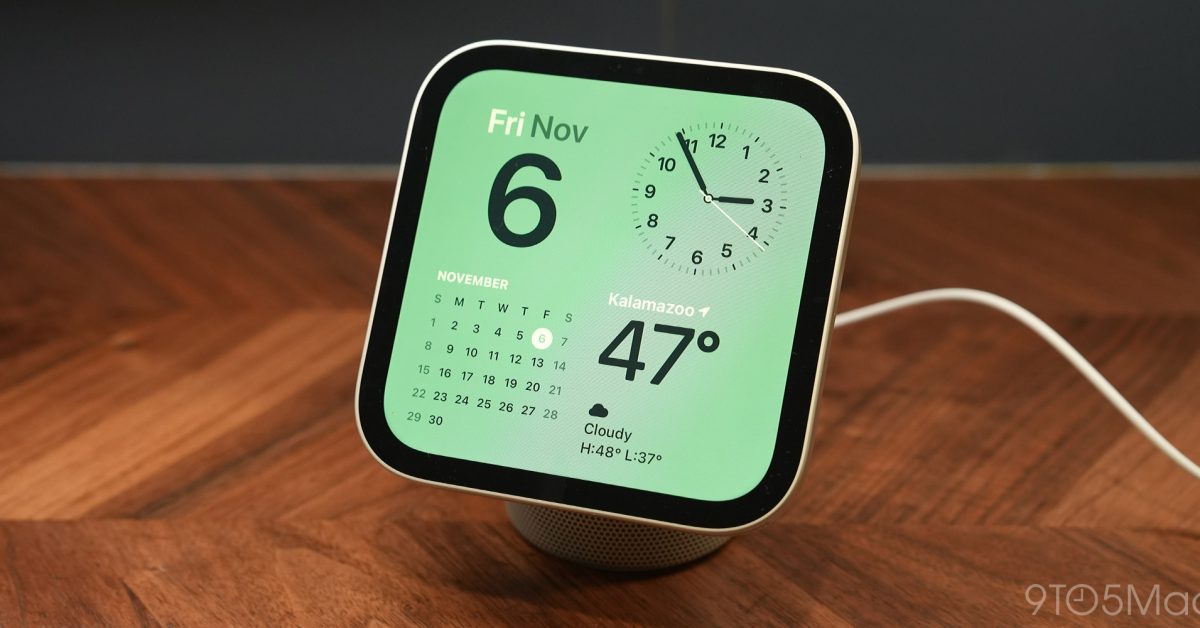
Apple’s HomeView smart display is here. It combines a 7-inch display with Siri AI and an all-new software experience that actually feels really familiar. I’ve spent the last ten days living with HomeView in my kitchen. Here’s everything you need to know. Pre-order HomeView now (save $10) Design and hardware HomeView is an adorable little thing. That’s the best way to describe it. A 7-inch square display sits atop a rounded aluminum speaker base. A small, polished metal arm connects it and lets you tilt the display forward and backward. HomeView comes in four colors: Starlight, Rose Pink, Silver, and Space Gray. My review unit is Starlight, and it’s very subtle. I had to double-check the box to make sure it was Starlight, not Silver. The decision to make the display square is interesting. Between that design and the software experience centered around faces and widgets, HomeView really does feel like an oversized Apple Watch for your home. I really appreciate the square display. It makes HomeView look less like an iPad propped up on a stand and more like a dedicated, purpose-driven device. In terms of specs, the 7-inch display has a 1088 × 1088 resolution, equating to a pixel density of 220 pixels per inch. Max brightness is 500 nits. It can also dim all the way to 0.3 nits, which means it can go in a bedroom without being a nuisance. It also has True Tone to match your room’s lighting temperature. For the past ten days, my partner and I have been living with HomeView on our kitchen counter. The square display and aluminum base look great in that setting. I don’t think an iPad-style display would look nearly as intentional. We also don’t have much spare counter space. If HomeView were any bigger or wider, I’m not sure we’d have room for it. In the lead-up to HomeView’s launch, I was skeptical of how usable a 7-inch display would be. In practice, I’ve found this to be (mostly) a non-issue. Apple has done a great job optimizing the interface for the display. Text is readable at a glance from a few feet away, timers are nice and large, and the interface adapts to show more information when you’re closer. Sometimes I wish it were bigger. Viewing a recipe requires a bit more scrolling than I would like. It’d be nice to fit a couple more widgets on the Modular face. But those trade-offs are easier to accept when I consider how much I appreciate HomeView’s compact footprint. Sound quality Apple touts that the HomeView has a custom-engineered acoustic system. There are two custom full-range drivers in the display, paired with a down-firing woofer and two force-canceling passive radiators in the base. In practice, HomeView’s sound quality falls somewhere between the HomePod mini and the full-size second-generation HomePod. Its sound quality won’t blow you away, but it’s respectable for music and podcast playback. I replaced a full-size original HomePod in my kitchen with it, and while it doesn’t sound quite as good, it makes up for it in other ways … like by having a screen. HomeView can serve as an AirPlay target, too, so you can beam content from your iPhone or other Apple device right to it. You can also AirPlay from HomeView to other AirPlay targets in your house. HomeView doesn’t have any buttons, which is a design decision I’ve found very frustrating on multiple occasions. I wish it had volume buttons, so I could quickly adjust the volume without yelling at Siri or using the touchscreen. Software HomeView’s software borrows heavily from iOS and watchOS. The interface is built around a system of faces with widgets, very similar to the Apple Watch’s complications system. The process of configuring a face will feel very familiar to Apple Watch and iPhone users. Among the face options are: Photos: Displays selected photos and collections of people, pets, nature, and more.– Shared Albums: Automatically displays photos from a shared album, allowing family members to contribute. Memories: Shows curated memories from your photo library. Flow: Interactive artwork that responds to your movement. Analog and Digital: Customizable clock faces with different colors and styles. Fade: A clock face inspired by a sundial, with shadows that change throughout the day. Calendar: Shows your monthly calendar or upcoming events. Weather: Displays current conditions, hourly forecasts, and daily weather information. Snoopy: Animated Snoopy and Woodstock scenes that change based on the time of day, weather, holidays, and sports. Modular: Customizable widgets that display information from your apps. Home Modular: Displays and controls your favorite smart home accessories. Home Camera: Shows live feeds from up to nine security cameras simultaneously. You can customize faces by long-pressing on them, which reveals a familiar “Customize” screen. Here, you can change the style, color, widgets, and background. You can also add widgets from your nearby iPhone. Apple says that widgets are visible to everyone, but widget content is only visible while your primary device is in the home. I’ve become particularly fond of the Modular face, which lets you place four equally sized square widgets. I think it provides a nice amount of glanceable information without feeling too dense. The Photos face is also a delight, essentially turning the HomeView into a digital picture frame. Support for Shared Albums is especially nice. I think Apple made the right decision by building the HomeView experience around faces rather than a traditional app-focused interface. Most of the time, HomeView is just sitting on your counter or table, and you’re not actively interacting with it. That’s why I’ve gravitated towards the Modular face. The faces system also means that HomeView doesn’t constantly demand your attention. Just like the physical design, it’s there when you need it, but otherwise does a good job blending into the background. Swiping down from the left two-thirds of the display activates Siri AI, while swiping down from the top right takes you to Control Center. Swiping up from the bottom takes you to the Home Screen, where you’ll find a grid of apps and spots to add even more widgets. There is no App Store on HomeView. Instead, there’s a collection of built-in Apple apps paired with audio and video apps through its CarPlay-based app system. Here are the Apple apps that are available on HomeView: Home Music Safari FaceTime Calendar Podcasts Messages Intercom Weather Find My Reminders Timers Alarms World Clock Audiobooks News TV Settings I’m hopeful that Apple builds on the app story for HomeView sooner rather than later. I don’t think HomeView needs its own App Store, but I do think it needs more apps. This includes more Apple apps and additional third-party apps. I desperately want Apple to add the Notes app to HomeView. My wife and I keep recipes and dinner ideas in Notes, so it would be great to have that experience available on HomeView. It feels like an odd omission right now. Overcast running on HomeView via CarPlay I think the idea of basing the system on CarPlay makes sense. There are a lot of similarities in UI between how an app should work in the car and on a smart display. The Audible app, for example, translates really well from CarPlay to HomeView, as does Spotify. However, the list of supported categories for CarPlay is a lot broader than the audio and video category Apple is allowing on HomeView right now. There are signs this could expand very soon, and I’m hopeful that’s the case. One of the cleverest aspects of HomeView is its recipe experience. When you open a recipe in Safari, HomeView gives you the option to convert it into a dedicated cooking interface. You can browse for recipes directly on HomeView, or find one on your iPhone and simply hold it in front of HomeView to hand off the webpage. HomeView then intelligently detects the actual recipe information and puts it into a streamlined interface. You can view the full ingredient list and measurements, and check off items as you go. The recipe itself is broken down into individual steps. It also intelligently identifies when you need to set a timer and gives you the option to start one directly from the recipe. This is the exact type of feature that’s perfect for HomeView, and perfect for a dedicated screen sitting on the kitchen counter. You don’t have to keep reaching for your phone, unlocking it, and finding your place in the recipe. The feature works incredibly well. I tried it with recipes of varying lengths from multiple different websites without any major problems. There are some limitations, though. For example, it does struggle if a website splits the recipe into multiple pages. Also, as I mentioned earlier, the 7-inch display means there’s more scrolling involved than I’d like. It doesn’t solve my frustration with the lack of a dedicated Notes app. Still, it’s a great example of where this design excels. Ultimately, the HomeView’s software interface is really well done. Delightful animations appear throughout the experience, like when notifications or the Siri blob slide in from the top bezel. Everything feels very smooth. The software feels familiar because of its similarities to Apple Watch and iPhone, but it’s also clearly purpose-built for the smart display form factor. Multi-user support Since HomeView is meant for everyone in your home, Apple had to engineer a multi-user system. HomeView supports up to six people, each with their own personalized Home Screen, widgets, and access to personal information. HomeView identifies the different people in your house in two ways: facial recognition and voice recognition. The goal is to recognize who’s interacting with it and customize the experience for that person. So, when I approach HomeView, it can recognize my face and display my calendar, reminders, and messages. When my wife approaches, it can recognize her instead and show her information. The facial recognition implementation is particularly interesting. HomeView doesn’t have Face ID. Instead, it uses its built-in camera for facial recognition. During setup, you’re asked to turn your head left, right, up, and down so HomeView can capture your face from different angles. In practice, HomeView’s facial recognition works surprisingly well. I was skeptical, but it’s done a good job of identifying both my wife and me. If I approach it and try to open the Messages app while it’s on my wife’s profile, I get a message saying it can’t verify my identity. If I repeatedly try, HomeView disables facial recognition, requiring my wife to authenticate using her iPhone before she can access her personal information again. In addition to protecting personal data, HomeView does a decent job of automatically switching between profiles. There’s occasionally a delay of a few seconds, so I wish it were slightly faster. Siri AI HomeView is powered by Apple’s A18 chip, which enables support for Siri AI. However, Siri AI works a bit differently on HomeView than on other Apple devices. HomeView can answer world knowledge questions on its own, without relying on a paired iPhone or iPad. This is basically the trivia questions we’ve all grown accustomed to shouting at voice assistants over the years. The difference, of course, is that Siri AI answers these questions well, unlike old Siri. On HomeView, the experience is even better because you can visually see the response on the display, often accompanied by images or other visual information. The second aspect of Siri AI is personal context. To use Siri AI’s personal context on HomeView, you need an Apple Intelligence-enabled iPhone or iPad in your house. Apple says that the device must have been recently unlocked and be connected to the same Wi-Fi network as HomeView. In my testing over the last 10 days, I’ve never run into a situation where HomeView was unable to answer a Siri AI query because my iPhone was unavailable. I’ve found Siri AI to be quite impressive and useful since it debuted in September. It’s a huge upgrade over old Siri. Broadly speaking, that experience extends to HomeView. Many of the same personal context questions I ask on my iPhone can now be answered by HomeView. And because of HomeView’s form factor, it’s more useful when multitasking. Instead of reaching for my iPhone or hoping it’s within earshot, I can just ask HomeView. Here are a few questions HomeView has answered without a hiccup: How did me and Benjamin adjust our Happy Hour recording schedule last year to accommodate Thanksgiving and Christmas? When does the Noah Kahan pre-sale begin, and has Ticketmaster emailed me a code or link yet? Last time I was in Cincinnati, where did we have dinner? What days did I arrive and depart Indiana for Christmas last year? What was that soup recipe we tried last winter and really enjoyed? In terms of speed, I’ve found HomeView to be slightly slower to answer personal context questions than my iPhone Duo. It’s not a huge difference, but it’s a few seconds each time. I assume this is because HomeView is basically handing off the request to my iPhone, adding an additional step that requests directly on the iPhone don’t have to do. Siri AI is not without its faults. There are times on HomeView where it just hangs and never responds, or responds with a generic “Sorry, try again later” message of some sort. HomeView’s primary interaction method is your voice, which makes these types of Siri AI failures even more frustrating. Smart home control HomeView can also serve as the command center for your smart home. It has a dedicated Home app, as well as multiple different Home-focused face options. You can also, of course, use your voice to control HomeKit accessories and scenes through Siri. There’s ultimately nothing particularly remarkable about HomeView’s support for smart home control. It offers much of the same functionality as the Home app on your iPhone, but in one central location that everyone in your house can use. I’ve found the screen most useful for quickly checking the status of accessories, like seeing whether a door is locked or glancing at the doorbell camera. For actually controlling accessories, I still find Siri and automations to be the easiest approach. HomeView hasn’t really changed that, although I do appreciate being able to adjust the thermostat right from the kitchen counter. 9to5Mac’s Take HomeView costs $299, which is about $100 less than I expected based on rumors. That’s a surprisingly reasonable price, I think. The key, of course, is whether you’ll actually use it day to day. When you get a new iPhone, you already have a pretty good idea of what you’ll use it for and where it fits into your life. New features might change how you use it, but the core functionality stays the same. HomeView is very different. At first, it sits on your counter and is nice to look at. It’s a very, very cute little thing. But it takes time to discover how and why it fits into your life. At first, I had no idea whether I’d actually use HomeView. But in the ten days it’s been sitting on my counter, it’s grown on me quite a bit. It’s gone from being a nice-to-have to something I use and rely on for multiple tasks each day. It’s also been interesting watching my partner interact with it. Her first impression was essentially, “It’s cute, but I don’t know what I’ll use it for.” Over the last week, however, she’s remarked multiple times how much she likes it. Whether it’s personal context-focused Siri AI interactions, simply being able to glance and see how long is left on a timer, watching the animated album art as a song plays, or the joy of the Photos face, HomeView has earned its spot. In fact, I moved HomeView from our kitchen to my office for a day to test a few features and settings in more depth. While cooking dinner that night, we both found ourselves shouting Siri commands into the air and glancing at the empty spot on the counter, only to remember it wasn’t there. I think that’s the best illustration of what makes HomeView special. You don’t have to be a HomeKit enthusiast or spend hours tinkering with smart home automations to appreciate it. It’s a device everyone in the house can find their own uses for, and it becomes more useful the longer it’s part of your routine. My favorite Apple deals right now: Pre-order the new Apple TV 4K and HomeView AirPods Pro 3 $199 (Reg. $249) M5 MacBook Air Up to $250 off M6 Mac mini: up to $150 off AirPods Max 2 $449 (Reg. $549) Follow Chance: Threads, X, and Instagram FTC: We use income earning auto affiliate links. More.
Apple HomeView review: An adorable smart display that earns its place
Full Article
Original Source
Read the full article at 9to5mac →KhanList aggregates and links to publicly available news content. We do not host full articles from third-party sources. Always verify important information with original sources.