
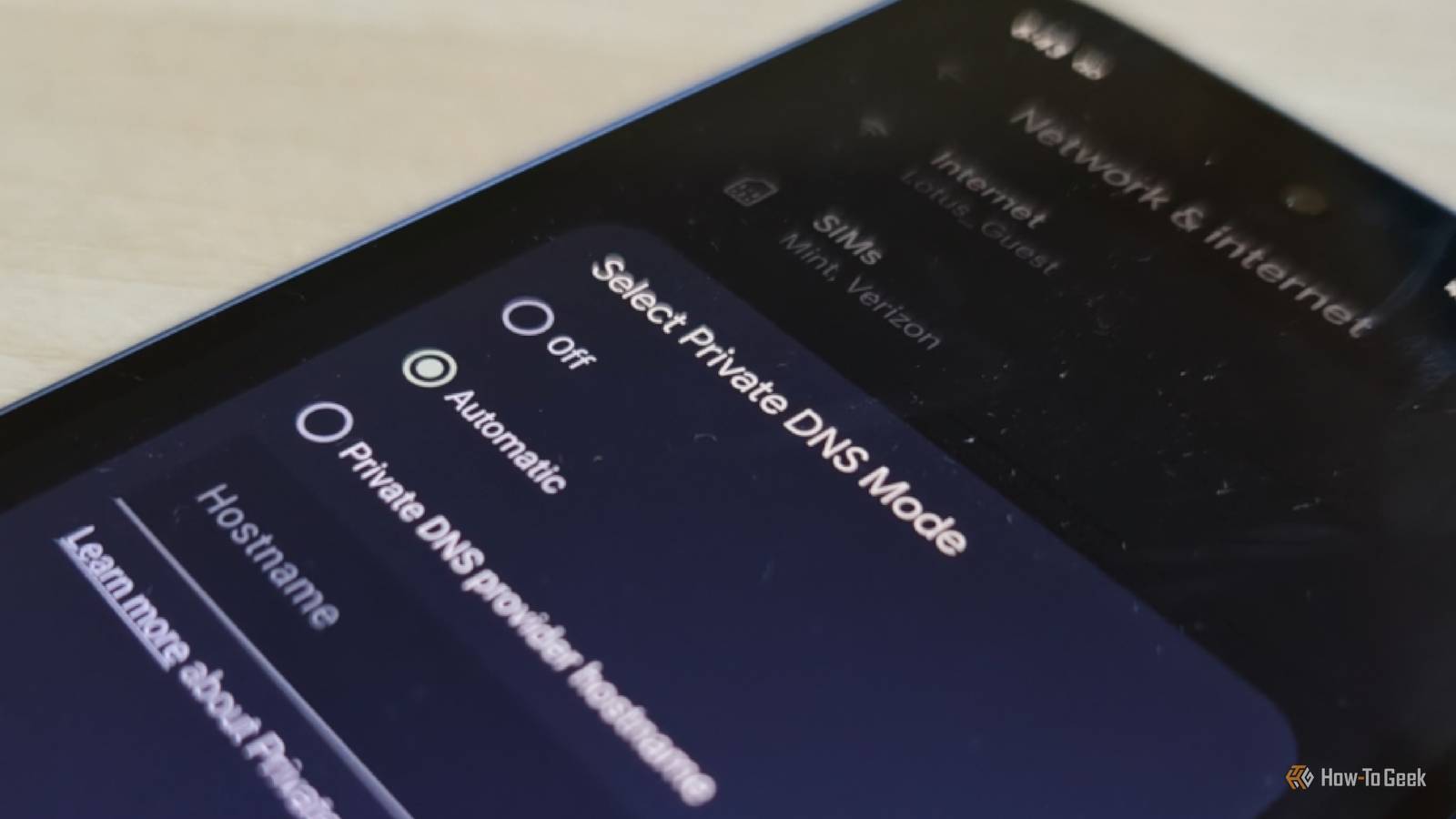
Published Sep 10, 2026, 3:30 PM EDT Bertel is a lifelong tech enthusiast with over a decade of experience writing thousands of articles about Android devices, Linux, and more. Before joining the How-To Geek team, Bertel wrote for the likes of MakeUseOf, MakeTechEasier, and Android Police—at the latter he wrote over 3,500 articles. He delights in helping others decide which tech to bring into their lives... and which tech to do without. Bertel graduated from the College of William and Mary in 2012 with degrees in History and Government. He has spent his entire career as a tech journalist covering Android, Linux, wearables, smart home devices, and more. If you care about protecting your privacy online, you've probably seen an ad for VPNs. You likely also know to seek out private messaging apps like Signal and Proton Mail. But there's another change you need to make in order to protect your phone's web traffic from prying eyes, and it's a relatively simple fix. Your DNS isn't private by default It's time to change this Credit: Bertel King / How-To Geek DNS stands for Domain Name System. It's what enables you to get somewhere by typing a website name rather than having to enter an exact numerical IP address. Without DNS, typing howtogeek.com would only yield an error message. Out of the box, your phone's DNS activity is quite likely neither encrypted nor private. Your internet service provider (such as Comcast or Verizon) or carrier (Verizon, T-Mobile, or AT&T) can see every site you visit. If you’re on a public Wi-Fi network, you run the risk of a snoop taking a peek at your activities as well. Third-party DNS providers like Cloudflare, NextDNS, and Mullvad offer a way to browse the web while hiding your domain name requests from your ISP. It does so by encrypting your DNS activity, just as encrypted email masks the content of your messages and HTTPS hides what data a website is transmitting to your device. How to enable Private DNS on Android It only takes a couple taps To keep your phone from leaking your domain name requests, you'll need to dive into your network settings. You can do so by swiping down from the top of the screen and tapping on the gear icon that opens your phone's Settings app. Then navigate to "Network & internet." Towards the bottom, you'll see an option for "Private DNS." Tapping here provides you with three options: Off, Automatic, and Private DNS provider hostname. You’ll likely see “Automatic” enabled by default, which means your phone will use DNS encryption when it detects the option available. This leaves you at the whim of your ISP or carrier, who may prefer to track and monetize your browsing activity rather than protect it. “Off” disables DNS encryption entirely. For a continuous private connection, you'll want to select a private DNS provider hostname, and you will then need to enter an address in order for the changes to take effect. If you don't yet know one to put here, you can find several options in our list of the best DNS servers for secure browsing. Just keep in mind that you will need to enter a hostname into this field, not an IP address. In other words, you’ll need to enter the private web address your provider offers, rather than a series of numbers and periods. Once you've entered your selection, you can confirm whether things are working using the Safer.com Browser Privacy Test. That said, there are circumstances where this fix may not be the one you’re looking for, and you’d actually be better off leaving the default setting in place. Private DNS does not fully mask your web activity There is still a lot your ISP can learn about you Credit: Bertel King / How-To Geek DNS encryption, whether via DNS over HTTPS (DoH) or DNS over TLS (DoT), doesn’t fully prevent your ISP from seeing what you do online. While you’re shielding your DNS lookups, all the traffic that follows still happens over their connection. This means the ISP can see the destination IP address you connected to and how much data was transmitted. The company can also see how much time you spend on the site before switching to another. You’ll need to take other steps if you sincerely wish to prevent others from gaining insights into what you do online. The more technically minded who are interested in self-hosting can rent a cheap VPS, install Wireguard, and tell all of their devices to use this VPS as a full-tunnel VPN endpoint. Those of us who aren’t interested in that whole song and dance can look into commercial VPN options. They often provide mobile apps that make encrypting a connection as simple as possible, often requiring only a single tap and granting some permissions. Just know that if you opt to use a commercial VPN, such as Private Internet Access or ProtonVPN, they tend to offer their own encrypted DNS. In that situation, you’ll want to leave the private DNS setting on your phone set to “Automatic” and trust the VPN connection to shield your DNS lookups instead. There’s no way to go online without leaking at least a little Private DNS encrypts your DNS lookups, but it doesn’t mask the resulting web traffic. VPNs may go a step further, but your ISP can tell you’re using one, and you must trust your VPN provider not to abuse your trust. It’s even possible to tell someone is using TOR, even if that may be all you’re able to tell. In other words, don’t start browsing the web with the false assumption that everything you do is private, but by reducing your online footprint as best you can, you reduce how much information can be monetized or used for online attacks.
Android's private DNS feature solves a problem most people don't know they have
Full Article
Original Source
Read the full article at Howtogeek →KhanList aggregates and links to publicly available news content. We do not host full articles from third-party sources. Always verify important information with original sources.