
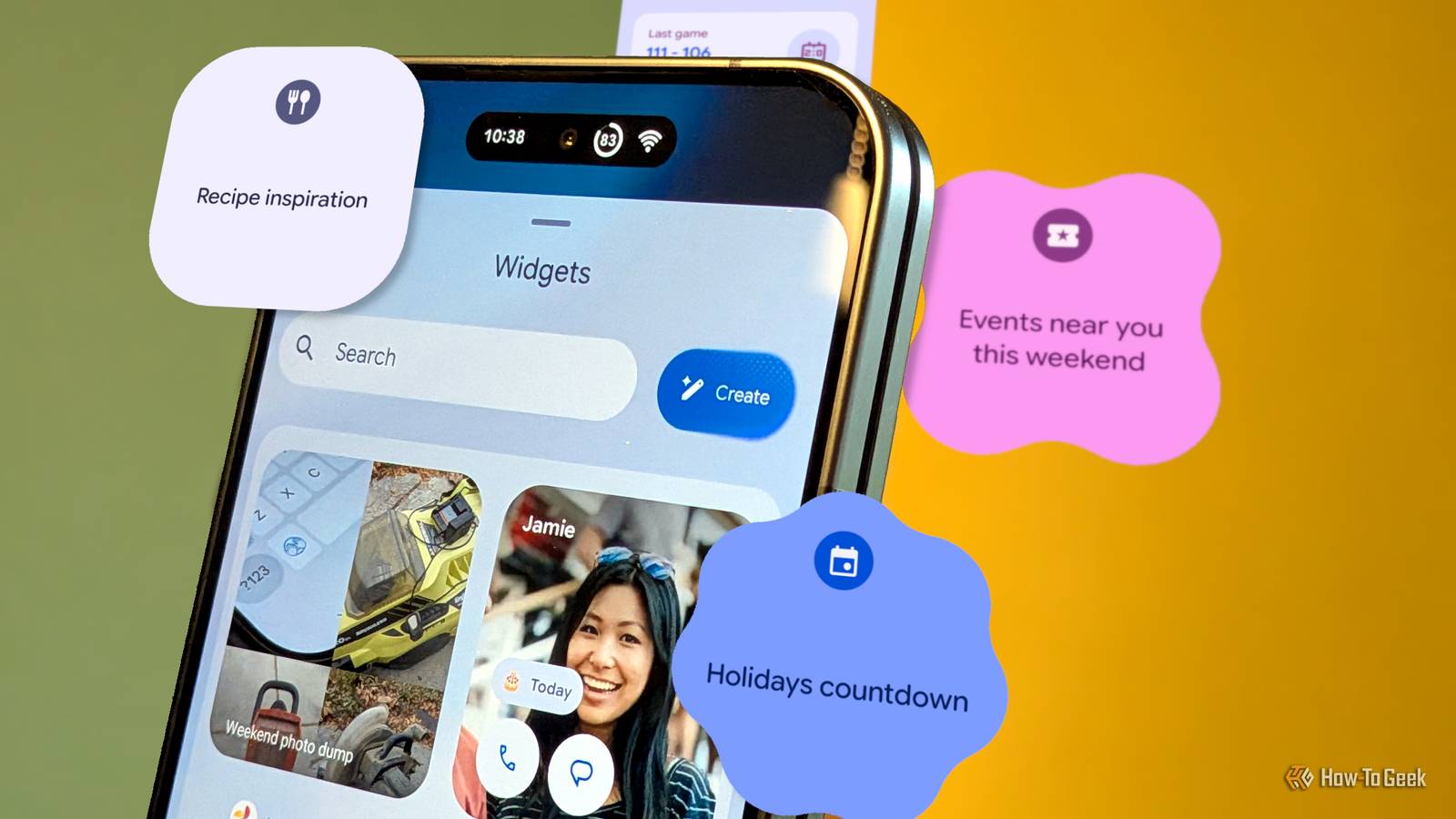
Published Nov 13, 2026, 1:00 PM EST Joe Fedewa has been writing about technology for over a decade. Android and the rest of the Google ecosystem have been a focus for years, as well as reviewing devices, hosting podcasts, filming videos, and writing tutorials. Joe loves all things technology and is also an avid DIYer and food blogger. He has written thousands of articles, hundreds of tutorials, and dozens of reviews. Before joining How-To Geek, Joe worked at XDA-Developers as Managing Editor and covered news from the Google ecosystem. He got his start in the industry covering Windows Phone on a small blog, and later moved to Phandroid where he covered Android news, reviewed devices, wrote tutorials, created YouTube videos, and hosted a podcast. From smartphones to Bluetooth earbuds to Z-Wave switches, Joe is interested in all kinds of technology. After several years of jailbreaking and heavily modifying an iPod Touch, he moved on to his first smartphone, the HTC DROID Eris. He's been hooked ever since. One of the main features announced alongside the rollout of Android 17 this Summer was a tool called “Create My Widget.” Five months later, it’s finally arriving on Pixel phones. I was fully expecting it to be yet another AI gimmick, but I’ve been pleasantly proven wrong. It’s a bit frustrating that Android updates nowadays don’t immediately include all the features that Google announces, but that’s another story. The November Pixel Drop finally brought “Create My Widget” to Pixel phones, and it will be available on more Android devices in the future. I’ve been thoroughly impressed with it so far. If your phone supports Gemini Intelligence, it should eventually receive "Create My Widget" as well. Supported devices include the latest Pixel phones, Galaxy S26 series, Galaxy Z Fold 8 and Flip 8, Pixel Watch 5 and 4, and Googlebooks. Read the full list of supported models. It just…does the thing This feels like the future In case you missed the original announcement, “Create My Widget” is a generative AI tool for creating completely custom Android home screen widgets. The idea is you simply describe the widget you want, and your phone creates it. I remember thinking it sounded very cool, but I had my doubts that it would actually be useful. The feature finally arrived on my Pixel 11 Pro Fold last night, and I was excited to give it a try. My first thought was pretty niche, but it’s a good demonstration of how it works. If you’re a sports fan, you know the struggle of finding the TV network or streaming service that your team is playing on. I wanted to fix that. So, I described a widget that should do nothing more than show the channel that my favorite teams are playing on. It pretty much nailed it on the first try. The generated widget put the channel in big text, with the opponent in small text underneath. Tapping it took me to the matchup info page on the team website. An excellent start, but I wanted a bit more. You’re free to edit the widget with new commands until it’s just right. At first, it was showing info from a past game since it was technically the closest one. I told it to default to upcoming games when there isn’t a game happening on the current day. Easy fix. Next, I wanted a bit more info about the actual event. The widget is for multiple teams across multiple sports. I told it to put a little icon in the widget to identify the sport, just so I know which team I’m turning in for. Another easy addition. That’s all there was to it! The final widget tells me the date and time of the game, opponent, sport, and, most importantly, where to watch it. Before placing it on the home screen, you can choose a shape. The widget matches the color of my wallpaper and is resizable as well, with smaller sizes only showing the channel, sport, and opponent. How it actually works There’s not much to it As mentioned, Create My Widget is currently only available for Pixel phones. Specifically, the Pixel 10 and Pixel 11 series (but not the Pixel 10a). I’m sure it will work slightly differently when it rolls out to more Android devices, but for now, here’s how it works with the Pixel Launcher. When you open the typical widget picker, there’s a new “Create” button at the top. The first time you open it, you’ll be asked how you want the widget to get information. You can choose to pull in data from your Google apps, or use web data and location only. For the TV network widget, I used the web data option. I also created a custom calendar widget, which needed Google apps data. I’ve always been annoyed that you can’t specify which calendars appear on the official Google Calendar widget. It has to be the same calendars that show up in the app. So, I asked for a widget for one specific calendar, and it worked. Anyway, after selecting the data source, you’ll see a bunch of ideas and suggestions for custom widgets. Tap “Describe your widget” to get started. Simply type out what you want to see and send it. Google will generate the widget in less than a minute. If it’s not perfect, tap “Edit” and explain the changes you want to see, or select “Create new” to start over. When you’re done, tap “Add,” and it will be placed on your home screen. From there, you can move and resize it like you would any other widget. It really is as easy as that. A genuinely useful AI feature I’m pretty skeptical when it comes to AI features. They often over-promise and under-deliver, and that’s if they even sound useful to begin with. The ability to create completely custom widgets, directly from the home screen without any coding, is, frankly, incredible. It’s the type of thing that would sound impossible if you described it to someone 10 years ago. The future is cool sometimes.
Android's new 'Create My Widget' tool is shockingly awesome
Full Article
Original Source
Read the full article at Howtogeek →KhanList aggregates and links to publicly available news content. We do not host full articles from third-party sources. Always verify important information with original sources.